An Overall View of Rosetta 2 Mac
What Is Rosetta Mac
Rosetta is a powerful program that many Mac users rely on. To understand Rosetta 2 Mac, let's break it down from three key aspects: first, its definition, which refers to the ability of a Mac to run non-ARM-based apps; second, its history, which involves the transition from Intel-based to ARM-based Macs; and third, its features, which include the ability to run a wide range of apps, including those not optimized for Apple's M1 chip.
Definition of Rosetta Mac
Rosetta is a dynamic binary translator developed by Apple for macOS, which also serves as an emulator to bridge the transition between Intel and Apple processors. It translates x86_64 processor instructions for ARM-based Apple Silicon, allowing Intel-based Mac apps to run on Apple Silicon Macs without modifying their source code.
History of Rosetta Mac
The Rosetta technology was first introduced in 2006 in Mac OS X Tiger, allowing PowerPC applications to run on Intel-based Macs. A second version, Rosetta 2, was later introduced at the 2020 Worldwide Developers Conference as part of macOS Big Sur, enabling Intel software to run on Apple silicon Macs.
Features of Rosetta Mac
Apple's Rosetta is designed to translate applications with high user interaction but low computational requirements, such as word processors, rather than complex, computationally intensive programs.
Rosetta is a user program that handles user code, which may make it less powerful than Apple's earlier PowerPC 68K emulators. However, it also helps prevent debugging and security holes. Unfortunately, Rosetta is not compatible with and cannot run certain software, including:
- Applications built for Mac OS 9.2.2 or earlier.
- Code that inserts preferences into the System Preferences pane.
- Applications that specifically require a PowerPC G5 processor.
- Kernel extensions, and applications that depend on them.
- Software that relies on a particular outdated hardware interface to function properly.
- Bundled Java applications or Java applications with JNI libraries that cannot be translated.
- Java applets in Rosetta-translated applications.
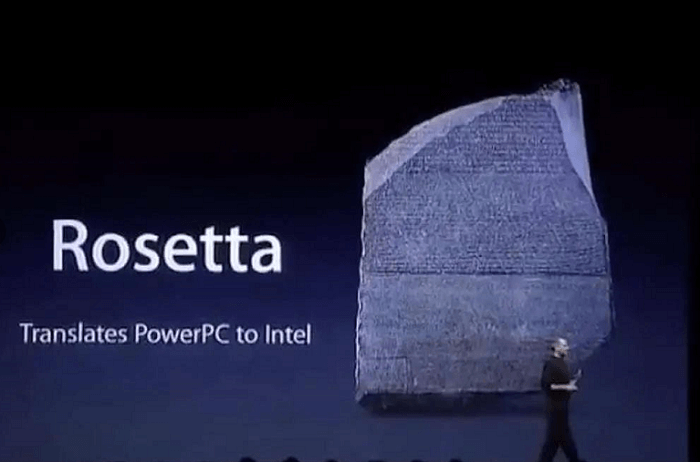
How to Install Rosetta 2 on Mac 1/2
Rosetta is a translation tool that enables Intel-only apps and programs to run on Apple Silicon Macs, making it a necessary and perfect tool for compatibility.
Rosetta 2 is not installed by default on standard macOS devices like M1 MacBook Pros, MacBook Airs, or Mac minis, but you don't need to search for it online to download it. Instead, you can install Rosetta 2 using two methods to run apps on your Apple Silicon Mac.
Method 1. Install Rosetta on Mac with App Launch
If you have x86 Intel applications on an Apple Silicon Mac, simply start the application, and users will be prompted to install Rosetta. Then, follow the steps below.
Step 1. When the prompt appears on the screen, click the "Install" button.
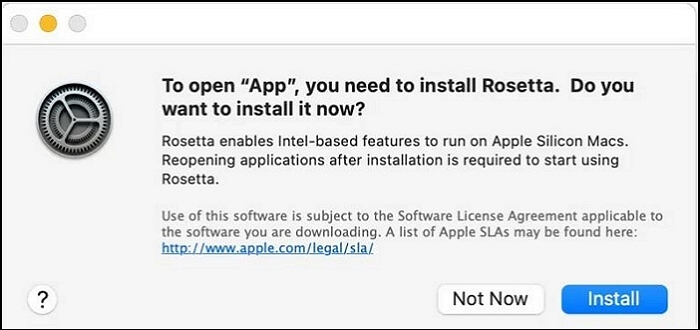
Step 2. To proceed with the Rosetta 2 installation, you will need to enter your username and admin password. This is a security measure to ensure that only authorized users can continue the installation process.
Step 3. After installing Rosetta, it will be available for any of your apps that need it.
Method 2. Install Rosetta on Mac with Terminal
To manually install Rosetta 2 on your Mac, you can use the Terminal. First, open the Terminal app on your Mac, then type in the command "softwareupdate --install-rosetta" and press Enter. This will initiate the installation process, and you should see a progress bar indicating the installation's progress.
Step 1. Open Terminal on your Mac.
Step 2. Copy-paste the following command into the command line:
/usr/sbin/softwareupdate - install-rosetta-agree-to-icense.
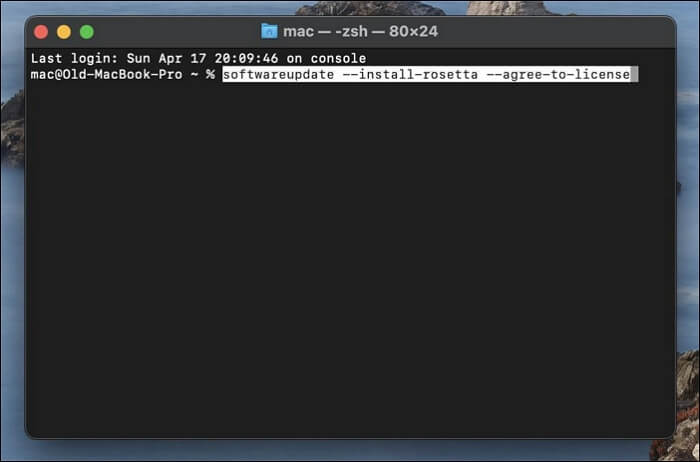
Step 3. To install Rosetta 2 on your Mac, follow these steps: 1) Open the System Settings app, 2) click on "Software Update", 3) click on "Update Now", 4) wait for the update to download and install, and 5) restart your Mac. Once you've completed these steps, Rosetta 2 will be installed automatically on your Mac.
Which Apps Require Rosetta on Mac
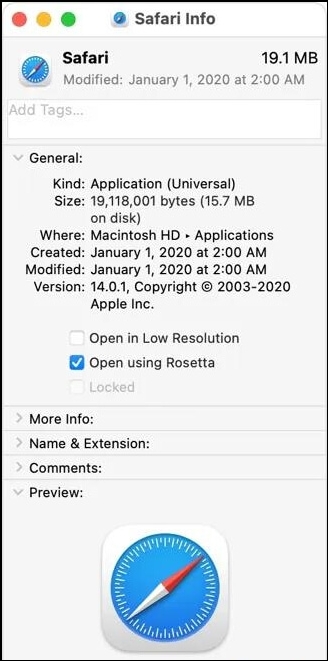
To identify and check which universal Mac apps need Rosetta, use the Get Info tool. This tool allows you to check which applications require Rosetta, making it easier to determine which ones need to be updated or modified for the new operating system. By using Get Info, you can quickly and easily identify which apps need Rosetta, streamlining the process of updating or modifying them for compatibility with the latest operating system.
Step 1. Launch Finder, and move to the Applications.
Step 2. On the Applications, Ctrl-Click what you want to check.
Step 3. Select "Get Info" from the drop-down menu.
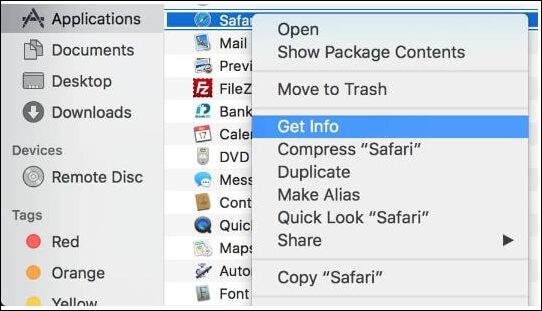
Step 4. To change the Kind option under General, you can select either Application (Intel) or Application (Universal).
- The application only supports Intel chips and requires Rosetta to run on an Apple Silicon Mac.
- The application is a universal app that supports both Apple Silicon and Intel chips, and defaults to using Apple Silicon.
Bonus Tip: How to Recover Data on Mac
When installing Rosetta on Mac, some users may experience data loss or accidental file deletion. In such situations, they may need to recover their Mac data for free.
There is a free Mac data recovery tool called Qiling Mac data recovery, which is one of the leading recovery software for Mac. It is also a third-party Mac data recovery software and one of the finest tools available today.
The specific features set includes:
- Recover 2GB of data.
- Recover photos, documents, videos, audio, emails, archives, etc.
- Recover from HFS+ fusion drive.
- Import/export file scanning results.
- Search, filter, and preview recoverable files.
Here is a one-paragraph, step-by-step guide to learn how to use this Mac data recovery software to recover deleted files on Mac:
Step 1. Select files types to start scanning.
To recover your data, launch Deep Data Recovery and select the file types you want to recover. You can click "file filters", a list of supported file types will be displayed, and you can uncheck any unwanted file types. Once you have selected the desired file types, click "Fast Scan" to proceed with the recovery process.

Note: You can choose different search modes based on where and why the data was lost.
Step 2. Search for lost files
Select the disk location to search for lost files and click the "Search for lost files" button.

Step 3. Go through the scanning results
This software will scan the selected disk volume and display various types of files, including pictures, documents, audio, videos, and emails, in the left pane.

Step 4. Select the file(s) and recover
To recover deleted files, first click on the "Data Preview" button to view the files you want to recover. Then, click the "Recover" button to restore them.
Final Verdict
Rosetta is a translation layer that allows a Mac with Apple silicon to run apps built for an Intel-based Mac, simplifying the transition to Apple silicon and giving developers more time to create universal binaries. To install the latest version, Rosetta 2, it's necessary for all users, and can be done through app launch and Terminal.
While installing and running Rosetta 2, it's unavoidable to lose data or files, but there are numerous Mac data recovery tools available, with Qiling being a top option for recovering lost data.
Rosetta on Mac FAQs
Rosetta, a compatibility layer, allows Mac users to run Intel-based apps on Apple Silicon Macs. This means you can still use apps designed for Intel-based Macs, such as Microsoft Office, Adobe Creative Cloud, and more, even if they weren't specifically optimized for the new Apple Silicon architecture. However, it's worth noting that Rosetta may not be perfect, and some apps might not work as smoothly as they would on an Intel-based Mac, or might even crash.
1. Is Rosetta 2 Safe to Download on Mac?
Rosetta is completely safe for your Mac, as it is designed by Apple.
2. Can Rosetta 2 Run Windows Apps?
Rosetta can only translate Intel Mac apps to run on Apple Silicon M1 and M2 Macs, and it's not capable of running Windows applications. The only way to run Windows apps on a Mac is to install Windows on the Mac itself.
3. How to tell if an app is using Rosetta on Mac?
Once you've installed Rosetta on a Mac, you won't be prompted to install it again.
To determine if an app is using Rosetta, you can check the "Get Info" window or the "About This Mac" > "System Report" in the Apple logo menu. In the latter, look for the "Kind" column, which will indicate whether the app is Intel or Universal. This will give you an idea if the app is using Rosetta, which translates Intel apps for Universal use.
4. How to recover data on Mac hard drive?
To recover your data on a Mac, you can try three methods: restoring from Time Machine, using the built-in Disk Utility tool, or employing a data recovery tool like Qiling Mac Data Recovery. By adopting one of these methods, you can potentially recover your lost data.
Related Articles
- What Is Control Panel? [All You Need to Know]
- Rollback from Windows 11 to Windows 10 - 2 Methods
- Hot Backup vs Cold Backup: Definition, Pros & Cons
- What Is MTBF? Mean Time Between Failures Explained
- How to Find Motherboard on Windows 11, 10, 8 and 7
Learn how to find your motherboard model in Windows using System Information, Command Prompt, PowerShell, or third-party tools. - How to Fix Physxloader.dll Is Missing or Not Found Errors
Fix Physxloader.dll is missing or not found errors by reinstalling PhysX, repairing games, or checking system files.
Products
Articles & Tutorials
- Data Recovery
- Data Backup
- File Recovery
- File Backup
- System Backup and Restore
- Disk and Partition Clone
- Technical articles
- Mobile articles
- Disk Master Help
- Windows Data Recovery Tutorials
- Windows Secure Delete Tutorials
- Windows Partition Management Tutorials
- Windows File Backup and Restore Tutorials
- Windows System Backup and Restore Tutorials
- Windows Disk Backup and Restore Tutorials
- Windows Clone Tutorials