How to See Saved Passwords in Opera GX
| Workable Solutions | Step-by-step Troubleshooting |
|---|---|
| #1. See Passwords with Qiling Key Finder | Step 1. Click "Internet & Network" under Password. Step 2. Check Browser Accounts & Passwords of...Full steps |
| #2. See Passwords with Browser | Step 1: Begin by opening your Opera GX front display. There will be an Opera icon at the top...Full steps |
| Bonus Tip: Import Passwords into Opera GX | Step 1: The first step is to go to the Opera. Click on "Settings". Step 2: A list of options will appear...Full steps |
Opera GX, developed by the Opera company, offers a unique gaming experience with additional features tailored for gamers. The software's advanced control options make it a favorite among gamers, setting it apart from other browsers.
People often get confused about how to view saved passwords in Opera GX, but it's actually quite straightforward. This article provides easy steps to follow to see saved Opera GX passwords.
Opera GX vs. Opera - What's the Difference?
Opera, one of the oldest browsers in internet history, has been a long-time favorite among users due to its robust safety features and advanced functionality, making it a top choice for those needing to access the internet.
Opera has launched a more advanced software called Opera GX, which is designed to cater to gamers with its user-friendly features. However, it's not exclusively a gaming software, as it also retains the functionality of a normal Opera browser with some additional performance enhancements.
Opera and Opera GX have some distinct features that set them apart. Among these notable differences are various features that make them unique.
- Interface
Opera is a user-friendly software that offers a simple and easy-to-use interface. It features a sidebar that provides quick access to various social media platforms like Instagram and Facebook, making it easy to stay connected. Additionally, users can switch between light and dark mode, as well as change the wallpapers, for a personalized experience.
Opera GX, primarily a gaming software, focuses more on dark themes, whereas neons are used excessively.
- Organized Workspace
The Opera GX browser has a unique feature called the organized workspace, which allows users to separate work tabs from personal tabs, enhancing organization and productivity.
The software allows users to work on multiple projects simultaneously, using multiple workspaces and adding more as needed.
- In-built Ad-Blocker
Opera GX, a gaming-focused browser, offers features not available in the standard Opera browser, including an in-built Ad-Blocker that blocks annoying ads, providing a smoother browsing experience.
In addition to its gaming features, Opera GX also offers tracking protection, allowing users to block tracking cookies used by certain websites.
- Distinguished Features
Opera has easy access to social media platforms, making it simple to interact with people. Additionally, its integrated music player is an amazing feature that allows you to listen to music while working, and there are also extra control features in Opera GX.
How to See Saved Passwords in Opera GX?
If you've forgotten your important file password, there are easy ways to retrieve your saved Opera GX passwords without any hassle.
#1. See Saved Opera GX Passwords with Qiling Key Finder
If you've forgotten your Opera GX passwords, seeking help from Qiling Key Finder can be an effective solution. This key finder software is designed to help users recover saved passwords, making it a useful tool for those who have forgotten their usernames and passwords across multiple social media platforms.
Step 1. Click "Internet & Network" under Password.
Step 2. Check the browser accounts and passwords of Chrome, Edge, Firefox, and Internet Explorer to ensure secure access and prevent unauthorized use.
"Copy" - Click it, then directly paste.
"Save" - Save as a PDF file.
"Print" - Connect Printer to print.
Qiling Key Finder has several advantages:
- This tool helps clients recover their saved passwords in several web browsers, including Chrome, Mozilla Firefox, and Internet Explorer.
- You can easily recover the lost Windows key with the help of QilingKey Finder if you plan to transfer your Windows license or install it on your computer.
- Qiling Key Finder can efficiently recover and store lost Windows product keys, such as serial numbers for Office or Adobe applications.
- It allows you to recover product keys and serial numbers of more than 10,000 popular software.
#2. See Saved Opera GX Passwords with Browser
To see saved passwords in Opera GX Browser, follow this procedure:
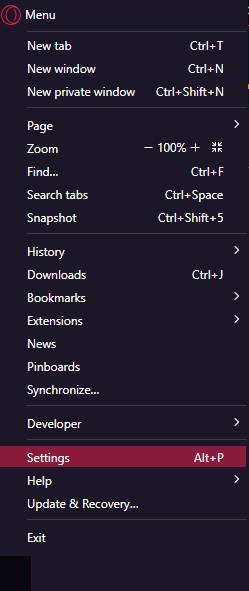
Step 1:To access the Opera GX menu, click on the Opera icon at the top left corner of the screen, which will open up the menu.
Step 2:To access advanced settings, go to the main menu and select "Settings". From the secondary menu that appears, click on "Advanced settings".
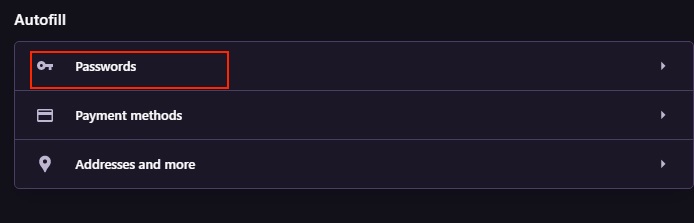
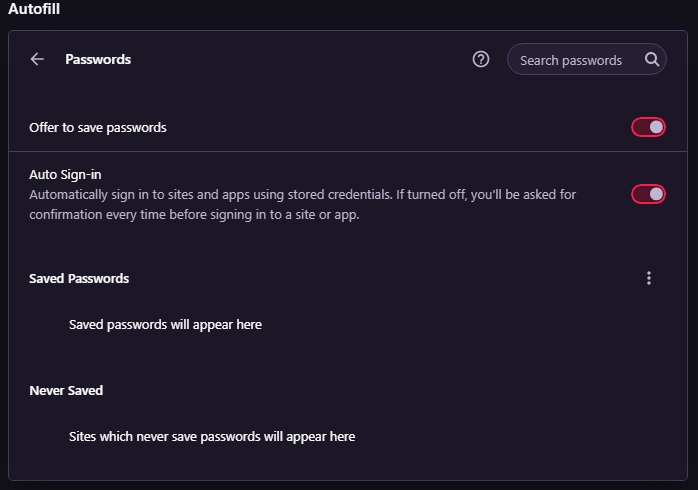
Step 3:Scroll down a bit and click on the "passwords" option under the advanced title. Then, click on "Offer to save passwords" and enable the toggle for this option.
Step 4:The password details will be visible on the screen, allowing you to check the website, username, and password of the account. To view the password, click on the eye button, and it will be displayed in front of you.
Whenever you log in to a social media or online account using Opera, a pop-up appears, offering the option to save your password. You can click the "Save" button to securely store your login credentials.
Bonus Tip: How to Import Passwords into Opera GX?
To import passwords from one Opera software to another, follow these steps: First, open the Opera browser and go to the browser's settings. Then, click on "Passwords" and select the "Import" option. Next, choose the file format you want to import from, such as CSV or JSON. After that, select the file containing your passwords and follow the prompts to complete the import process. This should transfer your passwords to the new Opera GX browser. You can also use the "Export" option to save your passwords from the old Opera software and then import them into the new one.
Let's say you are exporting a password from Opera.
Step 1:To access the settings, go to the Opera browser, click on the three dots in the top right corner, and select "Settings" from the dropdown menu.
Step 2:You will see a list of options on the screen. Click on the "Passwords" option.
Step 3:To enable the password manager, scroll down and click on the "Passwords" option, which can be found under the "Advanced" tab. Then, enable the option.
Step 4:To enable flags in Opera GX, open the browser and type "opera://flags" in the address bar. This will take you to the flags page where you can enable the option.
To enable password import, go to the password import section, toggle the switch to enable it, and then restart the system.

Step 5:To import passwords to Opera GX, go to the browser, click on "Settings," and choose "Passwords." Then, click on the three dots and select the exported passwords, which will import them to Opera GX.
To import passwords into Opera GX, follow these simple steps. First, open Opera GX and go to the "Passwords" section.
Conclusion
With the steps outlined in this article, it's now easy to view saved Opera GX passwords and import them from other software into Opera GX. Following these simple steps, you can access your saved passwords in Opera GX and also transfer them from other password management tools.
Installing Qiling Key Finder on your Windows computer allows you to recover your lost key, including forgotten passwords and Windows server product keys. This tool also serves as an Adobe serial number checker, retrieving product licenses and serial numbers. With it, you can easily recover saved passwords without any hassle.
Related Articles
- How To Find Windows Server 2019 Product Key
- Try Easy Software to Recover Product Key from Dead or Unbootable PC
- Where Do I Find Autodesk VIZ Product Key from 2021-2005
- How to Find Autodesk Product Key? Answer Is Here!
- What Is MOV File | How to Play MOV Video Files
This guide contains all the information about the MOV file. You'll learn what is MOV and how to open MOV files on Windows, macOS, Android, and iOS. By the way, we also mention the differences between MOV and MP4. - MP4 File Format | What Is MP4 Video Format
MP4 (MPEG-4) is a digital container format that stores video, audio, subtitles, and images, commonly used for sharing and streaming video content online.
Products
Articles & Tutorials
- Data Recovery
- Data Backup
- File Recovery
- File Backup
- System Backup and Restore
- Disk and Partition Clone
- Technical articles
- Mobile articles
- Disk Master Help
- Windows Data Recovery Tutorials
- Windows Secure Delete Tutorials
- Windows Partition Management Tutorials
- Windows File Backup and Restore Tutorials
- Windows System Backup and Restore Tutorials
- Windows Disk Backup and Restore Tutorials
- Windows Clone Tutorials