What Is Safe Mode On Windows And How To Enable It? [Full Guide]
Windows has introduced and will continue to release many free tools that may save you if Windows becomes corrupted or otherwise unusable, such as Safe Mode, which allows Windows to run in its most basic configuration using only necessary drivers and files.
Safe Mode is a troubleshooting feature in Windows that loads only the essential system files and drivers, excluding any third-party apps or drivers that may be causing problems. This limited environment allows you to identify and isolate the source of issues, such as malware or conflicting software, without the interference of other programs. In Safe Mode, the display is simplified to 16 colors, and many background processes are disabled, making it a stripped-down version of the normal operating system. This allows you to diagnose and resolve problems without the distraction of other apps and background processes.
What Is Safe Mode?
In Windows 10, Safe mode allows you to start your operating system without loading extra software, unlike standard operations where all usual drivers and apps are loaded. You can access Safe mode by pressing the Windows key and the letter S.
Windows 10 may start up in Safe Mode automatically if it has trouble loading normally, but you may also need to start it in Safe Mode manually to troubleshoot issues, such as blue screen errors, by observing the system while it's running in this mode.
How to Boot Into Safe Mode On Windows?
When Windows 10 starts in Safe Mode, only the essential drivers and services are loaded, making it easier to troubleshoot issues by isolating potential problems.
Method 1. Using "Shift+Restart" on the sign-in screen
Method 2. Using the system configuration tool
Method 3. Use the shutdown command in CMD
Method 1. Using "Shift+Restart" on the sign-in screen
If the computer can boot up to the sign-in screen, you will be able to access Safe Mode from there:
Step 1: Turn the computer off and back on.
Step 2: To restart your computer, press and hold the Shift key, then click on Power > Restart from the sign-in screen.
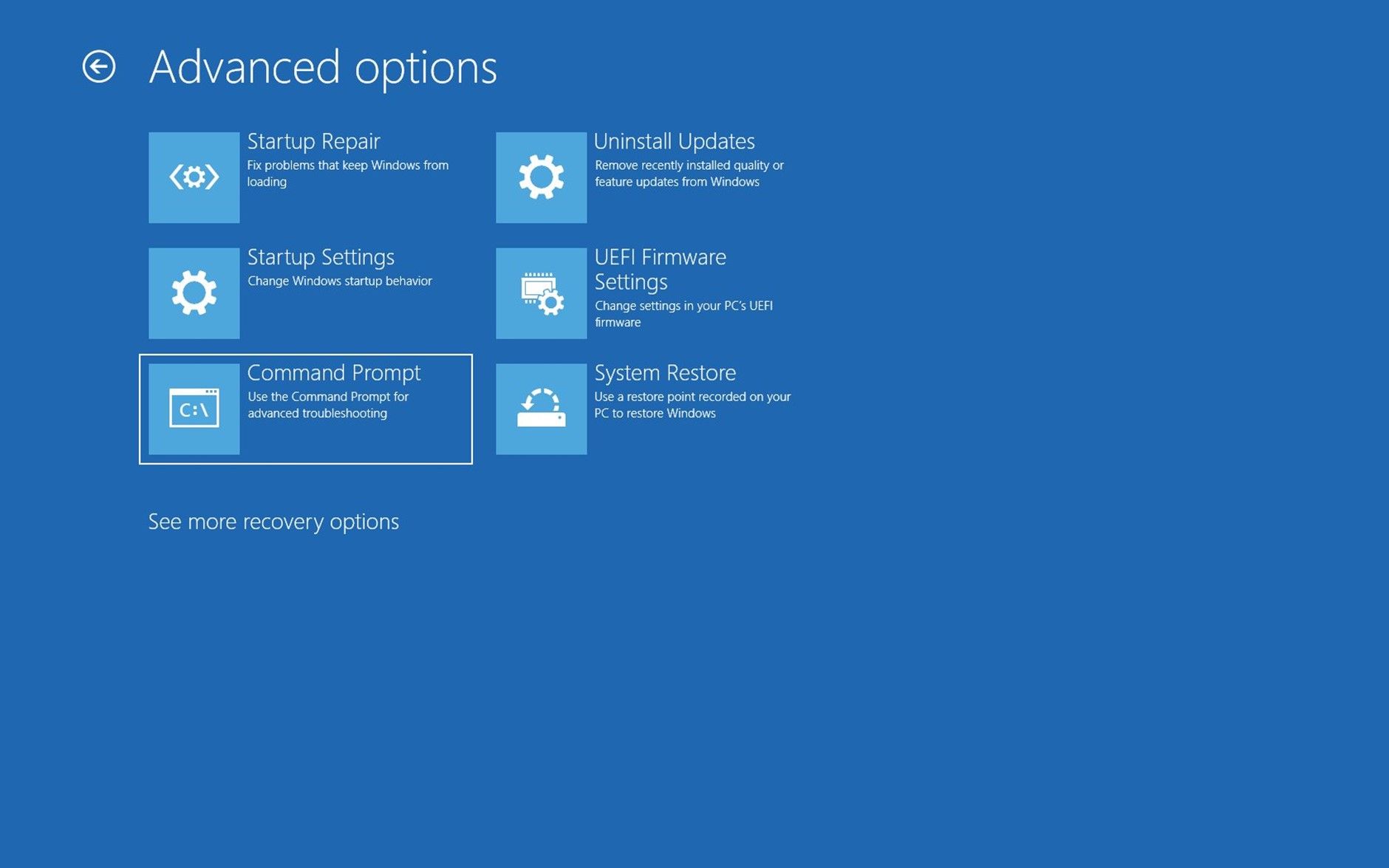
Step 3: To troubleshoot, go to Troubleshoot, then Advanced Options, followed by Startup Settings. Restart your computer and choose an option when prompted.
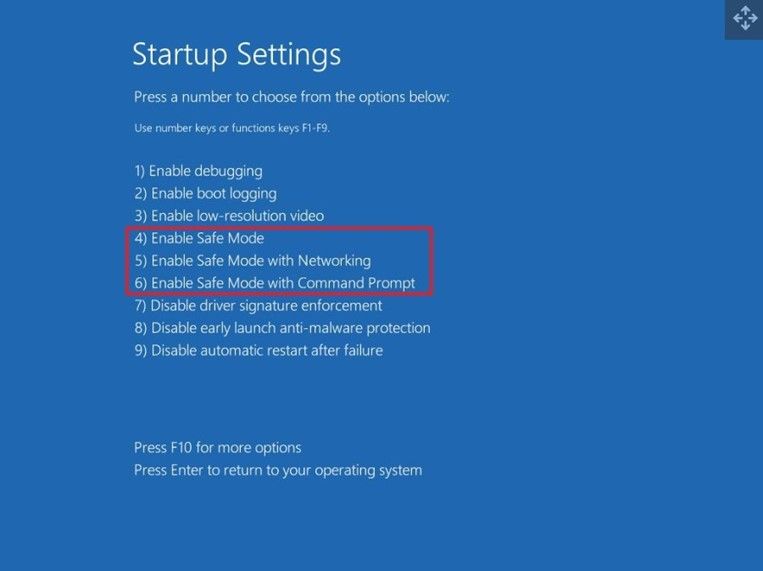
Step 4: After a system reboot, a menu of options appears. To access Safe Mode, press the number 4 or the F4 key. Alternatively, press F5 or the number 5 to access Safe Mode with Networking.

How to Start Windows 10 in Safe Mode While Booting?
To boot into Safe Mode in Windows 10, you can try one of the following six methods: Restart your PC while pressing the F8 key, use the Windows Boot Manager to select Safe Mode, enable the Safe Mode option in the Advanced Boot Options, use the System Configuration tool, enable the Safe Mode option in the Windows Recovery Environment, or use a third-party tool to create a bootable USB drive and boot into Safe Mode. These methods allow you to start your PC in a minimal environment, which can help you diagnose and fix issues that are preventing your PC from starting normally.

Method 2. Using the system configuration tool
If you can start Windows normally, you may use the utility that is included in the System Configuration folder to boot into Safe Mode, which can help identify and troubleshoot issues with your system.
Step 1: To access the System Configuration Utility in Windows, navigate to the Start menu, type "msconfig" in the search bar, and select the "Open" option from the results.
Step 2: To enable safe boot, go to the Boot tab, select the box next to Safe boot, and click the OK button.

Step 3: When you need to apply changes, click the Restart button, which will reboot your computer into Safe Mode.
Method 3. Use the shutdown command in CMD
To begin using an electronic device in Safe Mode with Command Prompt, follow these steps: Boot the device in Safe Mode, then press the Windows key + X and select Command Prompt (Admin) from the menu, type 'bcdedit /set {bootmgr} sequence 0x00000000' and press Enter, type 'bcdedit /set {bootmgr} displaybootmenu yes' and press Enter, type 'bcdedit /set {bootmgr} timeout 10' and press Enter, type 'bcdedit /set {bootmgr} default {current}' and press Enter, type 'bcdedit /set {bootmgr} displaybootmenu yes' and press Enter, type 'bcdedit /set {bootmgr} timeout 10' and press Enter, type 'bcdedit /set {bootmgr} default {current}' and press Enter, type 'bcdedit /set {bootmgr} displaybootmenu yes' and press Enter, type 'bcdedit /set {bootmgr} timeout 10' and press Enter, type 'bcdedit /set {bootmgr} default {current}' and press Enter, type 'bcdedit /set {bootmgr} displaybootmenu yes' and press Enter, type 'bcdedit /set {bootmgr} timeout 10' and press Enter, type 'bcdedit /set {bootmgr} default {current}' and press Enter, type 'bcdedit /set {bootmgr} displaybootmenu yes' and press Enter, type 'bcdedit /set {bootmgr} timeout 10' and press Enter, type 'bcdedit /set {bootmgr} default {current}' and press Enter, type 'bcdedit /set {bootmgr} displaybootmenu yes' and press Enter, type 'bcdedit /set {bootmgr} timeout 10' and press Enter, type 'bcdedit /set {bootmgr} default {current}' and press Enter, type 'bcdedit /set {bootmgr} displaybootmenu yes' and press Enter, type 'bcdedit /set {bootmgr} timeout 10' and press Enter, type 'bcdedit /set {bootmgr} default {current}' and press Enter, type 'bcdedit /set {bootmgr} displaybootmenu yes' and press Enter, type 'bcdedit /set {bootmgr} timeout 10' and press Enter, type 'bcdedit /set {bootmgr} default {current}'
Step 1: Open the Start menu.
Step 2: To launch Command Prompt in administrative mode, search for "Command Prompt" and right-click the first result, then select "Run as administrator" from the context menu.
Step 3: To activate the boot manager during startup, type the command "bcdedit /set 'bootmgr' displaybootmenu; yes" and press Enter.

Step 4: To restart the computer, type the command "shutdown /r /t 0" and press the Enter key.
Step 5: The Startup Settings menu can be accessed within the boot manager by pressing the F8 key.
Step 6: In Safe Mode, you can choose one of the provided alternatives to restart your computer. This will allow it to boot in a safe mode.
Safe Mode vs. Normal Mode
Windows offers two primary modes: Safe Mode and Normal Mode. While both have distinct functionalities and features, they cater to different needs.
- The operating system's usual mode of operation is called normal mode, which is not a precise technical term. In contrast, safe mode is a diagnostic mode used to identify issues within a computer system.
- Safe mode is better for troubleshooting since it closes any unnecessary apps at startup, making it easier to identify and fix bugs.
- In Windows, there are different modes that an Operating System (OS) can run in, with Safe Mode being one of them. Unlike regular mode, where all drivers are loaded, Safe Mode restricts certain drivers, such as graphics, sound, and network drivers, to prevent potential conflicts or issues. This means that in Safe Mode, these essential components are not available, but it can be useful for troubleshooting and resolving problems.
Final Verdict
Having the ability to boot your computer into safe mode is a helpful troubleshooting tool that can make it easier to track down and fix Windows' many quirks and faults. By booting into safe mode, you can isolate the root cause of issues and resolve them more efficiently. This skill is a valuable addition to your Windows toolkit, and it's worth exploring further to learn more about the many free programs available in the Windows ecosystem that can compete with their commercial counterparts.
Safe Mode FAQs
1. Should I use Windows Safe Mode?
When Windows 10 won't start properly, booting into Safe Mode is a good idea, as it allows the operating system to boot up with many of the frills turned off, making it easier to troubleshoot and fix problems.
2. Is it safe to use Safe Mode?
If your computer won't boot normally, try booting in safe mode, which runs without most software and drivers, to remove malicious software or incompatible programs.
Related Articles
- What is Read-Only Memory? Definition and Types
- PCIe 3.0 VS 2.0: What are the differences and similarities?
- Rufus vs. Win32 Disk Imager: Similarities and Differences
- DFU Mode Mac: What Is and How to Use It?
- Lost Windows License? Top 10 Best Windows Key Finders Can Help - Qiling
The page provides a list of the top 10 Windows key finder software and tools that can help you locate the missing product key for your Windows OS and other installed software. With these tools, you can easily find your Windows license on your own. - How to Repair Windows 10 Using Command Prompt [3 Ways]
Do you know how to repair Windows 10 using Command Prompt? You can use two useful Windows repair commands - SFC and DISM. Ask for manual repair services if you cannot repair Windows 10 using Command Prompt.
Products
Articles & Tutorials
- Data Recovery
- Data Backup
- File Recovery
- File Backup
- System Backup and Restore
- Disk and Partition Clone
- Technical articles
- Mobile articles
- Disk Master Help
- Windows Data Recovery Tutorials
- Windows Secure Delete Tutorials
- Windows Partition Management Tutorials
- Windows File Backup and Restore Tutorials
- Windows System Backup and Restore Tutorials
- Windows Disk Backup and Restore Tutorials
- Windows Clone Tutorials