Can a Windows 11 Disk Image Restore to Another PC?
A Windows 11 system image captures one computer's installation. It may be restorable to another computer, but different hardware and licensing make this more complex than restoring to the same PC.
Check whether image transfer is the right method
Compare the new PC's storage capacity, UEFI firmware, CPU support, and Windows edition with the source installation. Restoring a disk image overwrites the destination's existing partitions. Keep a file backup of anything already on that disk.
Windows 11 hardware eligibility and activation are separate from image restoration. Universal Restore can assist with hardware-dependent drivers, but it cannot make unsupported hardware eligible or transfer a license that is tied to the original device.
Prepare the image and recovery environment
- Back up the complete Windows system, including EFI and recovery partitions, to an external drive.
- Create Qiling recovery media and check that the target PC can boot it in the same intended UEFI mode.
- Connect the image drive and confirm that the recovery environment can see the image before changing the new PC's disk.
Verify the restored system
At the restore preview, confirm both source image and destination disk. After boot, install the new PC maker's storage, chipset, network, and graphics drivers. Check Windows activation and applications that bind their licenses to hardware. Keep the original computer and image available until the destination works consistently.
Stage 1: Image Windows 11 with Qiling
Create the image on a different physical drive; a second partition on the source disk is not enough protection.
Step 1. Connect a separate backup drive and open Qiling Disk Master. Under Backup and Recovery, choose System backup.

Step 2. Check the automatically selected Windows and boot partitions. Keep the required EFI/System Reserved and recovery partitions included where shown.

Step 3. Use the destination browse icon to select a folder on an external backup drive, click OK, and check the available space before proceeding.

Step 4. Click Proceed and wait for the image task to finish. Verify the image and prepare Qiling recovery media for the other PC.

Stage 2: Restore to the Other PC
Step 1. Boot the target PC from Qiling recovery media. Connect the external image drive, open Recovery, and select the saved system image.
Step 2. Select the backup point and all required Windows and boot partitions. Click Next; C: alone may not be bootable.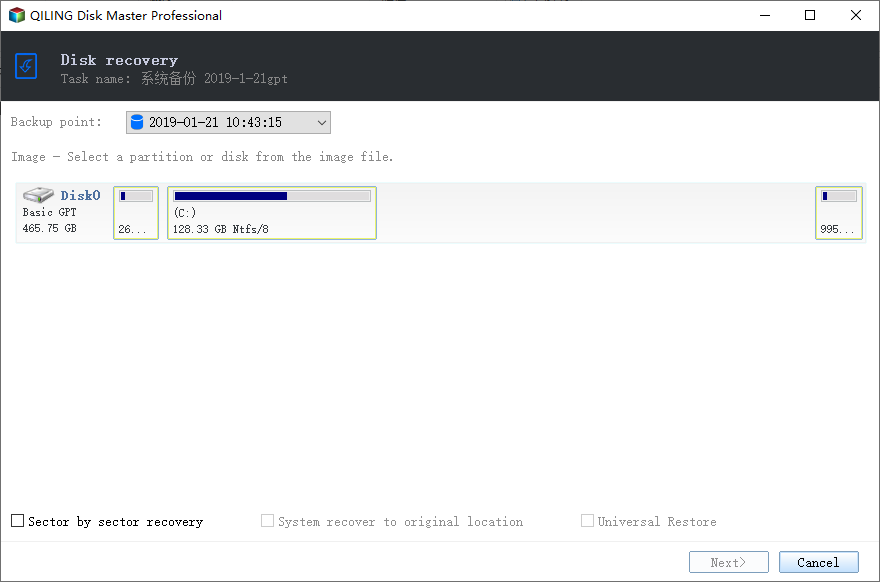
Step 3. On the backup-point screen, enable Universal Restore before clicking Next if motherboard or storage-controller hardware differs. This does not resolve licensing or Windows 11 hardware eligibility.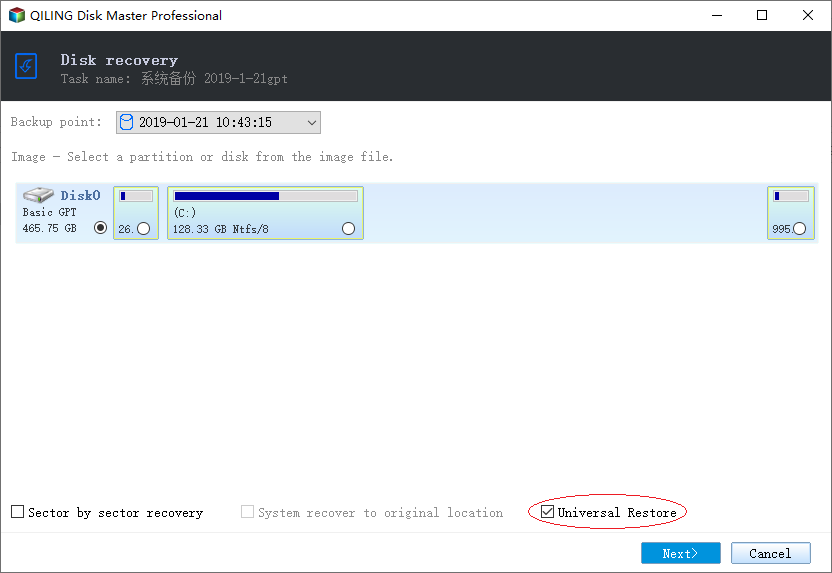
Step 4. Select the target PC's system disk by model and capacity and click Next. This disk may be overwritten.
Step 5. Review the restore layout, click Proceed, and confirm the overwrite warning. After completion, boot from the restored disk and check drivers and activation.
Frequently Asked Questions
Does the image make the other PC licensed? No. The new PC needs an applicable Windows license and may require activation.
Can I use a file backup instead? Yes for documents and photos, but a file backup does not recreate the installed Windows environment.
Conclusion
Use a complete image only after checking destination hardware, data-loss risk, and licensing; then boot-test and update drivers on the other PC.
Related Articles
- Windows File Backup and Restore Tutorials
Choose a backup route for personal files and folders. - Windows System Backup and Restore Tutorials
Compare system image and recovery methods. - Windows Disk Backup and Restore Tutorials
Plan disk image backup and restore for Windows drives.
Products
Articles & Tutorials
- Data Recovery
- Data Backup
- File Recovery
- File Backup
- System Backup and Restore
- Disk and Partition Clone
- Technical articles
- Mobile articles
- Disk Master Help
- Windows Data Recovery Tutorials
- Windows Secure Delete Tutorials
- Windows Partition Management Tutorials
- Windows File Backup and Restore Tutorials
- Windows System Backup and Restore Tutorials
- Windows Disk Backup and Restore Tutorials
- Windows Clone Tutorials