Add an HDD to a Laptop That Already Has an SSD
A laptop can use an SSD for Windows and an HDD for bulk storage only if it has a compatible second bay or another supported connection. Many thin laptops have no spare internal drive slot.
Check the hardware first
- Read the exact laptop service manual for a second 2.5-inch bay, SATA connector, cable, caddy, and supported drive thickness.
- Confirm whether the SSD occupies an M.2 slot or the only 2.5-inch bay. An empty-looking area may still lack a cable or mounting kit.
- Back up important data and shut down fully before opening the laptop. Follow the manufacturer's battery and service precautions.
- If there is no internal slot, use an external USB enclosure rather than forcing an unsupported installation.
Install and detect the HDD
- Mount the HDD in the proper caddy and connect the cable without bending it. Reassemble the laptop before powering on.
- Open UEFI/BIOS or Disk Management to confirm the new HDD is detected by model and size.
- If the disk is genuinely new and uninitialized, choose the partition style appropriate for your PC and capacity, create a volume, and format it. Do not initialize an HDD containing data you need.
- Assign a drive letter and copy a test file. Keep the SSD as the first boot drive.
Keep Windows on the SSD
Use the HDD for files or large libraries while the SSD remains the system drive. Moving installed applications may require each app's built-in move function or reinstalling; dragging Program Files is not reliable.
Sync Selected Folders to the New HDD with Qiling
Once the new HDD is detected and has a drive letter, Qiling File sync can copy selected folders from the SSD to it without moving Windows. A second drive in the same laptop is useful for storage but is not an independent off-device backup. Review sync settings carefully because later changes, including deletions, may be reflected at the destination.
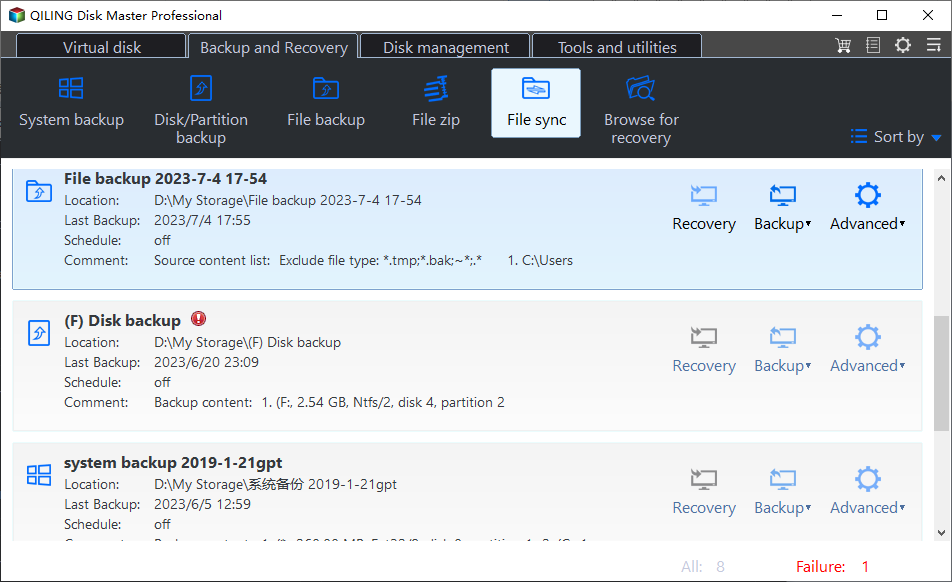
- Step 1. Open Qiling Disk Master and choose File sync under Backup and Recovery.
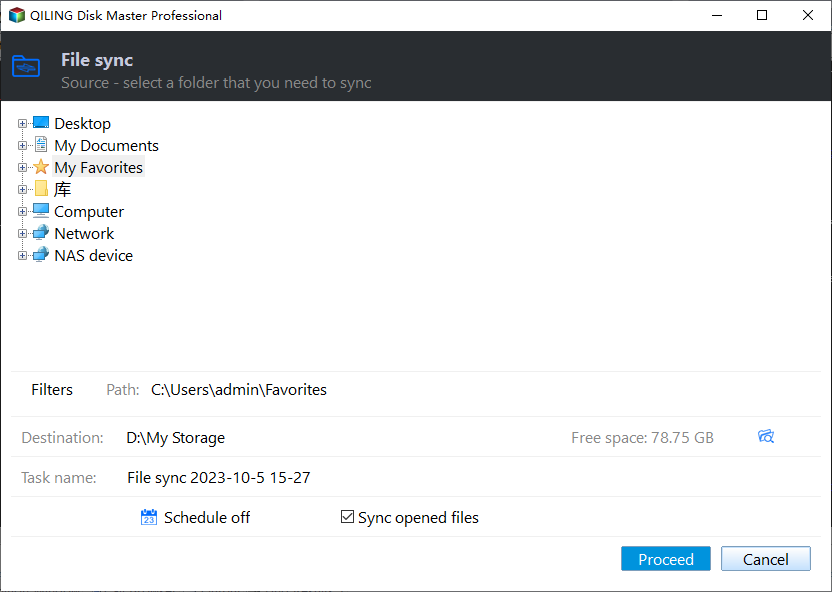
- Step 2. In the source folder tree, expand the SSD and select the folder you want to sync, such as Documents or Photos. Check the displayed source path before continuing.
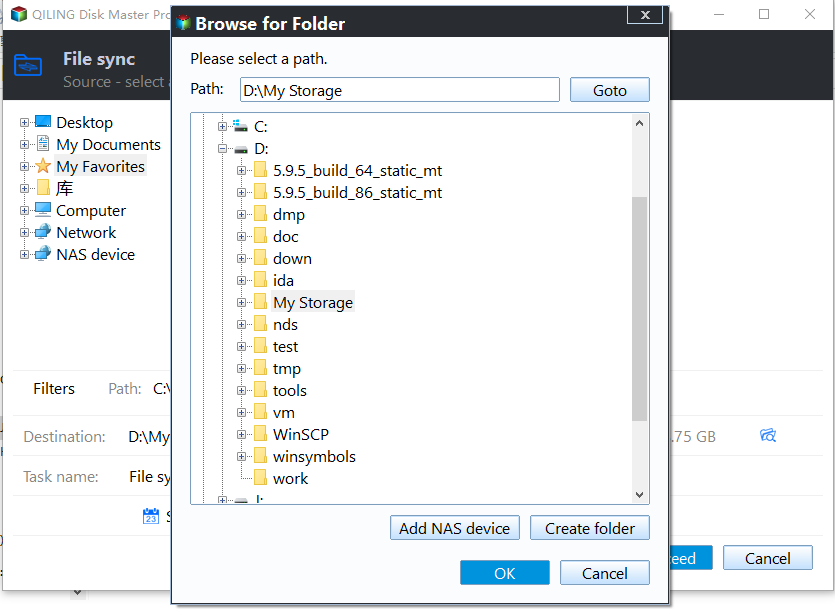
- Step 3. Click the destination browse icon, choose a folder on the new HDD, and click OK. Confirm that the source and destination paths point to different drives.
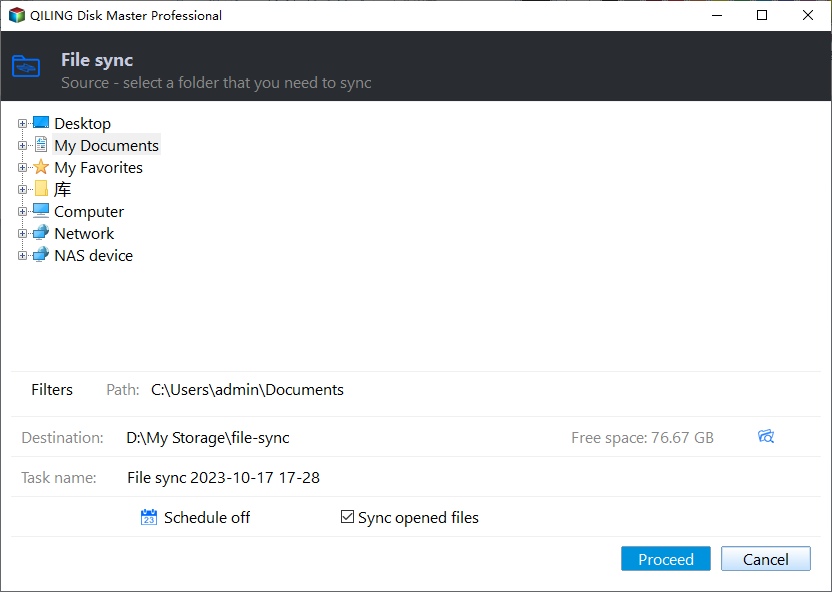
- Step 4. Review the task name and schedule. Click Proceed, wait for the sync to complete, and open a few destination files to confirm the result.
If the HDD does not appear
Check the cable and bay support, then confirm detection in firmware. Do not assume a missing drive needs formatting; an old disk may have a partition or hardware fault.
Frequently Asked Questions
Do I need to clone the SSD to the HDD? No. Adding storage does not require moving Windows.
Can I add a drive to any laptop? No. Check the exact model's service manual for a second internal connection.
Conclusion
A second HDD needs a real bay, connector, and mounting kit. Check the laptop manual, then initialize only a genuinely new blank disk while leaving the SSD as the boot drive.
Related Articles
- Windows System Backup and Restore Tutorials
Explore system image, recovery, and restore guides for Windows. - Windows Disk Backup and Restore Tutorials
Find disk image backup and recovery workflows for Windows drives. - Windows File Backup and Restore Tutorials
Compare practical ways to protect and restore personal files.
Products
Articles & Tutorials
- Data Recovery
- Data Backup
- File Recovery
- File Backup
- System Backup and Restore
- Disk and Partition Clone
- Technical articles
- Mobile articles
- Disk Master Help
- Windows Data Recovery Tutorials
- Windows Secure Delete Tutorials
- Windows Partition Management Tutorials
- Windows File Backup and Restore Tutorials
- Windows System Backup and Restore Tutorials
- Windows Disk Backup and Restore Tutorials
- Windows Clone Tutorials