Does Windows 10 Have Imaging Software? Built-in and Qiling Options
Windows 10 includes system image backup, but Qiling offers clearer backup, restore, and scheduling options.
Does Windows 10 Include System Image Backup?
Yes. Windows 10 still includes the older Backup and Restore (Windows 7) feature, and it can create a system image. A system image includes Windows, boot files, installed programs, settings, and the selected system partitions. It is useful when you want to restore the whole PC to an earlier working state.
The built-in tool is enough for a simple one-time image, but it is not very flexible. It gives fewer choices for schedules, backup cleanup, image management, and restore targets. If you need clearer control, Qiling Disk Master is easier to use as daily imaging software.
Option 1: Create a Windows 10 System Image with the Built-in Tool
Use this option when you only need a basic one-time Windows image and you are comfortable restoring it from Windows recovery media.
Built-in System Image Workflow
- Connect an external hard drive or another storage device with enough free space. The destination should be larger than the used space on C drive and the required system partitions.
- Do not save the system image on the same physical disk that contains Windows. If that disk fails, the image may be lost with it.
- If you plan to save the image to a network location, confirm the network path, user name, and password before starting.
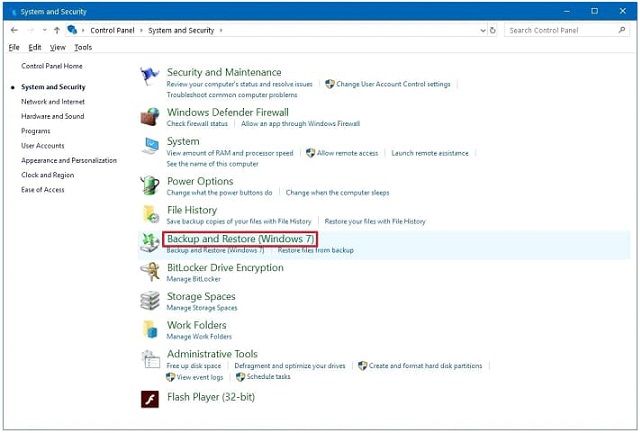
- Press Win + S, search for Control Panel, and open it.
- Set View by to large or small icons if needed, then open Backup and Restore (Windows 7).
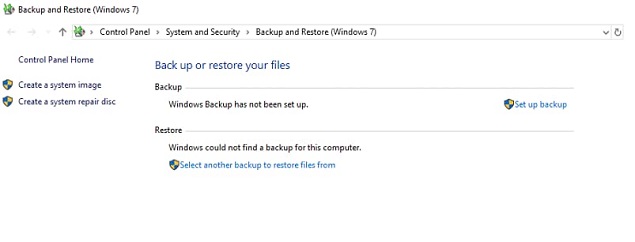
- Click Create a system image in the left panel.
Confirm and Finish the Built-in Image
- Choose where to save the system image: external hard disk, DVDs, or network location. For most users, an external drive is the safest and simplest option.
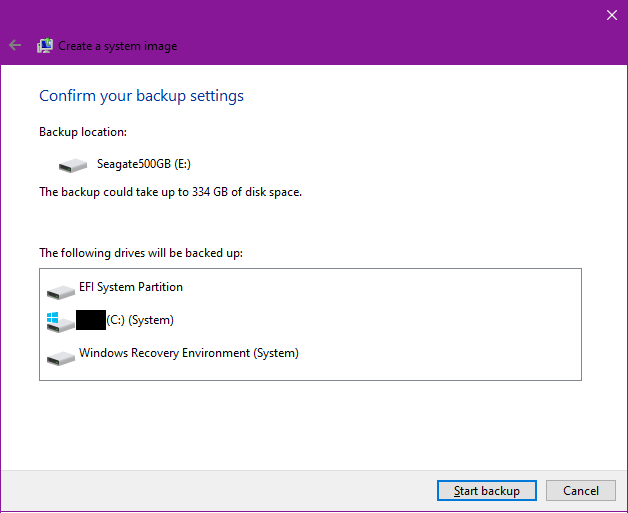
- Keep the Windows system partitions selected. Windows may include EFI System Partition, System Reserved, Recovery partition, and C drive automatically. Do not remove these items.
- Review the backup location and selected drives, then click Start backup. Keep the PC powered on until Windows reports that the system image is complete.
Prepare for Restore
- After the image is created, create a Windows recovery drive or keep a Windows installation USB ready.
- Label the backup drive with the backup date and Windows version. This makes it easier to choose the right image during recovery.
- If Windows cannot boot later, start the PC from recovery media, open System Image Recovery, and select this image to restore the PC.
Option 2: Create a Clearer System Image with Qiling Disk Master
Use Qiling Disk Master when you want a more direct workflow, clearer partition selection, easier restore steps, scheduled backups, or backup cleanup options. It is also helpful before Windows updates, driver changes, disk repair, or hardware replacement.
Open System Backup
- Open Qiling Disk Master and go to the Backup and Recovery tab.
- Click System backup. Use this option when you want to protect Windows 10, installed programs, system settings, and boot-related partitions.

Confirm the Windows Source Partitions
- Qiling selects the Windows-related partitions automatically. Check that C drive and the small boot or recovery partitions on the Windows disk are selected.
- Do not uncheck EFI, System Reserved, Recovery, or C drive unless you fully understand the boot layout. Missing one required partition may make the restored system unbootable.
- Check the Required space value and make sure the destination has more free space than that amount.

Choose a Safe Destination
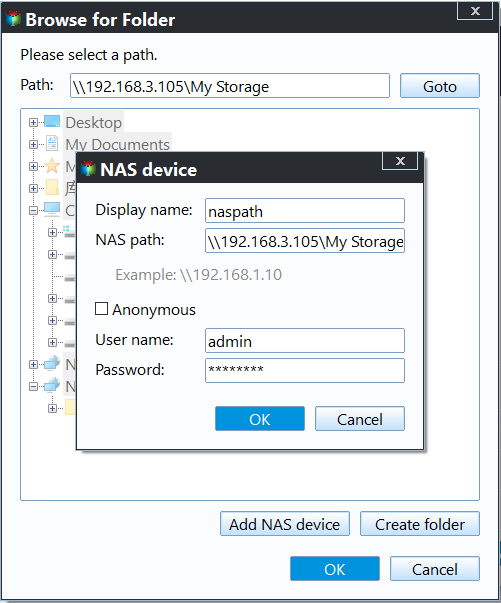
- Click the destination folder icon and choose where to save the image. Use an external disk, NAS, or another internal disk.
- Avoid saving the image on the same disk you are about to repair, replace, format, or repartition.
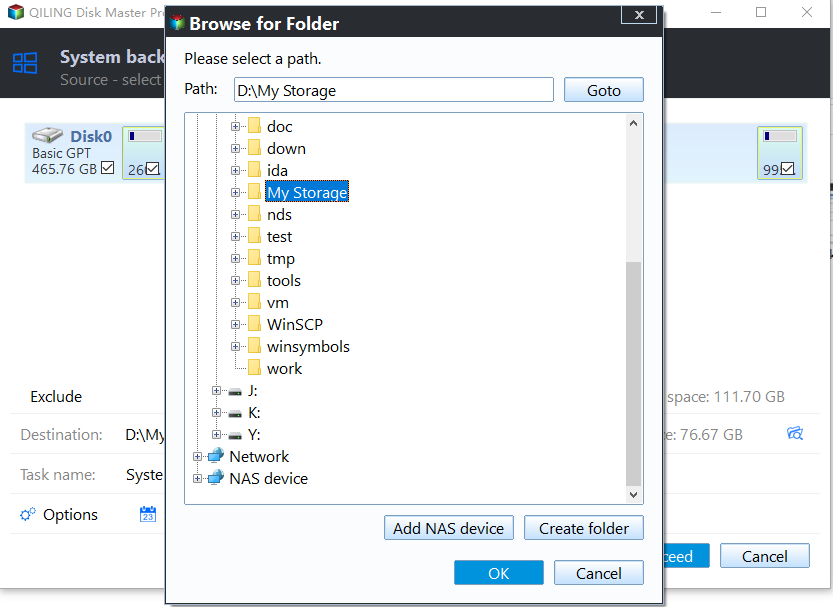
If you are saving to a network location, add the NAS or shared folder path and sign in with the correct account before starting the backup.
Set Options and Start the Image
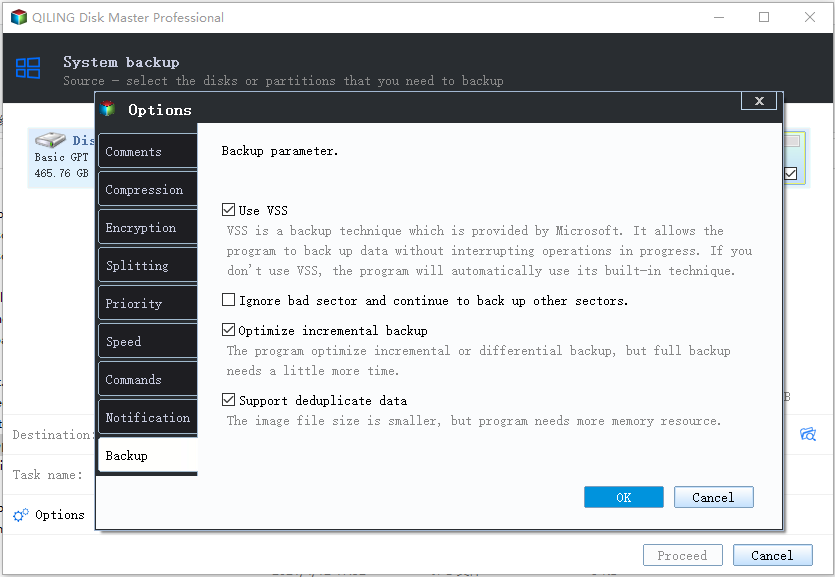
- Open Options if you want to set compression, splitting, notification, comments, or VSS options. For most home users, the default settings are acceptable.
- Review the task name and destination one more time. If they are correct, click Proceed to start the backup.
- Wait until the progress window finishes. Keep the backup drive connected and do not shut down the PC during the backup.

Check That the Image Can Be Used
- After the task finishes, open the destination folder and confirm that the backup image exists.
- Keep Qiling bootable media or Windows recovery media ready. A system image is only useful if you can boot into a recovery environment when Windows fails.
Option 3: Image the Whole Disk Instead of Only Windows
Choose Disk Backup when you want to image the entire physical drive, including Windows, data partitions, recovery partitions, and any extra volumes on the same disk. This is better before replacing a drive, testing risky partition changes, or preserving the complete disk layout.
Open Disk Backup
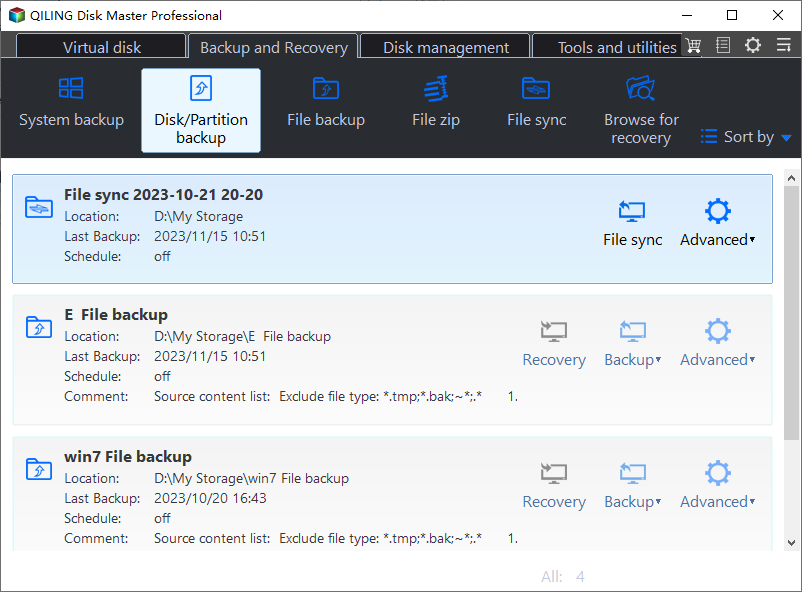
- Open Qiling Disk Master and go to Backup and Recovery.
- Click Disk/Partition backup. Use this option when you need the whole disk layout, not only Windows system partitions.
Select the Disk to Image
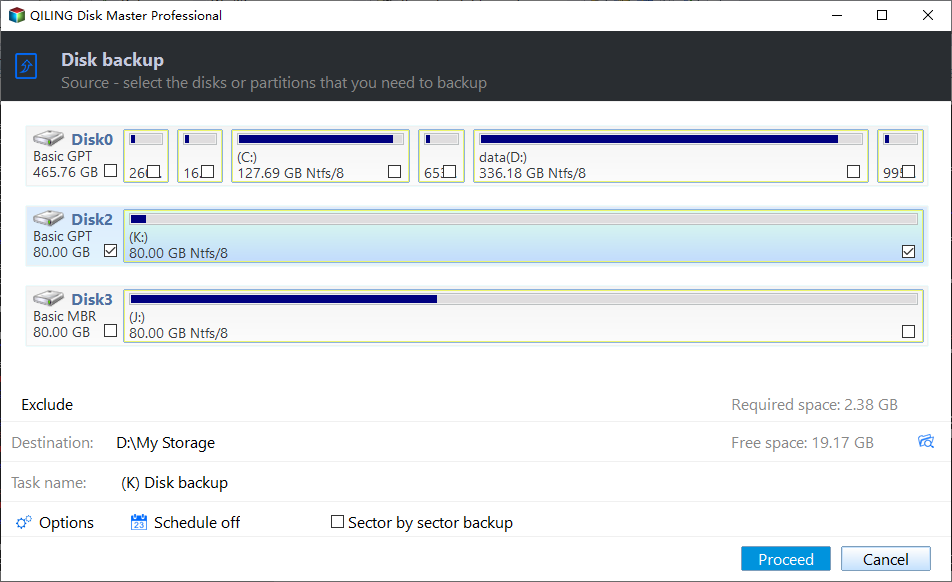
- Select the disk you want to image. Confirm it by disk number, model, capacity, partition style, and drive letters.
- If several disks have similar sizes, disconnect the disk you do not want to back up or label the drives before starting.
- Select the whole disk when you need a complete image. Select only specific partitions when you intentionally want a smaller partition-level backup.
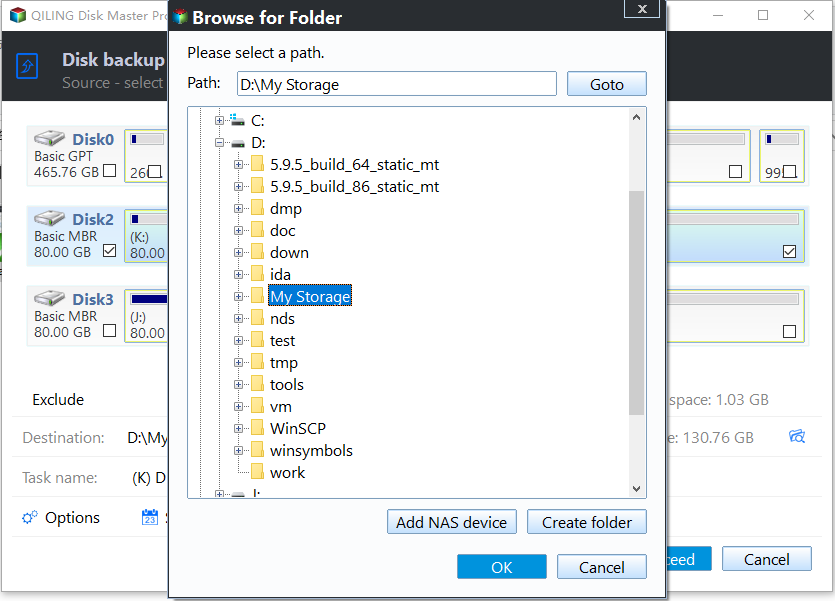
Save the Disk Image
- Choose a destination with enough free space. A disk image can be much larger than a system-only image if the source disk contains data partitions.
- Save the image to another physical disk, an external drive, or a network location. Do not store it on the same disk being imaged.
Start and Verify the Disk Image
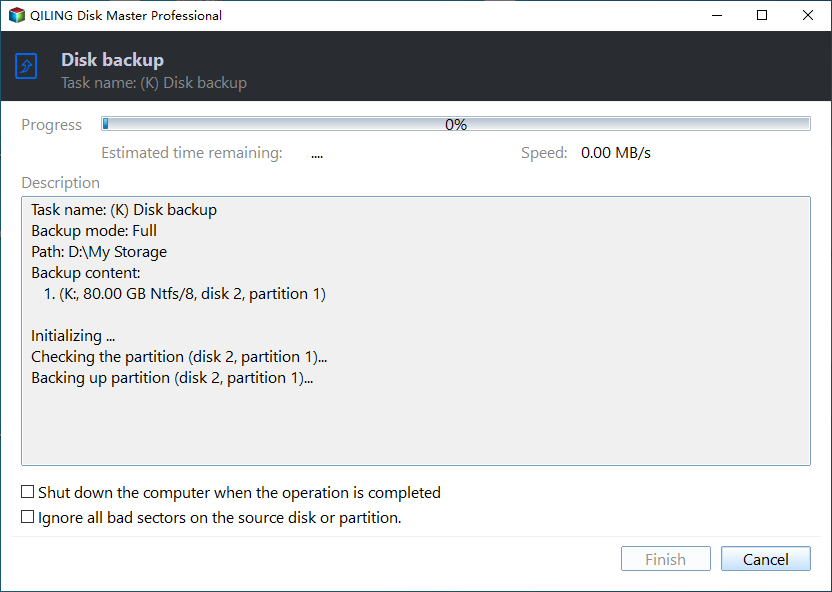
- Review the backup mode, source disk, destination path, and task name.
- Click Proceed and wait until the disk backup finishes. A larger disk can take more time, especially when it contains many files.
- Afterward, open the destination folder and confirm the image exists. Keep the image and a bootable recovery tool together if this is your disaster recovery backup.
How to Choose Between Built-in Imaging and Qiling
- Use Windows built-in system image when you need a simple one-time backup and already know how to restore it from recovery media.
- Use Qiling System Backup when you want to protect Windows 10 with clearer source selection, scheduling, backup options, and easier restore handling.
- Use Qiling Disk Backup when you need an image of the whole physical disk, not just Windows system partitions.
- Use cloning instead of imaging when you want to move directly to a new SSD or HDD and boot from that new drive immediately.
Conclusion
Windows 10 does have imaging software, but it is basic. For occasional recovery, the built-in system image can work. For clearer backup management, safer restore planning, and complete disk imaging, Qiling Disk Master gives you a more practical workflow.
Related Articles
- Windows Partition Management Tutorials
Find practical Windows partition guides for resizing, formatting, checking, converting, and repairing disks without unnecessary risk. - Windows System Backup and Restore Tutorials
Browse Windows backup and restore guides for system images, recovery drives, restore points, and safe repair preparation. - Does Windows Backup Include Apps and Settings
Understand what Windows Backup saves, what it may miss, and when to use a system image or Qiling backup to include apps, settings, and boot files.
Products
Articles & Tutorials
- Data Recovery
- Data Backup
- File Recovery
- File Backup
- System Backup and Restore
- Disk and Partition Clone
- Technical articles
- Mobile articles
- Disk Master Help
- Windows Data Recovery Tutorials
- Windows Secure Delete Tutorials
- Windows Partition Management Tutorials
- Windows File Backup and Restore Tutorials
- Windows System Backup and Restore Tutorials
- Windows Disk Backup and Restore Tutorials
- Windows Clone Tutorials