How to Get Windows 10 Back After a Factory Reset
A Windows factory reset normally reinstalls an operating system rather than leaving a blank disk. The version you get depends on the reset path, recovery image, and device history. First identify what is actually installed.
Check the state after reset
If Windows starts, open Settings and check the edition, version, and activation status. A manufacturer recovery image may return factory drivers and apps, while Reset this PC can reinstall the current Windows edition. If you expected Windows 10 but see another version, confirm whether an earlier upgrade or OEM recovery path was used.
If the computer will not boot, open its recovery environment or boot official Windows installation media. Do not format a disk containing files you still need before checking your backups.
Choose the correct way back
- If a verified pre-reset system image exists, restore it to the correct disk. This returns the saved Windows state, including apps and settings from that date.
- If there is no image, use official Windows 10 installation media for a clean installation when the PC and license support it. Choose the right edition and back up data first.
- If a recovery drive was created for this PC, check its recovery options. A recovery USB is not the same as a personal-file backup.
Recover files and reactivation
A clean installation requires reinstalling applications and restoring personal files from a separate backup. Check Windows Activation after first boot; significant hardware changes can require reactivation. Avoid downloading unofficial recovery images or assuming a post-reset image can return files already erased before it was made.
Windows 10 is past its standard support date. Before reinstalling it, check whether this PC can run a supported Windows version or qualifies for an Extended Security Updates option.
Restore a Pre-Reset Qiling System Image
Use this procedure only when a Qiling system image from before the reset is available. If there is no such image, use the official Windows installation or recovery path above.
Step 1. On the destination PC, boot from Qiling recovery media if Windows cannot start, connect the image drive, choose Recovery, and browse to the pre-reset Qiling system image on an external drive. Select the image file.

Step 2. Choose the backup point and the Windows system contents. Include boot partitions needed for startup; do not select only C: if the image also contains EFI/System Reserved partitions. Click Next.
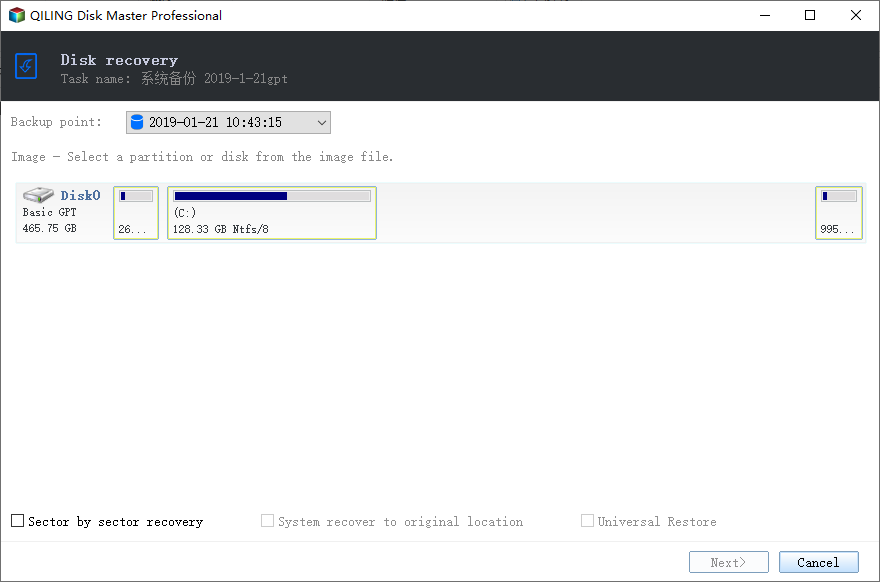
Step 3. Identify the PC's intended Windows system disk by model and capacity and select it as the restore target. A restore may overwrite its existing partitions, so save its data first. Click Next.

Step 4. Review source and destination in the preview, then click Proceed. Confirm the overwrite warning. After restart, check Windows version, drivers, files, and activation. Keep the backup until all checks pass.

Frequently Asked Questions
Will Reset this PC always keep my files? No. The chosen reset option determines what it removes; always check a separate backup.
Can a backup made after reset undo it? No. It captures the state after the reset, not the earlier installation.
Conclusion
Identify the installed system first. Restore a verified pre-reset image when you have one; otherwise reinstall Windows 10 from trusted media and restore your files.
Related Articles
- Windows System Backup and Restore Tutorials
Compare system images and recovery choices in Windows. - Windows File Backup and Restore Tutorials
Protect personal files before resets or disk changes. - Windows Cloning Tutorials
Find boot-drive and SSD migration guides.
Products
Articles & Tutorials
- Data Recovery
- Data Backup
- File Recovery
- File Backup
- System Backup and Restore
- Disk and Partition Clone
- Technical articles
- Mobile articles
- Disk Master Help
- Windows Data Recovery Tutorials
- Windows Secure Delete Tutorials
- Windows Partition Management Tutorials
- Windows File Backup and Restore Tutorials
- Windows System Backup and Restore Tutorials
- Windows Disk Backup and Restore Tutorials
- Windows Clone Tutorials