How Do I Install Windows 7 on a New PC with No OS
Install Windows 7 on a blank PC by preparing boot media, checking legacy hardware support, and backing up drivers or data before changing disks.
Overview
Installing Windows 7 on a new PC with no operating system is possible only if the hardware supports Windows 7 drivers and legacy boot requirements. Many modern PCs lack Windows 7 USB, NVMe, or chipset drivers.
If the computer is for daily use, Windows 10 or Windows 11 is safer. If you need Windows 7 for legacy software, prepare drivers before installation.
What to Prepare First
- Prepare a valid Windows 7 license and installation ISO.
- Download storage, USB, network, and chipset drivers for the target PC.
- Create a bootable USB or DVD.
- Check BIOS settings for Legacy/CSM or compatible UEFI boot.
Use Windows Built-in Tools First
Create Windows 7 installation media, boot the blank PC from it, choose Custom install, create or select the target partition, and complete setup. Install chipset and network drivers immediately after first boot.
If the installer cannot detect the disk or USB keyboard, inject the required drivers into the installation media or use hardware that supports Windows 7.
Create Bootable Media with Qiling Disk Master
Bootable media helps when Windows cannot start or when you need to restore an image to a blank drive. For a Windows installation USB, use official Windows setup files; for backup recovery, use Qiling bootable media.
Step 1. Insert an empty USB drive. Back up files on it because the bootable media process may format the USB drive.
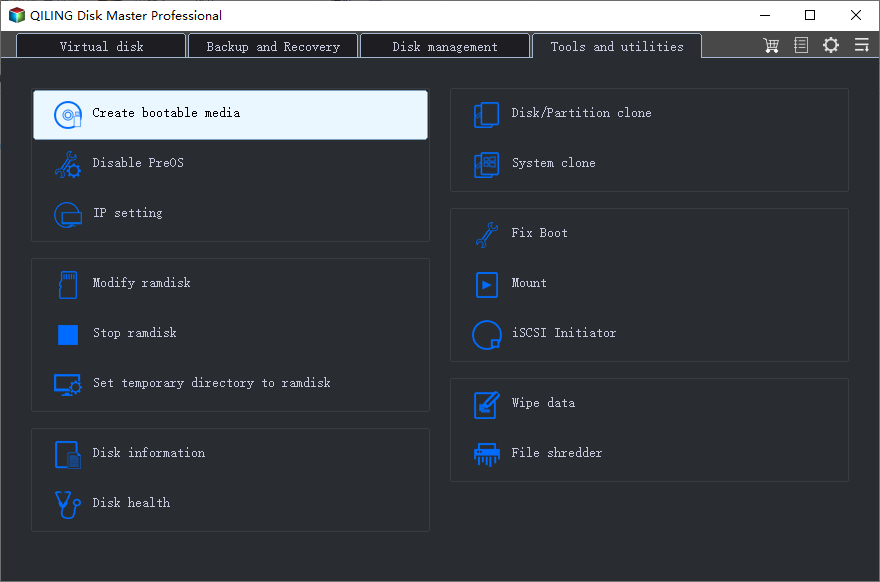
Step 2. Open Qiling Disk Master and choose Create Bootable Media.
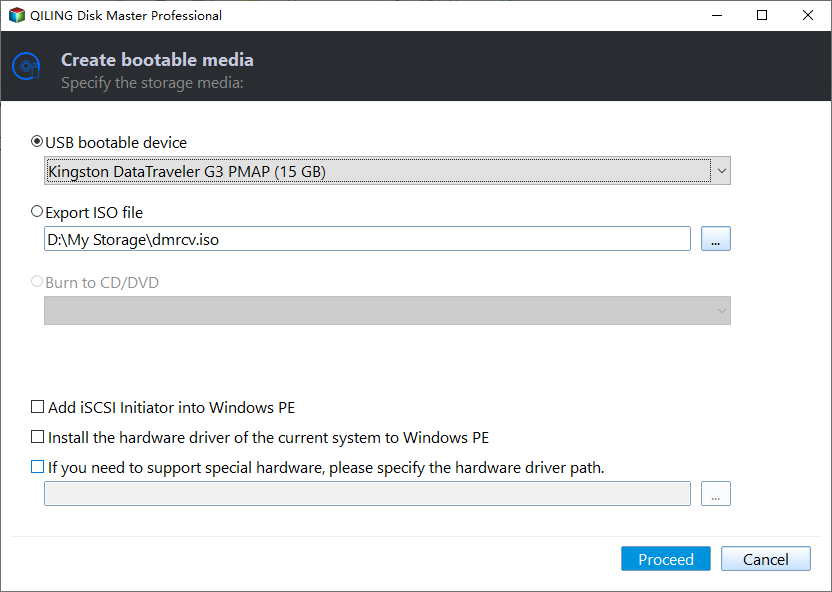
Step 3. Choose USB as the media type and select the correct USB drive.
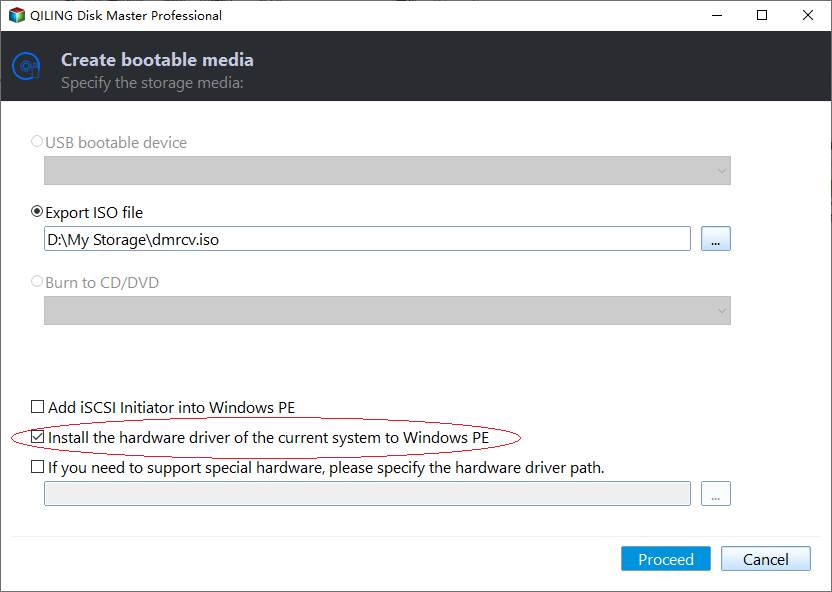
Step 4. Add storage or network drivers if the target computer needs them to detect disks or NAS locations.
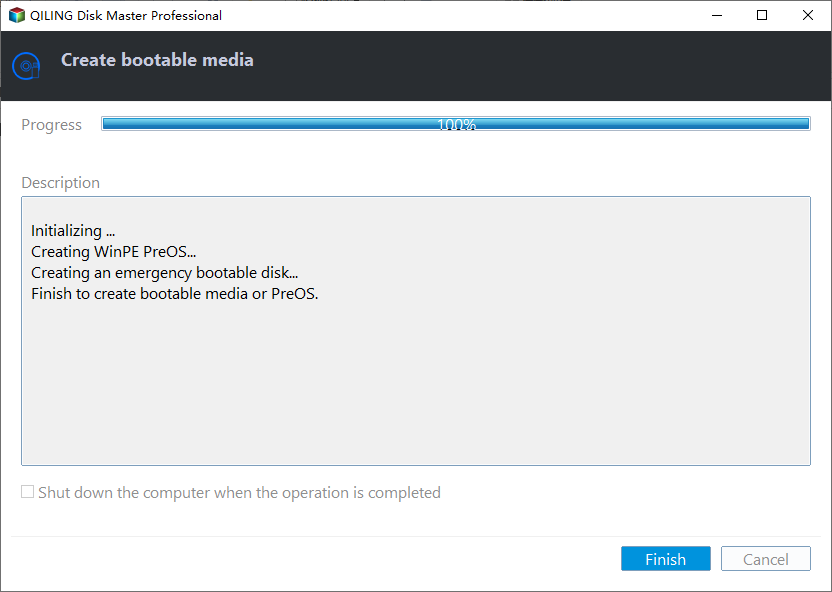
Step 5. Create the media and wait until the process finishes. Then restart the target PC and set the USB drive as the first boot device in BIOS or UEFI.
Troubleshooting Tips
- If the installer asks for a missing driver, add USB 3.0 or storage controller drivers.
- If the NVMe SSD is not detected, use Windows 7 NVMe hotfix drivers or a SATA drive.
- If activation fails, confirm that the license edition matches the installation media.
FAQ
Should I back up before following these steps? Yes. If the disk is readable and the files matter, create a backup before cloning, repairing, formatting, resetting, or changing hardware.
Can I use Windows built-in tools only? Use built-in tools for simple file copy, restore points, File History, Disk Management, and Windows setup. Use Qiling tools when you need a clearer disk map, bootable recovery media, scheduled backup, or disk clone workflow.
Will these operations erase my target drive? Cloning, restoring an image, formatting, and creating some bootable media can overwrite the target drive. Read the warning message and confirm the disk number before clicking Proceed.
Conclusion
Windows 7 installation on a blank modern PC is mostly a driver and boot-mode problem. Prepare media, drivers, and a recovery plan before starting.
Related Articles
- Windows System Backup and Restore Tutorials
Browse Windows backup and restore guides for system images, recovery drives, restore points, and safe repair preparation. - Windows Disk Backup and Restore Tutorials
Find Windows disk backup, SSD image backup, external drive backup, and restore tutorials with practical Qiling workflows. - Windows Clone Tutorials
Review Windows cloning guides for system migration, disk clone, SSD upgrade, and safe boot preparation.
Products
Articles & Tutorials
- Data Recovery
- Data Backup
- File Recovery
- File Backup
- System Backup and Restore
- Disk and Partition Clone
- Technical articles
- Mobile articles
- Disk Master Help
- Windows Data Recovery Tutorials
- Windows Secure Delete Tutorials
- Windows Partition Management Tutorials
- Windows File Backup and Restore Tutorials
- Windows System Backup and Restore Tutorials
- Windows Disk Backup and Restore Tutorials
- Windows Clone Tutorials