How to Back Up a Seagate External Hard Drive
Back up a Seagate external hard drive to another disk or image file before formatting, repair, or replacement.
Why Back Up a Seagate External Drive?
A Seagate external drive may hold photos, projects, installers, archives, and old PC backups that are not stored anywhere else. Back it up before formatting, repartitioning, firmware troubleshooting, warranty service, or drive replacement.
Choose the Right Backup Type
- Use File Backup when you only need selected folders, such as photos, documents, videos, or project files.
- Use Disk Backup when you want a complete image of the Seagate external drive, including all partitions and folder structure.
- Use Disk Clone when you want another external drive to become an immediately usable copy.
- Use data recovery first if the Seagate drive is RAW, asks to be formatted, disconnects repeatedly, or has missing files.
Method 1: Back Up Selected Folders from a Seagate Drive
Choose this method when the Seagate drive is readable and you only need to protect certain folders. It is faster and uses less storage space than imaging the whole drive.
File Backup Workflow
- Connect the Seagate external hard drive and a second storage device for the backup destination. Do not save the backup on the same Seagate drive that you are protecting.
- Open Qiling Disk Master, go to Backup and Recovery, and choose File backup.
- Select the folders on the Seagate external drive that you want to back up. If the drive has many folders, start with irreplaceable data such as photos, documents, videos, and work files.

-
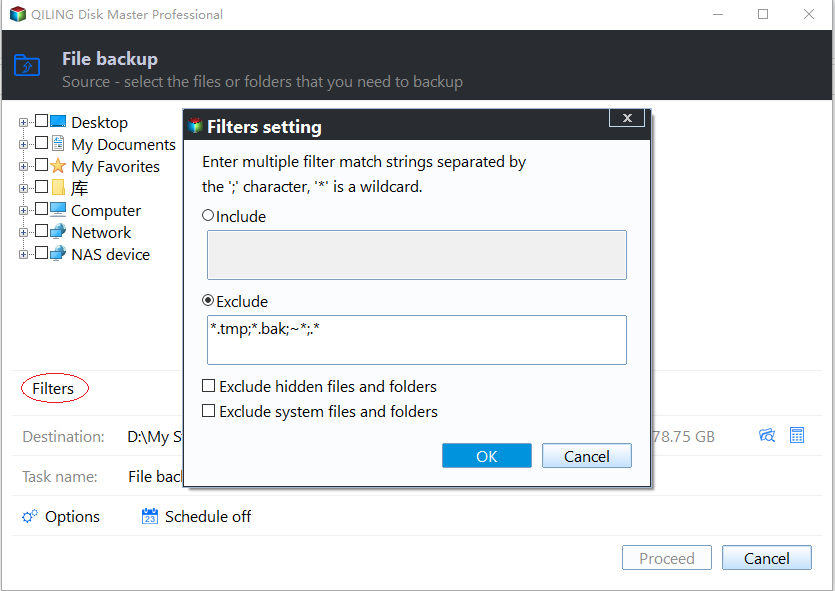
Use the filter option if you want to include or exclude certain file types, such as temporary files, cache files, or large media files.
-
Choose a safe destination, such as another external drive, an internal data drive, or a NAS folder. Make sure the destination has enough free space.

-
Click Proceed and wait until the task finishes. Afterward, open the destination folder and confirm that the backup image is visible.

Method 2: Create a Complete Image of the Seagate External Drive
Choose this method when you want a full backup of the entire Seagate external drive. A disk image keeps partitions, folder structure, and selected data together, which is useful before formatting, repartitioning, or replacing the drive.
Disk Backup Workflow
- Connect the Seagate external hard drive and the backup destination drive. If several external drives are connected, label them in Windows first so you can identify the correct source and destination.
-
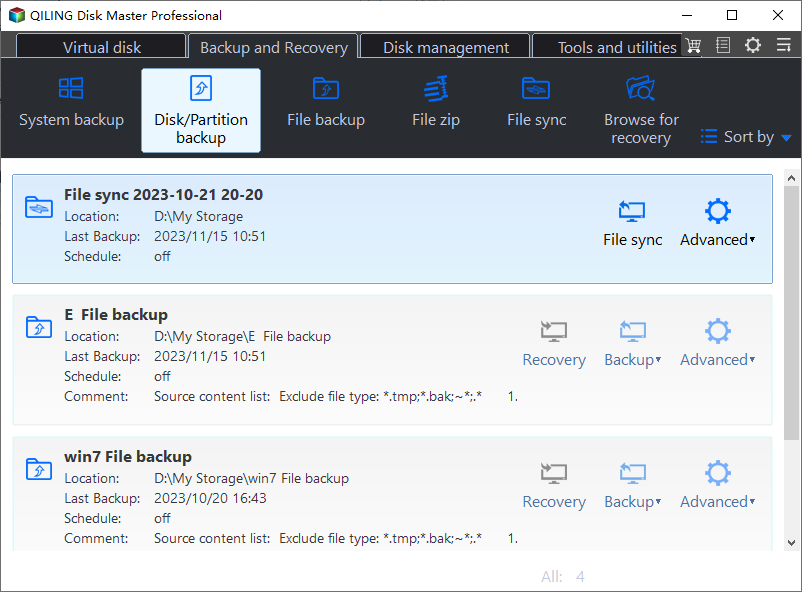
Open Qiling Disk Master, go to Backup and Recovery, and choose Disk/Partition backup.
-
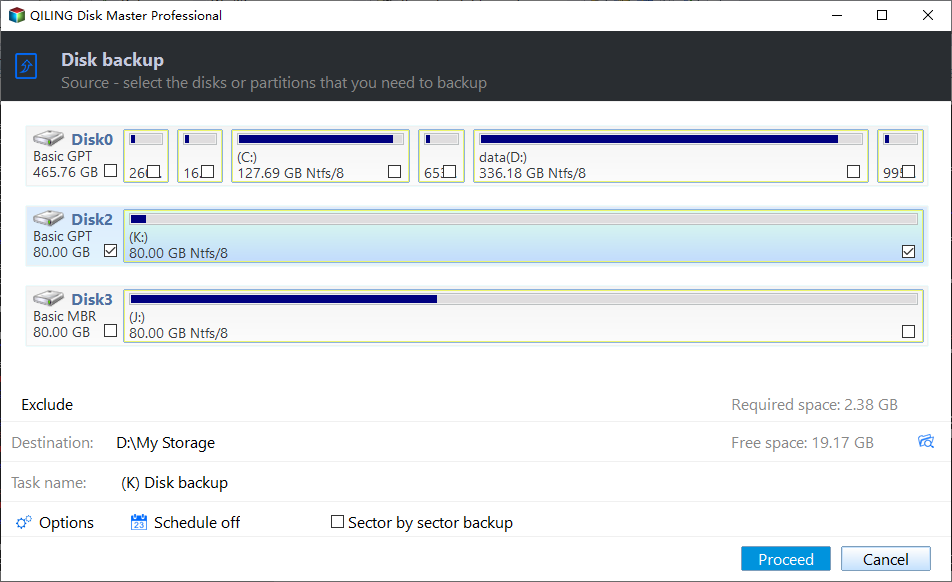
Select the Seagate external hard drive as the source disk. Confirm it by model, capacity, drive letter, and partition layout. Do not select the destination drive as the source.
-
Choose a destination with enough free space. Save the image to another physical disk, an internal data drive, or a NAS location, not to the same Seagate drive.
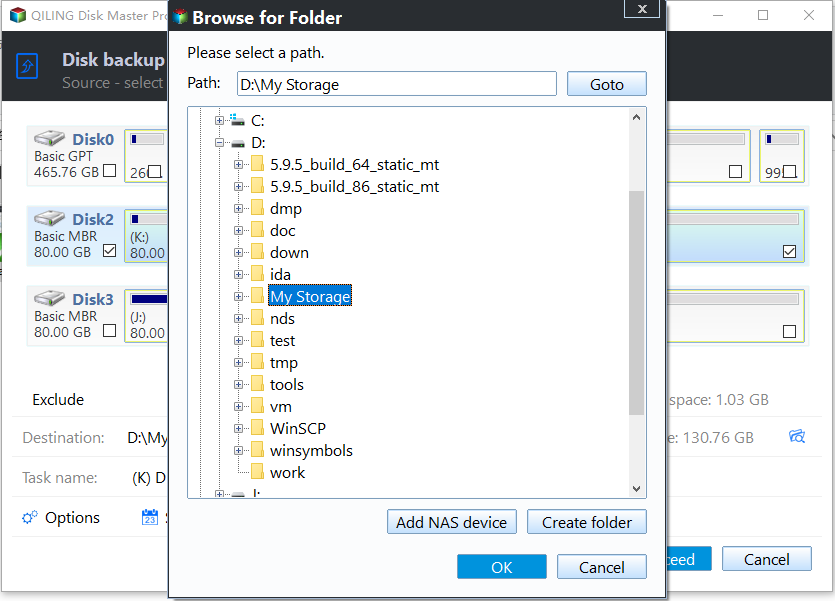
- Review the source disk, destination path, backup mode, and task name. If the plan is correct, click Proceed to start the backup.
-
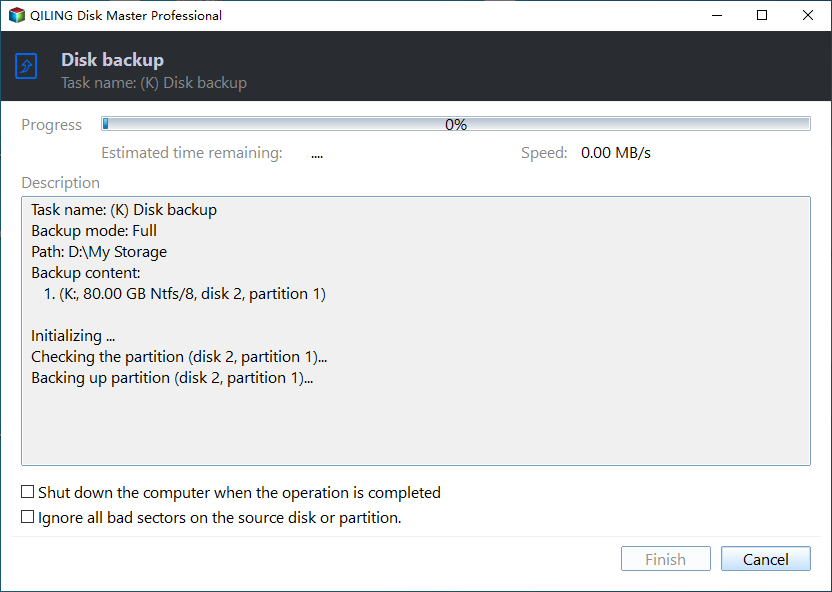
Keep the Seagate drive and destination drive connected until the backup finishes. After completion, check the destination folder and keep the image with a clear date label.
What to Do If the Seagate Drive Has Errors
- If Windows asks to format the Seagate drive, do not format it before recovering or backing up files.
- If the drive disconnects, clicks, or becomes very slow, copy the most important files first and avoid repeated heavy scans.
- If the file system is RAW or folders disappear, use data recovery before trying format, repair, or repartition operations.
- If the drive is still readable but unhealthy, create a disk image or clone it to a healthy drive as soon as possible.
Related Articles
- Windows Partition Management Tutorials
Find practical Windows partition guides for resizing, formatting, checking, converting, and repairing disks without unnecessary risk. - Windows System Backup and Restore Tutorials
Browse Windows backup and restore guides for system images, recovery drives, restore points, and safe repair preparation. - Seagate Disk Cloning Software: Choose the Right Migration
Choose a compatible cloning method for a Seagate drive, protect existing data, copy complete Windows partitions, and verify the replacement. - Seagate Disk Clone Software: Download and Use It Safely
Check legitimate Seagate migration options, avoid unsafe download sites, and clone a Seagate Windows disk with verified source and target selections.
Products
Articles & Tutorials
- Data Recovery
- Data Backup
- File Recovery
- File Backup
- System Backup and Restore
- Disk and Partition Clone
- Technical articles
- Mobile articles
- Disk Master Help
- Windows Data Recovery Tutorials
- Windows Secure Delete Tutorials
- Windows Partition Management Tutorials
- Windows File Backup and Restore Tutorials
- Windows System Backup and Restore Tutorials
- Windows Disk Backup and Restore Tutorials
- Windows Clone Tutorials