How to Clone Two Internal Disks into One External Drive
Learn why two internal disks should usually be backed up as separate images on one external drive, and how to protect both disks safely.
Overview
You usually should not clone two physical internal disks directly into one external disk as a single bootable clone. A clone expects one source disk and one target disk.
The safer plan is to create separate disk image backups for each internal disk and store both images on the same external drive.
What to Prepare First
- Use an external drive large enough for both disk images.
- Name each backup clearly, such as Disk0-System and Disk1-Data.
- Check which disk contains Windows and which stores data.
- Do not overwrite the external drive if it already contains useful files.
Use Windows Built-in Tools First
Windows can copy folders from both disks to one external drive, but this does not preserve boot partitions or full disk structure. Windows system image may include extra drives if selected, but restore options are less flexible.
For reliable recovery, create separate disk images and keep them organized on the external drive.
Back Up the Disk with Qiling Disk Master
A disk backup is safer than copying folders when you need to preserve Windows, recovery partitions, boot files, and several data partitions together. Save the image to another physical drive or a network location.
Step 1. Open Qiling Disk Master and choose Disk/Partition Backup. Use this option when the task involves a whole drive, a system image, or several partitions.
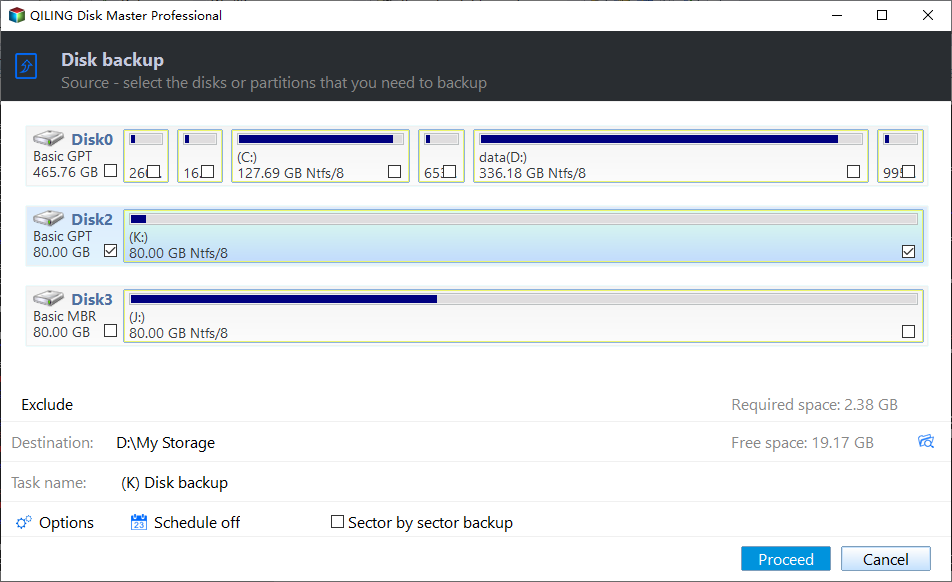
Step 2. Select the disk or partitions you need to protect directly in the source selection area. For a Windows disk, include the EFI/System Reserved partition, C drive, recovery partition, and any data partition that belongs to the same recovery plan.
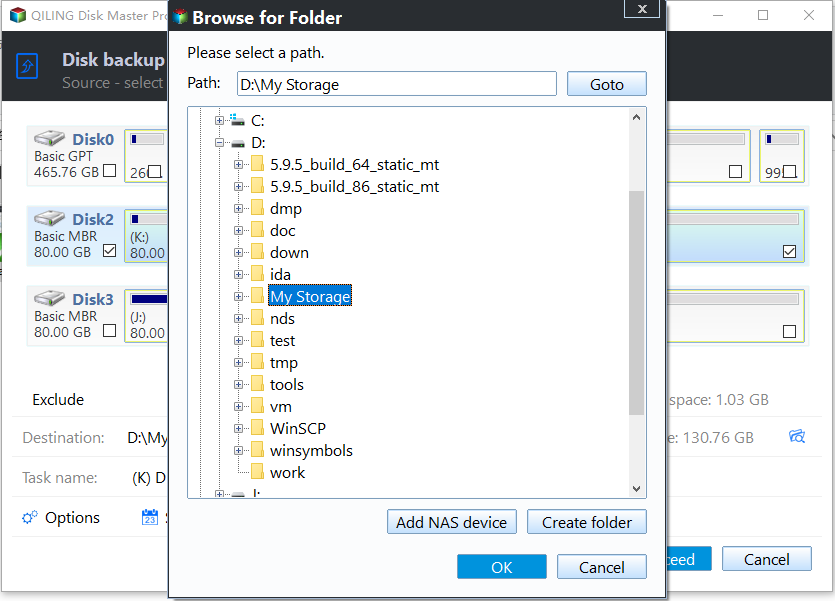
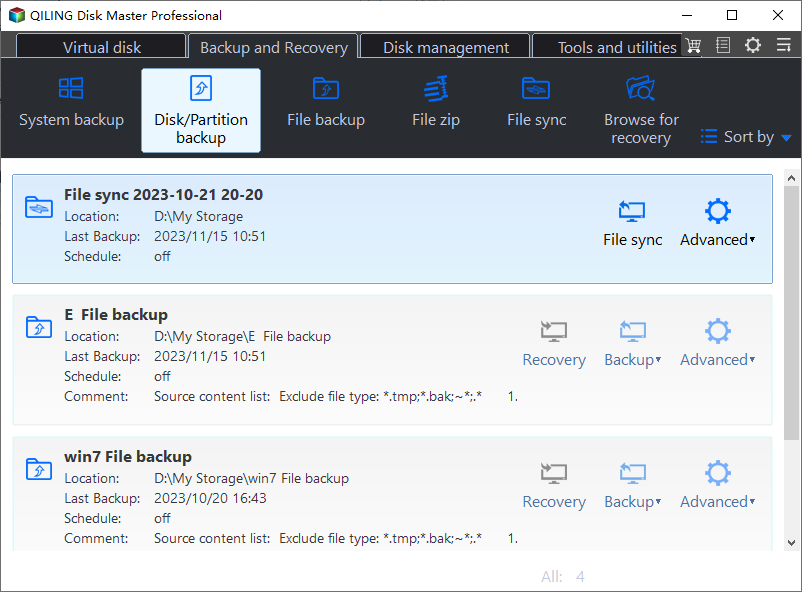
Step 3. Choose a destination on another disk, an external drive, or a NAS folder. Do not store the backup image on the same drive that may fail or be formatted.
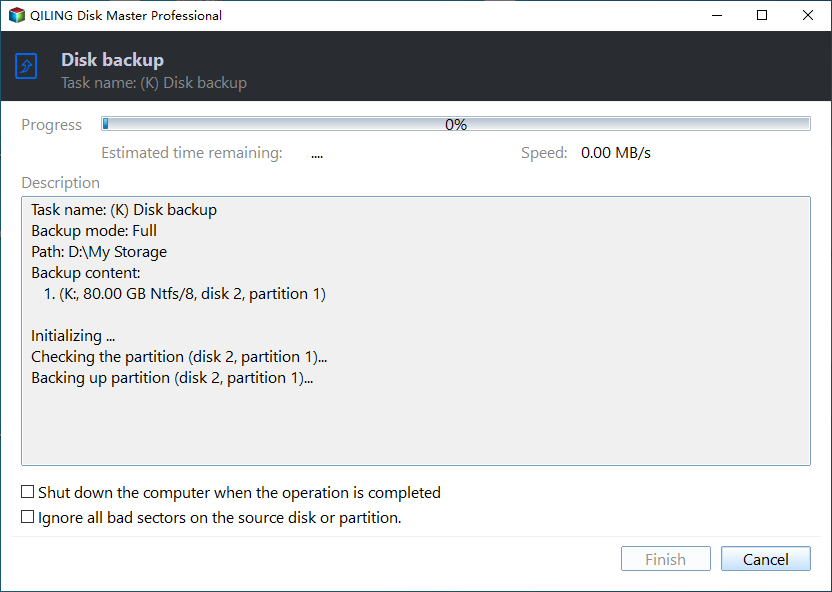
Step 4. Check the source and destination, then click Proceed. Wait until the image is complete and verify that the backup file appears in the destination folder.
Troubleshooting Tips
- If the external drive fills up, use compression or back up only needed partitions.
- If you need a bootable replacement disk, clone only the Windows disk to a dedicated target disk.
- If the data disk is huge, consider file backup for media folders and disk backup for the system disk.
FAQ
Should I back up before following these steps? Yes. If the disk is readable and the files matter, create a backup before cloning, repairing, formatting, resetting, or changing hardware.
Can I use Windows built-in tools only? Use built-in tools for simple file copy, restore points, File History, Disk Management, and Windows setup. Use Qiling tools when you need a clearer disk map, bootable recovery media, scheduled backup, or disk clone workflow.
Will these operations erase my target drive? Cloning, restoring an image, formatting, and creating some bootable media can overwrite the target drive. Read the warning message and confirm the disk number before clicking Proceed.
Conclusion
Use one external drive as a storage location for multiple backup images, not as a single mixed clone target. This keeps restore choices clear and reduces overwrite risk.
Related Articles
- Windows System Backup and Restore Tutorials
Browse Windows backup and restore guides for system images, recovery drives, restore points, and safe repair preparation. - Windows Disk Backup and Restore Tutorials
Find Windows disk backup, SSD image backup, external drive backup, and restore tutorials with practical Qiling workflows. - Windows Clone Tutorials
Review Windows cloning guides for system migration, disk clone, SSD upgrade, and safe boot preparation.
Products
Articles & Tutorials
- Data Recovery
- Data Backup
- File Recovery
- File Backup
- System Backup and Restore
- Disk and Partition Clone
- Technical articles
- Mobile articles
- Disk Master Help
- Windows Data Recovery Tutorials
- Windows Secure Delete Tutorials
- Windows Partition Management Tutorials
- Windows File Backup and Restore Tutorials
- Windows System Backup and Restore Tutorials
- Windows Disk Backup and Restore Tutorials
- Windows Clone Tutorials