How to Copy Only New or Changed Files in Windows 10
Copy only new or changed files in Windows 10 with Robocopy or Qiling file sync, and avoid overwriting or deleting the wrong destination files.
Overview
Copying only new or changed files saves time when you maintain a backup folder, USB copy, or external-drive archive. Windows 10 can do this with Robocopy, and Qiling can do it through scheduled file sync.
The important choice is whether you want a mirror or an additive copy. A mirror can delete destination files that no longer exist at the source.
What to Prepare First
- Identify the exact source and destination folders.
- Make a test folder before running deletion or mirror options.
- Use stable drive letters for external drives.
- Do not sync temporary or cache folders unless needed.
Use Windows Built-in Tools First
Use robocopy C:\Source E:\Backup /E /XO
to copy folders and skip older destination files. Use /MIR
only when you want the destination to match the source exactly, including deletions.
Check the summary after Robocopy finishes and rerun it if some files were locked.
Sync Files with Qiling Disk Master
File sync is helpful when you want the latest copy of selected folders on another drive. It is easier to browse than an image backup, but it should not replace a full system backup when Windows itself must be restored.
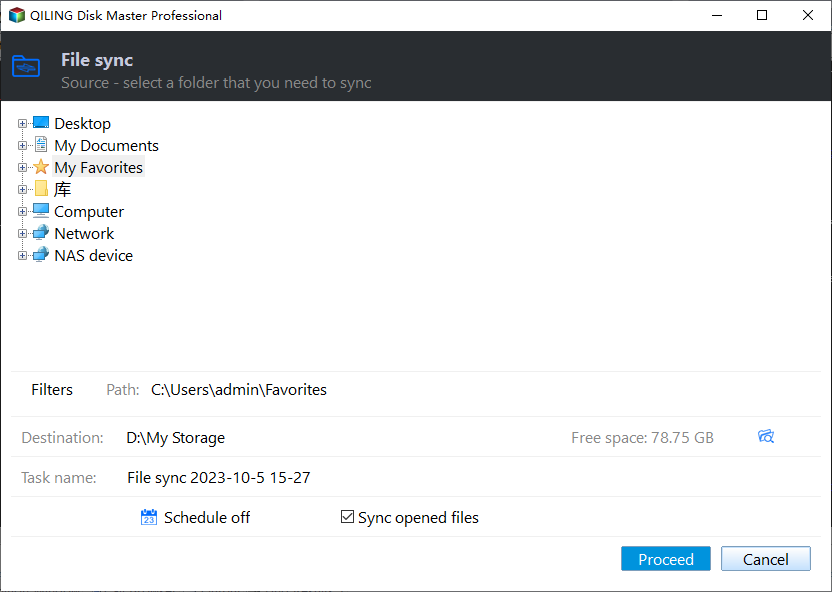
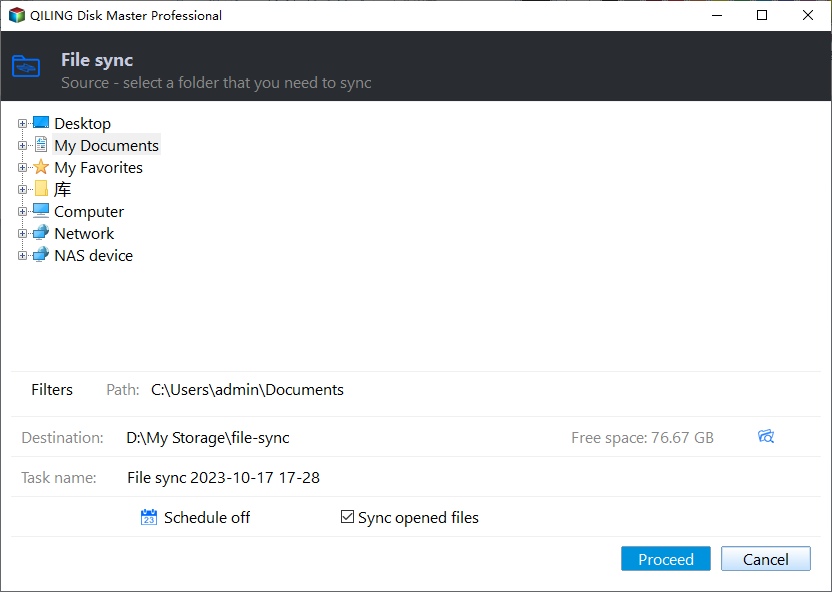
Step 1. Open Qiling Disk Master and choose File Sync.
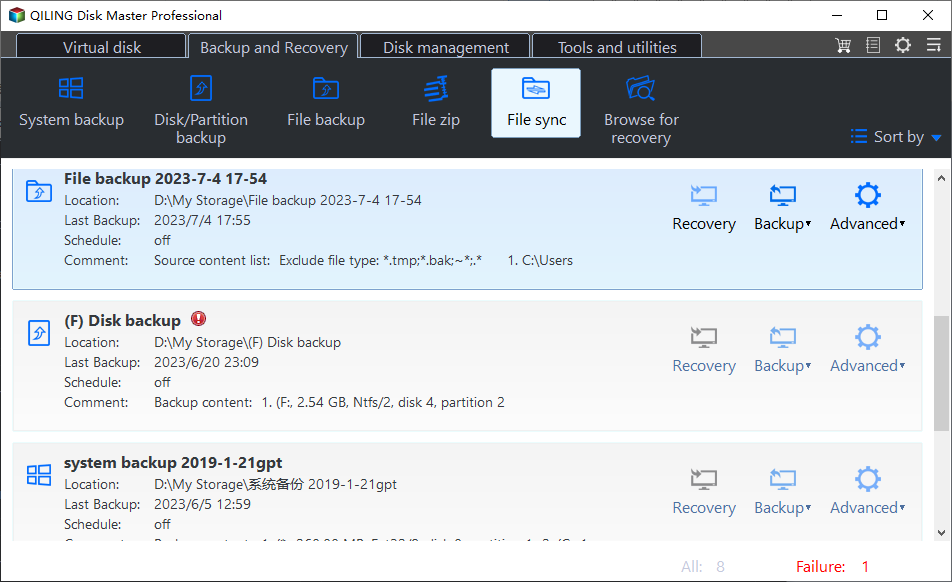
Step 2. Select the source folder directly in the folder tree. Expand the drive and its folders as needed to locate the folder containing the files you want to copy. Select that folder rather than the entire drive.
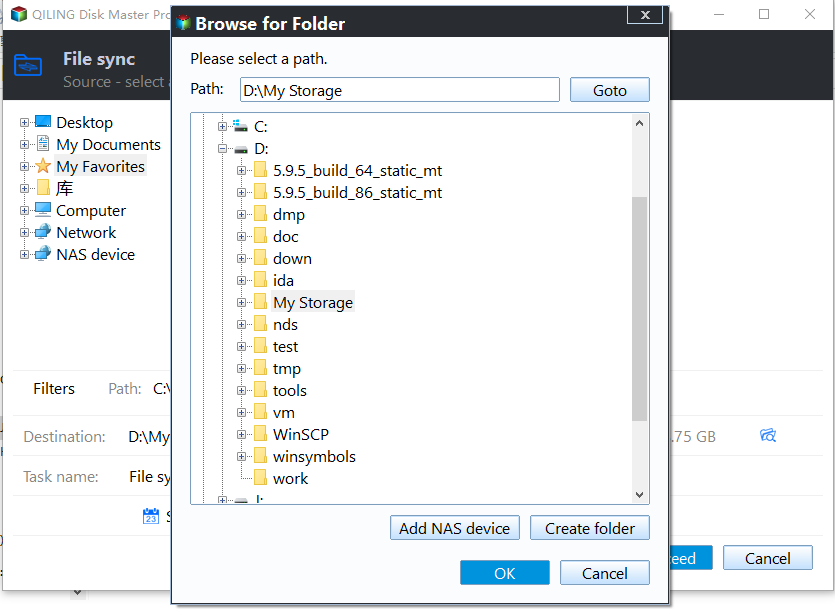
Step 3. Choose the destination drive or folder. Use an external drive, another internal disk, NAS, or USB drive that will stay connected during sync.
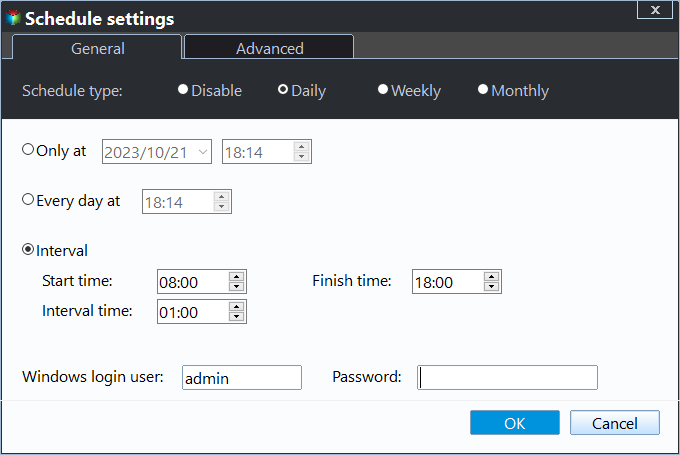
Step 4. Set a schedule if you need automatic sync. Daily or weekly sync is usually enough for personal folders; active project folders may need a shorter interval.
Step 5. Start the sync and check the destination folder after it finishes.
Troubleshooting Tips
- If files are skipped, close the app using them and run the sync again.
- If destination files are deleted unexpectedly, avoid mirror mode and restore from backup.
- If paths are too long, shorten folder names or enable long path support.
FAQ
Should I back up before following these steps? Yes. If the disk is readable and the files matter, create a backup before cloning, repairing, formatting, resetting, or changing hardware.
Can I use Windows built-in tools only? Use built-in tools for simple file copy, restore points, File History, Disk Management, and Windows setup. Use Qiling tools when you need a clearer disk map, bootable recovery media, scheduled backup, or disk clone workflow.
Will these operations erase my target drive? Cloning, restoring an image, formatting, and creating some bootable media can overwrite the target drive. Read the warning message and confirm the disk number before clicking Proceed.
Conclusion
Robocopy is powerful for changed-file copy, while Qiling file sync is easier for scheduled tasks and visual source/destination checks.
Related Articles
- Windows System Backup and Restore Tutorials
Browse Windows backup and restore guides for system images, recovery drives, restore points, and safe repair preparation. - Windows Disk Backup and Restore Tutorials
Find Windows disk backup, SSD image backup, external drive backup, and restore tutorials with practical Qiling workflows. - Windows Clone Tutorials
Review Windows cloning guides for system migration, disk clone, SSD upgrade, and safe boot preparation.
Products
Articles & Tutorials
- Data Recovery
- Data Backup
- File Recovery
- File Backup
- System Backup and Restore
- Disk and Partition Clone
- Technical articles
- Mobile articles
- Disk Master Help
- Windows Data Recovery Tutorials
- Windows Secure Delete Tutorials
- Windows Partition Management Tutorials
- Windows File Backup and Restore Tutorials
- Windows System Backup and Restore Tutorials
- Windows Disk Backup and Restore Tutorials
- Windows Clone Tutorials