Safely Reset Seagate External Hard Drive to Factory Settings
Reset a Seagate external hard drive safely by backing up data, checking health, formatting, or wiping when needed.
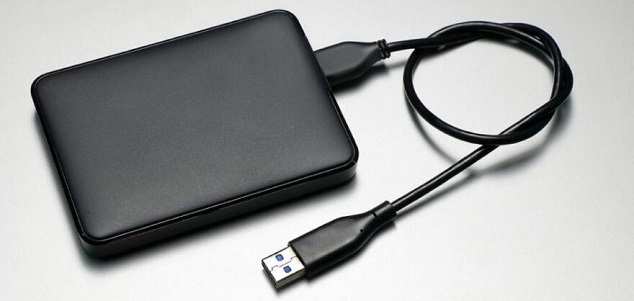
What Factory Reset Means for a Seagate Drive
External hard drives do not have a factory reset button like a phone. In practice, resetting means copying needed files, checking disk health, deleting partitions or formatting, and optionally wiping the drive if privacy matters.
What to Check First
- Confirm the drive model and capacity in Windows.
- Copy files you still need to another disk.
- Check SMART status or run a surface test if the drive disconnects or clicks.
- Use format for reuse and wipe for privacy before selling or recycling.
Back Up Important Files with Qiling Disk Master
Before you change Windows settings, reset a PC, format a drive, or repair a failing disk, copy user files to a safe location. A file backup is easier to restore when you only need documents, photos, game saves, or work folders.
Choose File Backup
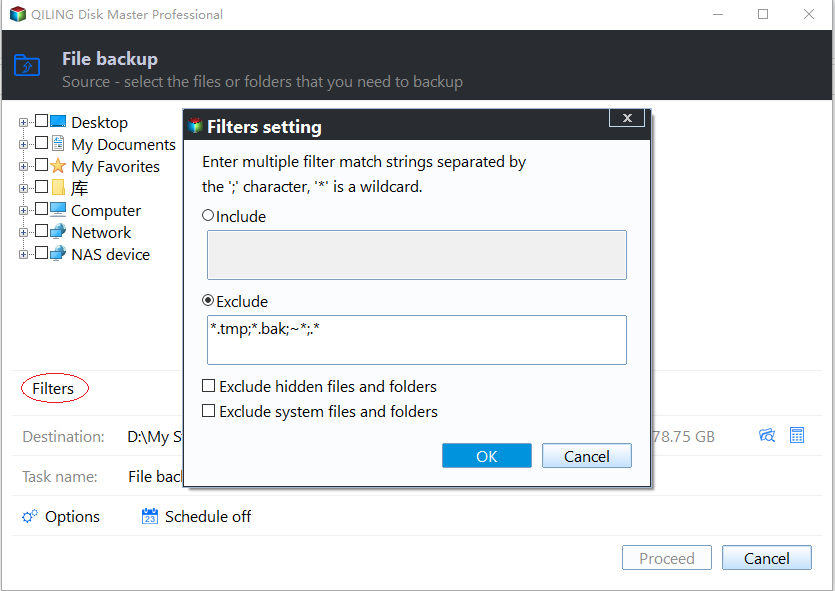
- Open Qiling Disk Master and choose File Backup. Select the folders that matter most, such as Desktop, Documents, Pictures, game save folders, browser profiles, and project folders.

- Use the filter option if you need to include only certain file types or exclude temporary files.
Select a Safe Destination
- Choose an external drive, another internal disk, or a network location as the backup destination. Do not save the backup on the same partition that may be reset, formatted, or repaired.

- Click Proceed to start the backup and wait until it finishes. Open the destination afterward and confirm that the backup image is visible.

Format or Repair the Drive with Qiling Disk Master
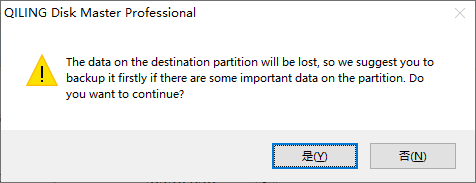
Formatting can rebuild the file system, but it also removes normal access to existing files. Recover or back up needed data first, especially on SD cards, USB drives, and external drives.
Select the Correct Partition
- Open Disk management and identify the target drive by capacity, drive letter, and device name.
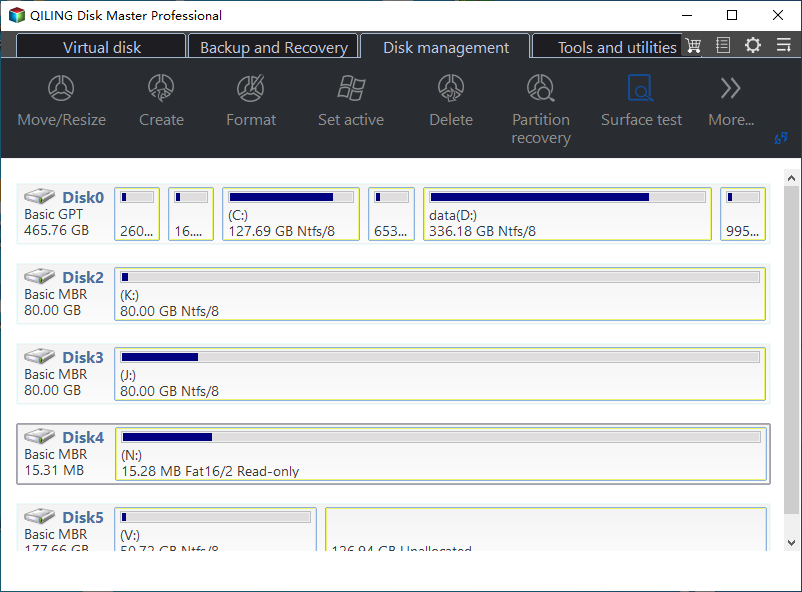
- Right-click the partition and choose Format.
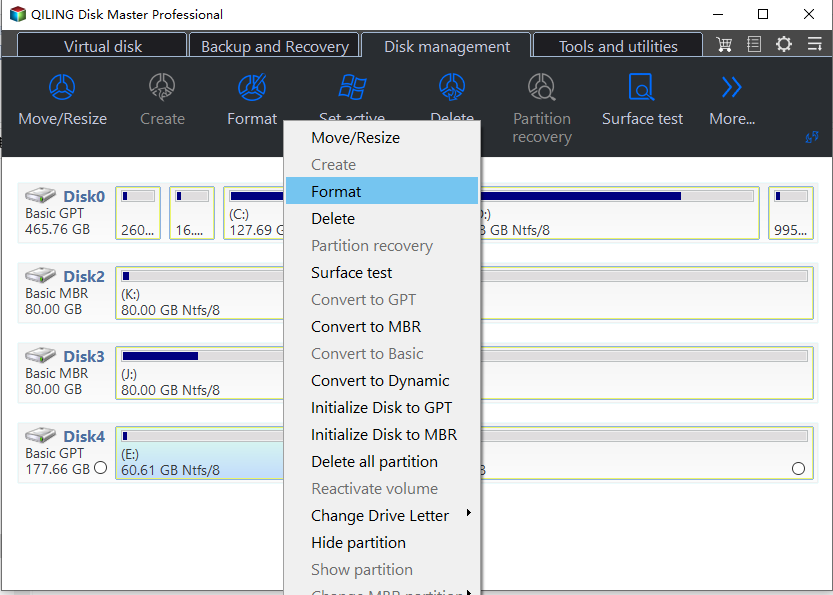
Choose File System and Confirm
- Set the partition label and file system. Use NTFS for Windows internal drives, exFAT for large removable drives used across devices, and FAT32 only when the device requires it.
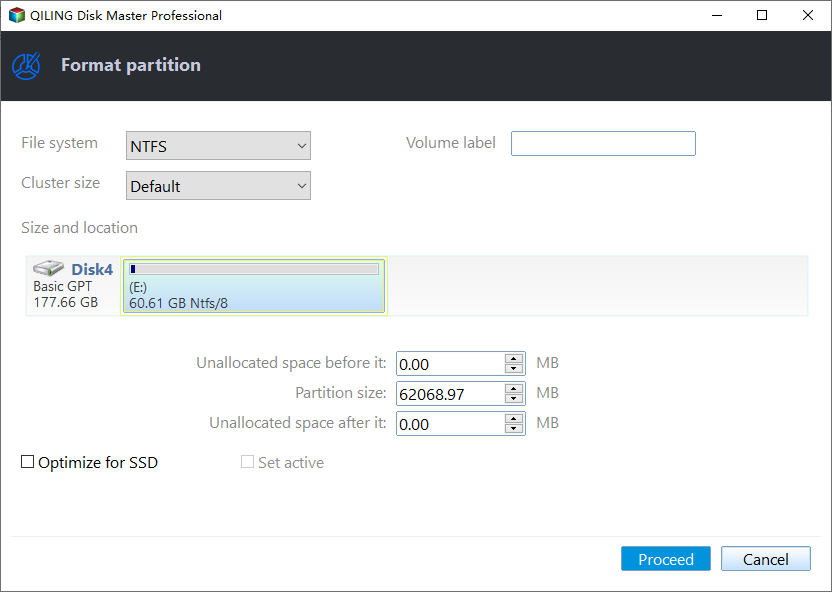
- Read the warning. If the drive contains files you need, cancel and recover or back up the files first. If the drive is ready, confirm and let the format finish.
Erase a Hard Drive with Qiling Disk Master
Data destruction is permanent. Use wiping only when you are selling, recycling, returning, or repurposing a drive and no longer need the files on it.
Back Up and Select the Drive
- Copy any files you still need to another disk. Wiping cannot be undone by normal recovery software.
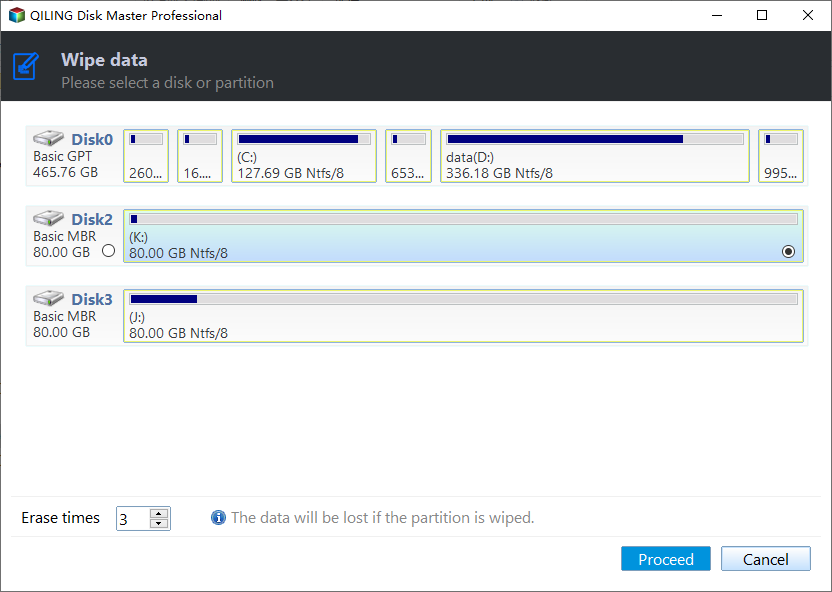
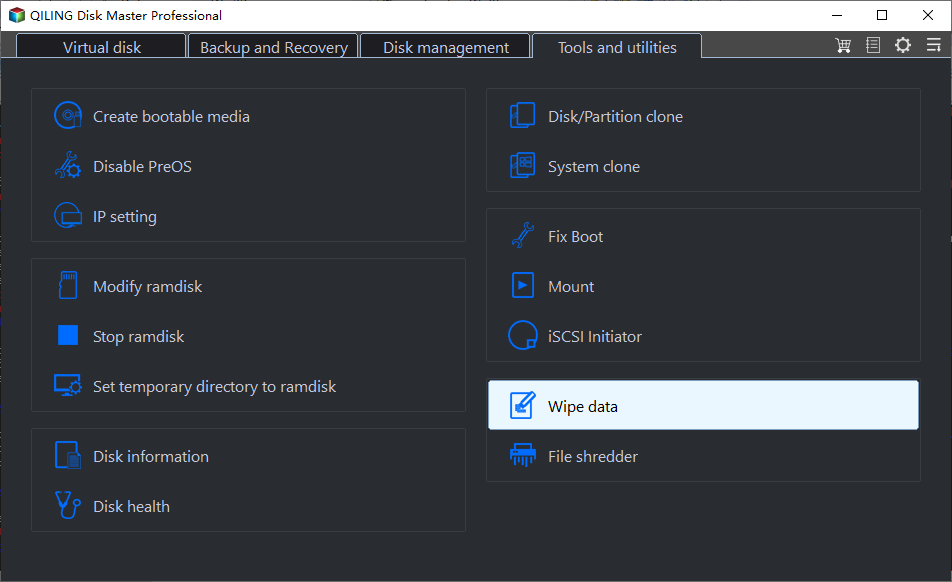
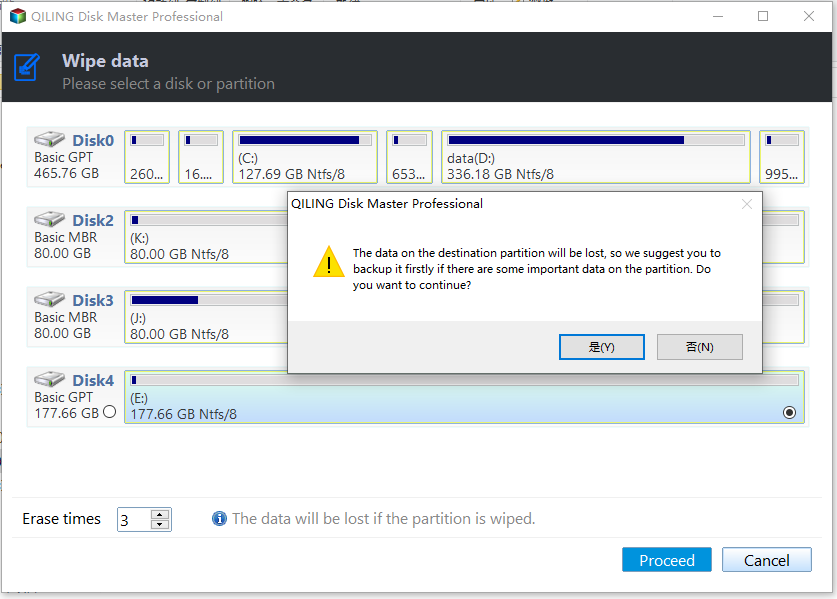
- Open Qiling Disk Master, choose the wipe option, and select the correct disk by model and capacity.
Confirm the Wipe Method
- Review the selected disk and wipe method. For SSDs, avoid repeated overwrite passes when a secure erase or manufacturer tool is more suitable.
- Read the warning carefully, then click Proceed only when the target disk is correct.
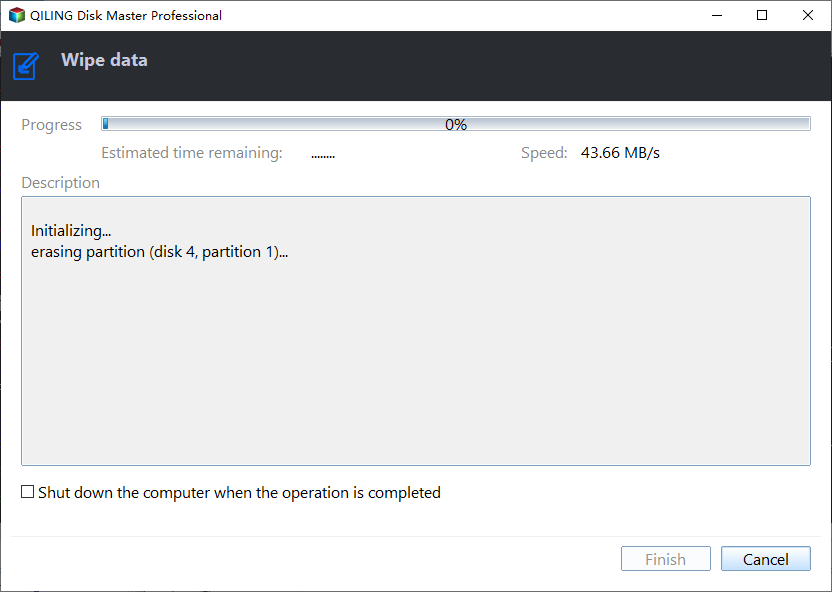
- Keep the computer powered on until the wiping process finishes.
Related Articles
- Windows Partition Management Tutorials
Find practical Windows partition guides for resizing, formatting, checking, converting, and repairing disks without unnecessary risk. - Windows System Backup and Restore Tutorials
Browse Windows backup and restore guides for system images, recovery drives, restore points, and safe repair preparation. - Seagate External Hard Drive Not Working on TV - Qiling
Fix a Seagate external hard drive not working on TV. Check power, file system, partition style, capacity, and recover data first.
Products
Articles & Tutorials
- Data Recovery
- Data Backup
- File Recovery
- File Backup
- System Backup and Restore
- Disk and Partition Clone
- Technical articles
- Mobile articles
- Disk Master Help
- Windows Data Recovery Tutorials
- Windows Secure Delete Tutorials
- Windows Partition Management Tutorials
- Windows File Backup and Restore Tutorials
- Windows System Backup and Restore Tutorials
- Windows Disk Backup and Restore Tutorials
- Windows Clone Tutorials