How to Transfer Windows 11 to Another Computer
Transfer Windows 11 to another computer carefully by checking license, TPM, Secure Boot, drivers, and backup or clone options before migration.

Overview
Windows 11 has stricter hardware requirements than Windows 10, including TPM, Secure Boot, supported CPU, and UEFI. Moving an installed Windows 11 system to another computer may require driver and activation repair.
If the target PC is very different, a clean install plus file restore may be more stable than moving the old system directly.
What to Prepare First
- Confirm the target PC supports Windows 11 requirements.
- Check whether your Windows license is transferable.
- Back up the old PC before migration.
- Save BitLocker recovery keys and account passwords.
Use Windows Built-in Tools First
Windows can sync some settings through a Microsoft account and OneDrive, but it cannot fully transfer an installed Windows 11 environment to different hardware with one built-in wizard.
For full migration, create a system backup or clone, then prepare to repair boot and drivers on the target PC.
Back Up the Disk with Qiling Disk Master
A disk backup is safer than copying folders when you need to preserve Windows, recovery partitions, boot files, and several data partitions together. Save the image to another physical drive or a network location.
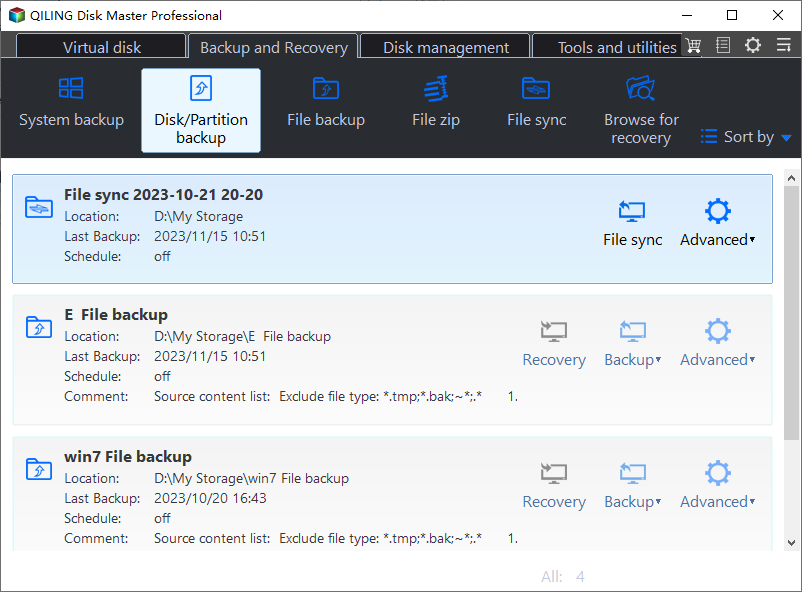
Step 1. Open Qiling Disk Master and choose Disk/Partition Backup. Use this option when the task involves a whole drive, a system image, or several partitions.
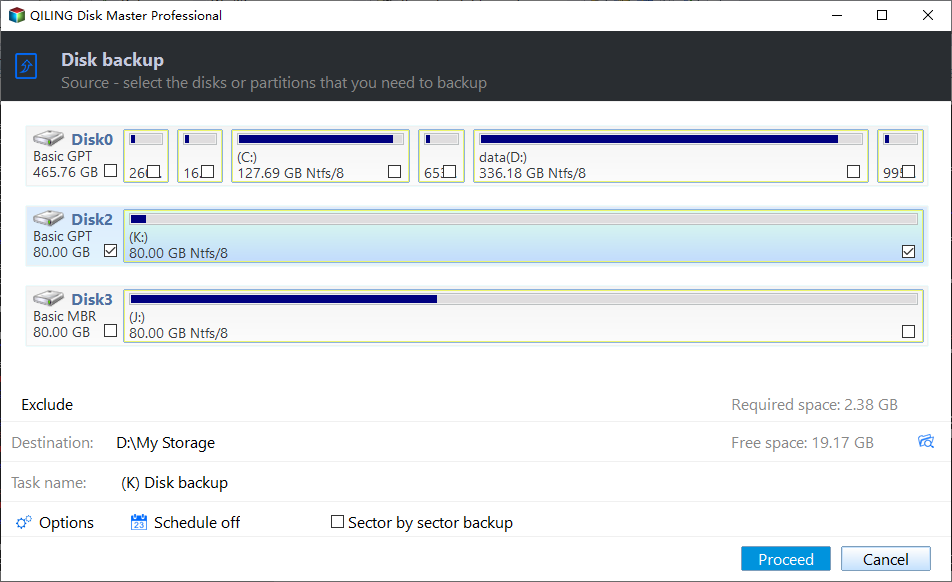
Step 2. Select the disk or partitions you need to protect directly in the source selection area. For a Windows disk, include the EFI/System Reserved partition, C drive, recovery partition, and any data partition that belongs to the same recovery plan.
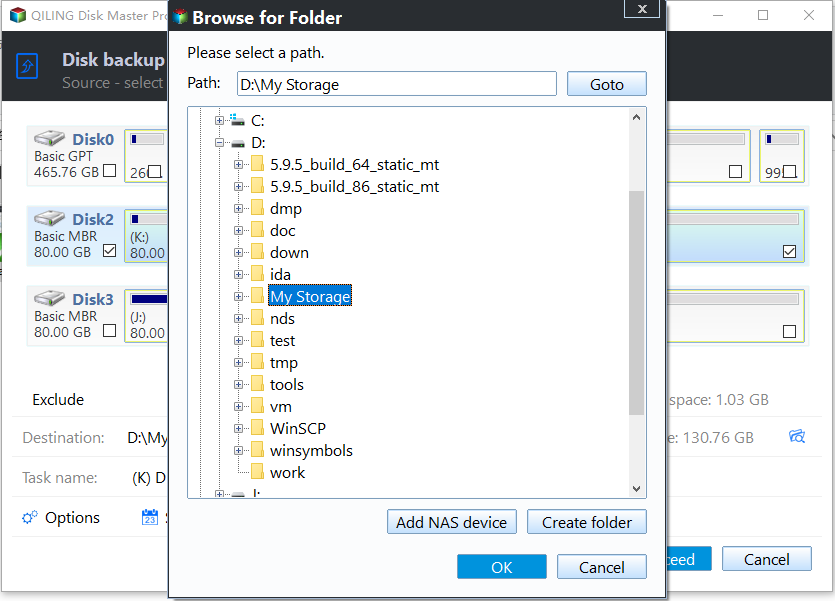
Step 3. Choose a destination on another disk, an external drive, or a NAS folder. Do not store the backup image on the same drive that may fail or be formatted.
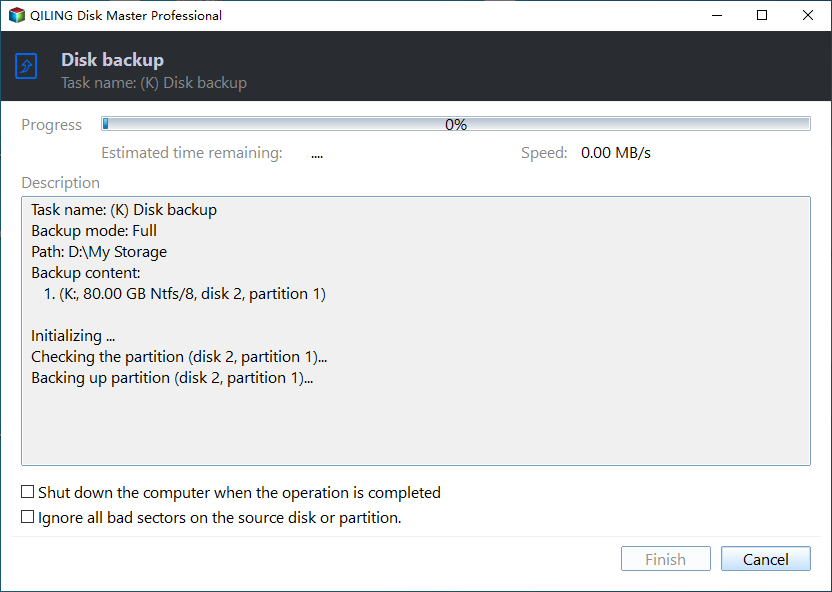
Step 4. Check the source and destination, then click Proceed. Wait until the image is complete and verify that the backup file appears in the destination folder.
Troubleshooting Tips
- If Secure Boot or TPM blocks startup, review BIOS settings on the target PC.
- If activation fails, run Activation Troubleshooter and confirm license type.
- If Windows enters recovery, try Startup Repair before restoring again.
FAQ
Should I back up before following these steps? Yes. If the disk is readable and the files matter, create a backup before cloning, repairing, formatting, resetting, or changing hardware.
Can I use Windows built-in tools only? Use built-in tools for simple file copy, restore points, File History, Disk Management, and Windows setup. Use Qiling tools when you need a clearer disk map, bootable recovery media, scheduled backup, or disk clone workflow.
Will these operations erase my target drive? Cloning, restoring an image, formatting, and creating some bootable media can overwrite the target drive. Read the warning message and confirm the disk number before clicking Proceed.
Conclusion
Transfer Windows 11 only after checking hardware and license conditions. A full backup keeps a rollback path if the new computer rejects the migrated system.
Related Articles
- Windows System Backup and Restore Tutorials
Browse Windows backup and restore guides for system images, recovery drives, restore points, and safe repair preparation. - Windows Disk Backup and Restore Tutorials
Find Windows disk backup, SSD image backup, external drive backup, and restore tutorials with practical Qiling workflows. - Windows Clone Tutorials
Review Windows cloning guides for system migration, disk clone, SSD upgrade, and safe boot preparation.
Products
Articles & Tutorials
- Data Recovery
- Data Backup
- File Recovery
- File Backup
- System Backup and Restore
- Disk and Partition Clone
- Technical articles
- Mobile articles
- Disk Master Help
- Windows Data Recovery Tutorials
- Windows Secure Delete Tutorials
- Windows Partition Management Tutorials
- Windows File Backup and Restore Tutorials
- Windows System Backup and Restore Tutorials
- Windows Disk Backup and Restore Tutorials
- Windows Clone Tutorials