Can You Transfer Windows to Another Hard Drive?
Yes. You can move an existing Windows installation to a different internal drive without reinstalling every application, provided the source is readable and the destination has enough space.
Decide between system clone and disk clone
System clone focuses on the Windows partitions needed to start the OS. A whole-disk clone also copies unrelated data partitions. If the old disk holds a large D: volume you do not want to move, system clone may be more suitable. If you need the entire disk layout, choose disk clone instead.
A normal file copy of C: will not recreate an independent Windows boot installation. Preserve an external backup before either migration operation.
Prepare the second drive
- Check interface, physical size, and firmware support for the new HDD or SSD.
- Compare the space used by Windows and its boot partitions with the target's usable capacity.
- Connect both drives, identify each by model and capacity, and move all needed data off the destination because cloning can overwrite it.
- Record BitLocker recovery information and keep stable power through the operation.
First boot after moving Windows
Shut down, select the new drive or its Windows Boot Manager entry in firmware, and temporarily disconnect the old boot disk if feasible. Confirm that Windows actually boots from the new drive in Disk Management. Check files, apps, drivers, and activation before formatting or reusing the source.
Transfer Windows with Qiling System Clone
Use System clone for a Windows-only migration to another drive. The target drive's contents may be overwritten.
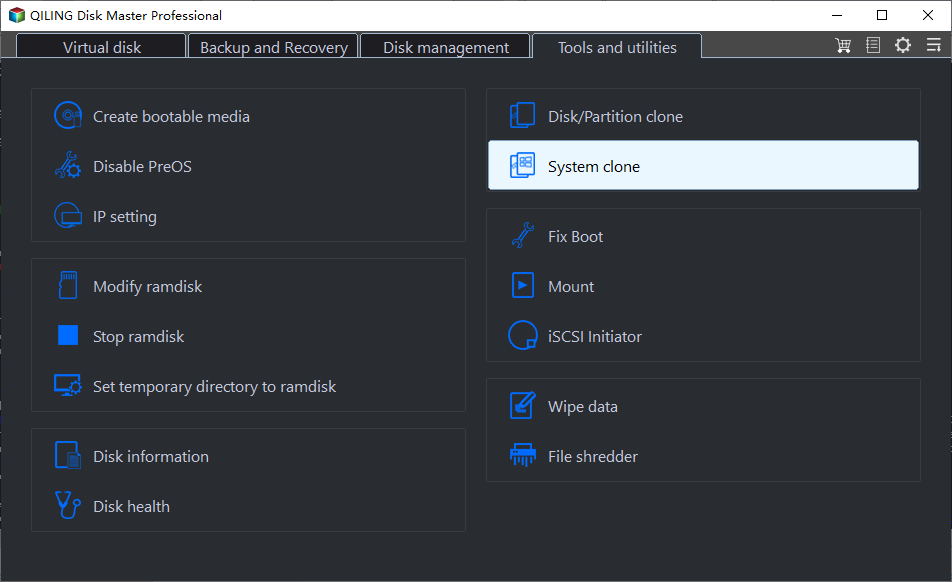
Step 1. Connect the destination drive to the working PC. Open Qiling Disk Master and choose System clone under Tools and utilities.
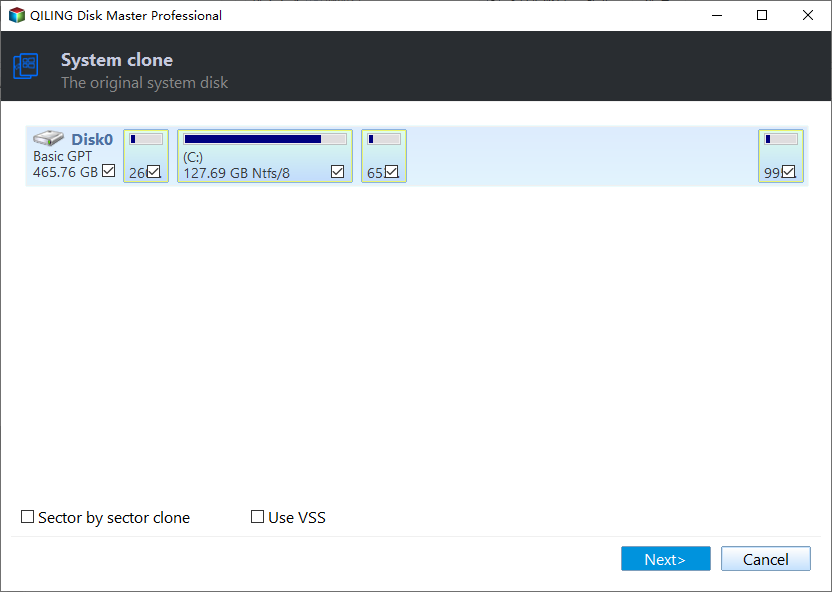
Step 2. Confirm that the current Windows system disk and its boot partitions are selected as the source. Click Next.
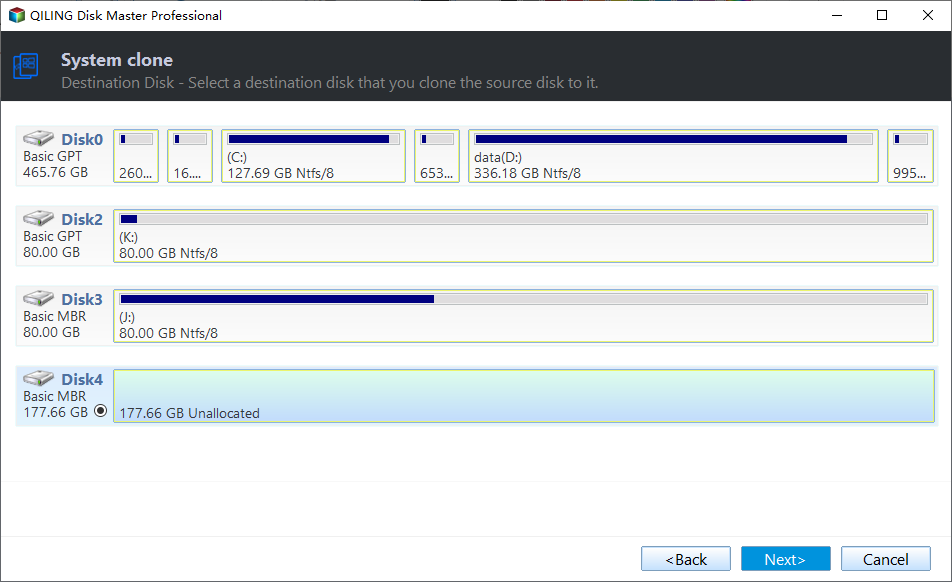
Step 3. Identify the new internal HDD or SSD by capacity and model, select it, and click Next. Move any needed files off it first.
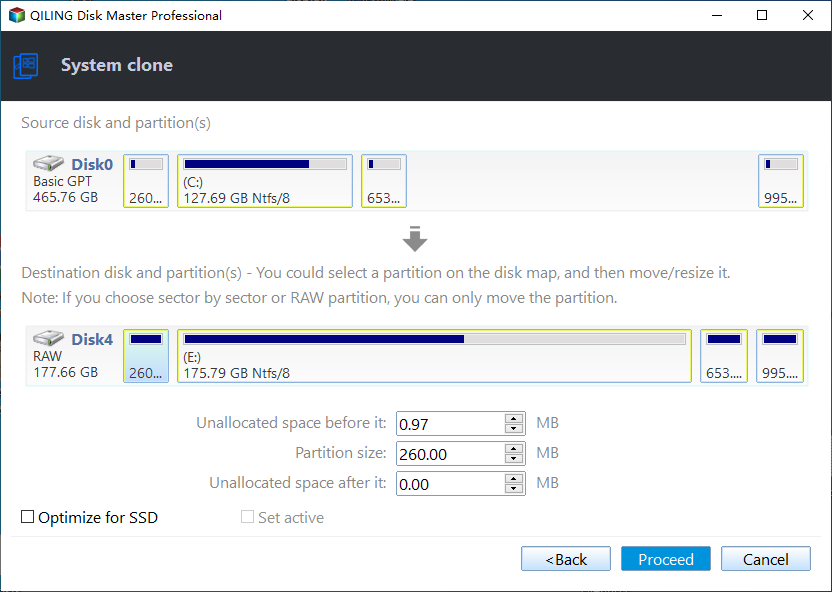
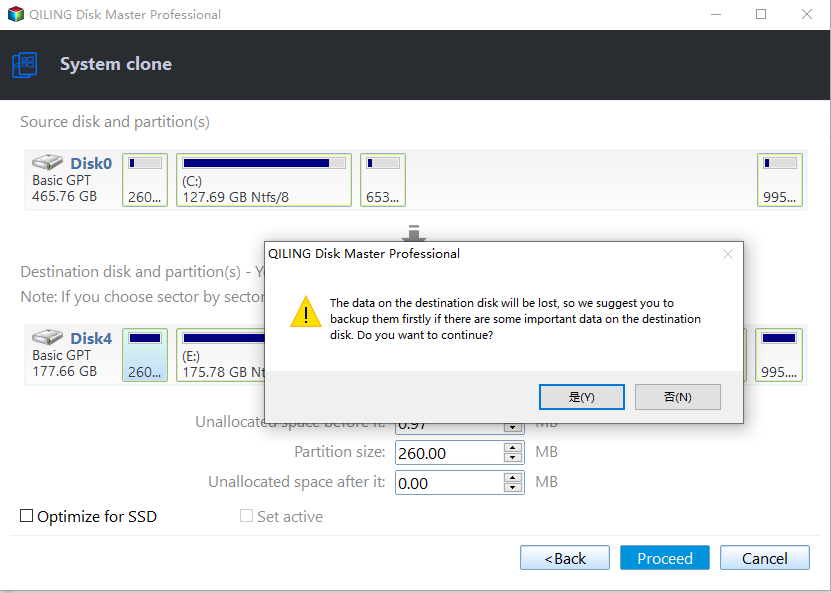
Step 4. Review the system-to-destination layout. If the destination is an SSD, enable Optimize for SSD; then click Proceed.
Step 5. Read the data-loss warning for the destination and confirm only after checking the drive again. Wait for completion. Boot from the destination and verify Windows before disconnecting or erasing the source.
Frequently Asked Questions
Can I move Windows to a smaller drive? Only if the system partitions and used data fit and the software permits the required resize.
Will the new drive letter be C:? When booted as the active Windows installation, the migrated system normally presents its own system volume as C:.
Conclusion
Choose a system clone for Windows-only migration, inspect the target and preview carefully, then test booting from the new drive before changing the old one.
Related Articles
- Windows System Backup and Restore Tutorials
Compare system images and recovery choices in Windows. - Windows File Backup and Restore Tutorials
Protect personal files before resets or disk changes. - Windows Cloning Tutorials
Find boot-drive and SSD migration guides.
Products
Articles & Tutorials
- Data Recovery
- Data Backup
- File Recovery
- File Backup
- System Backup and Restore
- Disk and Partition Clone
- Technical articles
- Mobile articles
- Disk Master Help
- Windows Data Recovery Tutorials
- Windows Secure Delete Tutorials
- Windows Partition Management Tutorials
- Windows File Backup and Restore Tutorials
- Windows System Backup and Restore Tutorials
- Windows Disk Backup and Restore Tutorials
- Windows Clone Tutorials