Is It Safe to Clone Windows 10 to a New Drive on the Same PC?
What makes a clone safe?
Cloning on the same PC avoids many cross-hardware driver issues, but it can still fail if the source has read errors, the destination is too small, or the wrong disk is selected. Record the BitLocker recovery key and make a separate backup of irreplaceable files. A clone is a migration snapshot, not versioned backup.
Prepare the two drives
Step 1. Verify the new drive is compatible and connect it internally or through a matching SATA/NVMe enclosure. The used Windows system partitions must fit on it.
Step 2. In Disk Management, note model, capacity, and partition style for both disks. Copy any existing destination files elsewhere. A fresh target does not need to be formatted merely to be cloned.
Step 3. Close disk-intensive apps and keep the PC powered. If the source has recurring I/O errors, prioritize data recovery or a reliable image of what is still readable rather than repeated blind clones.
Verify the first boot
After cloning, shut down and disconnect the original drive for the first test if possible. Select the new drive's Windows Boot Manager in UEFI. Confirm Windows, user files, applications, activation, and BitLocker status. Only then reconnect the old drive or change its partitions.
Move Windows 10 to the New Drive with Qiling System Clone
System Clone moves the Windows boot and system partitions, not unrelated data partitions. Copy files on other disks separately. The destination is overwritten.
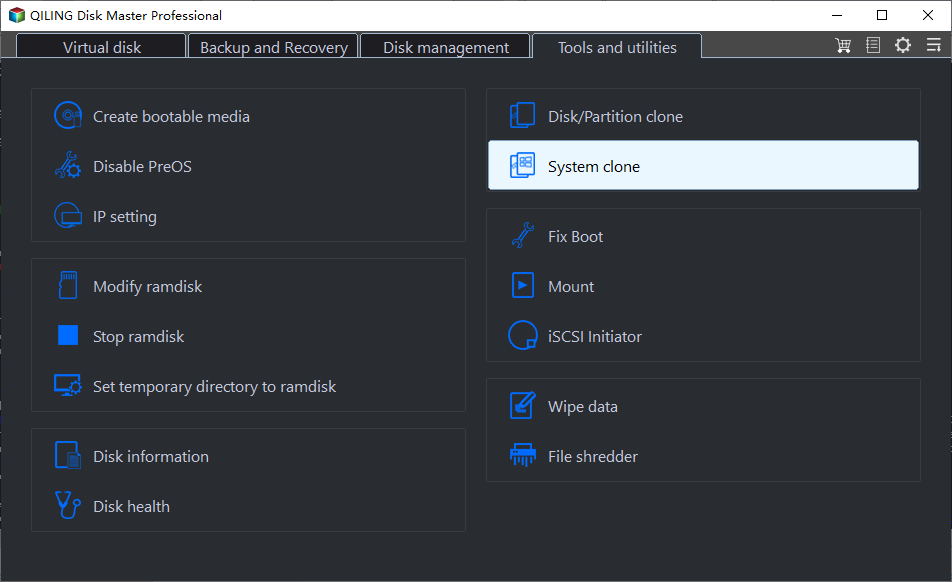
Step 1. Connect the new SSD, open Qiling Disk Master, and select Tools and utilities > System clone.
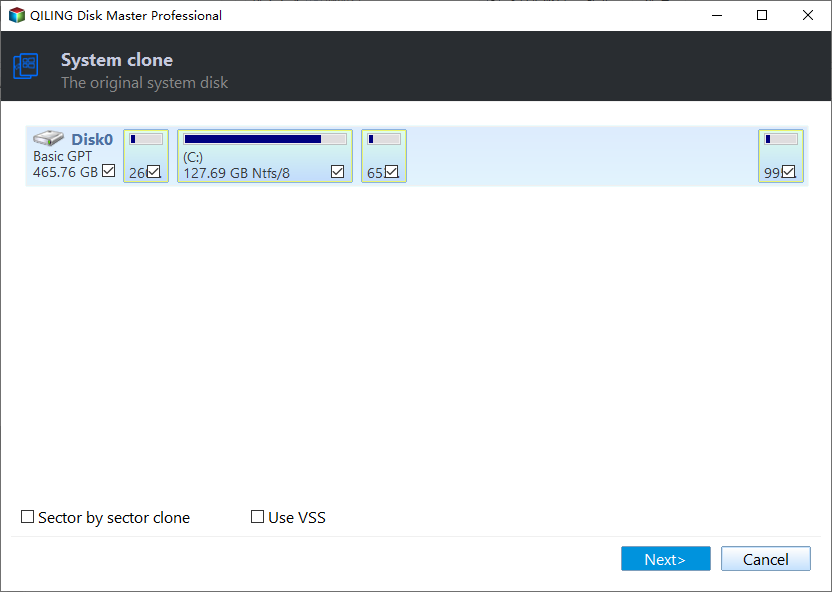
Step 2. Review the automatically selected Windows source partitions, including the small boot and recovery partitions, then click Next.
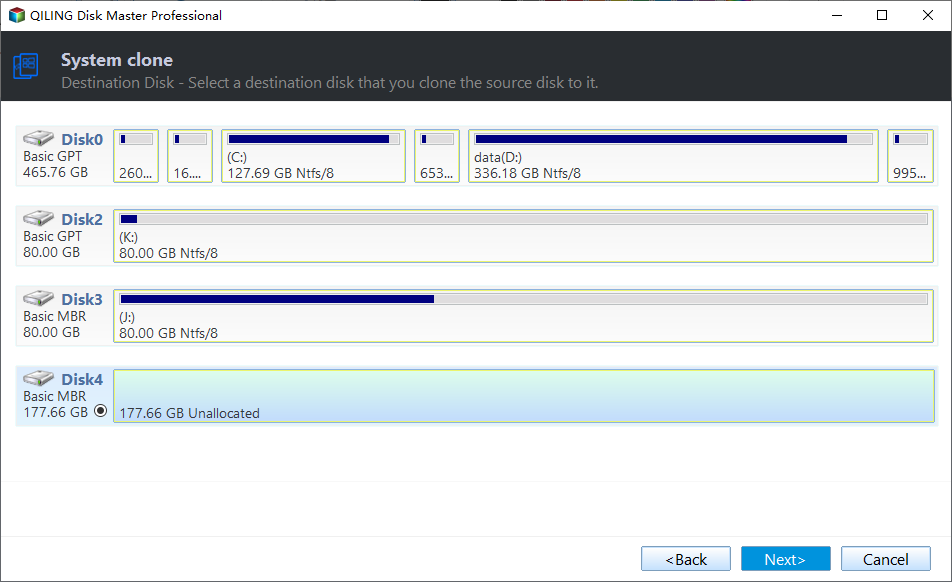
Step 3. Select the intended destination SSD by model and capacity and click Next. All existing destination data may be lost.
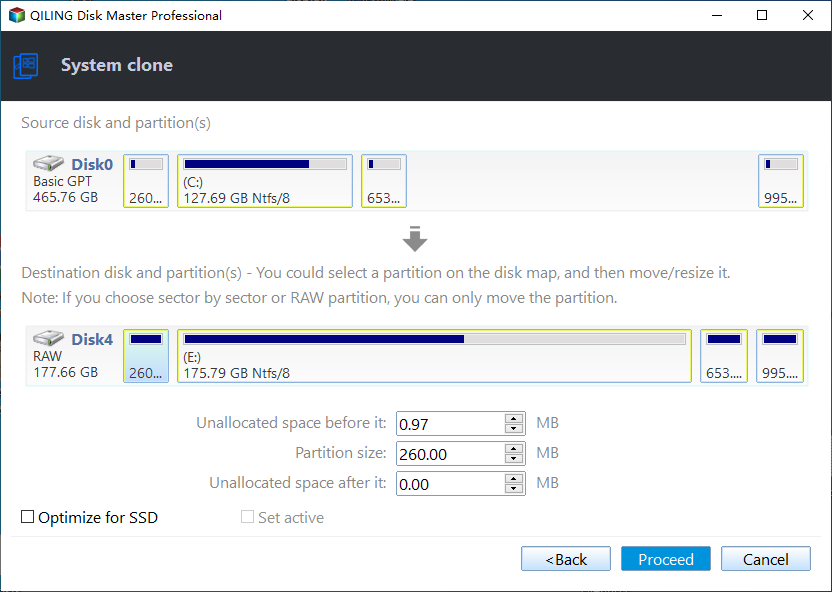
Step 4. Review the target layout, choose SSD optimization where appropriate, and click Proceed. Confirm the overwrite warning and wait for the task to finish.
Step 5. Shut down, select the new SSD's Windows Boot Manager in UEFI, and test booting with the old boot disk disconnected if practical. Check activation, BitLocker, applications, and files before changing the old drive.
Conclusion
Cloning is reasonable on the same PC when the source is healthy, the target is compatible, and the result is tested independently. Windows 10's end of support remains a separate security issue.
Related Articles
- Windows File Backup and Restore Tutorials
Find file-copy, scheduled-backup, and restore guides. - Windows System Backup and Restore Tutorials
Compare file backups with full system images.
Products
Articles & Tutorials
- Data Recovery
- Data Backup
- File Recovery
- File Backup
- System Backup and Restore
- Disk and Partition Clone
- Technical articles
- Mobile articles
- Disk Master Help
- Windows Data Recovery Tutorials
- Windows Secure Delete Tutorials
- Windows Partition Management Tutorials
- Windows File Backup and Restore Tutorials
- Windows System Backup and Restore Tutorials
- Windows Disk Backup and Restore Tutorials
- Windows Clone Tutorials