Can You Back Up an Entire Windows PC Without an External Drive?
Yes, but the image needs a destination independent of the PC's system disk. A NAS or network share can hold a full system image without a USB drive or disc. A second partition on the same disk is convenient storage, not protection against disk failure.
Choose a destination that can survive a PC failure
A NAS or another computer's shared folder is usually the closest substitute for an external drive. Confirm that it has enough free space for the used Windows system partitions and that your account has write access. Keep the share available throughout the job; wired networking is preferable for a large first image. A second internal physical disk can also work, but it will not protect against theft, power damage, or malware affecting the whole PC.
Cloud file sync can protect selected documents, but ordinary sync is not a bootable full-PC image. Check the provider's version history and restore process before treating it as backup. Keep one copy offline or otherwise protected from accidental deletion or ransomware when possible.
Prepare the network folder
Step 1. On the NAS or second computer, create a dedicated backup folder and an account with permission to write to it. From the Windows PC, open the share and copy a small test file.
Step 2. Measure free space and ensure the destination device will not sleep or disconnect. Keep the PC plugged in. Record the share path and credentials in a secure place; you may need them from recovery media later.
Step 3. Decide how often to make a new image and how long to retain older versions. An image from six months ago cannot recover last week's changes unless you have separate file backups.
Create a Qiling System Image on a NAS
Step 1. In Qiling Disk Master open Backup and Recovery > System Backup. Verify that the Windows boot and system partitions are selected.

Step 2. Open destination selection and choose the network location. Add the share/NAS with its path and authorized credentials, then select the intended backup folder. Do not choose C: or another partition on the same disk as the only copy.
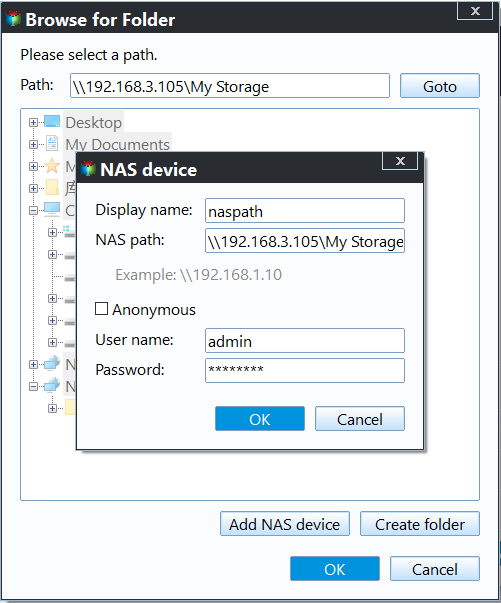
Step 3. Review the source and network destination, click Proceed, and let the task complete. Check the image in Qiling's task list and at the share. Prepare bootable recovery media and verify that it can access the network before you need it.

Conclusion
A NAS or separate network computer can replace a USB drive for full-PC imaging. Test both the saved image and the route back to it; a backup you cannot reach during recovery is incomplete.
Related Articles
- Windows System Backup and Restore Tutorials
Find system image, recovery, and migration guides. - Windows Cloning Tutorials
Compare whole-disk and Windows system migration methods.
Products
Articles & Tutorials
- Data Recovery
- Data Backup
- File Recovery
- File Backup
- System Backup and Restore
- Disk and Partition Clone
- Technical articles
- Mobile articles
- Disk Master Help
- Windows Data Recovery Tutorials
- Windows Secure Delete Tutorials
- Windows Partition Management Tutorials
- Windows File Backup and Restore Tutorials
- Windows System Backup and Restore Tutorials
- Windows Disk Backup and Restore Tutorials
- Windows Clone Tutorials