Restore Computer to an Earlier Date in Windows
Restore a Windows computer to an earlier date with System Restore, system image recovery, or Qiling Backup. Learn what each method changes.
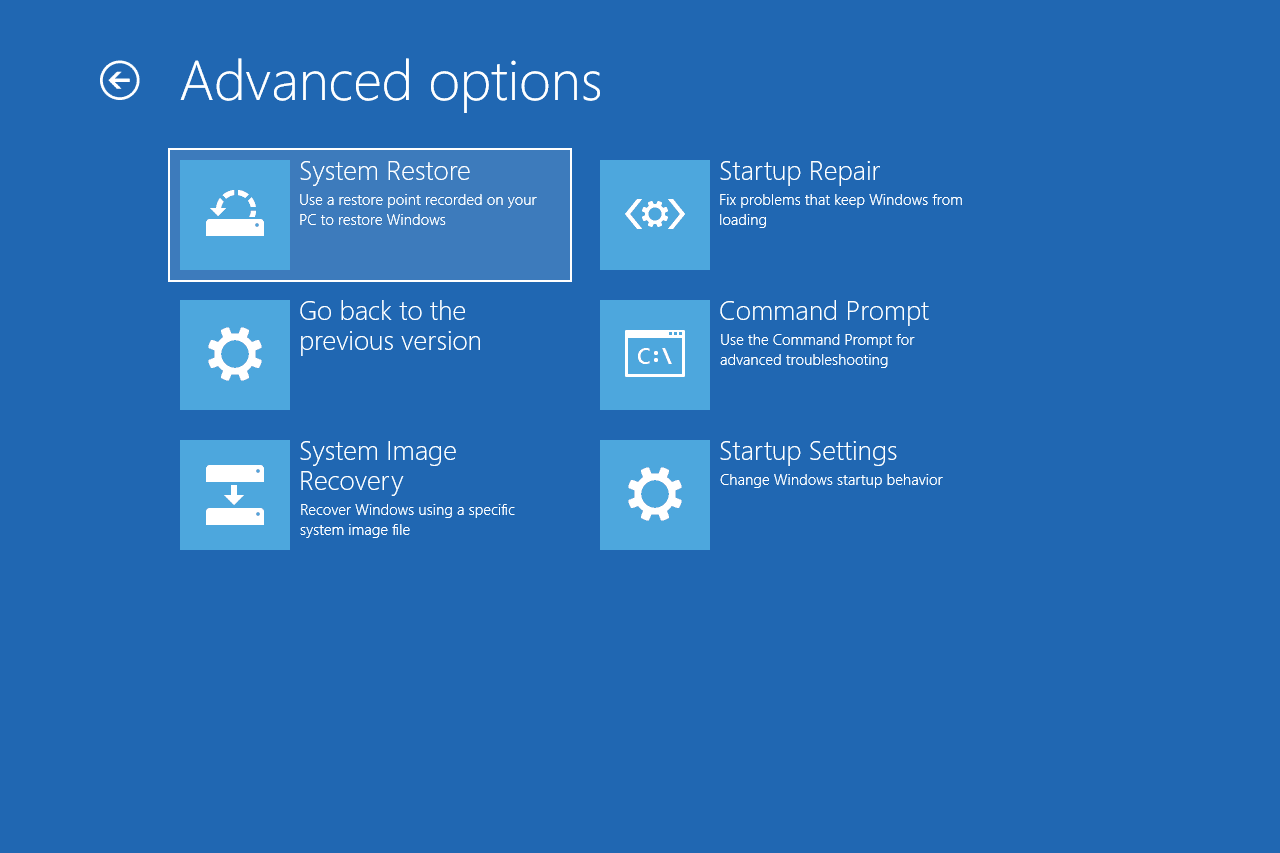
What This Problem Usually Means
System Restore rolls back system files, drivers, registry settings, and restore points. It does not reliably protect all personal files or installed programs. A full system backup captures Windows, boot partitions, programs, settings, and selected data at a specific time.
What to Check First
- Search for Create a restore point and open System Protection.
- Click System Restore and choose a restore point.
- Review affected programs before confirming.
- Restart and test whether the original problem is fixed.
Protect Windows with Qiling Backup Before Repair
Before reset, system restore, BCD repair, partition repair, or driver rollback, create a backup. It gives you a recovery path if the repair changes files, boot records, or user data unexpectedly.
Step 1. Open Qiling Backup and choose System Backup for Windows protection, or Disk Backup if you want to image the whole drive.

Step 2. Check that the Windows boot partitions and C drive are included. If you are backing up personal data only, use File Backup instead.

Step 3. Choose an external drive, NAS, or another safe disk as the destination. Do not store the backup image on a failing or soon-to-be-formatted drive.

Step 4. Review the task summary and click Proceed. Keep the backup connected until the task finishes and label the image with the repair date.

FAQ
Should I repair Windows before backing up? If the disk is readable, back up first. Repair commands, formatting, resizing, and reset options can change data or boot records.
Can Windows built-in tools solve the issue? Often yes. Use Settings, Disk Management, Startup Repair, CHKDSK, SFC, or DISM first when the risk is low. Use Qiling tools when you need a clearer disk map, safer preview, or a full backup before changing the drive.
What should I avoid? Do not format a drive that still holds needed files, do not run clean commands on the wrong disk, and do not clone to a target disk that contains the only copy of important data.
Conclusion
System Restore is useful for driver and system changes, but it is not a full backup. For a reliable rollback path, keep a system image and personal file backup before major changes.
Related Articles
- Windows System Backup and Restore Tutorials
Browse Windows backup and restore guides for system images, recovery drives, restore points, and safe repair preparation. - Windows Disk Backup and Restore Tutorials
Learn how to image, clone, restore, and protect Windows disks before upgrades, repair, or hardware replacement.
Products
Articles & Tutorials
- Data Recovery
- Data Backup
- File Recovery
- File Backup
- System Backup and Restore
- Disk and Partition Clone
- Technical articles
- Mobile articles
- Disk Master Help
- Windows Data Recovery Tutorials
- Windows Secure Delete Tutorials
- Windows Partition Management Tutorials
- Windows File Backup and Restore Tutorials
- Windows System Backup and Restore Tutorials
- Windows Disk Backup and Restore Tutorials
- Windows Clone Tutorials