Robocopy Sync Folders Two-Way
Learn how Robocopy two-way folder sync works, where it is risky, and how to use Qiling Backup for safer file backup and sync.
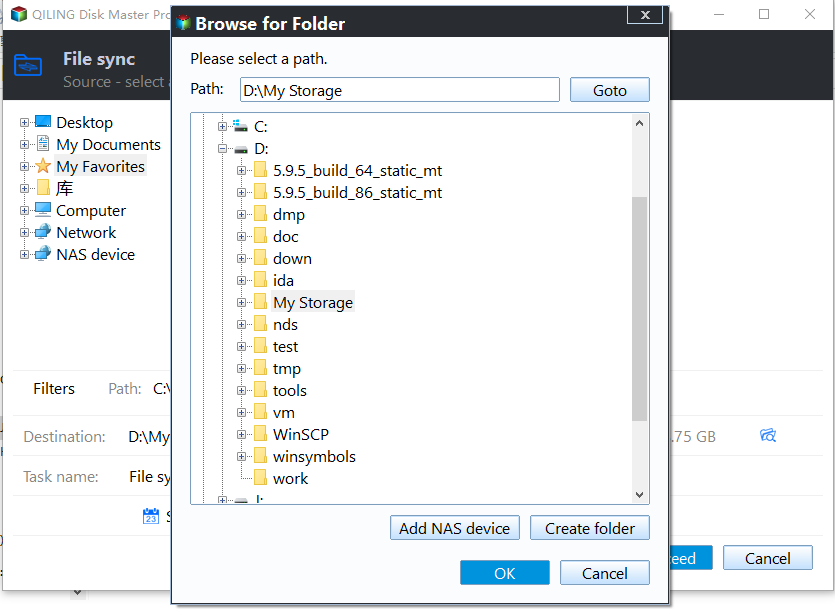
What This Problem Usually Means
Robocopy is powerful for copying changed files, but true two-way sync is risky because deletions and overwrites can travel in both directions. It is better to define a source, a destination, and a recovery plan before automating anything.
What to Check First
- Test commands on a small folder first.
- Use /L to preview Robocopy actions before running them.
- Avoid /MIR until you understand that it can delete destination files.
- Keep a backup version before enabling scheduled sync.
Back Up Windows or Files with Qiling Backup
Before repair, update, reset, reinstall, or disk changes, create a backup. A backup gives you a recovery path if Windows repair or hardware work does not go as planned.
Step 1. Open Qiling Backup. Choose System Backup for Windows protection, Disk Backup for a full drive image, or File Backup for selected folders.

Step 2. Confirm the source. For system backup, include the boot partitions and C drive. For file backup, select the folders that matter most.

Step 3. Choose an external drive, NAS, or another safe location as the destination. Do not save the backup to a disk you plan to format or repair.

Step 4. Review the task summary and click Proceed. Keep the backup drive connected until the task finishes.

FAQ
Should I make changes before backing up? If the disk is readable and the files matter, back up first. Repairs, formatting, conversion, and cloning can change boot records or partition data.
When should I use Windows built-in tools? Use Settings, Disk Management, Startup Repair, CHKDSK, SFC, DISM, or account recovery first when the issue is simple and the risk is low.
When does Qiling help? Use Qiling tools when you need a clearer disk map, a bootable recovery environment, backup before repair, partition preview, disk cloning, or controlled password recovery on an authorized PC.
Conclusion
Robocopy can sync folders, but it is unforgiving. For important files, keep versioned backup or a clear one-way sync plan so mistakes can be undone.
Related Articles
- Windows Partition Management Tutorials
Find practical Windows partition guides for resizing, formatting, checking, converting, and repairing disks without unnecessary risk. - Windows System Backup and Restore Tutorials
Browse Windows backup and restore guides for system images, recovery drives, restore points, and safe repair preparation.
Products
Articles & Tutorials
- Data Recovery
- Data Backup
- File Recovery
- File Backup
- System Backup and Restore
- Disk and Partition Clone
- Technical articles
- Mobile articles
- Disk Master Help
- Windows Data Recovery Tutorials
- Windows Secure Delete Tutorials
- Windows Partition Management Tutorials
- Windows File Backup and Restore Tutorials
- Windows System Backup and Restore Tutorials
- Windows Disk Backup and Restore Tutorials
- Windows Clone Tutorials