Windows Stuck on Undoing Changes Made to Your Computer
Windows shows Undoing changes made to your computer when an update fails and is rolled back. A single rollback may finish normally; a repeated restart loop needs the failed update's exact error code.
If Windows Returns to the Desktop
Step 1. Leave the PC on power while the first rollback completes. After sign-in, open Settings > Windows Update > Update history and note the failed KB number and error code.
Step 2. Check free space on C:, disconnect unnecessary USB devices, then run the Windows Update troubleshooter under Settings. Restart after it finishes.
Step 3. In an elevated Terminal run DISM /Online /Cleanup-Image /RestoreHealth, then sfc /scannow. Restart and retry once. If the same code returns, research that code rather than repeating updates indefinitely.
If the failed update is a feature upgrade rather than a monthly quality update, check the PC maker's firmware and storage-driver guidance before retrying. An installation failure caused by insufficient system-reserved or recovery-partition space needs a different remedy from a network download error. The KB number and error code prevent those cases from being mixed up.
If Windows Cannot Start
Step 1. Enter Windows Recovery Environment using the recovery screen or official installation media. Choose Troubleshoot > Advanced options > Uninstall Updates and remove the latest quality update if the failure began immediately after it.
Step 2. If needed, return to Advanced options and choose Startup Settings > Restart > Safe Mode. A suitable System Restore point is another separate option.
Step 3. Back up personal files before a reset or reinstall. Keep my files can still remove apps and settings.
If Windows Recovery Environment asks for a BitLocker recovery key, obtain it through the account or organization that manages the device. Do not delete the encrypted partition to bypass that prompt. If the drive is not detected by firmware, an update repair cannot fix a disconnected or failed drive.
Create a System Image Before Another Major Update
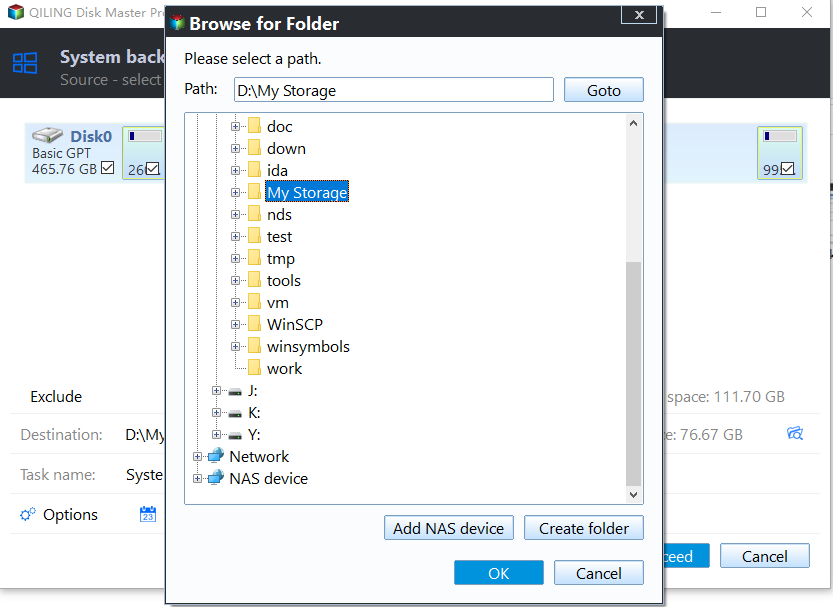
When Windows is stable, Qiling Disk Master can image the system to an external disk before a feature update or repair install.
Step 1. Attach the external disk, open Qiling Disk Master, and select System backup. Confirm the Windows partitions are selected.

Step 2. Choose the external destination, click Proceed, wait for success, and inspect the image before retrying Windows Update.
After Recovery
Confirm Windows boots twice, the update history is clear, and important files open. A repeated rollback calls for investigation of the recorded code, storage health, and firmware compatibility.
After one successful update, leave the PC connected to power long enough for post-install tasks to finish. Then verify that the external image and separately copied files are still available; a successful boot alone does not prove the backup strategy works.
Related Articles
- System Backup and Restore
Create and verify a Windows backup before major repairs. - Check Disk Health
Recognize storage warnings before changing a drive.
Products
Articles & Tutorials
- Data Recovery
- Data Backup
- File Recovery
- File Backup
- System Backup and Restore
- Disk and Partition Clone
- Technical articles
- Mobile articles
- Disk Master Help
- Windows Data Recovery Tutorials
- Windows Secure Delete Tutorials
- Windows Partition Management Tutorials
- Windows File Backup and Restore Tutorials
- Windows System Backup and Restore Tutorials
- Windows Disk Backup and Restore Tutorials
- Windows Clone Tutorials