What Is the Best Way to Image a Hard Drive in Windows?
A disk image is a restorable file representing a disk or selected partitions. It is useful when you want a dated backup without dedicating an entire target drive to a direct clone. The best method depends on whether you need everyday recovery, migration, or forensic preservation.
Image, clone, or file backup?
An image backup is stored as one or more files on another drive. It can retain the Windows boot and recovery partitions, and multiple backup versions can share the destination. A direct clone instead overwrites a target disk so that it can replace the source. A file backup is simpler when only documents and photos matter.
For a Windows boot disk, identify EFI or System Reserved, Windows, and recovery partitions before choosing scope. Imaging only C: may not create a restorable boot system. Formal forensic acquisition is a different task: it needs source write protection, hashes, and a documented chain of custody.
Prepare storage and recovery access
Choose a separate internal disk, external HDD or SSD, or supported network destination with enough free space. The required image size depends on selected data, compression, and whether sector-by-sector backup is enabled. Do not save the only image to the disk being protected.
Record the BitLocker recovery key, check source health, and create or confirm recovery media before a failure occurs. If the source clicks or disconnects, avoid repeated full scans and consider professional recovery instead.
Verify the image rather than trusting a completion message
After backup, check the task result and file location. A test restore to a spare disk or a non-destructive file-level recovery check gives stronger assurance than seeing an image file in Explorer. Keep at least one copy offline or otherwise separated from ransomware and accidental deletion.
Repeat backups on a schedule that matches how often your files change. Periodically test recovery media, encryption keys, and a restored sample so the image remains useful when the original drive is unavailable.
Create a Hard-Drive Image with Qiling Disk Master
Disk/Partition backup saves an image file. It does not overwrite a replacement disk as cloning does. The screenshots show sample disks; choose the real source by model and capacity.
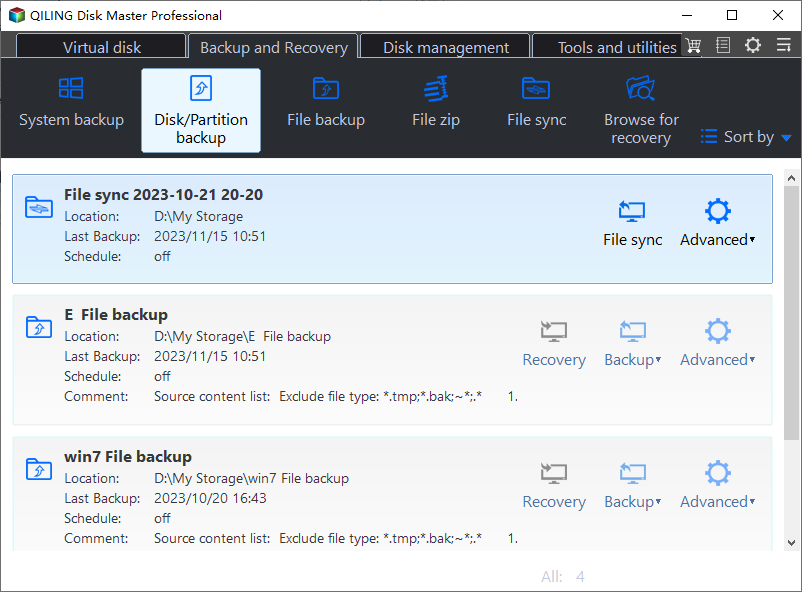
Step 1. Connect a separate destination drive with adequate free space. Open Qiling Disk Master and select Backup and Recovery > Disk/Partition backup. Keep the backup destination physically separate from the source.
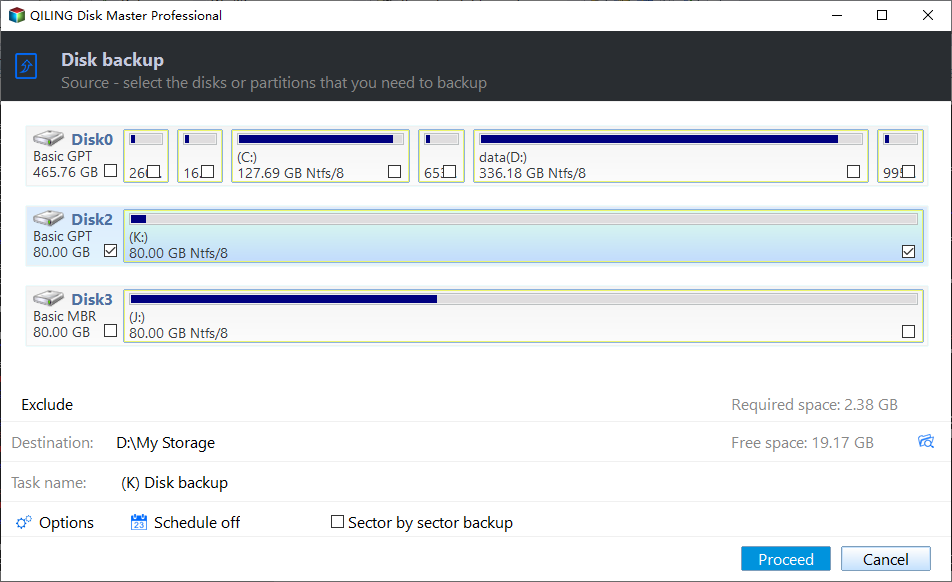
Step 2. On the source screen, select the entire physical disk by model and capacity if you need a restorable disk image; select individual partitions only if the article calls for that narrower scope. Select the entire Windows disk when you need a bootable restoration, including hidden system and recovery partitions.
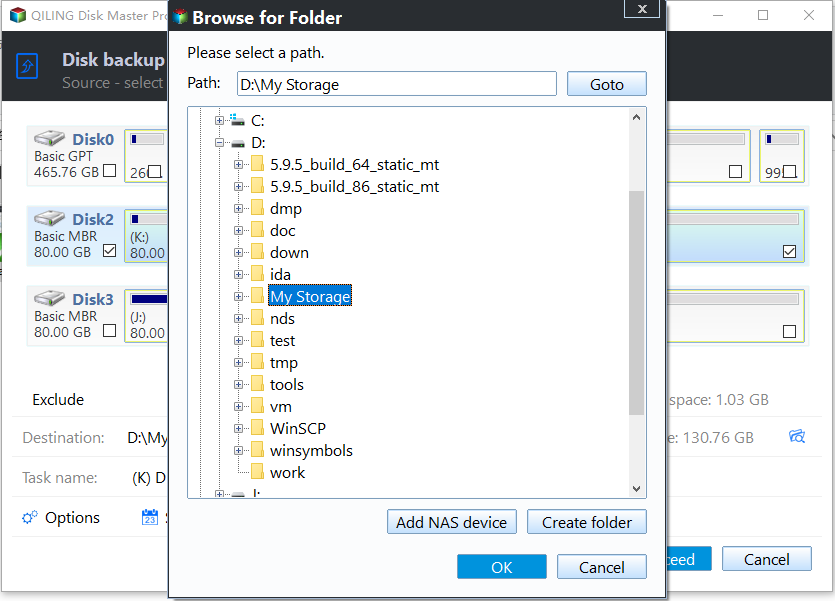
Step 3. Click the destination browse control and choose a folder on the separate drive. Check the estimated required space and confirm that the image is not being saved on the disk being protected. Use an external or secondary drive, not a folder on the protected disk.
Step 4. Review the selected source, destination, task name, and any optional schedule. Click Proceed and leave both drives connected until the backup completes. Leave sector-by-sector backup off unless you specifically need every accessible sector and have the required space.
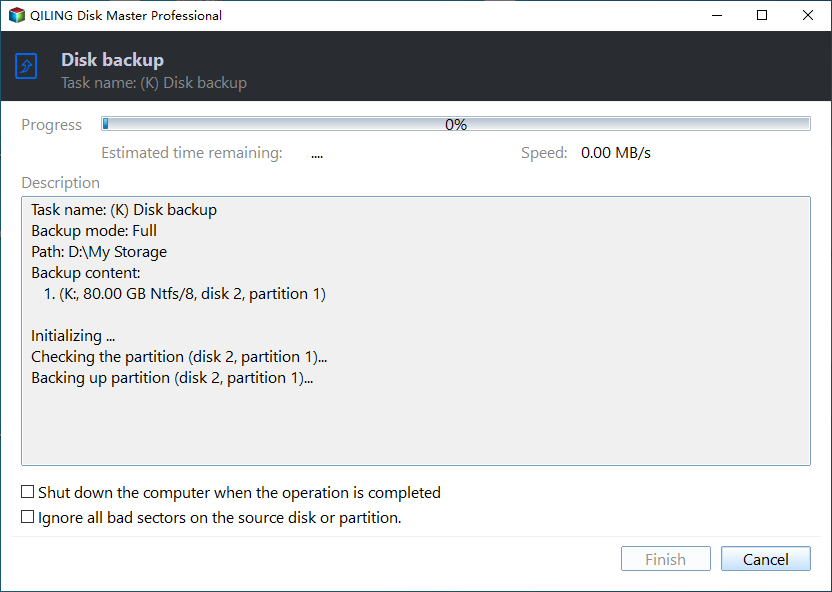
Step 5. Check the backup task result and use a test restore or recovery environment to verify that the image is usable. Keep recovery media and the BitLocker key with your recovery plan.
Frequently Asked Questions
Is an image the same as a clone?
No. An image is a backup file restored later; a clone writes directly to a target disk.
Can I boot directly from an image file?
Usually not. Restore the image to suitable storage using the product recovery workflow.
Conclusion
For ordinary Windows protection, image the complete disk to separate storage, retain recovery access, and test a restore before you need it.
Related Articles
- Windows Disk Backup and Restore
Compare disk images with other Windows backup methods. - Clone a Hard Drive to USB
Learn when a direct USB clone is the better fit.
Products
Articles & Tutorials
- Data Recovery
- Data Backup
- File Recovery
- File Backup
- System Backup and Restore
- Disk and Partition Clone
- Technical articles
- Mobile articles
- Disk Master Help
- Windows Data Recovery Tutorials
- Windows Secure Delete Tutorials
- Windows Partition Management Tutorials
- Windows File Backup and Restore Tutorials
- Windows System Backup and Restore Tutorials
- Windows Disk Backup and Restore Tutorials
- Windows Clone Tutorials