Windows Backup Failed to Get an Exclusive Lock on the EFI Partition
This error means Windows Backup could not access the EFI System Partition while making an image. It does not mean the EFI partition should be deleted, formatted, or assigned a drive letter. Record the precise event before changing settings.
Check the Failing Backup
Step 1. In Event Viewer > Windows Logs > Application, locate the Windows Backup event at the failed job's time. Note the event ID, error code, and any VSS event beside it.
Step 2. Check Backup and Restore for an unfinished job. Pause other scheduled imaging or disk-management jobs for one test, reboot, and retry only one backup to an external drive with adequate space.
Step 3. Run vssadmin list writers in an elevated Command Prompt. If a writer is failed, record its name and investigate that service. Do not delete snapshots without understanding their role.
Step 4. In Disk Management, confirm the Windows disk is online and its EFI partition is visible. If the same event returns after a clean reboot, investigate a storage, VSS, or security-product conflict using the recorded code.
Check that the destination is not the same physical disk as Windows. If it is a network share, confirm that the account running the backup can write to it and that the connection stays available throughout the job. A destination or permission error can be reported alongside an EFI lock message, so review the entire event rather than only its first sentence.
On a work PC, endpoint security and centralized backup may already manage VSS schedules. Ask the administrator before changing services or exclusions. Do not run two system-image programs at the same time just to see which one finishes first; the overlap may reproduce the lock conflict.
Make a Separate System Image with Qiling
Qiling Disk Master is an alternate imaging path, not a repair for Windows Backup or a failing drive. Prepare a healthy external destination.
Step 1. Connect the destination drive. Open Qiling Disk Master, go to Backup and Recovery, and choose System backup.

Step 2. Review the automatically selected Windows and boot partitions. Check that the source is the current PC's system disk.

The example source-selection screen also shows insufficient free space at its default destination. Choose a destination with adequate capacity before continuing; do not treat the example's disabled button as a completed setup.
Step 3. Select the external drive as destination, check its free space, and click Proceed. Keep both drives connected until completion.
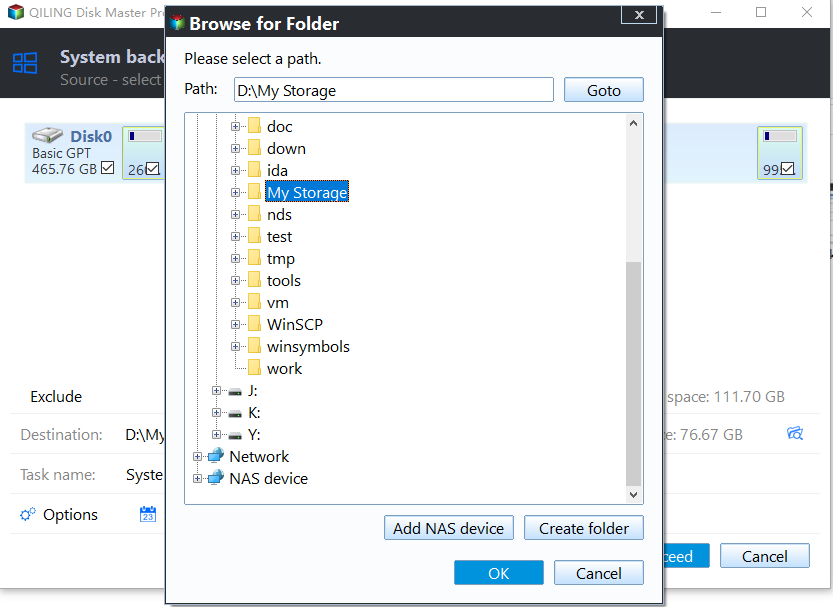
Step 4. Inspect the completed task and verify the image is readable. Keep separate copies of essential files. If both tools fail, check source and destination disk health before further retries.
A completed image should have a known restore path. Create or keep bootable recovery media, note where the image is stored, and test that the recovery environment can see the external drive. Reading an image file in File Explorer is not the same as proving the PC can restore from it.
Avoid Risky Workarounds
Do not remove the EFI partition, permanently turn off protection, or store the only image on the source drive. Address the specific error shown in Event Viewer.
Related Articles
- System Backup and Restore
Create and verify a Windows backup before major repairs. - Check Disk Health
Recognize storage warnings before changing a drive.
Products
Articles & Tutorials
- Data Recovery
- Data Backup
- File Recovery
- File Backup
- System Backup and Restore
- Disk and Partition Clone
- Technical articles
- Mobile articles
- Disk Master Help
- Windows Data Recovery Tutorials
- Windows Secure Delete Tutorials
- Windows Partition Management Tutorials
- Windows File Backup and Restore Tutorials
- Windows System Backup and Restore Tutorials
- Windows Disk Backup and Restore Tutorials
- Windows Clone Tutorials