Unable to Migrate Windows to Another Drive? Diagnose and Retry
Identify where migration fails
If the wizard cannot start, first confirm the destination is connected and has enough space. If it stops during copying, check the source for read errors and the cable or enclosure for dropouts. If cloning completes but Windows will not boot, inspect UEFI boot order, boot partitions, and whether you are accidentally starting from the old disk. These are different failure stages and need different fixes.
Preflight checklist
Step 1. Back up valuable files. Check both disks' health and the target's usable capacity. A sector-by-sector copy needs at least the source disk's full capacity; a system-partition clone may need only the selected used data and partitions, depending on the tool.
Step 2. Record BitLocker keys. Use a compatible internal slot or enclosure and stable power. Disconnect other removable drives to avoid selection mistakes.
Step 3. Review partition style and firmware boot mode. Do not convert GPT to MBR solely because a generic article says they must match; preserve the configuration required by the Windows installation and target firmware.
Step 4. If the old disk has serious I/O errors, stop retrying and consider a recovery-first workflow. Repeated cloning can stress a failing disk.
After a completed clone that will not boot
Disconnect the source for a clean test, select the new Windows Boot Manager in UEFI, and confirm all boot partitions were copied. Use Windows recovery media for Startup Repair if appropriate. Do not erase either disk while diagnosis is incomplete.
Migrate Windows to Another Drive with Qiling System Clone
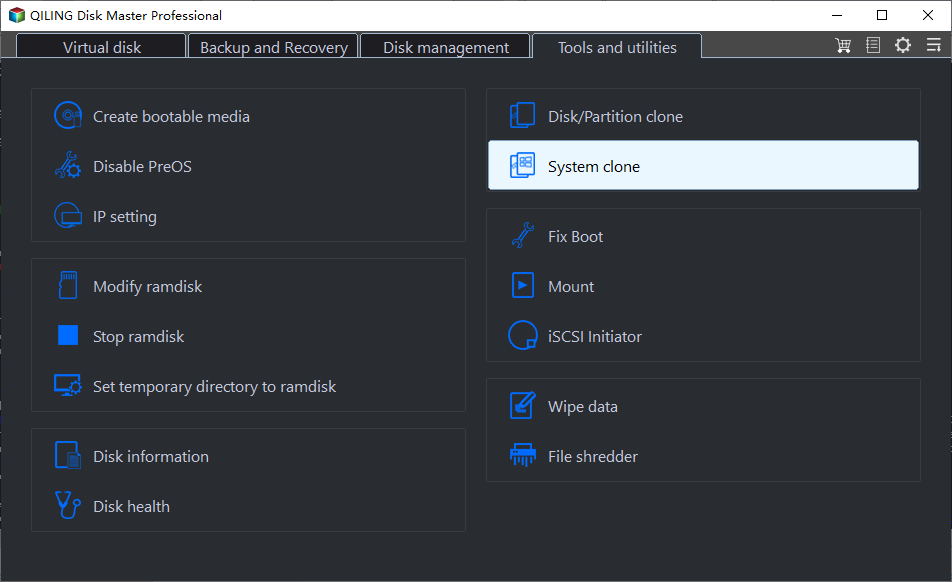
Step 1. Connect the target SSD and open Tools and utilities > System clone in Qiling Disk Master.
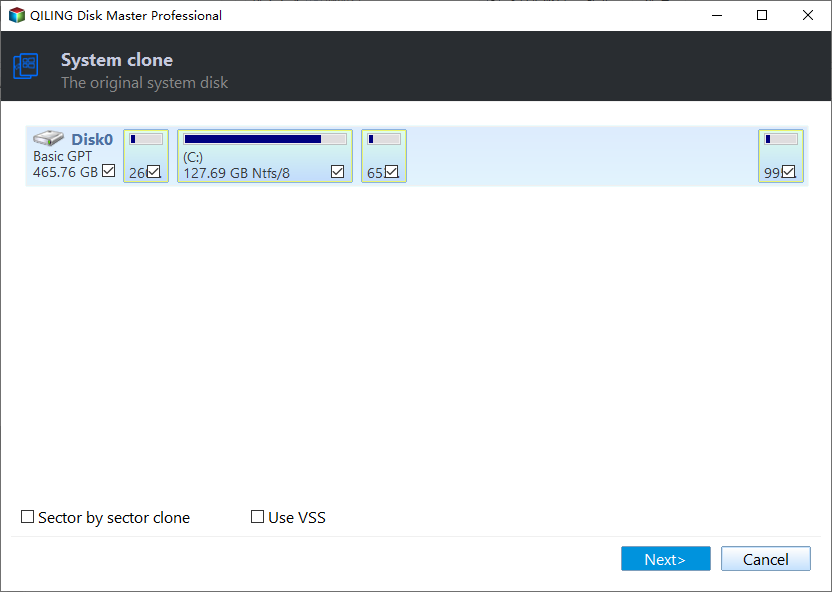
Step 2. Confirm the automatically selected Windows boot and system partitions, then click Next. Other data partitions are not included.
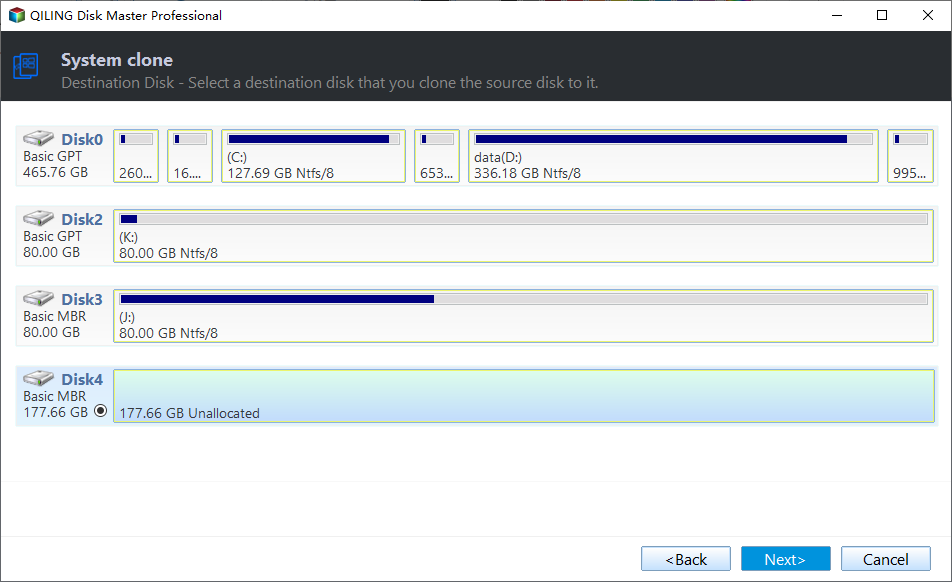
Step 3. Select the correct target SSD by model and capacity. Copy existing target files elsewhere first; the selected target is overwritten. Click Next.
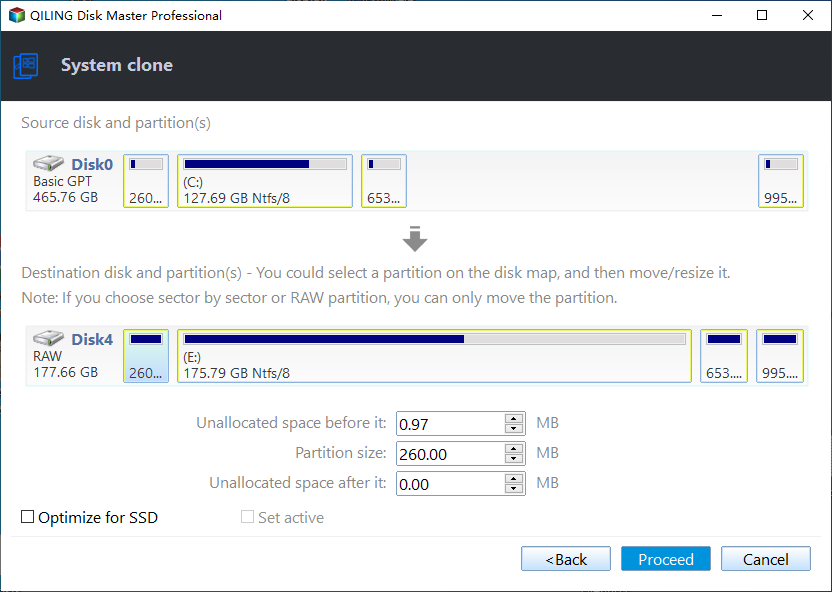
Step 4. Review the layout and optional SSD optimization, then click Proceed. Accept the overwrite warning and wait until completion.
Step 5. Shut down and boot from the new SSD's Windows Boot Manager, preferably with the old boot disk temporarily disconnected. Verify Windows, apps, files on the system volume, BitLocker, and activation.
Conclusion
Locate the failure stage before changing partitions. A clear source, compatible target, stable connection, and independent first-boot test resolve many migration problems.
Related Articles
- Windows Cloning Tutorials
Explore Windows disk, system, and SSD migration topics. - Windows Disk Backup and Restore Tutorials
Compare migration with a separate disk image.
Products
Articles & Tutorials
- Data Recovery
- Data Backup
- File Recovery
- File Backup
- System Backup and Restore
- Disk and Partition Clone
- Technical articles
- Mobile articles
- Disk Master Help
- Windows Data Recovery Tutorials
- Windows Secure Delete Tutorials
- Windows Partition Management Tutorials
- Windows File Backup and Restore Tutorials
- Windows System Backup and Restore Tutorials
- Windows Disk Backup and Restore Tutorials
- Windows Clone Tutorials