An Operating System Wasn't Found in Windows 10: Diagnose Boot Mode and Disk
An operating system wasn't found means firmware could not start Windows from the selected device. The cause may be a disconnected drive, wrong boot order or mode, damaged boot files, or hardware failure. Do not format the disk to test it.
Check the Hardware and Boot Choice
Step 1. Disconnect nonessential USB storage and restart. In firmware setup, confirm the Windows drive is detected with the expected model and capacity. If it is absent, check its cable or seek hardware service before software repair.
Step 2. For a UEFI/GPT installation, select Windows Boot Manager for that drive. For a legacy BIOS/MBR installation, select the correct physical drive. Do not switch UEFI and Legacy modes at random.
Step 3. If the disk is detected but Windows still fails, boot official Windows installation media and choose Repair your computer > Troubleshoot > Advanced options > Startup Repair. Record the result.
If Startup Repair reports that it could not repair the PC, inspect whether the Windows partition is still present before trying another boot tool. A disk that has changed capacity, makes unusual noises, or disappears after a restart should be backed up or replaced first. Boot-code repair cannot restore a missing storage device.
Use Qiling Fix Boot Only for a Matching Case
Back up accessible files first. Qiling Disk Master's Fix Boot is a separate operation from Rebuild MBR; a GPT/UEFI system should not be sent through an MBR-only repair.
If Windows cannot start, use previously prepared Qiling bootable media or create it on another working PC with Tools and utilities > Create bootable media. Choose an expendable USB drive, because making the media formats that USB. Start the affected PC from it and confirm that Qiling sees the original Windows disk before selecting any repair.
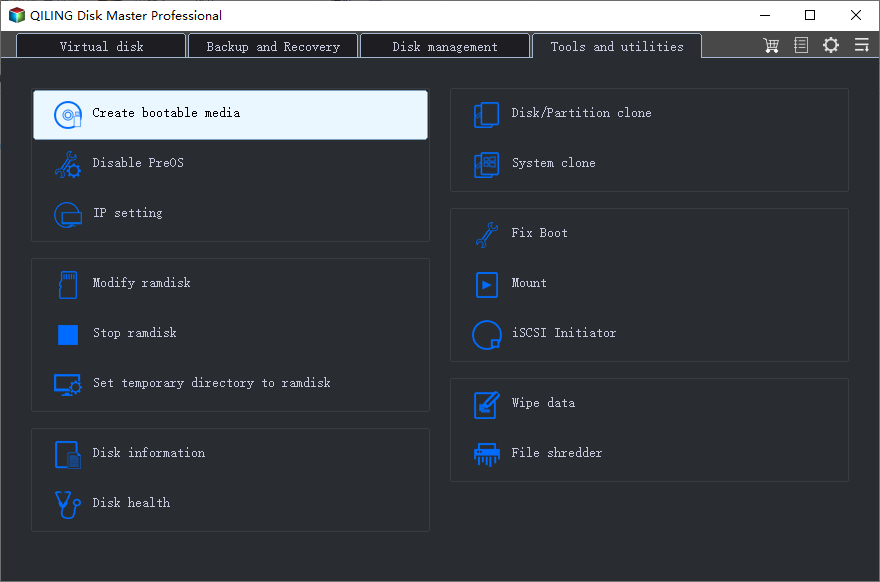
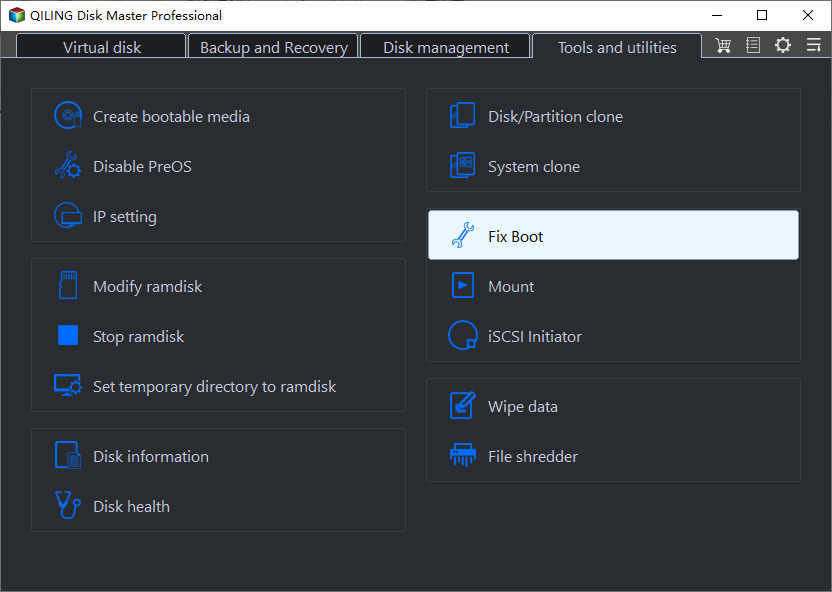
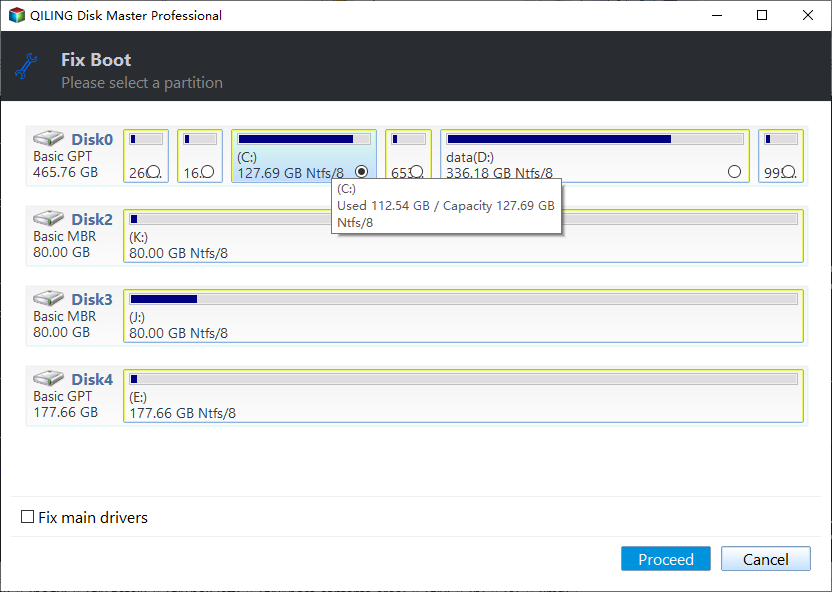
Step 1. Open Tools and utilities > Fix Boot. In the partition selector, locate the Windows partition by drive letter, size, and its position on the previously identified system disk. Stop if that disk is absent.
Step 2. Select that Windows partition and click Proceed. Wait for completion, restart, and choose Windows Boot Manager in UEFI firmware if the PC uses UEFI.
Rebuild MBR Only on a Legacy MBR Disk
Use this method only when the Windows system disk is confirmed to use MBR and the PC boots in Legacy BIOS mode. Rebuild MBR writes legacy boot code; it does not repair EFI boot entries or a physically missing disk.
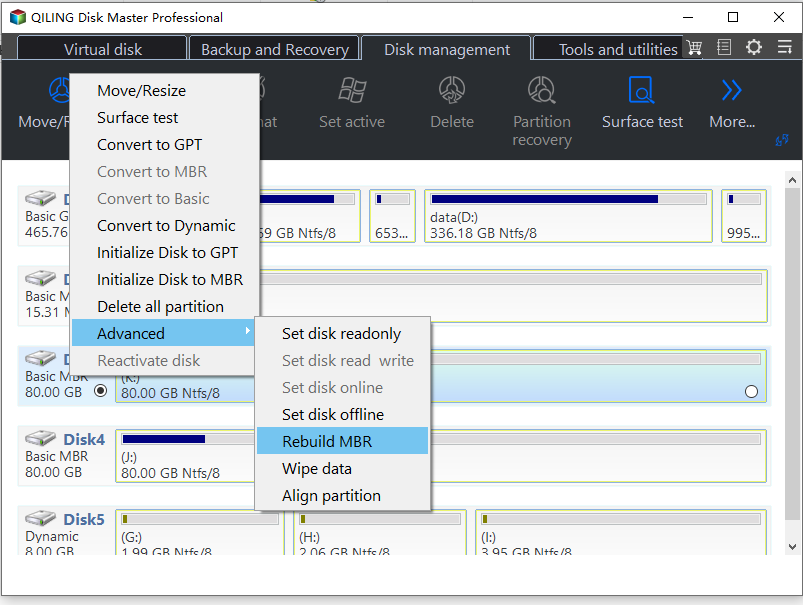
Step 1. In Qiling Disk Master's Disk management page, select the MBR system disk by model, capacity, and its Windows partition. Open its context menu and choose Advanced > Rebuild MBR. Do not select a GPT data disk or the bootable USB.
Step 2. In the Rebuild MBR dialog, confirm the disk shown is the same MBR Windows disk and select the Windows 7/8/10/11 MBR type for Windows 10. Click Proceed.
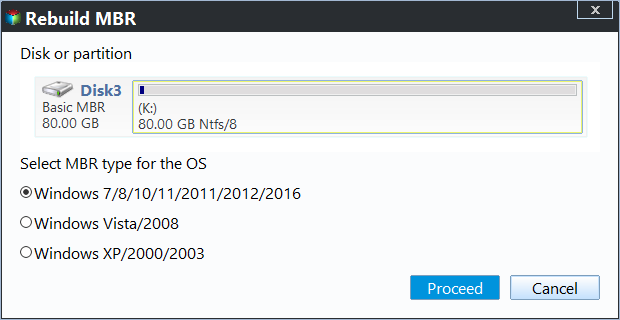
Step 3. Wait for completion, restart the PC, and set that disk first in Legacy BIOS boot order. If Windows still does not load, return to drive-health and boot-file diagnosis rather than repeating the MBR write.
Do not run Fix Boot and Rebuild MBR as a combined recipe. Use Fix Boot for the selected Windows partition when boot files are the suspected issue; use Rebuild MBR only for a verified legacy MBR disk. After either operation, restart and test before attempting the other.
If Windows Still Does Not Start
Check disk health, partition detection, and the exact Startup Repair error. If important data is not backed up, preserve it before further boot-sector or partition operations.
Related Articles
- System Backup and Restore
Create and verify a Windows backup before major repairs. - Check Disk Health
Recognize storage warnings before changing a drive.
Products
Articles & Tutorials
- Data Recovery
- Data Backup
- File Recovery
- File Backup
- System Backup and Restore
- Disk and Partition Clone
- Technical articles
- Mobile articles
- Disk Master Help
- Windows Data Recovery Tutorials
- Windows Secure Delete Tutorials
- Windows Partition Management Tutorials
- Windows File Backup and Restore Tutorials
- Windows System Backup and Restore Tutorials
- Windows Disk Backup and Restore Tutorials
- Windows Clone Tutorials