Computer Powers On But Won鈥檛 Boot
Fix a computer that powers on but won鈥檛 boot. Check display, BIOS, boot disk, Windows startup files, and back up data before repair.
What This Problem Usually Means
If a PC powers on but does not boot, separate hardware display problems from Windows startup problems. A spinning fan does not always mean the boot disk is detected or the operating system is intact.
What to Check First
- Check monitor input, cable, and power.
- Disconnect nonessential USB devices.
- Enter BIOS and confirm the boot disk is detected.
- Set Windows Boot Manager or the system disk first.
- Back up data before reset or reinstall.
Repair Boot Problems with Qiling Disk Master
Use this method when Windows cannot start, shows a boot error, or loops into repair. Do not format the disk first. Confirm the disk is detected, then choose the boot repair method that matches the disk style.
Before You Choose a Repair Method
Step 1. Create or open bootable media, start the problem PC from it, and load Qiling Disk Master in the recovery environment.
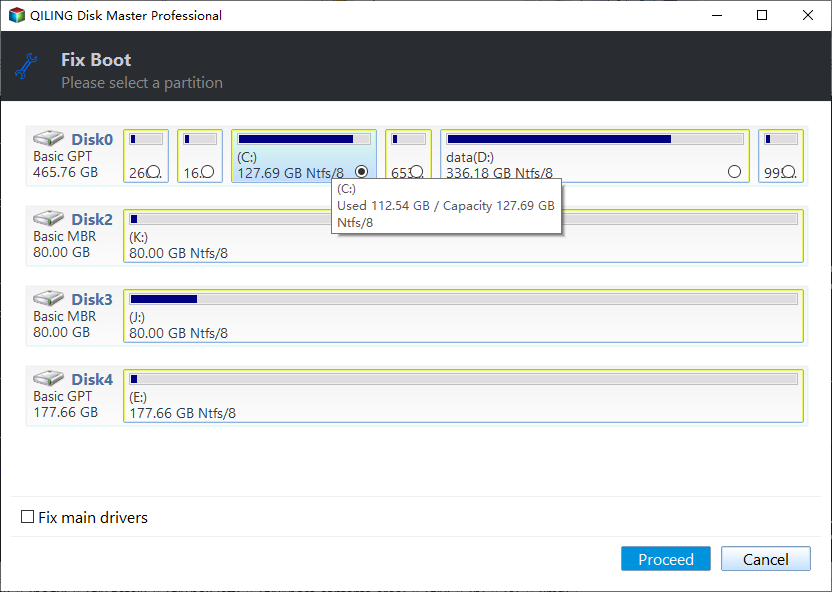
Step 2. Select the Windows disk. Check whether it is GPT or MBR and whether the PC uses UEFI or Legacy BIOS.
Method 1: Fix Boot for Startup File Errors
Step 1. Choose Fix Boot when Windows is still on the disk but Windows Boot Manager, BCD, or startup files may be damaged.
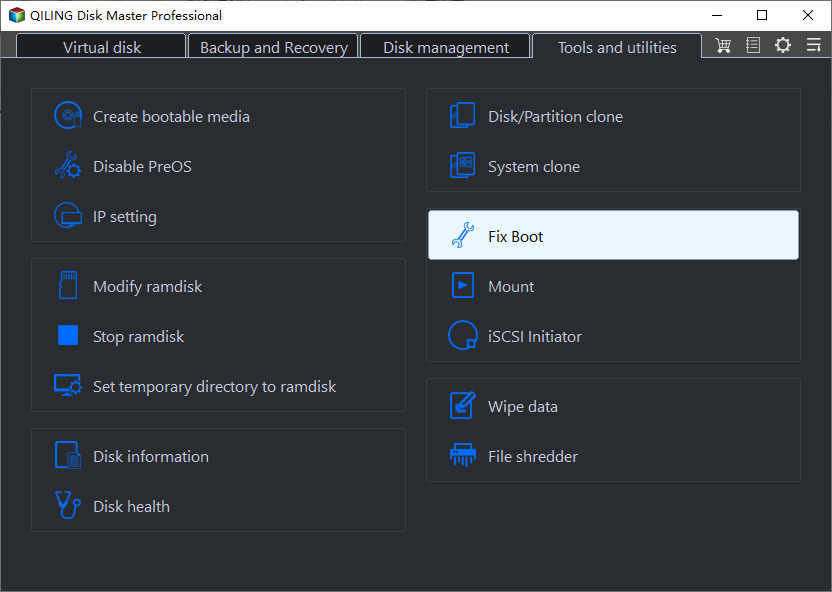
Step 2. Confirm the selected Windows disk, click Proceed, restart the PC, and set Windows Boot Manager as the first boot option for UEFI systems.
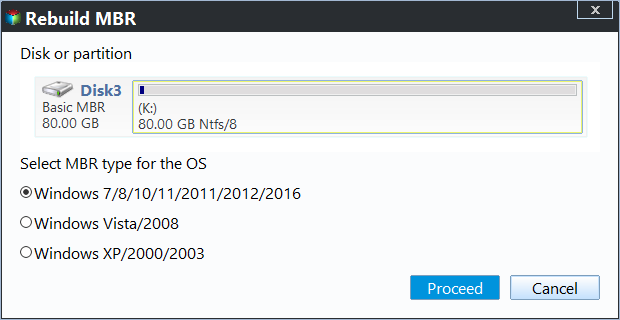
Method 2: Rebuild MBR for Legacy BIOS/MBR Errors
Step 1. Choose Rebuild MBR only when the disk is MBR and the PC starts in Legacy BIOS mode. It is not the first repair for GPT/UEFI Windows installations.
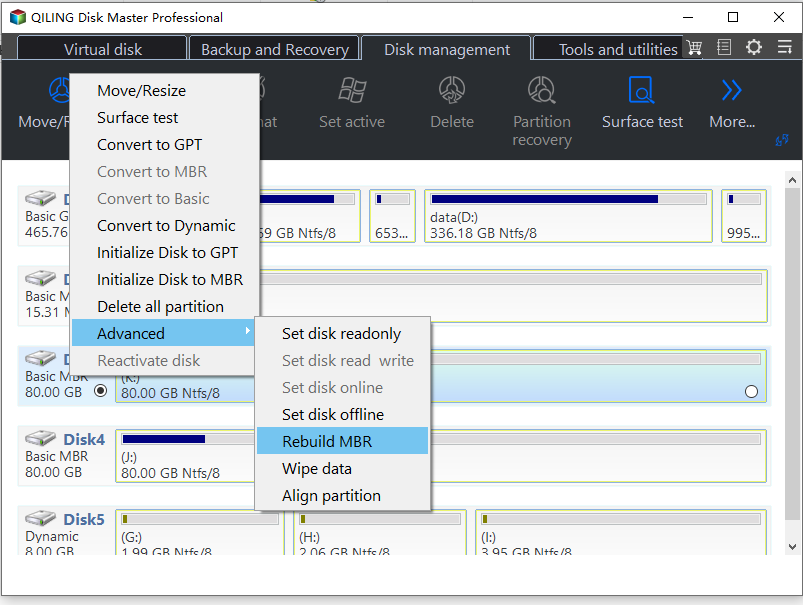
Step 2. Select the proper MBR type, preview the operation, and click Proceed. If the problem remains, check disk health, boot order, BCD entries, and storage drivers.
FAQ
Should I make changes before backing up? If the disk is readable and the files matter, back up first. Repairs, formatting, conversion, and cloning can change boot records or partition data.
When should I use Windows built-in tools? Use Settings, Disk Management, Startup Repair, CHKDSK, SFC, DISM, or account recovery first when the issue is simple and the risk is low.
When does Qiling help? Use Qiling tools when you need a clearer disk map, a bootable recovery environment, backup before repair, partition preview, disk cloning, or controlled password recovery on an authorized PC.
Conclusion
A no-boot PC needs orderly diagnosis: display, BIOS detection, boot order, then Windows repair. Avoid formatting until the disk and data are protected.
Related Articles
- Windows Partition Management Tutorials
Find practical Windows partition guides for resizing, formatting, checking, converting, and repairing disks without unnecessary risk. - Windows System Backup and Restore Tutorials
Browse Windows backup and restore guides for system images, recovery drives, restore points, and safe repair preparation.
Products
Articles & Tutorials
- Data Recovery
- Data Backup
- File Recovery
- File Backup
- System Backup and Restore
- Disk and Partition Clone
- Technical articles
- Mobile articles
- Disk Master Help
- Windows Data Recovery Tutorials
- Windows Secure Delete Tutorials
- Windows Partition Management Tutorials
- Windows File Backup and Restore Tutorials
- Windows System Backup and Restore Tutorials
- Windows Disk Backup and Restore Tutorials
- Windows Clone Tutorials