Copy Partition to Another Drive with CMD or Safer Software
Learn what CMD can and cannot copy between partitions, when to use Robocopy or DiskPart, and how to clone a partition safely with Qiling Disk Master.
Overview
Many users search for a CMD command to copy a partition to another drive. Windows commands can copy files, assign drive letters, or create partitions, but they do not create an exact bootable partition clone by themselves.
If you only need documents, use Robocopy. If the partition contains boot files, installed programs, or a recovery layout, use partition or disk cloning software instead.
What to Prepare First
- Connect the target drive and make sure it has enough unallocated space.
- Back up important files from the target drive.
- Check whether the source partition is a data partition, system partition, recovery partition, or OEM partition.
- Do not run clean, format, or delete commands unless you intentionally want to erase data.
Use Windows Built-in Tools First
For file-level copy, open Command Prompt as administrator and use a command such as robocopy D:\ E:\Backup /E /COPY:DAT /R:2 /W:2
. This copies folders and changed files, but it does not clone partition metadata, boot records, or recovery attributes.
DiskPart can create and format a destination partition, but it cannot safely clone the full content and partition identity. Use it only to prepare an empty target partition.
Manage the Partition with Qiling Disk Master
Use the partition view when Windows commands are too limited or when you need to see the disk layout before making changes. Always back up important files before resizing, formatting, or moving partitions.
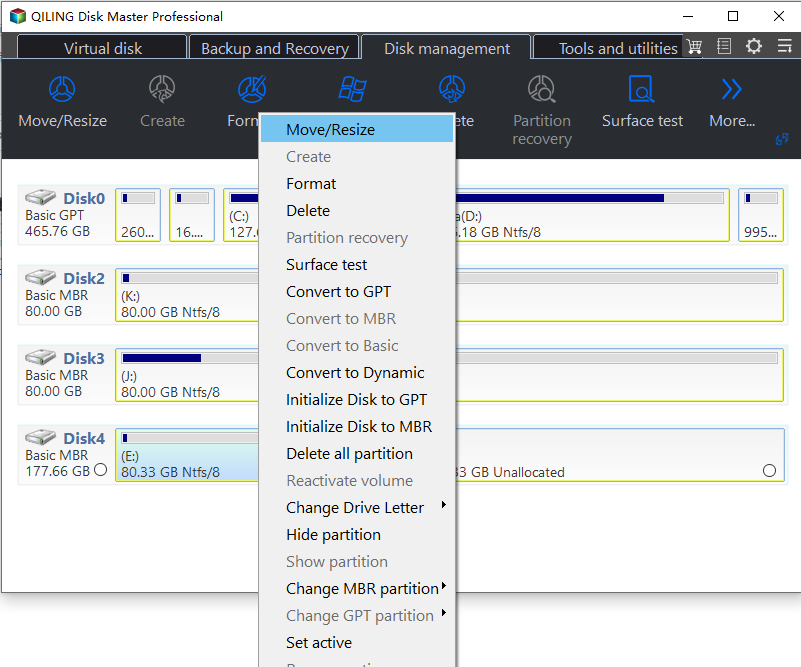
Step 1. Open Qiling Disk Master and go to Disk management. Select the target partition by capacity, drive letter, and label, then right-click it and choose Move/Resize.
Step 2. In the destination partition map, move the mouse pointer to the left or right edge of the selected partition, then click and drag the edge to adjust its boundary and size. Drag inward to shrink the partition or outward into adjacent unallocated space to enlarge it. To move the partition without changing its size, drag the middle of the partition into available unallocated space. Check the partition size and the unallocated space before and after it to confirm the result.
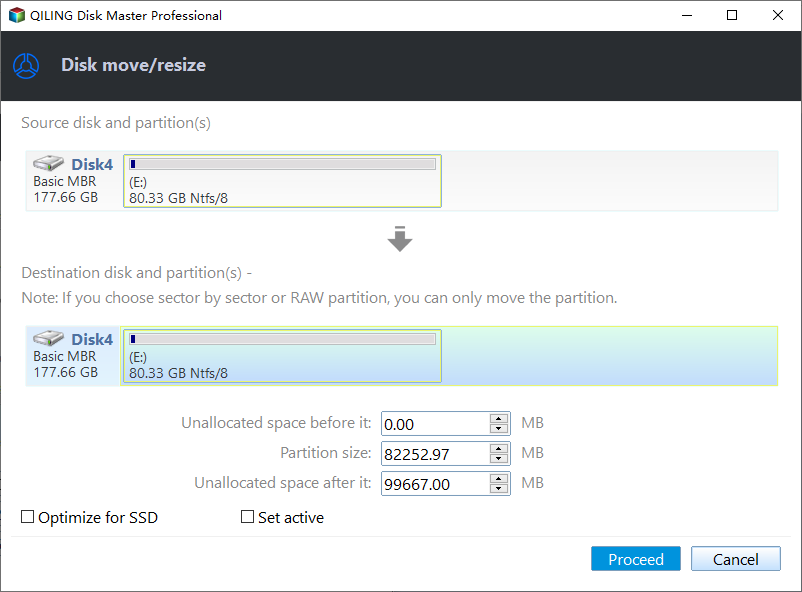
Step 3. Preview the result before execution. Confirm that the target partition and nearby unallocated space are correct.
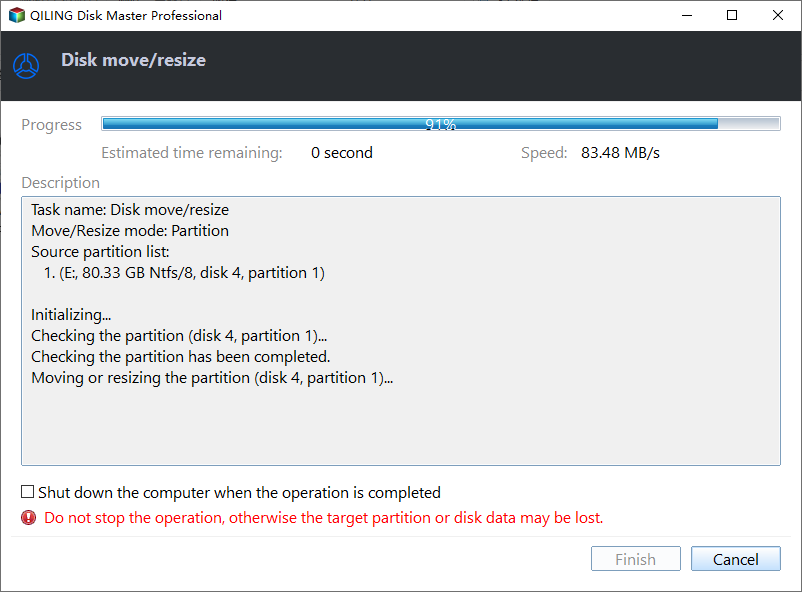
Step 4. Click Proceed to execute the pending task. Do not shut down the computer while the partition table is being updated.
Troubleshooting Tips
- If Robocopy skips files, close programs that are using them and run the command again.
- If the destination partition will not boot, you copied files instead of cloning the system partition.
- If the target partition is smaller, remove unnecessary files or use cloning software that can resize during copy.
FAQ
Should I back up before following these steps? Yes. If the disk is readable and the files matter, create a backup before cloning, repairing, formatting, resetting, or changing hardware.
Can I use Windows built-in tools only? Use built-in tools for simple file copy, restore points, File History, Disk Management, and Windows setup. Use Qiling tools when you need a clearer disk map, bootable recovery media, scheduled backup, or disk clone workflow.
Will these operations erase my target drive? Cloning, restoring an image, formatting, and creating some bootable media can overwrite the target drive. Read the warning message and confirm the disk number before clicking Proceed.
Conclusion
CMD is useful for file copy, but it is not a full partition cloning tool. For system, recovery, or program partitions, clone the partition or disk with a visual tool and verify the result before deleting the source.
Related Articles
- Windows System Backup and Restore Tutorials
Browse Windows backup and restore guides for system images, recovery drives, restore points, and safe repair preparation. - Windows Disk Backup and Restore Tutorials
Find Windows disk backup, SSD image backup, external drive backup, and restore tutorials with practical Qiling workflows. - Windows Clone Tutorials
Review Windows cloning guides for system migration, disk clone, SSD upgrade, and safe boot preparation.
Products
Articles & Tutorials
- Data Recovery
- Data Backup
- File Recovery
- File Backup
- System Backup and Restore
- Disk and Partition Clone
- Technical articles
- Mobile articles
- Disk Master Help
- Windows Data Recovery Tutorials
- Windows Secure Delete Tutorials
- Windows Partition Management Tutorials
- Windows File Backup and Restore Tutorials
- Windows System Backup and Restore Tutorials
- Windows Disk Backup and Restore Tutorials
- Windows Clone Tutorials