NDIS.sys Failed Blue Screen in Windows: Network Driver Checks
NDIS.sys is part of the Windows network driver framework. Seeing its name on a blue screen does not prove that this Microsoft file is corrupt; a third-party Wi-Fi, Ethernet, VPN, or filter driver may be involved. Record the stop code before changing drivers.
Capture the Pattern
Step 1. Note the stop code, recent driver or VPN changes, and whether the crash happens on Wi-Fi, Ethernet, or both. Disconnect external network adapters and docks for a test.
Step 2. If Windows starts, open Reliability Monitor and Event Viewer for crashes at the same time. If it does not, enter Windows Recovery Environment and try Startup Settings > Safe Mode.
Repair Network Software in Order
Step 1. In Device Manager > Network adapters, identify the adapter by manufacturer and model. If the problem began after an update, open Properties > Driver > Roll Back Driver when available.
Step 2. Otherwise download the correct driver from the PC or adapter manufacturer on a working device, then install it and restart. Test the same network connection before changing another component.
Step 3. Remove or update a recently installed VPN, firewall filter, or virtual-network adapter one at a time. Keep Windows security protection in place; a temporary test should not leave the PC unprotected.
Step 4. Install pending Windows quality updates. If crashes persist across network types, run DISM /Online /Cleanup-Image /RestoreHealth and then sfc /scannow.
If there is no network connection after removing a driver, use another device to download the correct installer to a USB drive. Keep one known-working network adapter or offline installer available before uninstalling the current one. Windows Update is not useful if the affected PC cannot connect.
Protect Data Before Reset or Reinstall
When Windows is stable enough to work, create a system image before large driver changes or a Windows reset. Qiling Disk Master backs up the system; it does not replace driver diagnosis.
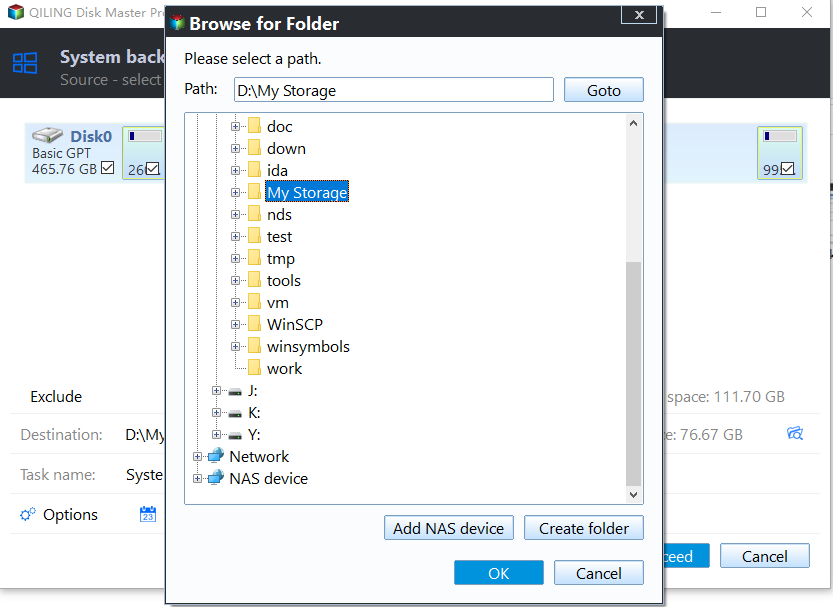
Step 1. Connect a healthy external drive, open Qiling Disk Master, and choose System backup. Verify the automatically selected Windows partitions.

Step 2. Set the external drive as destination, click Proceed, and verify the completed image before a reset.
When the Crash Remains
Collect the minidump and driver versions for technical support. Do not download replacement copies of NDIS.sys from third-party sites or delete the Windows file.
Memory failures can also surface in networking code under load. If multiple unrelated stop codes occur, run Windows Memory Diagnostic or the PC maker's hardware tests and check temperatures. Treat a named driver in a crash screen as a clue, not a final diagnosis.
Related Articles
- System Backup and Restore
Create and verify a Windows backup before major repairs. - Check Disk Health
Recognize storage warnings before changing a drive.
Products
Articles & Tutorials
- Data Recovery
- Data Backup
- File Recovery
- File Backup
- System Backup and Restore
- Disk and Partition Clone
- Technical articles
- Mobile articles
- Disk Master Help
- Windows Data Recovery Tutorials
- Windows Secure Delete Tutorials
- Windows Partition Management Tutorials
- Windows File Backup and Restore Tutorials
- Windows System Backup and Restore Tutorials
- Windows Disk Backup and Restore Tutorials
- Windows Clone Tutorials