Roblox Keeps Crashing on Windows: A Practical Repair Order
Roblox can close because of a service outage, overlay conflict, graphics driver, corrupt installation, or unstable hardware. First determine whether only Roblox fails or other games do too. Disk tools are relevant only when storage warnings are present.
Rule Out a Temporary Issue
Step 1. Record error text and check Roblox's official status page. Try another experience. A platform outage is not fixed by changing Windows.
Step 2. Restart the PC, close screen recorders and overlays, and return CPU/GPU overclocks to defaults. Re-enable background apps one at a time if the crash stops.
Update the Relevant Software
Step 1. Install pending Windows quality updates and restart. Identify the GPU in Device Manager > Display adapters.
Step 2. Get the graphics driver from the PC or GPU manufacturer. If the issue began after a driver update, check Properties > Driver > Roll Back Driver.
Step 3. Check C: free space. Do not resize partitions merely because one game crashes.
Low free space can prevent updates and temporary files from being written. Use Windows Storage settings to remove safe temporary files, but keep personal downloads and game saves unless you know they are backed up. If disk use is normal and only Roblox crashes, return to the app and graphics checks.
Repair or Reinstall Roblox
Step 1. Sign out, end remaining Roblox processes, and use Settings > Apps > Installed apps > Roblox > Repair if available.
Step 2. If that fails, uninstall, restart, and reinstall from the official Roblox site or Microsoft Store. Confirm account credentials first.
Step 3. Test without overlays. If other games also fail, review Reliability Monitor and Event Viewer for graphics, memory, or disk events.
On laptops with integrated and discrete graphics, check Settings > System > Display > Graphics and test the app's assigned GPU. Change only that setting for one run, then restore it if there is no improvement. A sudden shutdown under load also warrants a temperature and power check, not another Roblox reinstall.
Check Storage Only When It Shows Errors
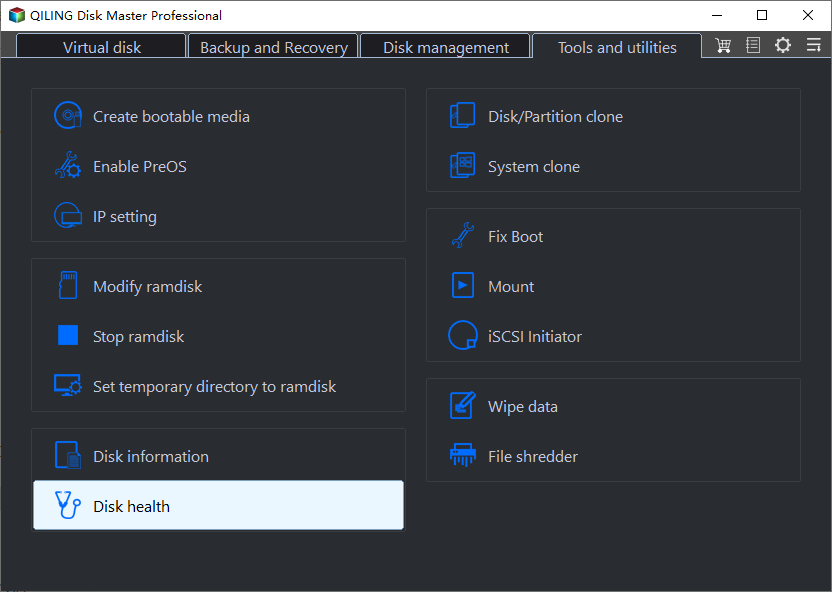
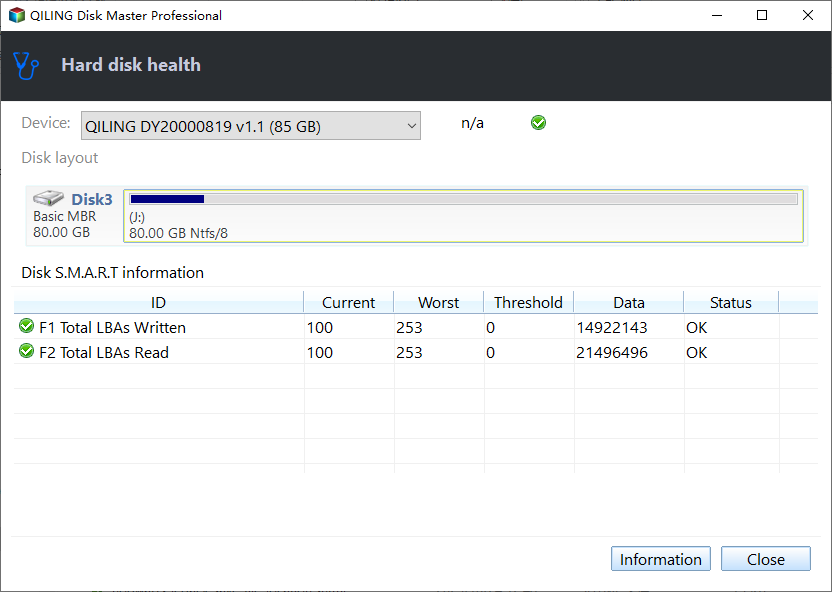
If Windows logs repeated I/O errors, back up files before running tests. Qiling Disk Master can inspect disk-health indicators, not Roblox servers or graphics software.
Step 1. Open the disk-health or SMART tool in Qiling Disk Master and identify the Windows/game disk by model and capacity.
Step 2. Read warning and temperature indicators. If failure is reported, copy files to another physical disk and plan replacement; avoid write-heavy benchmarks.
Conclusion
Follow the evidence: service status, local conflicts, graphics, app files, then storage. This prevents unnecessary data-risking changes.
If a particular experience crashes while others work, report it through Roblox rather than changing system drivers repeatedly. Include the error message, Windows version, graphics model, and whether the problem reproduces on a clean start.
Related Articles
- System Backup and Restore
Create and verify a Windows backup before major repairs. - Check Disk Health
Recognize storage warnings before changing a drive.
Products
Articles & Tutorials
- Data Recovery
- Data Backup
- File Recovery
- File Backup
- System Backup and Restore
- Disk and Partition Clone
- Technical articles
- Mobile articles
- Disk Master Help
- Windows Data Recovery Tutorials
- Windows Secure Delete Tutorials
- Windows Partition Management Tutorials
- Windows File Backup and Restore Tutorials
- Windows System Backup and Restore Tutorials
- Windows Disk Backup and Restore Tutorials
- Windows Clone Tutorials