Surface Laptop Black Screen: Power, Display, and Startup Checks
A dark Surface Laptop display can mean low power, a failed display path, Windows startup trouble, or storage failure. Whether a logo, cursor, or external-monitor image appears determines the next check.
Check Power and Display
Step 1. Connect the correct charger, allow charging time, and disconnect docks and USB devices. Press Power once and observe the charging indicator and keyboard backlight.
Step 2. If Windows seems active, press Windows + Ctrl + Shift + B once. Test a known-good external monitor. An external image with a dark built-in display points toward display hardware.
Step 3. If unresponsive, follow Microsoft's forced-restart method for the exact Surface model. Avoid repeated forced shutdowns during an active update.
A black screen with a movable cursor is different from no display at all. With a cursor, try Ctrl + Alt + Delete to see whether the security screen appears. If it does, sign out or open Task Manager and restart Windows Explorer. If even the Surface logo and firmware screen remain invisible, do not assume an Explorer problem.
Check Firmware and Windows
Step 1. Note whether the Surface logo appears. If neither logo nor firmware setup displays after power and external-screen checks, seek hardware service.
Step 2. If the logo appears but Windows stays black, enter Windows Recovery Environment and run Troubleshoot > Advanced options > Startup Repair. Record the result.
Step 3. If the problem began after an update, use Uninstall Updates. If a suitable restore point exists, System Restore is a different option.
Microsoft's Surface recovery image is model-specific. Use it only after checking the exact model, recovering files, and following Microsoft's media instructions. A generic Windows installer may not include all Surface drivers until they are downloaded later. Keep the charger attached through recovery.
Protect Files Before Reset
If Safe Mode works, copy important files to another drive. If BitLocker asks for a recovery key, retrieve it through your authorized account; do not initialize the encrypted SSD. Qiling can image an accessible system disk but cannot fix a failed display.
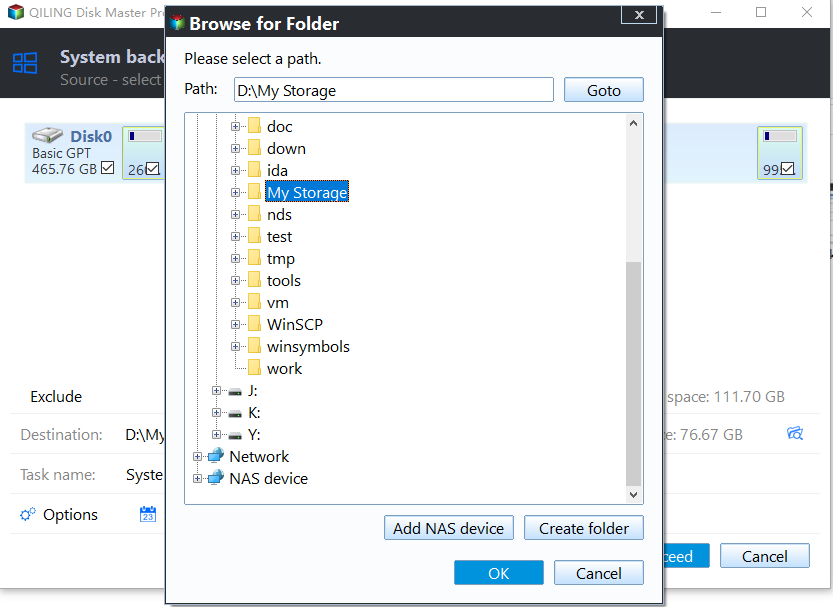
Step 1. From a working Windows session, connect an external disk. In Qiling Disk Master select System backup and verify the source partitions.

Step 2. Set the external destination, click Proceed, and wait for completion. Confirm the image is readable before Reset this PC.
When to Seek Service
No firmware image, an intermittently missing SSD, or persistent black screens after official recovery suggests hardware work rather than more partition changes.
If the device is under warranty, record the symptoms, serial number, and tests already tried before contacting support. Avoid opening a sealed device solely to inspect its SSD; warranty and serviceability differ by Surface model.
Related Articles
- System Backup and Restore
Create and verify a Windows backup before major repairs. - Check Disk Health
Recognize storage warnings before changing a drive.
Products
Articles & Tutorials
- Data Recovery
- Data Backup
- File Recovery
- File Backup
- System Backup and Restore
- Disk and Partition Clone
- Technical articles
- Mobile articles
- Disk Master Help
- Windows Data Recovery Tutorials
- Windows Secure Delete Tutorials
- Windows Partition Management Tutorials
- Windows File Backup and Restore Tutorials
- Windows System Backup and Restore Tutorials
- Windows Disk Backup and Restore Tutorials
- Windows Clone Tutorials