Vgk.sys Blue Screen in Windows: Repair Riot Vanguard Safely
vgk.sys is associated with Riot Vanguard's kernel driver. A blue screen naming it suggests a Vanguard or driver interaction, but the stop code and recent changes matter. Do not download a replacement vgk.sys from an unofficial site.
Record the Failure and Restore Access
Step 1. Photograph the stop code and note whether the crash began after a Vanguard, Windows, firmware, or GPU update. Disconnect unnecessary USB devices and restart once.
Step 2. If Windows repeatedly crashes, enter Windows Recovery Environment and choose Startup Settings > Restart > Safe Mode. Sign in to an authorized administrator account.
Step 3. Check Reliability Monitor and Event Viewer for the same time. A storage or memory error alongside vgk.sys changes the diagnosis; do not assume the game component is the only cause.
Repair Vanguard and Related Drivers
Step 1. In Settings > Apps > Installed apps, uninstall Riot Vanguard. Restart, then launch Valorant from its official client so it can reinstall the required component. Restart again if prompted.
Step 2. Install Windows quality updates and current motherboard/chipset and GPU drivers from the PC or component manufacturer. Change one driver group at a time so a regression can be identified.
Step 3. If the crash started immediately after a specific update, use the relevant driver's rollback option or Windows Uninstall Updates path. Avoid disabling platform security features without Riot's official requirement for the exact error.
Riot Vanguard is tied to game integrity checks, so a disabled or partially removed service may keep the game from launching even after the blue screen stops. Use the official client to reinstall it, then confirm the service state through the game's own prompt. Do not copy a driver file from another PC.
Back Up Before a Reset
If Windows works long enough to prepare, make a system image before a reset or clean reinstall. Qiling Disk Master protects the current installation but does not repair Vanguard itself.
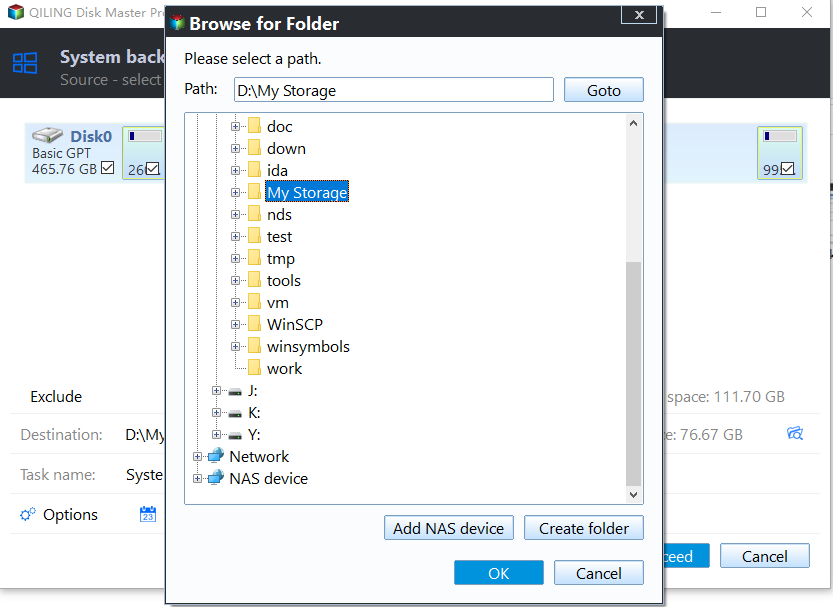
Step 1. Attach an external drive, choose System backup in Qiling Disk Master, and confirm the Windows source partitions.

Step 2. Choose the external destination, click Proceed, and verify the completed image before making major Windows changes.
If the Blue Screen Continues
Collect the minidump and exact driver versions for Riot or Microsoft support. Test memory and storage if unrelated applications also crash. Reinstalling the game repeatedly will not fix failing hardware.
If a corporate security product or virtualization feature is installed, note that environment when reporting the issue. Kernel drivers can interact, and a clean install of the game may not resolve a conflict outside the game package. Preserve the crash dump before resetting Windows.
Related Articles
- System Backup and Restore
Create and verify a Windows backup before major repairs. - Check Disk Health
Recognize storage warnings before changing a drive.
Products
Articles & Tutorials
- Data Recovery
- Data Backup
- File Recovery
- File Backup
- System Backup and Restore
- Disk and Partition Clone
- Technical articles
- Mobile articles
- Disk Master Help
- Windows Data Recovery Tutorials
- Windows Secure Delete Tutorials
- Windows Partition Management Tutorials
- Windows File Backup and Restore Tutorials
- Windows System Backup and Restore Tutorials
- Windows Disk Backup and Restore Tutorials
- Windows Clone Tutorials