Windows Update Keeps Crashing My PC: Fix and Roll Back Safely
Fix crashes after Windows Update by checking drivers, system files, disk health, and backup options before rollback.
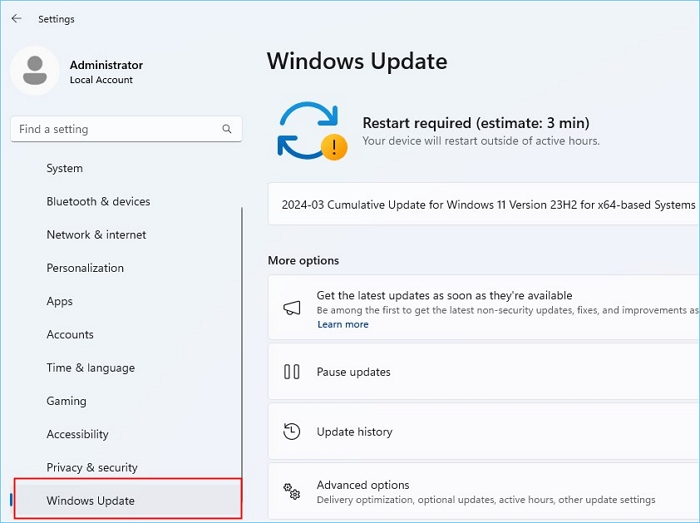
Why Windows Update Can Crash a PC
Crashes after an update may come from incompatible drivers, damaged system files, low disk space, firmware issues, antivirus conflicts, or a weak drive. If crashes repeat, protect data before uninstalling updates or resetting Windows.
What to Check First
- Boot into Safe Mode if normal Windows crashes.
- Uninstall the latest quality or driver update when the timing matches.
- Run SFC, DISM, and disk checks.
- Update GPU, storage, chipset, and network drivers from the PC maker.
- Create a backup before reset or in-place repair.
Create a System Backup with Qiling Disk Master
A system backup protects Windows, boot files, installed programs, and system settings. Use it before rolling back or repairing Windows Update crashes so you can roll back if Windows repair, update, or hardware changes fail.
Choose System Backup
- Open Qiling Disk Master and choose System Backup. The program selects the Windows-related partitions automatically, including boot partitions when required.

- Review the selected partitions. Do not remove EFI, System Reserved, Recovery, or C drive from the backup set.

Select Destination and Run Backup
- Select an external disk, NAS, or another internal disk as the destination. Avoid saving the image on the same disk you are about to repair or replace.
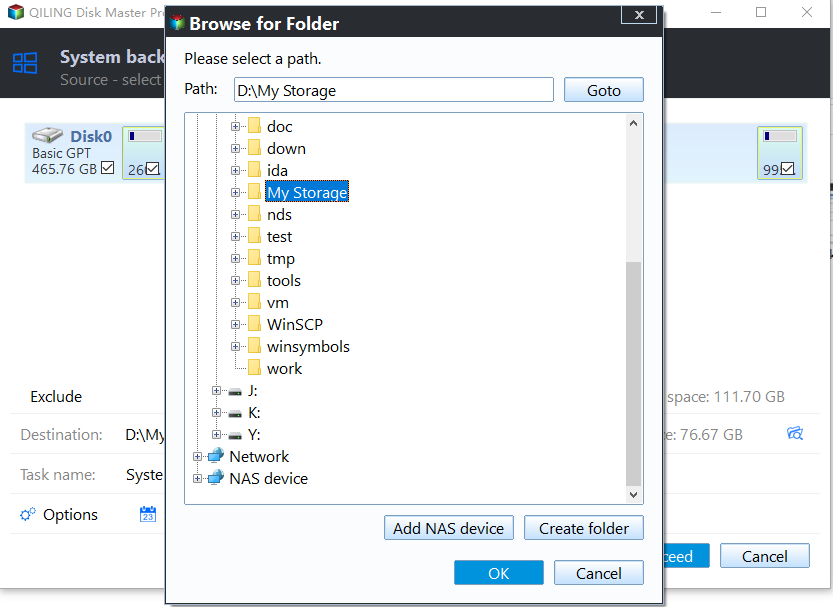
- Click Proceed and wait for completion. Keep the backup drive connected until the task is finished and verified.

Related Articles
- Windows Partition Management Tutorials
Find practical Windows partition guides for resizing, formatting, checking, converting, and repairing disks without unnecessary risk. - Windows System Backup and Restore Tutorials
Browse Windows backup and restore guides for system images, recovery drives, restore points, and safe repair preparation. - Windows 11 24H2 End of Support: What to Do Next (2026)
- Kernel-Power Event 41 in Windows 11: How to Find the Cause
Products
Articles & Tutorials
- Data Recovery
- Data Backup
- File Recovery
- File Backup
- System Backup and Restore
- Disk and Partition Clone
- Technical articles
- Mobile articles
- Disk Master Help
- Windows Data Recovery Tutorials
- Windows Secure Delete Tutorials
- Windows Partition Management Tutorials
- Windows File Backup and Restore Tutorials
- Windows System Backup and Restore Tutorials
- Windows Disk Backup and Restore Tutorials
- Windows Clone Tutorials