How to Download Music from iCloud to iPhone/iPad/iPod
Quick Navigation:
- How to get/download music from iCloud to iPhone
- Method 1: Download music from iCloud on iPhone/iPad/iPod
- Method 2: How to get music from iCloud to iPhone with iTunes
- Bonus Tip
- How to transfer music from computer to iPhone with Qiling MobiMover
If you've accidentally deleted songs or lost music on your iPhone, you can easily recover them by re-downloading from iCloud. There are two ways to do this, which can be found in the article.
How to get/download music from iCloud to iPhone
Method 1: Download music from iCloud on iPhone/iPad/iPod
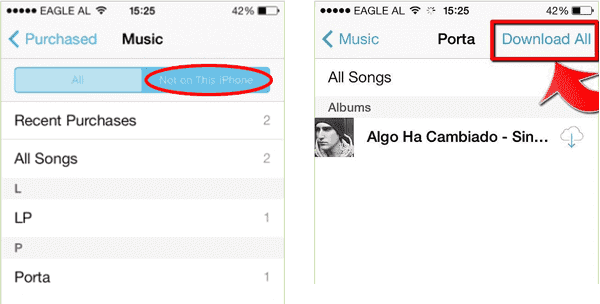
If you bought songs on iTunes Store, you can easily download them again from the iTunes Store app on your iDevice.
Step 1: Go to "iTunes Store" on your iPhone/iPad/iPod.
Step 2: To view purchased items, tap on the "Purchased" tab at the bottom of the screen. If you're using an older version of the iTunes Store, you may need to first click on "More" and then select "Purchased".
Step 3: Tap on "Music" and choose "Not on This iPhone".
Step 4: Choose a category from which you want to download songs.
Step 5: You can view a list of songs, sorted by time, name, or artist name, by selecting an option from the list.
Step 6: To download songs from a music streaming service, select the songs you want and click the download arrow next to each song. Alternatively, you can click "Download All" to download all the selected songs to your device.
Method 2: How to get music from iCloud to iPhone with iTunes
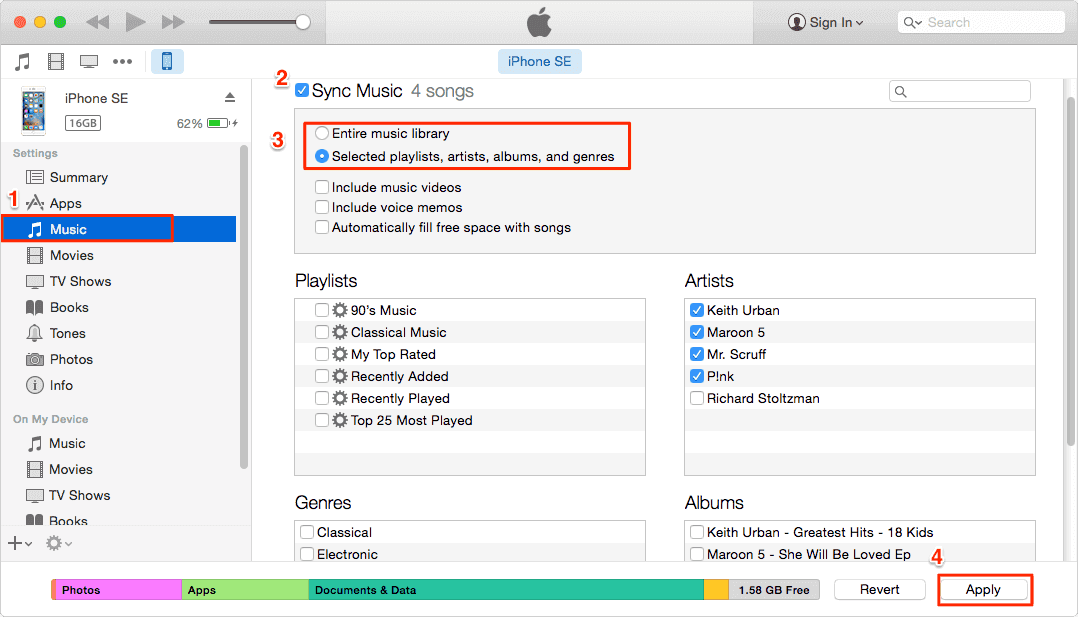
To get music from iCloud to your iPhone, you need to download the songs from iCloud to your iTunes on a computer, then sync the songs from iTunes to your iPhone/iPad/iPod.
Step 1: To access your purchased songs, go to iTunes, select the iTunes Store, and sign in with the account used to purchase the songs.
Step 2: Tap on "Purchased" and choose "Music".
Step 3: Tap on "Not in My Library" on the upper right of the window.
Step 4: To download songs from iTunes, select the desired songs and click the download arrow next to each one. Alternatively, you can choose the "Download All" option to download all the selected songs to your iTunes library.
Step 5: Connect your iPhone/iPad/iPod to iTunes and click the Device tab.
Step 6: Go to Settings, then Music, and enable Sync Music to download songs from your chosen source.
Step 7: To transfer songs from iCloud to your iPhone/iPad/iPod, click "Apply" after selecting the desired songs. This will download the songs from iCloud to your device.
Bonus Tip
How to transfer music from computer to iPhone with Qiling MobiMover
If you want to transfer music between your computer and iOS device, Qiling MobiMover Free is a helpful tool. It allows for one-click music file transfer, and also enables transferring data from iPhone to iPhone without using iCloud, as well as backing up iPhone files to the computer in a viewable and readable format.
Step 1. To transfer files from your computer to your iPhone, connect your iPhone to your computer and run Qiling MobiMover. Click "PC to Phone" and then select the files you want to transfer.
Step 2. Select the music files you want to transfer from computer to your iPhone and then click "Open".
Step 3. To transfer music from your PC to your iPhone, select the songs you want to transfer, click "Transfer" to start the process, and once it's complete, you can access your music in the Music app on your iPhone.
Related Articles
- [Solved]AirDrop Not Working on Mac Sierra/Mac El Capitan? Fixes Here!
- Bluetooth Not Working in iOS 11 on iPhone 8/8 Plus/X? Fixes Here!
- [SOLVED] How to Recover Permanently Deleted Files Using CMD in Windows 11
If you are a Windows 11 user, you are in the right place. You can learn the right way to recover permanently deleted files using CMD in Windows 11. If the command fails to help, try Qiling data recovery software to restore lost data in Windows 11/10/8/7. - How to Recover Deleted Files After Windows 10 Updates [Fast and Safe]
Windows 10 updates delete my files. What can I do? You can recover Windows 10 updates deleted files with the Backup and Restore utility, File History utility, File Recovery, or Recycle Bin. The easiest way to recover deleted files on Windows 10 is by applying Deep Data Recovery.
Products
Articles & Tutorials
- Data Recovery
- Data Backup
- File Recovery
- File Backup
- System Backup and Restore
- Disk and Partition Clone
- Technical articles
- Mobile articles
- Disk Master Help
- Windows Data Recovery Tutorials
- Windows Secure Delete Tutorials
- Windows Partition Management Tutorials
- Windows File Backup and Restore Tutorials
- Windows System Backup and Restore Tutorials
- Windows Disk Backup and Restore Tutorials
- Windows Clone Tutorials