How to Download YouTube Videos to PC
Quick Navigation:
- Method 1. How to Download YouTube Videos to PC with YouTube Downloader
- The Tool You Need - Qiling MobiMover
- 3-Step to Download YouTube Videos to PC
- Method 2. How to Download YouTube Videos to PC with Browser Extension
- Method 3. How to Save YouTube Videos to Computer with Online Video Downloader
- Why Can't You Download YouTube Videos
- The Bottom Line
After reading this guide, you'll learn how to download YouTube videos to your PC in just minutes. You'll discover three simple methods to save your favorite videos from YouTube to your computer, and can apply one of them to download the video you want.
You can save YouTube videos to your computer or mobile devices to watch them offline when there's no or poor internet connection.
YouTube doesn't allow users to save videos to a computer, unless they're using a mobile device and have a YouTube Premium subscription.
If you're looking to download a video from YouTube, there are several workable ways to do so on a PC, and one of these methods can also be used to download videos from YouTube to an iPhone or iPad.
Method 1. How to Download YouTube Videos to PC with YouTube Downloader
Supports: PC, Mac, and Mobile Devices (iPhone and iPad)
The Tool You Need - Qiling MobiMover
Qiling MobiMover is a reliable video downloader for PC & Mac that allows users to download videos from various websites, including YouTube, Vimeo, and Facebook, by simply entering the URL, without the need for plugins or ads.
Qiling MobiMover not only serves as a video downloader but also functions as an iOS content manager, allowing users to transfer files between an iPhone/iPad and a computer, or between two iOS devices.
Get this tool to save YouTube videos to your computer with ease.
3 Steps to Download YouTube Videos to PC
To download videos from YouTube to your PC, simply download and install the video downloader software on your computer. You'll then be just three steps away from getting your favorite videos from YouTube to your PC.
To download YouTube videos on PC:
Step 1. Launch Qiling MobiMover, choose "Video Downloader" and select the location to save the video.
Step 2. To download a YouTube video using MobiMover, simply copy the URL of the video you want to download and paste it into the app, then tap the Download button.
Step 3. When you click the "Download" button, MobiMover will quickly analyze the URL and download the YouTube video. The download process is completed, and you can check the downloaded item in your selected location.
After saving the YouTube video to your PC, you can freely watch, share, or edit the video as you like.
Method 2. How to Download YouTube Videos to PC with Browser Extension
Supports: PC and Mac
You can save YouTube videos to your PC using a browser extension, in addition to using a YouTube video downloader. However, not all browser extensions for downloading YouTube videos are reliable, so you'll need to search and choose one that you trust.
To show you how an extension works, here I'd like to take an extension called YouTube Video Downloader for Chrome as an example.
To save YouTube videos to computer via a browser:
Step 1. Go to https://addoncrop.com/youtube-video-downloader/.
Step 2. To install the app, click on the "INSTALL VIA CROSSPILOT" button located on the right side of the page.
Step 3. Download and install the YouTube downloader, then restart your browser once it's complete.
Step 4. To download a video from YouTube, start by going to the YouTube website or opening the YouTube app on your device. Then, navigate to the video you want to download by searching for it or browsing through your history or recommendations.
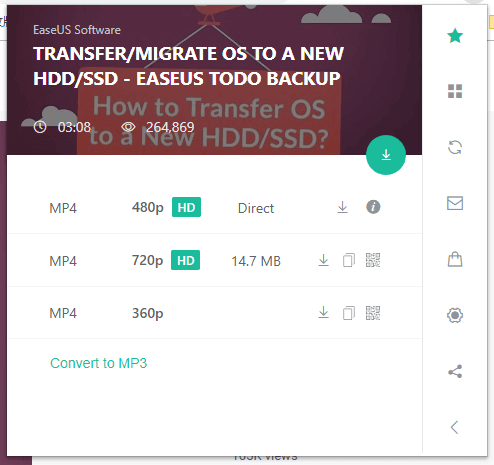
Step 5. To download a YouTube video, click the "Download" button under the video to save it directly to your PC. Alternatively, click the three dots next to "Download" for more options. If the "Download" button is missing, click the extension icon in the browser menu bar to initiate the download.
Method 3. How to Save YouTube Videos to Computer with Online Video Downloader
Supports: PC or Mac
You can download videos from YouTube using an online video downloader without installing any software or extension, but you may encounter annoying ads or be prompted to download unwanted utilities.
If you want to use the free method to download YouTube videos, be careful when choosing a downloader. There are many online options available, and one example is the "YouTube Video Downloader".
Step 1. On your Windows PC, open a browser and visit the online video downloader website to access the video downloading feature.
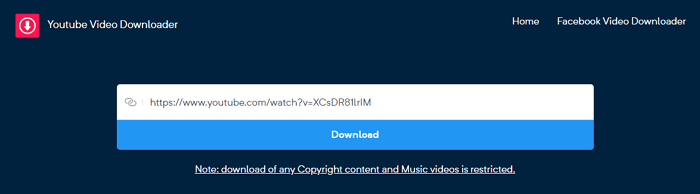
Step 2. Copy and paste the URL of the YouTube video you want to download to the address bar.
Step 3. Click "Download". Here you will be redirected to another page. Close that page and go back to the video downloader.
Step 4. To download a YouTube video, choose whether to include sound and select your preferred video quality, then start the download process to save the video to your computer.
Step 5. After the download is complete, the videos will be saved in the "Downloads" folder. You can go check and watch them as you like.
Why Can't You Download YouTube Videos
Some users may find they fail to download videos from YouTube due to various reasons such as internet connectivity issues, browser or app compatibility problems, or limitations in the YouTube download tool itself, among others.
- The video contains music information and cannot be downloaded due to copyright restrictions.
- The video is private or paid.
- The video downloader is unable to locate the media files by using the provided URL, resulting in a failure to download the video.
If you encounter issues downloading YouTube videos, the above three situations may be causing the problem.
The Bottom Line
To save YouTube videos to watch offline on PC, you can use the YouTube app, download the video using a third-party software, or use a browser extension. The YouTube app allows you to download videos for offline viewing, but you need to have a YouTube Premium account. If you don't have a YouTube Premium account, you can use a third-party software like 4K Video Downloader or ClipConverter to download the video. Alternatively, you can use a browser extension like Video DownloadHelper to download the video.
- Qiling MobiMover allows users to download online videos from various video sites to their Windows PC, Mac, or iPhone/iPad.
- A browser extension enables saving a video to your computer without needing the URL, but the saved video is limited to being stored locally.
- An online video downloader allows you to download videos without having to install any software, but it may display ads or redirect you to other websites.
Carry out the one best suited to your needs.
Related Articles
- Top 5 Free SSD Imaging Software for Windows 11 | 2023
This article will introduce you to 5 of the best free SSD imaging software for Windows 11, 10, 8 and 7, so hurry up and explore to find the best one for you! - Create Image of SSD Drive with Free SSD Image Software
Be aware of how to create an image of SSD can prevent data loss when your SSD fails. Qiling Disk Master can be the best tool for your manipulation. - Create Windows 10/11 Image Backup with Best Free Software
In this article you will get the best free Windows image backup software and learn how to create Windows 10 system image backup step by step. - General, VHD and VHDX: What's the difference?
Don't know what the difference between VHD and VHDX is? Refer to this post to have a basic understanding.
Products
Articles & Tutorials
- Data Recovery
- Data Backup
- File Recovery
- File Backup
- System Backup and Restore
- Disk and Partition Clone
- Technical articles
- Mobile articles
- Disk Master Help
- Windows Data Recovery Tutorials
- Windows Secure Delete Tutorials
- Windows Partition Management Tutorials
- Windows File Backup and Restore Tutorials
- Windows System Backup and Restore Tutorials
- Windows Disk Backup and Restore Tutorials
- Windows Clone Tutorials