2022 | How to Set a Song as a Ringtone on iPhone 11 and Later
Quick Navigation:
- Part 1. How to Set a Song as a Ringtone on iPhone 11
- Method 1. Make Your Own Ringtone with Qiling Ringtone Editor
- Method 2. How to Make a Purchased Song a Ringtone on iPhone 11
- Method 3. Set a Song as a Ringtone on iPhone with iTunes
- Part 2. How to Add Ringtones to iPhone 11 from Computer
- Method 1. Put Ringtones on iPhone with iPhone Data Transfer Software
- Method 2. Send Ringtones to iPhone 11 with iTunes
- Part 3. How to Transfer Ringtones from iPhone to iPhone 11
- Part 4. How to Set a Song the Custom Ringtone on iPhone 11
- The Bottom Line
With the release of the new generation of iPhone, many users have found themselves needing to set a song as a ringtone or add custom ringtones to their new iPhone 11, iPhone 11 Pro, or iPhone 11 Pro Max. To achieve this, you can use the iTunes Store, your computer, or directly on your iPhone. By following one of these methods, you can add custom ringtones to your iPhone 11 within minutes.
Part 1. How to Set a Song as a Ringtone on iPhone 11
Method 1. Make Your Own Ringtone with Qiling Ringtone Editor
The method applies to all iPhones from iPhone 4S to iPhone 13.
To set a personalized sound as a ringtone on your iPhone, start by creating a ringtone using the Qiling Ringtone Editor, a user-friendly iOS ringtone maker for Windows. This tool allows you to transform any song into a ringtone, and you can even add recordings or sound effects to make it unique. If you don't have an audio file, you can also create a ringtone from a video. Once you've made your ringtone, you can directly transfer it to your iPhone or iPad without needing to use iTunes.
To make a song a ringtone:
Step 1. Connect your iPhone to a computer, then open Qiling Ringtone Editor. You can either drag and drop a music file into the editing bar or browse for a song on your computer to select it.
Step 2. To shorten a song for a ringtone, select the song, then drag the slider to the start and stop times you want for the ringtone. Click "Clip" to proceed.
Step 3. After clipping, you can add recordings and sound effects like fade-in/fade-out and emojis sound to the clip. Once it's done, click "Export."
Step 4. You can export your edited ringtone to your iPhone or save it on your computer.
Method 2. How to Make a Purchased Song a Ringtone on iPhone 11
If you don't want to make a ringtone yourself, you can purchase a ringtone for your iPhone 11 in iTunes Store, allowing you to directly get a ringtone for your iPhone without needing a PC or Mac.
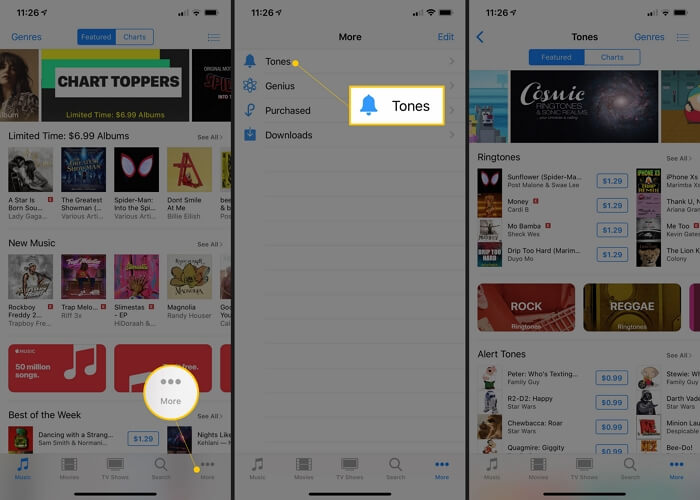
Step 1. Open the iTunes Store app on your iPhone.
Step 2. Go to "More" >"Tones" > "All Tones."
Step 3. To find a ringtone you like, you can browse through various options available on your device or download a ringtone from the internet. Once you've selected a ringtone, tap on it to preview it before purchasing it. This allows you to ensure that the ringtone is something you'll enjoy hearing as your phone's ringtone.
Step 4. To change the default ringtone on your iPhone, tap the "Settings" app, then tap "Sounds" and select the tone you'd like to use. Tap the price of the tone and choose "Set as Default Ringtone."
Step 5. You can pay for the ringtone by using your credit card or by making a purchase in our store. Once you have paid, you will be able to change your ringtone to the one you selected.
If you're having trouble connecting to the iTunes Store, you can either troubleshoot the issue or explore alternative methods to add ringtones to your device.
It's inevitable that you need to pay for the tones in the iTunes Store. If you want to get free ringtones for your iPhone 11, move to the next part instead.
Method 3. Set a Song as a Ringtone on iPhone with iTunes
If you didn't find a ringtone you like in the iTunes Store, you can still make a ringtone from a song using iTunes.
Step 1. Connect your iPhone to your computer, then launch iTunes on your computer, ensuring you have the most recent version installed.
Step 2. To manually manage music and videos on your device, click the device icon and tap "Summary." From there, select the option to "Manually manage music and videos."
Step 3. Click the "Back" button and go to "Songs" > "Library."
Step 4. If the music you want to make as the ringtone is not in the iTunes Library, you can add it by going to "File" and selecting "Add File to Library".
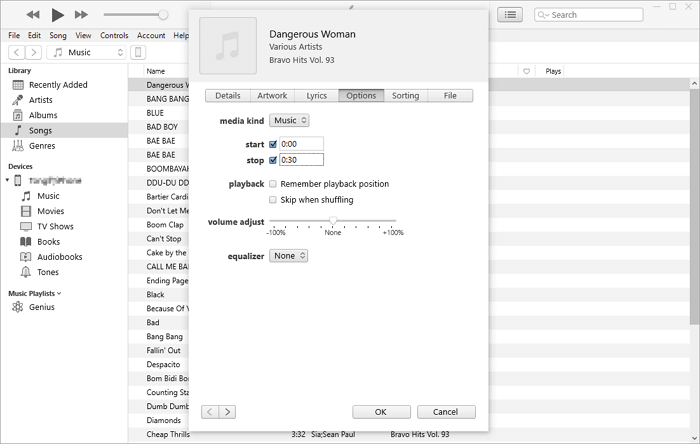
Step 5. Right-click the target song and choose "Song Info." In the new window, tap the "Options" tab.
Step 6. Check the "Start" and "Stop" options to set the duration of the ringtone, which should be less than 30 seconds.
Step 7. To create a clipped version of a song, go back to the iTunes library, select the original song, then tap "File" > "Convert" > "Create AAC Version." This will allow you to see the clipped version of the song.
Step 8. Right-click the shortened version and choose "Show in Windows Explorer" (or Show in Finder on Mac).
Step 9. Copy and paste the song to your desktop and change the extension from .m4a to .m4r.
Step 10. Go back to the iTunes Library, delete the shortened song by right-clicking on it, choosing "Delete from Library", and then select "Delete Song" and "Move to Recycle Bin".
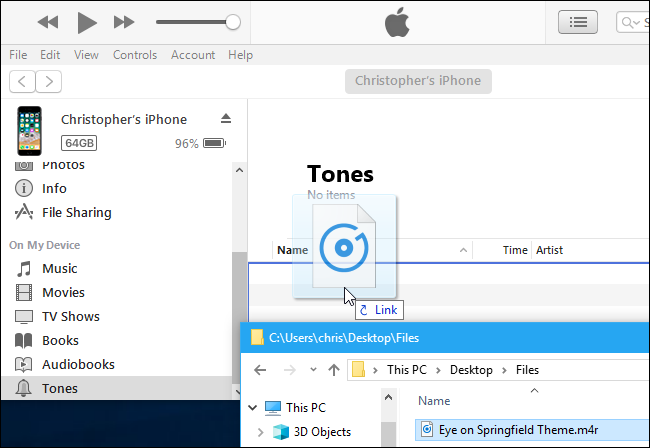
Step 11. To add a custom ringtone to your iPhone 11, tap the "Tones" tab, drag and drop the ringtone from your desktop to iTunes, where it will be added to your iPhone 11.
Part 2. How to Add Ringtones to iPhone 11 from Computer
You can download free iPhone ringtones from various websites, transfer them to your computer, and then sync them to your iPhone. Several websites offer free iPhone ringtones for download, making it easy to customize your phone's ringtone.
- https://cellbeat.com/
- https://www.melofania.club/
- https://www.mobile9.com/ (Registration Required)
After downloading iPhone ringtones to your PC, you can add ringtones to your iPhone from your PC using two methods. Firstly, you can add or transfer ringtone to your iPhone 11.
Method 1. Put Ringtones on iPhone with iPhone Data Transfer Software
To add a ringtone, music, or audio file to your iPhone from a computer, use Qiling MobiMover, a software developed for iOS data transfer. This tool allows you to transfer data between two iOS devices or between an iOS device and a Windows or Mac computer, making it easy to put ringtones on your iPhone, including the iPhone 11. Simply get the software on your computer to start the process.
Below is how to transfer ringtones from PC to iPhone.
Step 1. Connect your old iPhone and new iPhone to your computer, then run Qiling MobiMover, which can transfer data from your old iPhone to your new iPhone.
Allow Qiling MobiMover to access both of your iPhones by clicking "Trust" on two devices and "Allow" on this program.
On the Phone to Phone section, set the transfer direction from your old iPhone to your new iPhone, such as "iPhone" to "Qiling", then click "Next" to proceed.
Step 2. On your iPhone, go to Settings, then click on Sounds, and then click on Ringtones. From there, you can select the ringtones you want to transfer from your old iPhone to your new one.
Step 3. Click the "Transfer" button and wait for the process to finish.
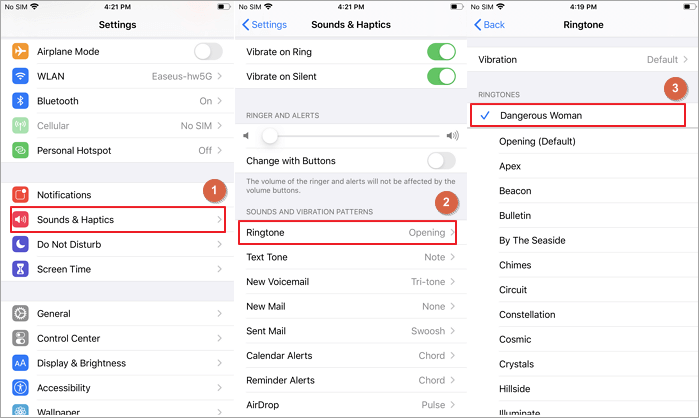
After transferring ringtones to your new iPhone, you can open it, go to "Settings", tap "Sounds & Haptics", and then select "Ringtone" to customize your new ringtones.
Method 2. Send Ringtones to iPhone 11 with iTunes
To make a custom ringtone from a song using iTunes, follow these steps. If you already have an iPhone ringtone (M4R file) on your iPhone, you can use iTunes to send it to your iPhone 11 in just three steps. First, open iTunes and select the song you want to use as your ringtone.
Step 1. Connect your iPhone 11 to your PC using a USB cable, then launch iTunes on your PC.
Step 2. Click the phone icon and hit "Tones."
Step 3. To transfer a ringtone to an iPhone using iTunes, drag and drop the ringtone file from your computer to the "Tones" section in iTunes, which will then sync the ringtone to your iPhone.
Part 3. How to Transfer Ringtones from iPhone to iPhone 11
If you've recently switched to a new iPhone, you may want to transfer your old ringtones to the new device. Fortunately, data transfer between iOS devices is a breeze with tools like Qiling MobiMover, which allows you to easily add ringtones from another iPhone, iPad, or iPod touch to your new iPhone 11.
Step 1. Connect your old iPhone and new iPhone to your computer, then run Qiling MobiMover, which can transfer data from your old iPhone to your new one, including photos, videos, messages, contacts, and more.
To allow Qiling MobiMover to access both of your iPhones, click "Trust" on two devices and "Allow" on the program.
On the Phone to Phone section, set the transfer direction from old iPhone to your new iPhone, such as "iPhone" to "Qiling", then click "Next" to proceed.
Step 2. On your old iPhone, go to Settings, then click on Sounds. You'll see the Ringtones option. Click to select the ringtones you want to transfer to your new iPhone.
Step 3. Click the "Transfer" button and wait for the process to finish.
To personalize your new iPhone, go to "Settings" and tap "Sounds & Haptics" > "Ringtone" after opening it, where you can choose from the transferred ringtones.
Part 4. How to Set a Song as a Custom Ringtone on iPhone 11
To set a custom ringtone on your computer, go to Settings > Sounds & Haptics > Ringtone, and select the custom ringtone you downloaded from your computer.
The Bottom Line
You can add ringtones to your iPhone 11 in various ways, including transferring them from a PC or previous iOS devices, or purchasing them directly from the iTunes Store.
You can add ringtones to your iPhone without using iTunes by buying tones directly from the iTunes Store on your device, making a song a ringtone using an iPhone ringtone maker, or downloading free ringtones to your computer and transferring them to your iPhone.
Carry out the method best suited to your needs and make your favorite song the iPhone ringtone within seconds.
Related Articles
- 3 Ways to Transfer Music from PC to iPhone
- How to Download Bilibili Videos with 4 Bilibili Downloaders
- How to Refresh Windows 7 without Losing Data?
How to refresh Windows 7 without losing data? you will find best way to refresh Windows 7 and keep all your personal files, settings, installed programs, etc. - How to Restore Default Programs in Windows 7 Easily
How to restore default programs in Windows 7? This guide will tell you how to make it step by step.
Products
Articles & Tutorials
- Data Recovery
- Data Backup
- File Recovery
- File Backup
- System Backup and Restore
- Disk and Partition Clone
- Technical articles
- Mobile articles
- Disk Master Help
- Windows Data Recovery Tutorials
- Windows Secure Delete Tutorials
- Windows Partition Management Tutorials
- Windows File Backup and Restore Tutorials
- Windows System Backup and Restore Tutorials
- Windows Disk Backup and Restore Tutorials
- Windows Clone Tutorials