How to Delete All Photos from iPhone in 3 Ways
After reading this article, you will learn three ways on how to delete all photos from iPhone. With these solutions, you can either delete photos from your iPhone directly on the device or remove them using a computer. These methods support the latest iPhone models and iOS versions.
Why Do You Need to Delete All Photos from iPhone
To free up storage space on your iPhone, you may want to delete all photos from the device. This can be done by going to the Photos app, selecting all the photos, and then deleting them. Alternatively, you can also delete photos from the Photos app by selecting the "Select" option, then choosing the photos you want to delete, and finally tapping on the "Delete" button. Additionally, you can also consider transferring your photos to a computer or an external storage device to free up space on your iPhone.
When preparing an iPhone for a new user or resale, it's a good idea to permanently delete all photos to protect privacy.
To delete all photos from your iPhone, you can either use the Photos app, delete photos from the Photos app, or use the Settings app to delete photos. You can also use a third-party app to delete photos, but be aware that this method may not be recommended by Apple. Additionally, if you want to delete all photos from your iPhone, you can also use the "Reset" feature in the Settings app. However, this will also delete other data, so be sure to back up your iPhone before using this method.
- How to Delete All Photos from iPhone in Photos
- How to Delete All Photos from iPhone at Once on Mac/PC
- How to Delete Photos from iPhone via iCloud
How to Delete All Photos from iPhone in 3 Ways
To delete photos from your iPhone in bulk, you can use one of the three methods below. However, before you do, make sure to back up your iPhone photos by transferring them to your computer, so you don't lose them completely. Once you've made the backup, you can proceed with deleting photos on your iPhone without worrying about losing them.
Method 1. Delete All Photos from iPhone in Photos
You can delete photos from your iPhone's Photos app, where photos and videos taken with the iPhone camera are stored.
To delete all photos from iPhone:
Step 1. Go to the "Photos" app.
Step 2. Switch to the "Albums" tab and select "All Photos".
Step 3. Select the photos you want to delete:
- Tap the items one by one to select the photos
- Or drag across the screen to select all the photos
Step 4. After you select the images, tap the "Trash" icon.
Step 5. To delete photos from your iPhone, click the "Photos" app and select the album or folder containing the photos you want to delete. Then, tap the "Select" button in the top right corner and choose the photos you want to delete.
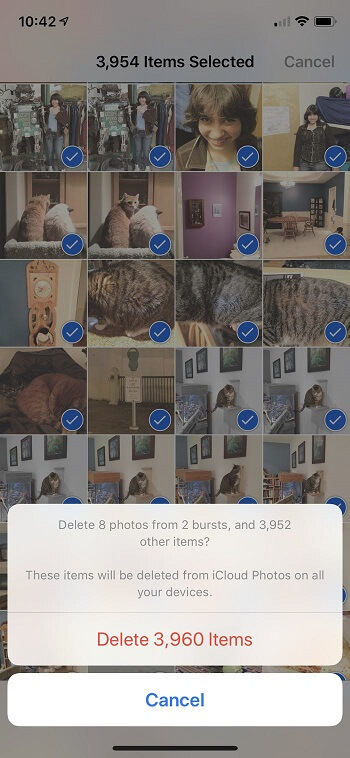
After deleting photos, they will be stored in the "Recently Deleted" album for 30 days. You can recover them from there if you change your mind. To permanently delete them, you'll need to delete them again from the "Recently Deleted" album.
Step 1. Open the "Photos" app and go to "Albums".
Step 2. To view recently deleted photos on an iPhone, tap on the "Recently Deleted" album in the Photos app. This will display the photos that were previously removed from the device.
Step 3. Tap "Select" > "Delete All".
Step 4. To delete photos from your iPhone, go to the Photos app, select the album you want to delete photos from, and choose "Select" at the top right. Then, tap on the photo you want to delete and select "Delete" at the bottom.
To delete photos and videos from an iPhone, open the Photos app, select the desired photos or videos by dragging from the bottom of the screen to the top, and then tap the "Share" icon to delete them. However, this method can be time-consuming for users with large photo collections since there is no "Select All" option.
There are two methods to quickly select and delete all iPhone photos on a computer: you can use iMazing to delete photos from iPhone on a computer, or use Photos app on a Mac to select and delete photos from iPhone. These methods allow you to select photos more quickly than doing it on the iPhone itself.
Method 2. Delete All Photos from iPhone at Once from a Mac/PC
With the iOS content manager - Qiling MobiMover allows you to easily and quickly delete all photos from your iPhone on a PC or Mac, as well as transfer files, including photos, videos, music, contacts, and more, between two iOS devices or between an iOS device and a computer.
You can use this content manager to delete files from your iPhone, excluding photos.
To delete all photos from iPhone at once:
Step 1. Connect your iPhone to your computer with a USB cable, launch Qiling MobiMover, and select "Content Management" > "Photos" to view all photos on your device.
Step 2. Select the photos you want to delete by checking the boxes next to them, or click "Select All" to delete all photos at once. Then click the "Delete" button.
Step 3. A confirmation window will pop up. Click "Yes" to permanently delete the selected photos from your iPhone.
Using Qiling MobiMover is not the only way to delete photos from iPhone on a computer, as another method is to use iCloud.
Method 3. Delete Photos from iPhone via iCloud
With iCloud enabled, we can sync and access all our photos across devices, including iPhone, iPad, Mac, and PC. This means that if we delete a photo from one device, it will also be deleted from another. If you have iCloud Photo Library turned on to sync photos between your iPhone and PC/Mac, you can delete photos from your iPhone by deleting them from iCloud Photo Library on your computer.
To delete photos from iPhone via iCloud on a Mac:
Step 1. To access your iCloud Photos, ensure that iCloud Photos is enabled and you're using the same Apple ID across all your devices. On your Mac, open the Photos app, which stores your iCloud photos.
Step 2. Press the "Command" key and the "A" key at the same time to select all the photos. Then, press the backspace key to delete them.
Step 3. Photos are deleted and then stored in the "Recently Deleted" folder.
Step 4. To delete photos from your device, tap on "Recently Deleted", select the photos you want to get rid of, and then tap on "Delete" to permanently remove them from your device.
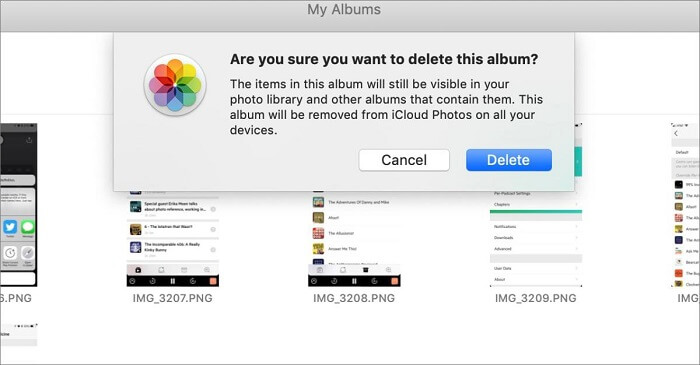
If you're a PC user, you have two options to delete photos from iCloud. You can either log into iCloud.com and delete the photos directly from there, or you can find where iCloud photos are stored on your computer and remove them from your local storage.
If you've synced your iPhone photos to your computer using services like Dropbox or Google Photos, you can use a similar method to delete photos from your iPhone.
The Bottom Line
To delete all photos from an iPhone, you can use the Photos app on the device itself, delete photos from the Photos app on a PC or Mac, or use a third-party app. The Photos app on the iPhone allows you to delete photos from the Camera Roll, Memories, and other albums. On a PC or Mac, you can use the Photos app to delete photos from the Camera Roll, but not from other sources. A third-party app, such as PhoneClean or CleanMyPhone, can also be used to delete photos and videos from an iPhone. Additionally, you can use the Settings app to delete photos and videos from the iPhone's storage. However, using Photos on a computer can only remove pictures in the Camera Roll.
To delete all photos from your iPhone with ease, go to the Photos app, tap on the "Albums" tab, then select "Media Types" and choose "Videos" and "Photos". Next, tap on the "Select" button, then choose all photos and videos by tapping on the circle in the top-left corner.
Related Articles
- iPhone 12 Data Transfer: Transfer Data to iPhone 12
- Best Way to Backup Laptop to External Hard Drive
In this article, you are going to learn how to backup Dell, Lenovo, HP, Toshiba, Sony, Acer, Samsung, or ASUS laptop with the best way. - What is the Best Way to Wipe A Hard Drive?
Need to find a wiping way to erase all data on a hard drive? Refer to this post, and learn how to perform it with the best way. - [Solved] Black Screen After Cloning Disk
This article will help you solve the problem of Windows 11/10/8/7 black screen after cloning. You won't encounter boot errors if you use the best disk cloning software - Qiling Disk Master.
Products
Articles & Tutorials
- Data Recovery
- Data Backup
- File Recovery
- File Backup
- System Backup and Restore
- Disk and Partition Clone
- Technical articles
- Mobile articles
- Disk Master Help
- Windows Data Recovery Tutorials
- Windows Secure Delete Tutorials
- Windows Partition Management Tutorials
- Windows File Backup and Restore Tutorials
- Windows System Backup and Restore Tutorials
- Windows Disk Backup and Restore Tutorials
- Windows Clone Tutorials