How to Get and Use New Emojis on MacBook with Ease
Quick Navigation:
- Part 1: How to get and install emojis on Mac
- Part 2: How to use emojis on the Mac
- Part 3: How to transfer data between Mac and iPhone
For quite some time, emojis have been available in OS X and are widely used in text messages, emails, social posts, and even YouTube videos, making social interactions more fun and easy. However, for new Mac users, it may be unclear how to access or use emojis on their MacBook. This post aims to provide a clear guide on how to get and use emojis on Mac, making it easy for users to navigate and enjoy the benefits of emojis on their MacBook.
Part 1: How to get and install emojis on Mac
To install new emojis on your Mac, go to the Macmoji GitHub repo, select and download the emojis you want, and follow the installation instructions.
Step 1: Click the "Clone or download" button on the right-hand side, then select "Download ZIP" to start downloading the emojis ZIP file.
Step 2: Extract the contents when the ZIP has been downloaded on your Mac.
Step 3: Go to "System Preferences" > "Keyboard" > "Text".
Step 4: Open the file containing the extracted contents of the ZIP file and drag the emoji substitutions.plist file into the text substitutions field.
Also see: To get new emojis on your iPhone 8 or X, go to Settings, then General, and finally Software Update. If an update is available, tap "Download and Install" to update your iPhone to the latest iOS version, which includes the new emojis.

Part 2: How to use emojis on the Mac
It's easy to use emojis when you are sending messages/iMessages.
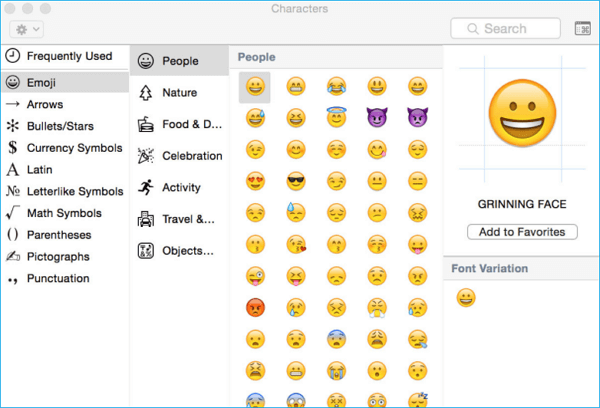
Step 1: To insert an emoji into any text field, click on the smiley face icon in the top right corner of the screen, then select the emoji you'd like to insert. Alternatively, you can type the emoji code.
Step 2: To press the "Command and Control" keys on your keyboard, first locate the Command key, which is usually located on the bottom left side of the keyboard. It's often marked with a symbol that resembles a cloverleaf. Next to the Command key is the Control key, which is usually marked with a symbol that resembles two curved lines.
Step 3: To choose an emoji, click on the Emoji icon in the sidebar of the Character window, then select a category from the options of "Smileys & People", "Animals & Nature", "Food & Drink", "Activity", "Travel & Places", "Objects", "Symbols", and "Flags".
Step 4: To use an emoji, double-click on the one you'd like to use, and it will be inserted into the target position.
Part 3: How to transfer data between Mac and iPhone
If you're a Mac and iPhone user, you can use Qiling MobiMover Free to transfer files between your devices, and it's compatible with both Mac and Windows PC. This free tool allows you to transfer data between your Mac and iPhone, as well as between two iOS devices, such as transferring photos from one iPhone to another.
- What can MobiMover transfer or manage for you:
-
Photos: Camera Roll, Photo Library, Photo Stream, Photo Videos
Videos: Movies, TV shows, Music Videos
Audios: Music, Ringtones, Voice Memos, Audiobooks
Others: Contacts, Notes, Messages, Voice Mails, Books, and Safari Bookmarks
With MobiMover, you can easily transfer all data from your iPhone to Mac, including photos, music, videos, contacts, messages, and more, either by transferring all at once or selecting specific categories. Alternatively, you can transfer various types of files from Mac to your iPhone with just a few clicks. This process is straightforward and hassle-free, allowing you to quickly and efficiently move your data between devices.
Step 1. To connect your iPad to your Mac, plug in a USB cable and tap "Trust This Computer" on your iPad if prompted. Then, run Qiling MobiMover for Mac and select the "Phone to Mac" option on the main screen.
Step 2. MobiMover automatically reads and loads all supported data from your iPad, as shown in the screenshot. You can then export all the data or select specific types to send to your Mac, choosing the destination folder where they will be saved, or let MobiMover save them to a default desktop folder named "Exported by MobiMover".
Step 3. When transferring data from an iPhone or iPad to a Mac, click the "Transfer" button to initiate the process. Once completed, you can view, edit, or delete the imported data on your Mac.
Related Articles
- Connect iPhone to Computer with Qiling MobiMover Free
- Six Ways to Fix Airdrop Not Working on iPhone or iPad
- How to Backup Files If Windows Doesn't Boot
If Windows doesn't boot successfully, you cannot access files on the PC. Fortunately, you can learn how to backup files if Windows doesn't boot in this article.
Products
Articles & Tutorials
- Data Recovery
- Data Backup
- File Recovery
- File Backup
- System Backup and Restore
- Disk and Partition Clone
- Technical articles
- Mobile articles
- Disk Master Help
- Windows Data Recovery Tutorials
- Windows Secure Delete Tutorials
- Windows Partition Management Tutorials
- Windows File Backup and Restore Tutorials
- Windows System Backup and Restore Tutorials
- Windows Disk Backup and Restore Tutorials
- Windows Clone Tutorials