How to Save Videos from WhatsApp on iPhone or Android or Computer
Quick Navigation:
- How to Save Videos from WhatsApp on Desktop
- How to Save WhatsApp Video in the Gallery on Android Without Any App
- How to Save Videos from WhatsApp Status (For Android Only)
- How to Save WhatsApp Videos and Photos to iPhone
- How to Download Video from WhatsApp Web
- The Bottom Line
WhatsApp is a daily communication tool that allows you to chat and share pictures or videos with others, and some of these shared media may hold sentimental value. To preserve these memories, you can download them to your computer or smartphone, making them easily accessible whenever you want. If you'd like to save WhatsApp videos on your computer or smartphone, following this guide will walk you through the process with ease.
How to Save Videos from WhatsApp on Desktop
Saving videos from WhatsApp on the desktop is a straightforward process. Simply open the WhatsApp web or desktop application, select the conversation containing the video you want to download, open it, and click the download icon to save it.
To save multiple photos and videos from WhatsApp, you can use a WhatsApp manager like Qiling MobiMover, which allows you to transfer all WhatsApp chat history, including messages, photos, and videos, to your computer or another iPhone.
The app supports batch transferring photos and chats, making it ideal for users who need to download multiple items at once.
To back up WhatsApp chat to your computer:
Step 1. Connect your iPhone to your computer using a USB cable, then launch Qiling MobiMover, select "WhatsApp" and "Backup" from the menu.
Step 2. Select the desired backup location and click "Back up" to initiate the backup process, which will save your WhatsApp messages and attachments to your PC.
Step 3. Wait for the backup process to complete. The messages will be saved as an HTML file on your computer, allowing you to view the details with a browser at any time.
Step 4. After the backup process has completed, you can view the WhatsApp messages and attachments by going to "WhatsApp" > "Backup History" to check the backup.
Qiling MobiMover not only manages WhatsApp but also allows you to transfer various types of data between devices, including contacts, messages, photos, videos, and music, making it a versatile tool for iOS content management.
How to Save WhatsApp Video in the Gallery on Android Without Any App
If you've been using WhatsApp for a while, you might know that it automatically saves photos and videos from conversations to your Android Gallery. To access these saved videos, simply open your Gallery and navigate to the WhatsApp folder, where you'll find all the saved content. No need to worry about saving them separately!
To make the downloaded videos viewable, go to Settings, then select Apps, and choose the app that has the downloaded videos. Tap on the app, then go to the Storage & cache section, and toggle the switch next to "Show internal storage" to the On position. This should allow you to see the downloaded videos.
Step 1. To open the WhatsApp app and then tap the three dots icon at the top-right corner of your screen, follow these steps: 1. Open the WhatsApp app on your device.
Step 2. To check data and storage usage, go to the Settings menu and tap on "Data and storage usage."
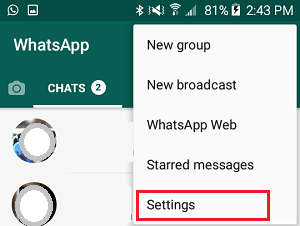
Step 3. You can select to automatically download media when using mobile data, when connected to Wi-Fi, or when roaming.
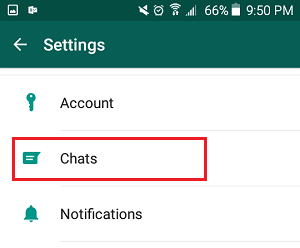
Step 4. Go back to the previous page and tap "Chats."
Step 5. Toggle the button next to "Media visibility" to ON.
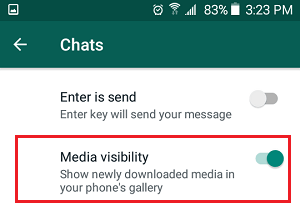
Step 6. After you tap "OK", you'll be asked to choose the location where you want to save the downloaded media. You can select from options like "Gallery", "Files", or "SD card". Choose the one that suits your preference. Then, you'll be asked if you want to show newly downloaded media from this chat in your phone's Gallery.
How to Save Videos from WhatsApp Status (For Android Only)
You can't directly download videos or photos from the Status, but you can use the File Manager, a built-in feature on Android devices, to save videos from WhatsApp by searching for the "Files" app and following the steps.
Note: You can use Apple's built-in screen record feature to capture the video you wish to download from WhatsApp status on an iPhone.
Step 1. Open the status you want to save.
Step 2. Open the File Manager app on your Android device.
Step 3. Go to the Settings and enable "Show hidden files."
Step 4. To access WhatsApp statuses, go to the WhatsApp folder, which is located within Internal storage, then navigate to WhatsApp, followed by Media, and finally Statuses.
Step 5. To save a video or photo, long-press on it, select the desired location, and tap "Download."
How to Save WhatsApp Videos and Photos to iPhone
Saving WhatsApp photos and videos to your iPhone is a straightforward process. Simply follow these simple steps to get started.
Step 1. To access the WhatsApp app on your iPhone, open the app and tap the "Chats" tab.
Step 2. Select the conversation that contains the videos you wish to save.
Step 3. Tap and hold the video you want to save, then tap "Save."
Step 4. Then, the video will be downloaded to your device.
Note: This method is more suitable for saving one or two videos, but can be time-consuming for larger collections. Qiling MobiMover is a better option for bulk transfers.
How to Download Video from WhatsApp Web
Downloading videos from WhatsApp web is a straightforward process. Simply open the video in your browser, right-click on it, and select "Save Video As" to save it to a chosen location.
The Bottom Line
To download videos from WhatsApp, you can use various methods, whether you're on a computer or smartphone. There are options to save your wanted videos, with the first method being the most recommended, as it supports batch transfer and provides a fast transfer speed, ideal for transferring large media files.
Want to quickly organize your iPhone, iPad, or iPod touch data? Qiling MobiMover is here to help you do it efficiently.
Related Articles
- Top 6 Best YouTube MP3 Downloaders in 2022
- How to Transfer iMessage to a New iPhone or iPad with/Without iCloud
- How to Transfer Music from Mac to iPhone With or Without iTunes
- 4 Methods to Transfer Notes from iPhone to iPhone or Computer
Products
Articles & Tutorials
- Data Recovery
- Data Backup
- File Recovery
- File Backup
- System Backup and Restore
- Disk and Partition Clone
- Technical articles
- Mobile articles
- Disk Master Help
- Windows Data Recovery Tutorials
- Windows Secure Delete Tutorials
- Windows Partition Management Tutorials
- Windows File Backup and Restore Tutorials
- Windows System Backup and Restore Tutorials
- Windows Disk Backup and Restore Tutorials
- Windows Clone Tutorials