How to Turn off Parental Controls on iPhone or Android Without a Password
Quick Navigation:
- Part 1. How to Turn off Parental Controls on iPhone
- 1. Turn Off Parental Controls on iPhone Without Password [100% Safe Without Data Loss]
- 2. Remove Parental Controls Without Password Using iTunes [Data Loss]
- 3. Get Rid of Parental Controls on iPhone with Password
- Part 2. How to Turn off Parental Controls on Android
- 1. How to Remove Family Link Parental Controls Without a PIN
- 2. How to Turn Off Parental Controls
- In Conclusion
The internet can be a mixed bag, with both valuable information and explicit content available. To protect children from accessing unsuitable content, both Android and iPhone offer tools like Screen Time and Google Family Link, which allow parents to limit their kids' screen time and access to specific content.
If you're ready to give your child more freedom to use their device for schoolwork or hobbies, you'll need to turn off parental controls. This guide will show you how to do it, whether you remember the passcode or not, with a couple of tips for iPhone and Android devices.
Part 1. How to Turn off Parental Controls on iPhone
To turn off parental controls on an iPhone, you can go to Settings > Screen Time > Parental Controls, and toggle the switch to the "off" position. Alternatively, you can go to Settings > Screen Time > Content & Privacy Restrictions, and toggle the switch to the "off" position. You can also ask Siri to "turn off parental controls" or "turn off Screen Time." However, keep in mind that these methods may not work if you have previously set a passcode or password to restrict access to these settings. In that case, you would need to enter the passcode or password to disable parental controls.
1. Turn Off Parental Controls on iPhone Without Password [100% Safe Without Data Loss]
If you're looking for a safe, simple, and quick way to remove parental controls on your iPhone, Qiling MobiUnlock is a great option. This tool allows you to turn off Screen Time without needing a password, and it won't delete any data on your iPhone or iPad.
This program offers various features beyond just bypassing screen passcode, including unlocking Apple ID, removing iTunes backup encryption, and managing iOS passwords, among other capabilities.
To turn off parental control on your iPhone:
Step 1. To unlock your iPhone screen time passcode, start Qiling MobiUnlock on your PC and connect your iPhone to the PC with a USB cable. If prompted, trust this computer on your device screen. Then, select "Unlock Screen Time Passcode" to proceed.
Step 2. Qiling MobiUnlock will recognize your iPhone/iPad and display its model, then click "Unlock Now" to proceed.
Step 3. If you're trying to turn off "Find My iPhone" or "Find My iPad," follow the instructions on the screen to do so. If the option is already turned off on your iOS device, you can skip this step.
Step 4. Qiling MobiUnlock will start to remove the Screen Time Passcode and turn off Screen Time. After the process finishes, go to your iPhone and follow the on-screen instructions to set it up. You will then find that Screen Time is disabled in Settings.
2. Remove Parental Controls Without Password Using iTunes [Data Loss]
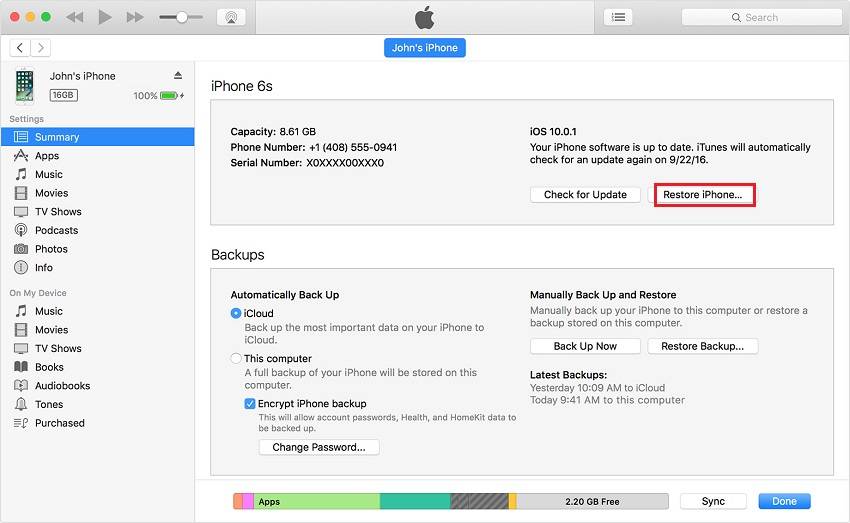
To turn off Screen Time without a passcode, you can restore your iPhone or iPad from iTunes, which will delete all data and settings, including the Screen Time passcode, and install the latest version of iOS. This process rebuilds your iPhone's system.
To remove parental controls on your iPhone, you can follow these steps: first, go to Settings, then General, then Restrictions. Enter the passcode, then toggle off "Enable Restrictions". You can also delete the passcode and reset the restrictions settings.
Step 1. Connect your iPhone to the computer and launch iTunes.
Step 2. To access your device settings in iTunes, click on the device icon located near the top left corner of the iTunes window. This will display a drop-down menu with options to manage your device.
Step 3. Click "Summary," and then click "Restore iPhone."
Step 4. Click "Restore" to start restoring your device.
Tips: To restore your iPhone on a Mac, launch Finder, connect your iPhone, select the device icon, click "General" at the top of the window, and then click "Restore iPhone."
3. Get Rid of Parental Controls on iPhone with Password
If you can remember your password, you can remove the restriction by going to Settings > Accounts > Your account, then tapping on the three dots next to your account name, and finally selecting 'Account settings'. From there, you can toggle off the 'Require password' switch to disable the password requirement. If you've forgotten your password, you can try resetting it through the same settings menu.
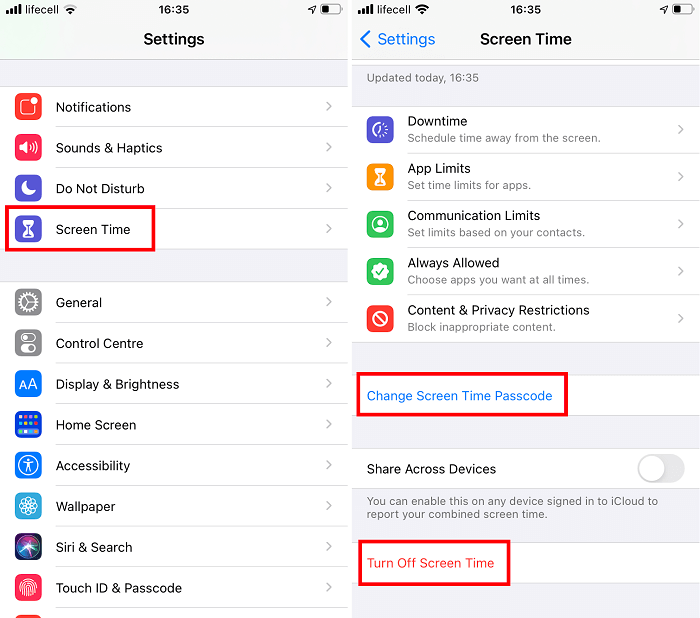
Step 1. Launch the Settings app on your iPhone.
Step 2. Tap "Screen Time."
Step 3. Tap "Turn Off Screen Time" from the options.
Step 4. To enter your passcode, tap on the "Enter Passcode" button and enter the 6-digit code. Once you've entered the passcode, tap on "Verify" to confirm your choice.
Part 2. How to Turn off Parental Controls on Android
If you can remember the four-digit PIN, go to the Family Link app, tap on the child's profile, tap on "Parental Controls," and enter the PIN to disable them. If you can't remember the PIN, go to the Family Link app, tap on the child's profile, tap on "Parental Controls," and then tap on "Forgot PIN." Follow the prompts to reset the PIN, then tap on "Disable Parental Controls" to turn them off.
1. How to Remove Family Link Parental Controls Without a PIN
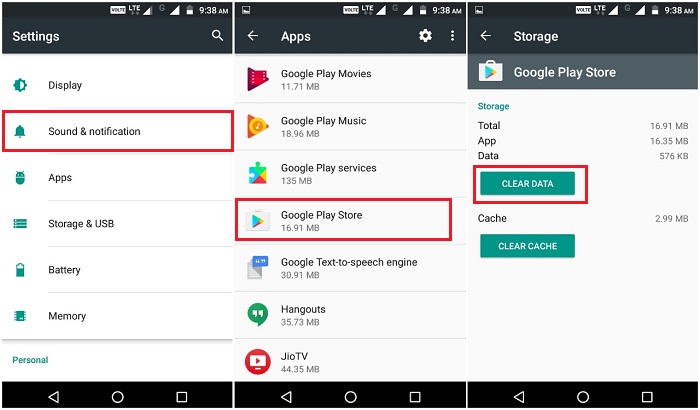
To remove parental controls, you can delete the Google Play apps' parental control settings, which won't require entering the four-digit PIN.
Step 1. Go to the Settings on your Android.
Step 2. Select "Apps and Notification" or "Apps" from the options.
Step 3. Choose "Google Play Store," and then choose "Storage."
Step 4. Tap "Clear Data" and confirm your action by clicking "OK."
2. How to Turn Off Parental Controls
If you can remember the associated PIN, you can easily change the parental control settings in the Google Play app.
Step 1. On your Android phone, open your Google Play Store.
Step 2. To access the menu in the Google Play Store, tap the three horizontal lines at the top left side of the search bar.
Step 3. Press the "Settings" option from the unfold list.
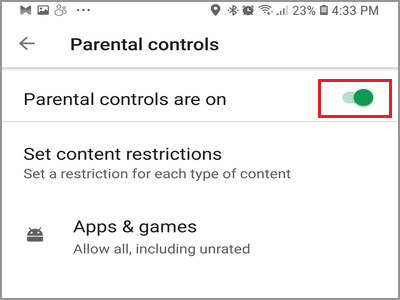
Step 4. Under the User controls menu, choose "Parental Controls."
Step 5. Switch off the "Parental Controls" option.
Step 6. To disable parental controls in the Google Play Store, open the Play Store app, tap the menu icon, select Settings, and then toggle off the switch next to Parental Controls. Alternatively, you can also disable parental controls by opening the Google Settings app, tapping Security, and then toggling off the switch next to Parental Controls. If prompted, enter the correct PIN to confirm the change.
In Conclusion
If you're looking to turn off parental controls on your iPhone or Android, we've got you covered. Whether you know the password or not, our guide provides the necessary steps to disable parental controls on your device. Depending on your device model, you can choose the right method to follow. If you have any questions or need further assistance, feel free to reach out to us.
Related Articles
- How to Get Rid of Someone Else's Apple ID on an iPhone
- Perform Auto Backup with Batch File in Windows 10 (2 Ways)
This article introduces how to create backup batch file in Windows 10 and how to automate the task. If you have further backup needs, here's also a reliable program with GUI - The Best Free Backup Software That Only Copies Changes
Try to find a backup software that only copies changes? Qiling Disk Master, the best free backup software, will help you achieve this goal easily. - Automatically Backup and Recover Word Documents in Windows 10
This article illustrates how to save, backup and recover (unsaved or deleted) word documents in Windows 10 automatically. Thus, you don't need to worry about data loss.
Products
Articles & Tutorials
- Data Recovery
- Data Backup
- File Recovery
- File Backup
- System Backup and Restore
- Disk and Partition Clone
- Technical articles
- Mobile articles
- Disk Master Help
- Windows Data Recovery Tutorials
- Windows Secure Delete Tutorials
- Windows Partition Management Tutorials
- Windows File Backup and Restore Tutorials
- Windows System Backup and Restore Tutorials
- Windows Disk Backup and Restore Tutorials
- Windows Clone Tutorials