How to Unlock iCloud Account Without Password
Quick Navigation:
- Method 1. Unlock iCloud Account Without Password (Most Straightforward)
- Method 2. Change Your iCloud Password
- 1. Change the iCloud password on an iPhone
- 2. Change the iCloud password on a Mac
- 3. Change the iCloud password on a web browser
- Method 3. Unlock iCloud Account Using a Recovery Key
- Method 4. Ask for the Apple Support for Help
- The Final Words
An iCloud account can be locked due to a variety of reasons. Some typical factors that may lead to this issue include security concerns, account misuse, or technical difficulties. Additionally, it's possible that the account may have been locked due to password or security questions being incorrectly answered, or if the account has been accessed from an unfamiliar device or location.
- To sign in to one iCloud account on different devices over a short period, follow these steps: Sign in to your iCloud account on one device, such as your iPhone or iPad, using your Apple ID and password. Then, on another device, such as a Mac or another iOS device, go to Settings > [your name] > iCloud and sign in with the same Apple ID and password.
- Mistakenly enter the wrong iCloud password too many times
- Get a second-hand iPhone or iPad with a locked Apple ID
- Use third-party tools based on open source iCloud code
If you're having trouble with your iCloud account, don't worry, this guide will offer some helpful tips to unlock it without a password. Before trying, you can check Apple's official guide to see if your account is indeed locked. All of the factors that lead to this situation can be summed up in one security reason. This guide will provide some helpful tips to unlock an iCloud account without a password.
Important Notice: Be cautious of emails claiming your Apple ID has been locked and ask for personal info, as they are likely phishing attempts to steal your password.
Method 1. Unlock iCloud Account Without Password (Most Straightforward)
If your iCloud account is locked due to security reasons, you can use Qiling MobiUnlock to unlock your iPhone and remove the Apple ID. This tool can also remove screen passcode, Apple ID, Screen Time passcode, and iTunes backup encryption, allowing you to sign in or create a new Apple ID.
To help you learn about this program better, we compile some of its key features here.
- Remove locked Apple ID without passcode
- To unlock your screen passcode, you can enter the 4 or 6 digit code, or use Touch ID or Face ID if you have it set up. If you've forgotten your passcode, you can try using the "Forgot Passcode" option on the lock screen to reset it.
- Remove iTunes backup encryption
- On your iOS device, go to Settings > Face ID & Passcode (or Touch ID & Passcode) > Passcode Settings, then select "Turn Passcode On" to enable the feature. To restore the passcode, go to Settings > Face ID & Passcode (or Touch ID & Passcode) > Passcode Settings, then select "Restore Passcode".
If you're locked out of your iCloud account and can't remember your password, don't worry - there's a way to regain access. To unlock your iCloud account without a password, you can follow a specific process that allows you to recover your account.
Note: Before proceeding, please ensure that you can unlock your device to trust this computer. This step is necessary to allow the device to connect with the computer and complete the process.
Step 1. Open Qiling MobiUnlock on your computer, connect your iPhone or iPad, and select "Unlock Apple ID" from its main screen.
Step 2. Our program will start recognizing your device. Once your device is detected, click "Start" to proceed. Next, you'll need to download a firmware, and once it's ready, click "Unlock Now."
Step 3. A warning screen will pop up to let you back up your device and confirm the unlock process, just follow the instructions.
Step 4. Qiling MobiUnlock will start removing the iCloud Activation Lock, and after a few seconds, the lock will be removed successfully.
Method 2. Change Your iCloud Password
If you have multiple iOS devices signed into the same iCloud account, you can reset your Apple ID or iCloud password from another trusted device. If not, you can reset it on a web browser. After resetting, you can access your device files with the new password.
1. Change the iCloud password on an iPhone
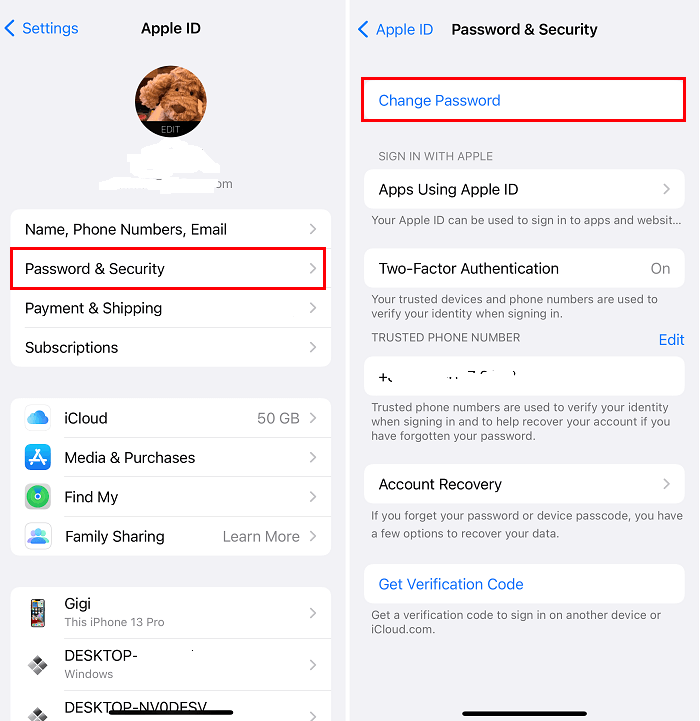
Step 1. On your iPhone or iPad, go to Settings.
Step 2. Click [your name], and then click "Password & Security."
Step 3. Click "Change Password" and enter your iPhone passcode.
Step 4. You can then enter your new password twice and select "Change" to update your password.
2. Change the iCloud password on a Mac
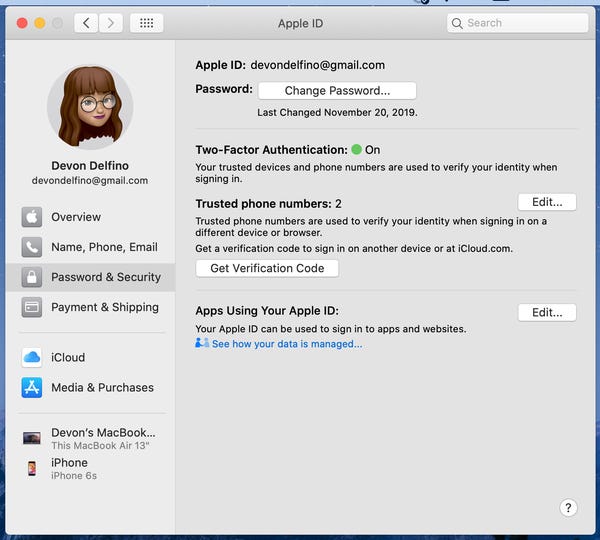
Step 1. Click on the Apple icon in the top-left corner of the screen and select "System Preference".
Step 2. To change your Apple ID password, go to Apple ID, select "Password & Security", and click "Change Password". If you're using a Mac running Mojave or an earlier version, first select "iCloud" in System Preferences.
Step 3. Enter the password you use to access your Mac.
Step 4. Enter the new password twice and click "Change."
3. Change the iCloud password on a web browser
Step 1. Open a new web browser on your computer and head to the Apple ID account recovery page.
Step 2. Enter your iCloud ID, and click "Continue."
Step 3. Apple will display phone numbers associated with the Apple ID. Enter the phone number you use with your Apple ID, and click "Continue."
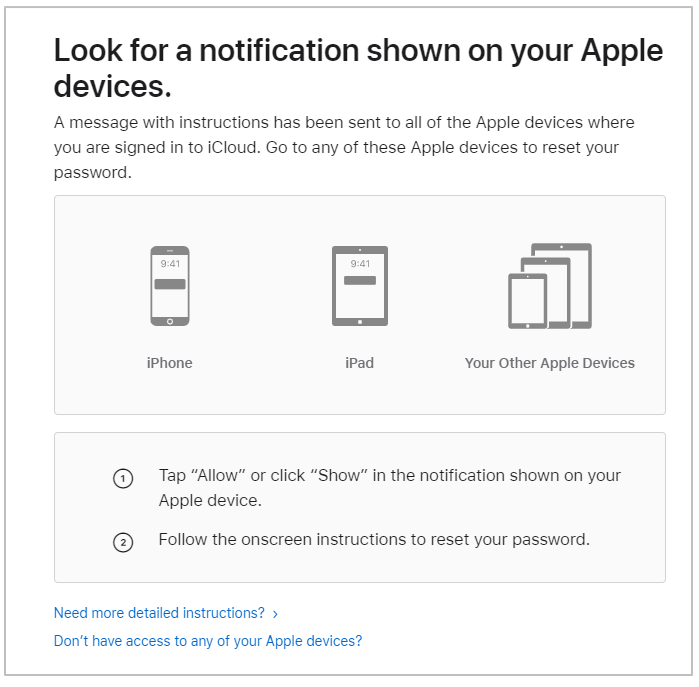
Step 4. To allow the iPhone to share its location with your Apple Watch, you will need to tap "Allow" on the notification shown on your trusted Apple devices, then enter the iPhone passcode you use to unlock your device.
Step 5. On your device, go to Settings > [your name] > Password & Security. Tap on Password, and then tap on Change Password.
Method 3. Unlock iCloud Account Using a Recovery Key
To unlock your iCloud account, you'll need to have set a recovery key for your account and have access to another trusted iOS device that's signed in to the same iCloud account. This allows you to regain access to your account.
Step 1. Go to the Apple ID website on your computer's web browser.
Step 2. To reset your Apple ID or password, click on "Sign in" and then select "Forgot Apple ID or password" from the menu.
Step 3. Enter your iCloud ID, choose how you want to reset your password, and click "Continue."
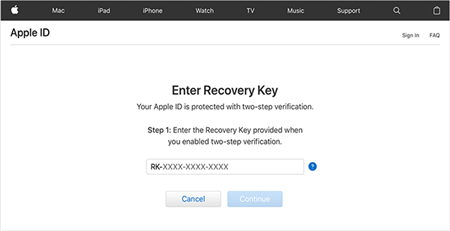
Step 4. Enter the recovery key on the webpage and click on "Continue."
Step 5. To verify your account, enter the verification code you received on your trusted device, allowing you to create a new password and regain access to your account.
Note: If you lose your recovery key and can't access your devices, Apple won't be able to help you regain access to your account or your data.
Method 4. Ask for the Apple Support for Help
If you're having trouble unlocking your iCloud account, the last resort is to ask Apple for help. You can reach out to Apple in various ways, such as scheduling a call, chatting with their team, or visiting an Apple Store. If you plan to visit an Apple Store, it's a good idea to bring your purchase receipt. If the phone doesn't belong to you, you'll need to provide a certified copy of the previous owner's will and a photo ID.
Follow these steps to ask for help online:
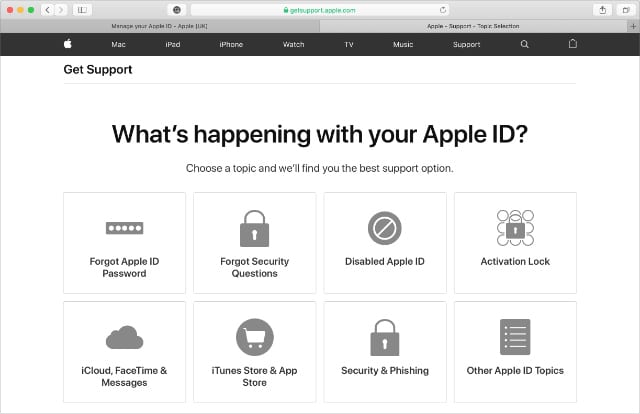
Step 1. To resolve the issue, open a web browser on your computer and head to the Apple Support site.
Step 2. On the Home page, select "Apple ID" and click "Continue" to proceed.
Step 3. You will be shown some options. Choose "Disabled Apple ID."
Step 4. Select "Unlock Your Account" from this page.
Step 5. You'll be given options to contact Apple, such as phone, email, or online chat, and you can choose the method that suits you best.
The Final Words
If you're locked out of your iCloud account, whether due to forgetting your Apple ID password or accidental lockout, there are helpful methods to regain access. Each method has its limitations, so it's essential to understand them and choose the one that best suits your situation. These methods can be used to unlock your iCloud account and regain access to your account.
Related Articles
- 3 Ways to Remove Apple ID from iPhone
- Two Free Ways for Mobile SD Card Backup
You will find the top 2 easy ways to create mobile SD card backup with the step-by-step guide. - Quick Fix: No Restore Previous Versions Option in Windows 10
Why is there no Restore previous versions option? Here you can learn how to recover it. To retrieve files easily, you can use Qiling Disk Master Standard. - Best Way to Do Real-Time Backup to External Hard Drive
The best real-time backup software provided in this post to perform real-time backup to external hard drive in Windows 11/10/8/7 to get continuous data protection.
Products
Articles & Tutorials
- Data Recovery
- Data Backup
- File Recovery
- File Backup
- System Backup and Restore
- Disk and Partition Clone
- Technical articles
- Mobile articles
- Disk Master Help
- Windows Data Recovery Tutorials
- Windows Secure Delete Tutorials
- Windows Partition Management Tutorials
- Windows File Backup and Restore Tutorials
- Windows System Backup and Restore Tutorials
- Windows Disk Backup and Restore Tutorials
- Windows Clone Tutorials