3 Tips | How to Transfer Contacts From iPhone to PC without iTunes
Applies To: Any iPhone running iOS 8 and later
You can transfer contacts from your iPhone to your computer using various methods, including iCloud, Email, and AirDrop (if you're a Mac user). Additionally, specialized iOS data transfer tools are available, which can also facilitate data transfer. Each method has its own advantages and limitations, with iCloud and Email being popular options, and AirDrop being a convenient choice for Mac users. Some professional transfer tools can also handle contact transfers efficiently, although their capabilities may vary. Overall, the best method for you will depend on your specific needs and preferences.
- Part 1: Easiest and quickest way to transfer contacts from iPhone to computer
- Part 2: Wireless way to copy contacts from iPhone to PC with iCloud
- Part 3: Import contacts from iPhone to PC with Email
- Part 4: Transfer contacts from computer to iPhone
Part 1: Easiest and quickest way to transfer contacts from iPhone to computer
Compared to iCloud and Email, Qiling MobiMover offers more flexibility when transferring contacts, with no storage limits and the ability to transfer multiple contacts at once, unlike iCloud's 5GB free storage and Email's single-contact transfer limit. This professional iOS data transfer tool provides a range of benefits, including the ability to transfer all contacts at once, making it a more efficient and convenient option for users.
- You can transfer contacts from your iPhone to your computer, either selecting specific contacts to move or doing it all at once, depending on your preference.
- If you need to view or print the contacts saved on your computer, you can access them.
- You can transfer files from your PC to your iPhone/iPad whenever you need to, following the steps outlined in the linked article.
- You can copy contacts and other files, such as photos, videos, music, voice memos, messages, and more, from your iPhone to your computer.
- You can easily transfer files between iPhone and Mac, with various file types supported.
To transfer contacts from iPhone to computer, click the button below to equip your PC running Windows 10/8/7 with a powerful tool, then follow the steps: click the tool to connect your iPhone, select the contacts you want to transfer, click to export them to your computer, and finally, save them as a VCF file.
Step 1. Connect your iPhone to your PC, unlock it and click "Trust" on the prompt. Launch Qiling MobiMover, select "Phone to PC" and click "Next" to transfer contacts from your iPhone to your PC.
Step 2. Click "Contacts" and click the default path to set a custom storage path if needed, then click "Transfer".
Step 3. After the transfer process is complete, you can access the contacts on your computer by viewing the HTML file saved on your PC, which can also be transferred to your iOS device if needed.
Part 2: Wireless way to transfer iPhone contacts to computer with iCloud
To import iPhone contacts to PC, you need to sync them from your iPhone to iCloud first, then download iCloud contacts to your computer, which is a more complex and time-consuming process that requires a WiFi network connection, but allows for wireless transfer.
Step 1: To sync your iPhone contacts with iCloud, go to Settings > [your name] > iCloud, and toggle the switch next to "Contacts" to the "On" position. This will allow your contacts to be stored and accessed across all your Apple devices.
Step 2: To access iCloud on your computer, open a browser, visit iCloud.com, and sign in with your Apple ID and password, using the same account credentials as your iPhone.
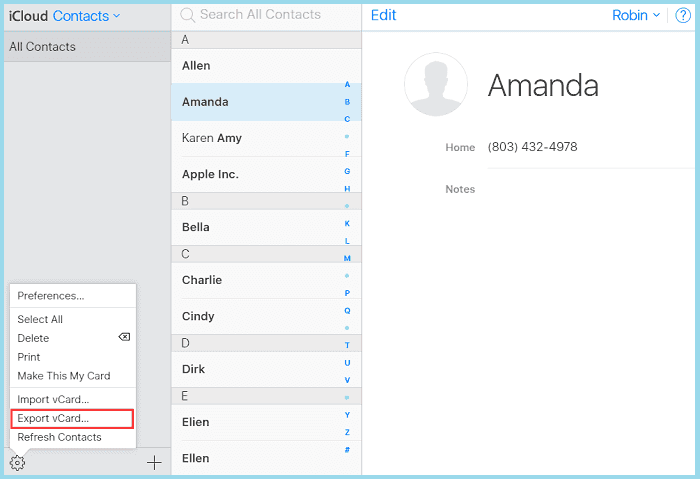
Step 3: Choose Contacts among the options and select the items you want to copy from iPhone to PC. You can use Shift/Ctrl for bulk selection or click the gear icon > Select All to check all items at once.
Step 4: To export iPhone contacts to a computer, click the gear icon, select Export vCard, and the browser will download the contacts from iCloud to the PC, successfully copying the iPhone contacts to the computer.
Part 3: How to copy contacts from iPhone to PC via Email
You can also move contacts from your iPhone to computer without using iTunes or iCloud by using Email, which is a quick and simple method. However, this method is only suitable for transferring one or several items at a time, as sending multiple items via Email is not possible. If you need to import multiple or all contacts, using Email is not the best option and you should consider Part 1 instead.
Step 1: Go to Contacts App on your iPhone.
Step 2: To transfer contacts from an iPhone to a PC, start by finding and selecting the contacts you'd like to move. This can be done by opening the Contacts app on your iPhone and searching for the desired contacts.
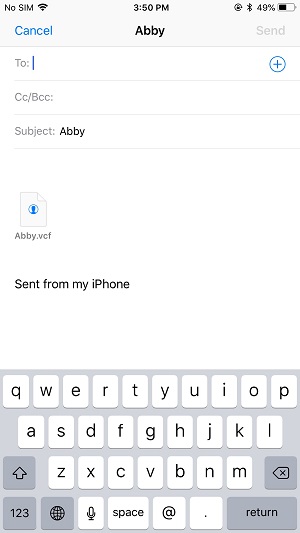
Step 3: Click Share Contact and choose Mail.
Step 4: Enter the information needed to send an email to yourself.
Step 5: To transfer your iPhone contacts to your computer, check your email on your computer, save the item on it, and you'll be able to access your iPhone contacts on your PC with ease.
Part 4: Transfer contacts from computer to iPhone
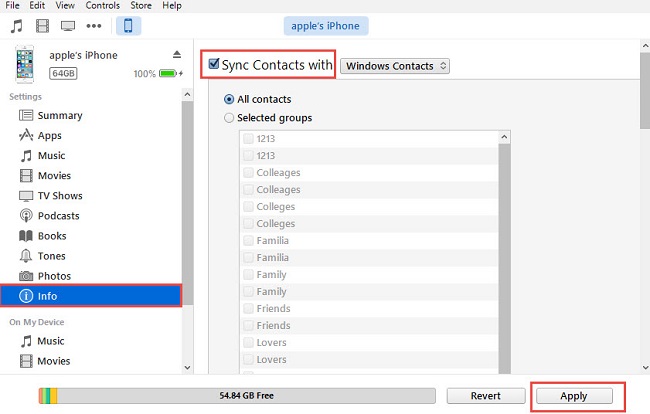
To transfer contacts from an iPhone to a computer, follow these steps: Connect the iPhone to the computer using a USB cable. Open iTunes on the computer and select the iPhone icon. Click on the "Info" tab and select "Sync Contacts with" and choose the option to sync with the computer. Click "Apply" to start the transfer process.
Steps to transfer contacts from computer to iPhone via iTunes
Step 1: To sync your iPhone or iPad with your computer, first connect your device to the computer using a USB cable. Next, launch the latest version of iTunes on your computer.
Step 2: Select your iPhone icon on the top of iTunes, then click on the "Info" tab on the menu along the left of the screen.
Step 3: To sync contacts with a program on your computer, tick the "Sync Contacts With" box, select the desired program, choose "All Contacts", and click the "Apply" button to save the settings.
Steps to transfer contacts from computer to iPhone via iCloud
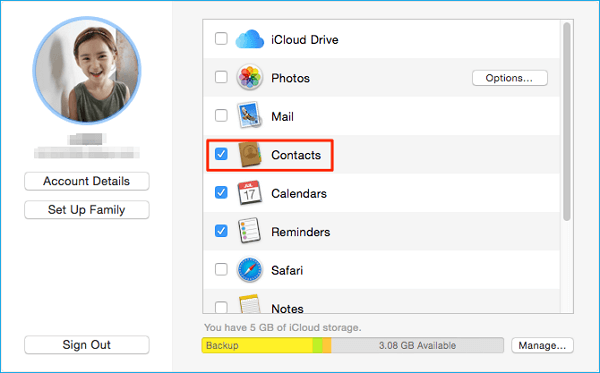
Step 1: Download and install iCloud for Windows on your computer, then sign in with your iCloud account, which is the same account you use on your iPhone.
Step 2: To sync your email, contacts, calendar, and tasks, select the box next to Mail, Contacts, Calendar, and Tasks, then click Apply.
Step 3: To enable iCloud Contacts on your iPhone, go to the Settings app, select your name at the top, then choose iCloud, and toggle the switch next to Contacts to the right, turning it green. This will sync your iPhone contacts with your iCloud account.
- Tip
- Backing up contacts from your iPhone to your computer is a good habit to keep your important data safe. If you're unsure how to do this, you can check out the guide on how to backup contacts on an iPhone for a step-by-step guide.
The Bottom Line
Transferring iPhone contacts to a computer is a straightforward process with several options. The most recommended method is using a third-party tool like Qiling MobiMover, which offers more choices for data transfer. Alternatively, you can also use iCloud or Email to transfer individual contacts, making it a convenient option for small-scale transfers. With Qiling MobiMover installed, you cannot only manage iOS data but also download videos from various websites or wipe iPad/iPhone passcodes with ease.
Related Articles
- How to Recover Data from VMware Disk [2023 Updated Guide]
The problem of VMware data recovery and the VMware disk file not found problem occasionally bothers many users. This article describes three ways to recover data from a VMware disk to reduce the losses of a VMware disk file. - [SOLVED] Will System Restore Recover Deleted Files in Windows 10
Will System Restore recover deleted files in Windows 10? You'll get the answers here. Besides, you can recover deleted files with the best data recovery software in Windows 1110/8/7. Download this file recovery software and restore lost data with simple clicks. - Tech Specification of Deep Data Recovery for indows/Mac
List Deep Data Recovery for Windows/Mac supports system, file types and devices. - How to Remove Drive from RAID?
Removing drive from Software RAID 0, 5 array shrinks volume to free up unallocated space and reconfigure dynamic disk structure to optimize PC performance.
Products
Articles & Tutorials
- Data Recovery
- Data Backup
- File Recovery
- File Backup
- System Backup and Restore
- Disk and Partition Clone
- Technical articles
- Mobile articles
- Disk Master Help
- Windows Data Recovery Tutorials
- Windows Secure Delete Tutorials
- Windows Partition Management Tutorials
- Windows File Backup and Restore Tutorials
- Windows System Backup and Restore Tutorials
- Windows Disk Backup and Restore Tutorials
- Windows Clone Tutorials