8 Ways to Connect Phone to Computer (iPhone & Android)
Complete guide on how to connect phone to computer for data transfer or screen mirroring. (Applies to: iPhone/iPad and Android phones)
Connecting your phone to a computer is essential for transferring files or sharing your mobile screen. To do this, follow these steps to easily connect your mobile device to a computer, whether you need to transfer files or mirror your mobile screen to a Windows PC.
- How to Connect Phone to Computer (for iPhone/iPad)
- How to Connect Phone to Computer (for Android)
Part 1. How to Connect Your Phone to Your Computer in 5 Ways (for iPhone/iPad)
There are four common ways for iPhone/iPad/iPod touch to computer connection. Specify your needs and carry out the best-suited way for your situation.
Method 1. Connect Phone to PC/Mac for Data Transfer with Qiling MobiMover
If you want to exchange files like photos, videos, music, books, contacts, and messages between your iPhone/iPad and PC/Mac, Qiling MobiMover is the optimal choice. This software allows you to transfer various types of files between your Apple devices and computer, making it a convenient option for sharing content.
- View, access, and edit your mobile content on the computer
- Transfer files between an iPhone/iPad and a PC/Mac/Laptop
- Copy data from one iPhone/iPad to another
- Download videos from YouTube, Twitter, Facebook, and save audio from SoundCloud, MySpace and more with a simple and efficient tool.
- Manage your WhatsApp messages with ease
To transfer files from your mobile device to your PC, you can download and install a mobile to PC file transfer software. This software allows you to easily move files from your phone to your computer, and vice versa.
With this mobile to PC transfer software installed on your computer, you can do so many things with it. Here I'd like to show you how to transfer photos from iPhone to PC as an example.
Step 1. To transfer photos from your iPhone to your computer, connect your iPhone to your computer (Mac or PC) and launch Qiling MobiMover. Choose "Phone to PC" and click "Next" to continue, or go to "Content Management" > "Pictures" > "Photos" to selectively transfer photos.
Step 2. Choose "Pictures" from the displayed data categories to export iPhone files, or transfer other files together to free up iPhone space or for backup. You can save the exported files on your local computer or USB flash drive.
Step 3. To transfer photos from iPhone to computer, click the "Export" button to select the desired photos, then choose the desired export settings. Finally, click the "Transfer" button to start the transfer process, and wait patiently for it to finish. Once complete, you can check the exported items on your computer.
Method 2. Connect iPhone to Computer for File Transfer via USB Cable
To connect your iPhone to a PC, a USB cable is sufficient, allowing you to import photos and videos from your iPhone to the computer. However, this method only grants access to the DCIM folder within your iPhone's internal storage, and it only enables transferring photos and videos from the iPhone to the PC. If you need to transfer files from the PC to your iPhone or transfer other types of files, this method won't work.
To connect your mobile phone to PC:
Step 1. Connect your phone and PC with a USB cable.
Step 2. Unlock your iOS device and trust the computer.
Step 3. To view photos and videos from your iPhone on your Windows computer, go to "This PC" and select your iPhone's name. Then, navigate to "Internal Storage", followed by "DCIM", and finally "100APPLE".
Step 4. You can now copy photos and videos from your iPhone to your PC using copy-and-paste or drag-and-drop functionality.
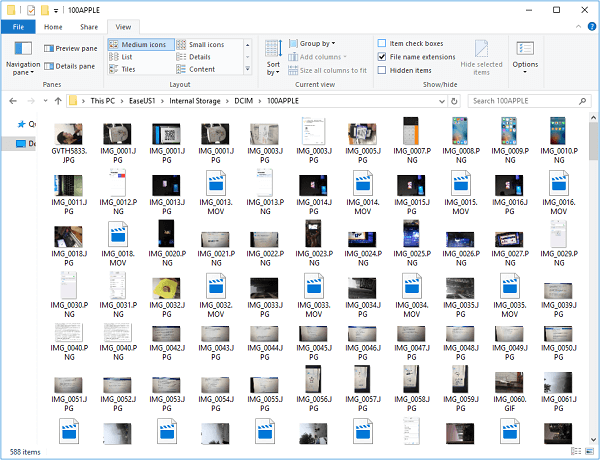
If your PC is running Windows 10, the built-in Photos app can help you import photos and videos from your iPhone to your PC.
Method 3. Connect Mobile with PC Wirelessly for Data Sharing
If you prefer to transfer files wirelessly, consider using iCloud or other cloud-based storage services. These allow you to connect your phone and computer over Wi-Fi, enabling you to share data like photos, videos, and documents across your devices.
To connect mobile to PC wirelessly:
Step 1. To ensure a smooth and stable connection, make sure your iPhone and PC are connected to a reliable network, such as your home Wi-Fi or a stable internet connection.
Step 2. To enable iCloud features on your iPhone, go to "Settings" > [your name] > "iCloud" and toggle on the desired options, such as Photos, Contacts, or iCloud Drive, according to your needs.
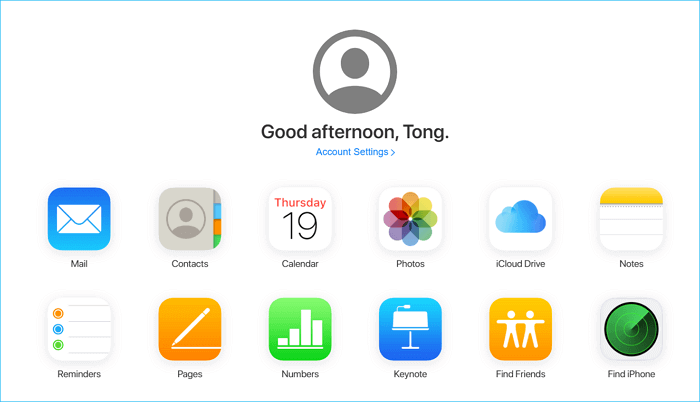
Step 3. To access iCloud.com on your PC, go to the website and sign in with your Apple ID account that you use on your iOS device.
Step 4. To access your iPhone content from your computer, enable the option on your mobile, and then you can download the item from iCloud to your computer if needed.
Method 4. Mirror iPhone Screen to PC
To connect your phone to a computer for screen mirroring, you'll need a third-party screen sharing tool, either a mobile app or desktop software, to facilitate the process.
There are various apps available that allow you to mirror your iPhone or iPad screen to a PC or laptop, including Mobile to PC Screen Mirroring/Sharing, LonelyScreen, Mirroring 360, and others. You can choose the one that suits your preference to connect your mobile screen to your computer.
Method 5. Connect iPhone to Mac Using Continuity
For iPhone to Mac connection, Apple's Continuity feature offers an additional option. This feature comprises four functions: Handoff, Phone Calling, Instant Hotspot, and SMS, with Handoff being the primary feature for transferring data.
Continuity Requirements
To use Continuity, you need the following things:
- An iOS device running iOS 8 and later
- A MacOS running 10.10 Yosemite and later
- Bluetooth are enabled on both devices
- Both devices signed into the same iCloud account
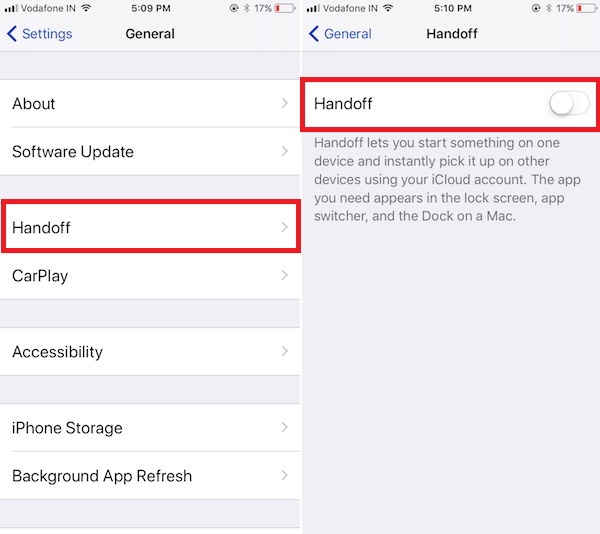
Step 1. Turn on Handoff on your iPhone.
To enable Handoff, go to Settings > General > Handoff and move the slider to the right (green).
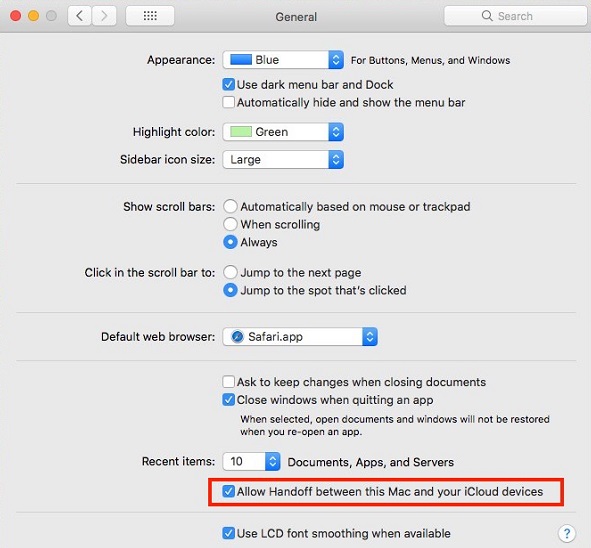
Step 2. Turn on Handoff on your Mac.
To enable Handoff between devices, go to the Apple menu, select System Preferences, then General, and check the box next to "Allow Handoff between this Mac and your iCloud devices."
Part 2. How to Connect Android Phone to Computer in 3 Ways
You can connect your Android phone to a computer in three ways: for data transfer or screen sharing. These methods allow you to share your phone's data, display its screen on your computer, or vice versa.
Method 1. Connect Android to PC for Data Transfer via USB
Transferring data between an Android phone and a computer is easier, as you can access all files from the phone's internal storage via USB connection, unlike the connection between an iPhone and a PC via USB, which does not allow file transfer.
To connect a mobile phone to PC via USB:
Step 1. Connect your Android device to your Windows PC with a USB cable.
Step 2. The initial startup screen of an Android phone, after powering it on, typically displays a simple interface with three options: Transfer photos, Transfer files, or Charge only. This menu allows users to choose how they want to proceed with their device, depending on their immediate needs and the state of their phone.
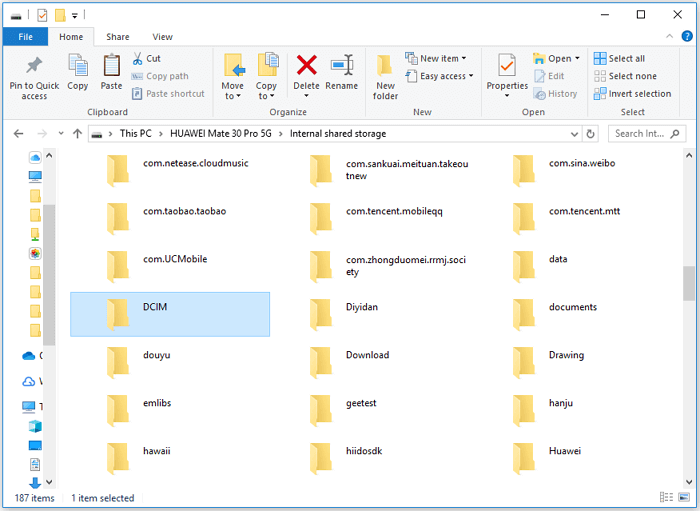
Step 3. To view all the folders that save your device content, go to "This PC" and click on your device name, then select "Internal shared storage".
Step 4. Transfer files between your Android phone and PC by copy-and-paste.
Method 2. Connect Android to PC via Settings
On Windows 10, you can wirelessly link your Android or iOS device to your PC, allowing you to start work on your mobile device and then continue on your PC, without needing to be connected to the same internet connection.
To connect your mobile to PC in Windows 10:
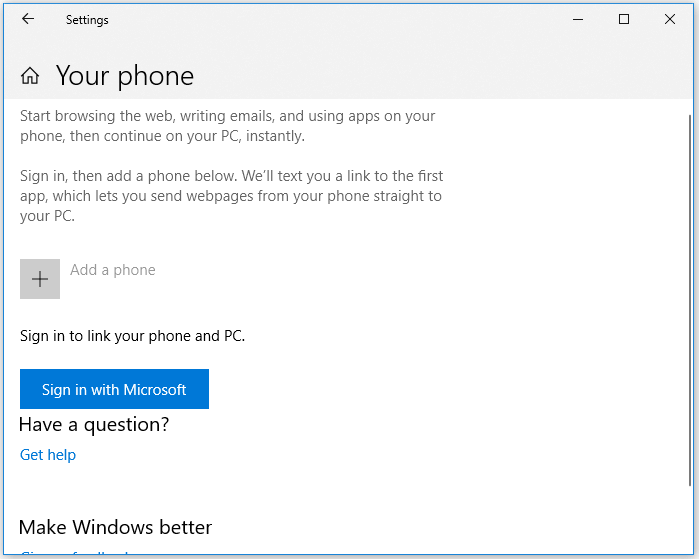
Step 1. Click the Windows icon and choose "Settings (the gear icon)".
Step 2. Click "Phone" and sign in with Microsoft.
Step 3. To add a phone to this device, tap "Add a phone", enter the phone number of your Android device, and then hit "Send".
Step 4. You will receive a link to install Microsoft Edge on your mobile phone, which is required to link your mobile phone and PC.
Step 5. To link your devices, simply restart your computer. Once your computer is back on, you should see your devices are connected. After that, you can use the "Continue on PC" feature in your browser to access the desktop version of the website.
Method 3. Mirror Android to PC
Sharing an Android screen to a computer is similar to mirroring an iPhone, requiring a mobile app, desktop software, or both. There are multiple options available for this functionality.
For those looking to mirror their Android device to their PC, Fossbytes offers a guide featuring several apps to achieve this. To learn more and find the best option for you, read the detailed guide and try out the app that suits your needs to mirror your mobile phone to your computer.
The Bottom Line
Now that you know how to connect your mobile to PC in all workable ways, you're ready to transfer data, share your mobile screen, or perform any other task that requires a connection. Whether you choose to use a USB cable, Wi-Fi, Bluetooth, or a third-party app, you can easily get the job done by following one of the tips outlined above.
Hope you can connect your mobile to PC with ease and do what you want to do successfully.
Related Articles
- 3 Tips | How to Download Videos from Dailymotion
- Sync Two Folders with Robocopy Command Line in Windows 11, 10, 8, 7
You will learn more about Robocopy and examples to perform Windows sync two folders via command line - Robocopy. Meanwhile, this article offers an easier way. - How to Exclude Files/Folders with Xcopy (Guide and Alternative)
This article will tell you how to let xcopy exclude folder or files from Windows backup and another easier way to exclude specific files and folders. - How to Enable APP Password to Send Email Notifications in Qiling Disk Master?
You can use the Email Notification in Qiling Disk Master to send a report of the backup or sync execution result. To use Gmail Server for notification sending, you need to first get an APP Password and then enter the password in the email notification settings.
Products
Articles & Tutorials
- Data Recovery
- Data Backup
- File Recovery
- File Backup
- System Backup and Restore
- Disk and Partition Clone
- Technical articles
- Mobile articles
- Disk Master Help
- Windows Data Recovery Tutorials
- Windows Secure Delete Tutorials
- Windows Partition Management Tutorials
- Windows File Backup and Restore Tutorials
- Windows System Backup and Restore Tutorials
- Windows Disk Backup and Restore Tutorials
- Windows Clone Tutorials