How to Recover Data from Android Phone with Broken Screen
Quick Navigation:
- Is Broken Android Data Recovery Possible
- Method 1. Recover Data from Android Phone with Broken Screen with a USB OTG Cable
- Method 2. Recover Data from Android Phone with Broken Screen with USB Debugging
- Option 1. Copy Files from Android Internal Storage to Computer via File Explorer
- Option 2. Recover Android Data to Computer with Android Data Recovery Software
- Method 3. Recover Data from Android Phone with Broken Screen Without USB Debugging
- The Bottom Line
Summary
If your Android phone has a broken screen, there are still five workable ways to recover your data. The most suitable method depends on the current state of your device, but one of these solutions can help you perform broken Android data recovery with ease.
Android users face the serious issue of data loss due to various factors, with physical damage being the most severe, causing unresponsiveness and data loss.
Is Broken Android Data Recovery Possible
Data from an Android phone with a broken screen can be recovered, but the possibility depends on where the data is stored. If the data is on an SD card, it's likely recoverable. However, if the data is stored internally, the recovery process might be more complicated.
If the touchscreen isn't working but the display is visible, you might be able to recover data. However, if the screen is completely black and the device is unresponsive, the chances of recovering data are very slim.
If you have an Android phone with a broken screen, there are still ways to recover your data. Depending on the situation, you can try using a data recovery app, such as DiskDigger or Deep Data Recovery, to scan your phone's internal storage and recover deleted or lost files.
Method 1. Recover Data from Android Phone with Broken Screen with a USB OTG Cable
If your Android phone is still responsive but the touch screen is not working, you can use a USB OTG cable to recover data from the device. This allows you to access and transfer files to a computer or other device, even if the touch screen is unresponsive.
USB OTG (USB On-The-Go) specification allows Android phones to connect to other devices, such as a mouse, via a USB OTG cable. This enables users to control their Android device using a mouse, even if the phone's screen is broken, by connecting the phone to the mouse using the OTG cable.
Transferring your files wirelessly to another device or a cloud-based service is possible by using a wireless transfer method. This allows you to easily move your files between devices or save them to the cloud for access from anywhere.
To recover data from Android phone with broken screen:
Step 1. You can connect your Android phone and a mouse using a USB OTG (On-The-Go) cable. This cable allows you to connect a peripheral device, such as a mouse, to your Android phone and use it as if it were a computer.
Step 2. Use the mouse to unlock your Android phone.
Step 3. You can transfer your Android files to another device wirelessly using data transfer apps or Bluetooth.
Method 2. Recover Data from Android Phone with Broken Screen with USB Debugging
If you've enabled "USB Debugging" and checked "Always allow from this computer" on your Android device, you can recover broken data via a USB cable.
With USB debugging enabled on your Android device, you can connect your phone to a computer and access the device storage without needing to unlock the device or authorize the computer, allowing for direct access to the device's files.
If you have a broken screen Android phone, you can recover data from it by using the ADB protocol with USB debugging enabled. This method allows you to access your phone's data even if the screen is not working.
Option 1. Copy Files from Android Internal Storage to Computer via File Explorer
Since you can now access your Android internal storage, you can manually copy files from the Android device to your computer, such as photos, videos, and music, but some content like contacts and text messages may become unreadable after copy-and-paste.
To recover data from Android phone with broken screen:
Step 1. Connect your phone to the computer that you have authorized while enabling USB debugging.
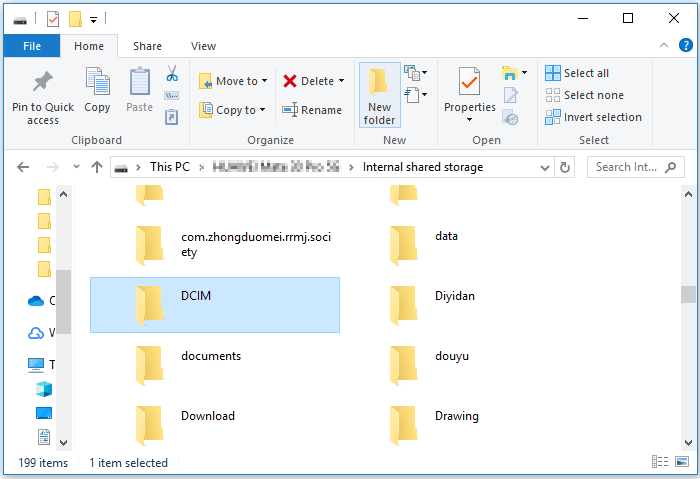
Step 2. To access the internal shared storage, go to "This PC" and click on the name of your device, then select "Internal shared storage".
Step 3. To recover content, find the folder that contains the content you want to recover and copy it to your computer. This is the first step in the recovery process, ensuring that you have a physical copy of the content before proceeding with any further steps.
Option 2. Recover Android Data to Computer with Android Data Recovery Software
Qiling is an Android data recovery software that can help you retrieve valuable data. Unlike File Explorer, which can only recover multimedia files and documents, Qiling has the ability to recover 20+ deleted or lost data types, including photos, videos, audio files, messages, contacts, call logs, and documents from an Android device. It supports most Android phones, such as Samsung, LG, HTC, Huawei, Sony, and ZTE, making it a helpful tool for recovering lost data.
- Recover data lost due to accidental deletion
- Recover Android data after a virus attack, device failure, rooting...
- Recover different types of files on Android
To recover data from Android phone with broken screen:
Before using this tool, ensure your device is rooted, as it requires root access to function properly. Without root access, the tool will be unable to access your phone.
Step 1. Connect your Android phone to computer
Launch Qiling Android data recovery software on your computer, connect your Android phone to the computer with a USB cable, and then click the "Next" button to allow the software to recognize and connect your device.
Step 2. Scan your Android phone to find the lost files
After connecting your Android phone to the software, it will quickly scan the device to find all existing and lost data. You can easily find the lost files you want by choosing the correct file types.
Step 3. Preview and recover data from Android phone
Preview all the recoverable files one by one, select the desired ones quickly, and use the "Only display deleted items" option to list deleted files only. Then, click the "Recover" button to get the selected files back.
Method 3. Recover Data from Android Phone with Broken Screen Without USB Debugging
If you can't use USB debugging due to a broken screen, you can still recover data from your Android phone by using Google Drive or an SD Memory Card, depending on whether your screen is still working or not.
Option 1. Use Google Drive
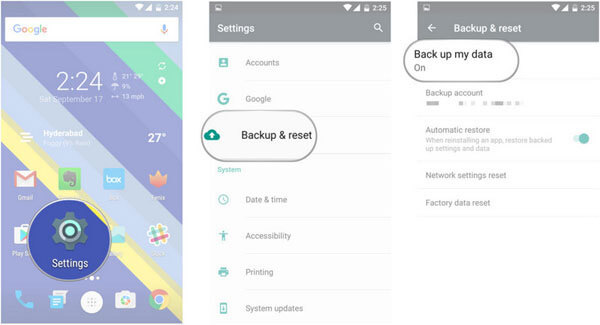
If you've previously backed up your Android device to Google Drive, you can easily restore it from Google Drive by following these steps. To do this, go to your device's Settings, then select "System" or "General Management" (depending on your device), and look for the "Backup" or "Backup and reset" option.
Step 1. Go to the Settings menu of your device.
Step 2. Choose the "Backup & Reset" option.
Step 3. Select the "Back up my data."
Step 4. To ensure your Google account is connected to your Backup account, go back to the "Backup & Reset" option.
Step 5. To log in to your Google account on a new or repaired Android device, go to the "Backup & Restore" section and tap "Automatic Restore" to recover lost data on the new device.
Option 2. Use SD Memory Card
If you store your data on an SD memory card, you can recover lost data from the SD card without needing USB debugging. This method is also applicable for recovering data from a locked Android phone with a broken screen. To do this, follow the steps below.
Step 1. Insert your SD memory card into your new Android device.
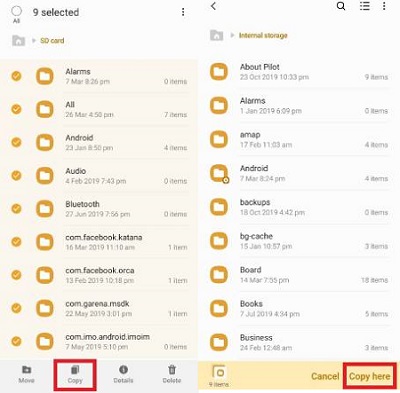
Step 2. To open the file manager and go to the SD card folder, follow these steps: Open the file manager app on your device, navigate to the storage section, and locate the SD card icon. Tap on the SD card icon to access the contents of the SD card folder.
Step 3. To retrieve the desired data, select the relevant information and click on the "Copy" tab.
Step 4. To transfer a file to internal storage, go to the internal storage folder, and click the "Paste" or "Copy here" option, ensuring you have enough internal storage space on your device.
The Bottom Line
To secure your smartphone's sensitive data, it's essential to back up your device, which allows for easy recovery of deleted or lost data. If you accidentally delete important files, don't worry, as there are solutions listed in this guide that can help you recover them. If these solutions don't work, you can consider seeking the help of a manual data recovery service.
Related Articles
- Failed to install the application to your device
- How to Retrieve Deleted Text Messages on Samsung Phone
- Recover Deleted Text Messages from Samsung Galaxy S5
- Instagram Recovery - How to See/Recover Deleted Instagram Photos/Pictures
Products
Articles & Tutorials
- Data Recovery
- Data Backup
- File Recovery
- File Backup
- System Backup and Restore
- Disk and Partition Clone
- Technical articles
- Mobile articles
- Disk Master Help
- Windows Data Recovery Tutorials
- Windows Secure Delete Tutorials
- Windows Partition Management Tutorials
- Windows File Backup and Restore Tutorials
- Windows System Backup and Restore Tutorials
- Windows Disk Backup and Restore Tutorials
- Windows Clone Tutorials