Samsung Data Recovery with Broken Screen
Quick Navigation:
- Recover Data from Samsung with a Broken Screen via File Explorer
- Recover Data from Broken Samsung Phone with Android Data Recovery Software
- Recover Data from Android Phone via a Backup
- Get Data from Broken Samsung Phone via Manual Data Recovery Service
- The Bottom Line
Summary
Recovering data from a Samsung phone with a broken screen can be both easy and difficult, depending on the device's specific situation. There are generally four ways to get data back from a broken Samsung phone.
When your Samsung phone gets broken, it can be frustrating to lose your data. Not only do you have to spend money to buy a new phone, but you also risk losing all your important information. Therefore, the first thing to do when your Samsung phone is broken is to recover your data through Android data recovery.
If your Samsung device has a broken screen, you may still be able to recover your data. There are four ways to try: using a data recovery software, connecting your phone to a computer, using a data recovery service, or taking it to a professional repair shop. Each of these methods has its own set of steps and requirements, but they can all potentially help you recover your data.
Recover Data from Samsung with a Broken Screen via File Explorer
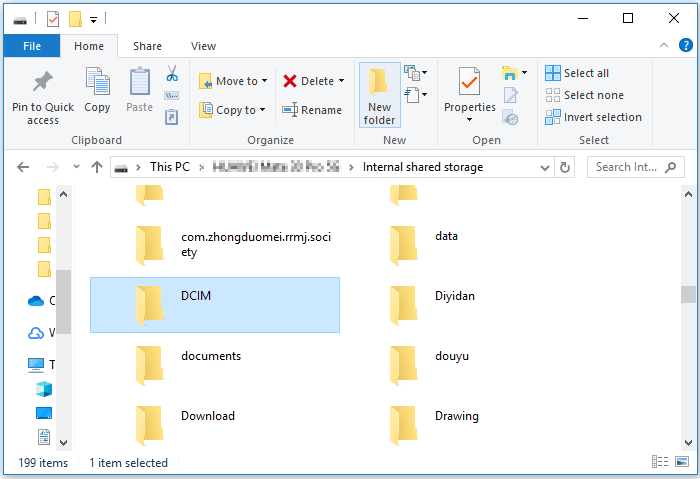
If your Android phone is still responsive, you can recover data from the Samsung phone by using File Explorer on your computer. Connect the device to the computer, access its internal storage, and save folders and files from the phone to the computer.
To get data from Broken Samsung phone:
Step 1. Connect your Samsung device to your PC using a USB cable, and follow the on-screen instructions to allow your computer to access its internal storage, which will enable the transfer of files between the two devices.
Step 2. To access the internal shared storage, go to "This PC" and select your device name, then click on "Internal shared storage."
Step 3. The files or folders you want to recover should be copied to your computer.
Recover Data from Broken Samsung Phone with Android Data Recovery Software
If you have enabled "USB Debugging" and "Always allow from this computer" on your Samsung phone, you can also use an Android data recovery software like Qiling MobiSaver for Android to recover your lost data.
This tool supports Android phones from various brands, including Samsung, HTC, LG, and more, allowing users to recover photos, videos, contacts, messages, audio files, and other data.
To recover data from a broken Samsung phone:
Step 1. Connect your Samsung phone to your computer.
Launch Qiling Android data recovery software and connect your Samsung phone to the computer with a USB cable. Then click the "Start" button to make the software recognize and connect your device.
NOTE: To recover data from a rooted Android device, ensure that the phone has been successfully rooted before attempting data recovery, as the software can only access the device in this state.
Step 2. Scan your Samsung phone to find the lost files.
After connecting your Samsung phone to the software, it will quickly scan the device to find all existing and lost data. You can then easily locate the lost files you're looking for by selecting the correct file types.
Step 3. Preview and recover data from a broken Samsung phone.
Preview all recoverable files one by one, select the desired ones quickly, use the "Only display deleted items" option to list deleted files only, and then click the "Recover" button to retrieve the selected files.
Recover Data from Android Phone via a Backup
If you are lucky enough - If you've made a backup of your Android phone before, you can recover data from a broken Samsung device by restoring from the backup, which can be done directly from the cloud storage account used for the backup. This allows you to transfer all data and settings to another Samsung phone by signing in with the same account.
To back up and restore data on your Samsung phone, you can follow the official guide for detailed steps.
Get Data from Broken Samsung Phone via Manual Data Recovery Service
If software recovery methods are unsuccessful, the last resort is to seek help from a manual data recovery service, which involves a more expensive process of directly recovering data from the phone's hardware.
The Bottom Line
Depending on whether your broken Samsung phone is responsive or not, the way to recover Android data varies. If it's responsive, you can recover data directly from the phone. If it's not responsive, you can try recovering data from an SD card if you saved data on it.
Related Articles
- How to Recover Gallery Lock Files/Photos
- Fix Stuck on Android System Recovery 3e Screen Without Losing Data
- How to Recover Deleted/Lost Viber Messages on Android
- Top 17 Best Photo Recovery App/Software for Android
Products
Articles & Tutorials
- Data Recovery
- Data Backup
- File Recovery
- File Backup
- System Backup and Restore
- Disk and Partition Clone
- Technical articles
- Mobile articles
- Disk Master Help
- Windows Data Recovery Tutorials
- Windows Secure Delete Tutorials
- Windows Partition Management Tutorials
- Windows File Backup and Restore Tutorials
- Windows System Backup and Restore Tutorials
- Windows Disk Backup and Restore Tutorials
- Windows Clone Tutorials