How to Retrieve Deleted Photos on Samsung
Quick Navigation:
- How to Retrieve Deleted Photos on Samsung via Recycle Bin
- How to Recover Deleted Photos from Samsung Phone with Android Data Recovery Software
- How to Recover Deleted Photos on Samsung via Backup
- How to Recover Photos from Broken Samsung Phone
- The Bottom Line
Summary
Samsung photo recovery is a must, especially after accidentally deleting photos from your device. To recover deleted photos from a Samsung phone, there are four proven methods available.
"How to recover deleted photos from Samsung phone?"
Data loss, including the loss of photos, is a common issue that can occur on Samsung phones. Fortunately, there are various methods to retrieve deleted photos, regardless of the specific phone model, such as Galaxy S or Galaxy Note. These methods can be applied with ease to recover lost photos.
How to Retrieve Deleted Photos on Samsung via Recycle Bin
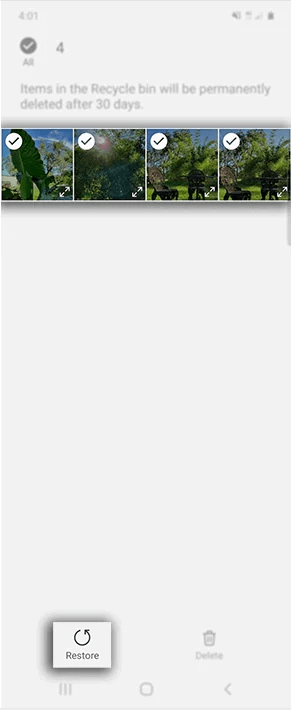
On Samsung phones, there's a folder in the Gallery app that stores recently deleted photos. This folder allows you to restore these pictures when needed.
The Samsung Recycle Bin keeps deleted photos for 30 days, allowing you to recover them via the Gallery app if they haven't been permanently deleted.
To recover deleted photos from Samsung phone:
Step 1. Open the Gallery app and tap the hamburger icon.
Step 2. Select "Recycle bin" and tap the pictures you want to recover.
Step 3. Click "Restore" to get these photos back to your photo gallery.
How to Recover Deleted Photos from Samsung Phone with Android Data Recovery Software
If you're looking to recover permanently deleted photos without a backup, you can use Android data recovery software like Qiling MobiSaver. This tool can help you recover photos, videos, contacts, music, notes, and more from various Android devices, including Samsung phones. To use it, you'll need to root your device first, and then you can choose from desktop programs or mobile apps to get the tool you need.
To retrieve deleted photos on Samsung:
Step 1. Connect your Samsung phone to a computer, launch Qiling MobiSaver, and click the "Start" button to recognize and connect your device.
Step 2. The software will quickly scan the device to find all the existing and lost data after connecting your phone.
Step 3. To recover deleted photos on a Samsung phone, select the desired photos from the recovery software's preview, then click the "Recover" button to retrieve them.
The Android data recovery software will store the recovered photos on a folder on your computer. If you'd like to transfer them back to your Samsung phone, simply copy and paste them into the DCIM folder on your Android's internal storage.
How to Recover Deleted Photos on Samsung via Backup
On Samsung phones, you can back up your data to cloud storage. If you have a backup available, you can restore photos from the backup. However, be aware that all photos will be replaced by the items in the backup, so photos existing on your Samsung but not in the backup will be lost. If you'd rather not lose any photos, consider one of the other methods.
To retrieve deleted photos on Samsung:
Step 1. Open the Settings app and tap "Accounts and backup."
Step 2. Tap "Backup and restore" > "Restore data."
Step 3. Tap "Gallery" > "Sync."
If you've deleted photos on your Samsung phone and want to recover them, you can follow Samsung's official guide for more detailed information. Alternatively, if you've backed up your photos with a third-party service like Google Photos, you can use those backups to retrieve your deleted photos.
How to Recover Photos from Broken Samsung Phone
If your Samsung phone is broken, recovering photos can be more challenging. For help with this, you can refer to the guide on how to recover data from a broken Samsung phone.
The Bottom Line
To retrieve deleted photos on a Samsung phone, you can try the easiest method by checking the Recycle Bin folder in the Gallery app. However, this may not always be applicable, so alternative methods are available. Depending on your situation, you can use the one that best suits your needs, such as using a third-party recovery app or restoring from a backup, to recover your deleted photos.
Related Articles
- How to Undelete/Recover Files Deleted by ES File Explorer
- How to Recover Audio Files From Samsung
- How to Recover Data from Android Internal Storage
- Keepsafe Recovery: How to Recover Deleted Keepsafe Photos/Pictures
Products
Articles & Tutorials
- Data Recovery
- Data Backup
- File Recovery
- File Backup
- System Backup and Restore
- Disk and Partition Clone
- Technical articles
- Mobile articles
- Disk Master Help
- Windows Data Recovery Tutorials
- Windows Secure Delete Tutorials
- Windows Partition Management Tutorials
- Windows File Backup and Restore Tutorials
- Windows System Backup and Restore Tutorials
- Windows Disk Backup and Restore Tutorials
- Windows Clone Tutorials