2 Methods to Recover Lost Data due to Factory Reset Android 7.0/6.0 Phone
Summary
If you've factory reset your Android phone and lost valuable data like contacts, text messages, and photos, don't worry! There are two effective methods to restore your lost files, and they can be applied to Android 7.0 and 6.0 devices.
Problem: Lost contacts on Nexus due to factory reset with Android 7.0, how to fix it?
Unfortunately, after a factory reset, all data on your device, including contacts, is erased. However, you may still have a chance to recover some of your contacts if you had backed them up to Google Contacts or a third-party backup service before the reset. Additionally, if you had syncing enabled for your contacts, they might be restored from the cloud. You can try checking your Google account online to see if your contacts were-synced and can be recovered. If not, it's possible that the contacts were not synced or were deleted from the cloud. Unfortunately, if you didn't have any backups, it's likely that your contacts are gone. You can try using a data recovery app, but be aware that these apps may not work for all types of data, including contacts.
"I'm using Android 6.0 on my phone and it was quite slow. I want to clean up all useless files in my phone and someone told me that factory restore can do the job. So this is it! My phone was restored to the factory setting but all data inside my phone saved in the internal memory were all lost! But I got no backups! What can I do to recover lost data after Android phone factory reset? Help, please."
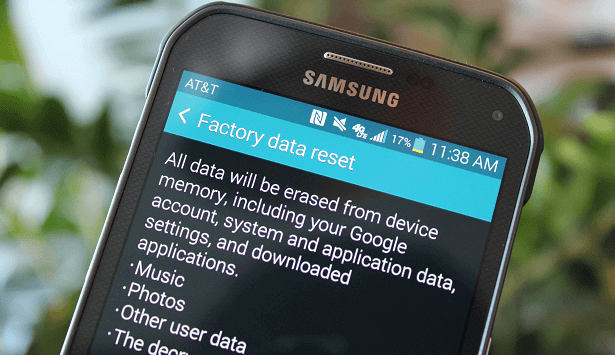
Don't worry about losing data after a factory reset on your Android phone - we've got you covered! This article provides two effective methods to recover lost files, including contacts, text messages, photos, and music, after a factory reset.
To recover lost data after a factory reset on an Android 7.0/6.0 phone, you can use backups. If you had previously backed up your data to Google Drive or another cloud service, you can restore it after the factory reset. You can also use a third-party backup app like Titanium Backup or SMS Backup & Restore to recover your data.
Fix 1. Recover lost Android data from Google account
To restore lost Android data from a backup in an Android phone, follow these steps: First, ensure that you have backed up your data to a Google account or a local backup file. Then, go to the Settings app on your Android phone, scroll down and select "System" or "General Management", then click on "Reset options" or "Reset", and finally, select "Restore data" or "Restore from backup". If you have backed up your data to a local backup file, you may need to select the file manually.
If you've factory reset your Android 7.0/6.0 phone without backing up your data, don't worry! You can still recover your lost data using a data recovery software. This software can scan your phone's internal storage and SD card to find and recover deleted or lost files, including contacts, messages, photos, videos, and more.
Tip: If you don't have backups or worry about not being able to fully restore backup data, you can use professional Android data recovery software to directly restore lost data such as contacts and messages after a factory reset.
Method 1. Recover lost data after factory reset Android 7.0/6.0 phone with backups
If you've created backups with the system backup feature or a cloud service, you can use a free method to restore lost data on your Android 7.0 or 6.0 phone. This method can help you recover contacts, text messages, photos, and other lost data after a factory reset. You can try this approach to fix the issue now.
Fix 1. Recover lost Android data from Google account
If you're running Android 7.0 or 6.0, you can restore your backups by setting up your Google account again. Your Android phone will automatically sync with Google's Cloud service, restoring your data from the backup you created.
- To access Google settings, go to Settings > Under Backup & reset, select Google, and then sign in with your username and password.
- To sync data, go to Tab Sync, select the backed-up data from Google, verify the chosen data, and then click Restore all synced data.
The data will be restored back to your Android phone, and you can reuse those data again.
Fix 2. Restore lost Android data from backup in Android phone
If you've created a backup on your Android phone using the built-in backup feature before performing a factory reset, you can restore those backups by following these steps.
Go to Settings > Tab Back up & restore > Choose the latest backup files and click Restore from Backup to get all lost data restored.
Method 2. Restore lost data due to Android 7.0/6.0 phone factory reset without backups
- Warning
- It is an extremely hard situation to recover data after factory reset on an Android Phone. In this case, our software might not help recover all files. Please use the trial version first. If you find what you lost on the result page, you can purchase a license key for a real data recovery. If not, I am so sorry this software might not help you.
If you need to restore lost data on your Android phone without a backup, you can use the Android data recovery software Qiling MobiSaver for Android. This tool allows you to recover all lost data in just 3 simple steps, and it also supports restoring data from phone backups. Additionally, it can even retrieve previously deleted data, giving you a chance to recover what you thought was lost forever.
To restore lost data and files after a factory reset on an Android phone running Android 7.0 or 6.0, download a data recovery software and follow the guidelines.
Step 1. Connect your Android phone to computer
Install Qiling MobiSaver for Android and connect your Android phone to the computer with a USB cable to get started.
To start the process, click the "Start" button to begin the software's reading and connection process with your device.
NOTE: You need to root your Android device before using the software, as it can only access a rooted device.
Step 2. Scan Android phone to find present and lost data
After connecting your Android phone, the software quickly scans the device to find all existing and lost data, including your lost data, to help you recover what's been deleted or misplaced.
Step 3. Preview and recover data from Android phone
Preview all the recoverable files one by one, then select the ones you want to backup and extract them quickly.
Once you have selected the files and data you want to recover, click the "Recover" button to extract them to a safe location on your PC.
Now you can import all restored contacts, text messages, and photos back onto your device, allowing you to reuse them again.
Related Articles
- Android File Recovery Tool
- Fix Stuck on Android System Recovery 3e Screen Without Losing Data
- How to Recover Deleted Kik Messages on Android
- HTC Data Recovery Software | Recover Lost HTC Data
Products
Articles & Tutorials
- Data Recovery
- Data Backup
- File Recovery
- File Backup
- System Backup and Restore
- Disk and Partition Clone
- Technical articles
- Mobile articles
- Disk Master Help
- Windows Data Recovery Tutorials
- Windows Secure Delete Tutorials
- Windows Partition Management Tutorials
- Windows File Backup and Restore Tutorials
- Windows System Backup and Restore Tutorials
- Windows Disk Backup and Restore Tutorials
- Windows Clone Tutorials