How to Factory Reset iPad mini/Pro If You Forgot Password
You may need to restore your iPad to factory settings for various reasons, such as system crashes. Whatever your motive for performing a factory reset, you can follow this guide to reset your iPad mini/iPad Pro and erase everything on it.
To reset your iPad without erasing data, you can go to Settings, tap on your name, then tap on "Sign Out". Wait for 15 seconds, then tap on your name again and tap on "Create New [device name]".
- Part 1. 3 Solutions to Factory Reset iPad Without Passcode
- Part 2. How to Restart, Soft Reset, and Factory Reset If You Know the Password
Part 1. 3 Solutions to Factory Reset iPad Without Passcode
There are three useful solutions to reset an iPad mini or Pro without a password, each with its pros and cons. You can choose the one that suits your needs.
How to Reset iPad to Factory Settings via iTunes
To factory reset an iPad, start by backing up your data, then go to Settings > General > Reset, and select "Erase All Content and Settings." This will completely wipe the device and restore it to its original factory settings. This process will delete all data, including apps, music, photos, and contacts, so make sure to back up your data before proceeding.
- A computer with the latest version of iTunes installed
- A USB cable
- A fully charged iPad mini or iPad Pro
Note: To ensure iTunes runs smoothly on your computer, make sure it has sufficient system memory. Running memory- and processor-intensive programs like games and editing software simultaneously with iTunes can cause system slowdowns. If you want to avoid this, proceed to the next step to reset your iPad.
Step 1. Connect your iPad to your computer using a USB cable and run iTunes.
Step 2. To put your iPad in recovery mode, follow these steps:
- iPad with Face ID: To enter recovery mode on an iPad, press the Volume Up button, then the Volume Down button, and finally the Power button until the recovery mode screen appears.
- iPad with a Home button: Press and hold both the Home and Power button at the same time until the recovery mode screen appears.
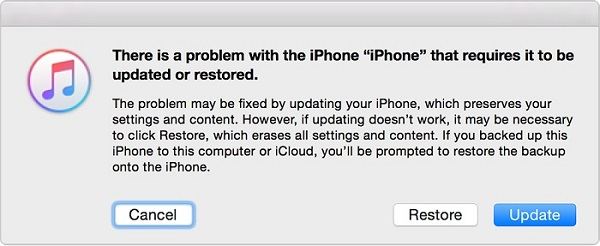
Step 3. To resolve the issue, you'll see a new window stating there was a problem with your iPad. Click the "Restore" button to proceed.
How to Factory Reset iPad via Qiling MobiUnlock
If you're experiencing issues with iTunes, such as slowing down your computer and frequent crashes, consider using a light and easy-to-use iPhone unlock tool like Qiling MobiUnlock. This tool can remove everything, including the passcode, from your device in minutes without slowing down your computer.
You can now download Qiling MobiUnlock on your computer and reset your iPad with ease.
Step 1. To unlock the screen passcode on your iPhone, iPad, or iPod, plug it into a computer using a USB cable and open Qiling MobiUnlock. From the main screen, select the option to "Unlock Screen Passcode".
Step 2. After your device is detected by Qiling MobiUnlock, click on the "Start" button to proceed.
Step 3. You can either click "Next" to automatically download a suitable firmware for your device, or click "Select" to manually choose from previously downloaded firmware options.
Step 4. After downloading firmware, click "Unlock Now" to continue. In a new warning window, enter the information required in the box and click "Unlock" again.
Step 5. After the unlock process is complete, your iPhone or iPad will be erased and returned to its original settings.
How to Wipe iPad Remotely via Find My iPhone
You can erase your iPad via Find My iPhone feature without installing iTunes or downloading third-party software, as long as you've previously enabled this feature on your iPad.
Step 1. To erase your iPhone, go to the Find My iPhone website on a browser and sign in with your Apple ID. If you have another iOS device, you can use this feature on it instead. Click on "All Devices," then select your iPhone from the list.
Step 2. Log into with your Apple ID and password.
Step 3. To locate your iPad, select "Find My" on your iPhone, then click on "All Devices" and choose your iPad from the list.
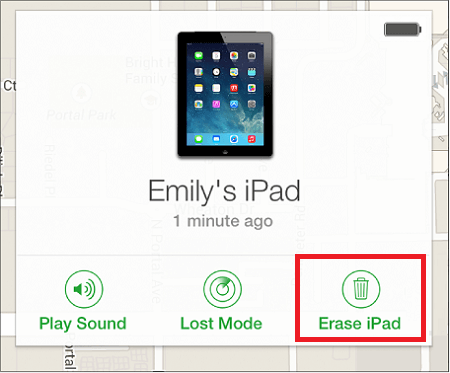
Step 4. From the drop-down list, choose "Erase iPad."
Step 5. All of your iPad data, including the passcode, will be completely erased from the device when you reset it to factory settings. This means that everything on your iPad will be removed, and you'll have a completely blank slate to start with.
Part 2. How to Soft Reset, Hard Reset, and Factory Reset iPad If You Know the Password
Resetting your iPad can resolve various small iOS issues, including freezes, crashes, or the White Apple screen. There are three ways to reset your iPad, depending on whether you want to erase your device or not, offering a convenient solution to common problems.
Before making any change to your device, be sure to back up your iPad data first since data loss happens anytime and anywhere.
How to soft reset iPad
A soft reset is done by turning your device off and on again, which can help resolve issues like slow performance or frozen apps, without deleting any data.
Step 1. Press and hold the Power button until you see a slider appear on your screen, then release the Power button and slide the slider to the right to turn off your device.
Step 2. Move the slider from left to right to turn your iPad off.
Step 3. To restart your iPad, press and hold the Power button until the Apple logo appears on the screen, then release the button and wait for the iPad to boot up.
How to hard reset iPad
If a soft reset doesn't work, you may have to try a hard reset, also known as a force restart, which is a more extreme option. This method won't delete data from your iPad, but the steps to perform it vary depending on the type of iPad you have.
For iPad with Home button: To hard reset your iPhone, press and hold the Power button and the Home button simultaneously until the Apple logo appears on the screen. Release the buttons and wait for the logo to load.
For iPad with Face ID: To reboot your device, press and release the Volume Up button, then press and release the Volume Down button, and finally press and hold the Power button.
How to factory reset iPad
If neither of the above methods work and you're planning to sell or give your iPad to someone, or if you just want to start fresh, you'll need to perform a factory reset on your device. This will erase all of your data and return your iPad to its original settings. Be sure to back up your iPad before doing so. This will ensure that all of your important information is saved and can be transferred to a new device.
Step 1. Go to the Settings on your iPad and tap General.
Step 2. Tap Reset and then tap Erase All Content and Settings.
Step 3. Confirm your operation.
Step 4. Once the process completes, you'll be greeted with the setup screen where you can set it up as new.
Conclusion
To reset your iPad to its factory settings, you can either use the Settings app, iTunes, or the Recovery Mode on your computer. You can also use the iPad's built-in erase feature, which can be accessed by going to Settings > General > Reset and selecting the option to erase all content and settings. Alternatively, you can use the iPad's built-in recovery mode, which can be accessed by connecting your iPad to your computer and opening iTunes. From there, you can select the option to restore your iPad to its factory settings. If you're unable to access your iPad, you can also use the Recovery Mode on your computer to factory reset your iPad.
Related Articles
- Factory Reset Dell Laptop for Windows 10 without Password – 2 Ways Included
This article tells you how to factory reset Dell laptop for Windows 10 without password. Read on for more details. - The Best Free Disk Imaging Software for Windows 10
This article tells users which is the best free Windows 10 disk imaging software and provides a step-by-step guide to make a disk image easily. - Solved: Hard Drive Not Showing Full Capacity in Windows 10
You can find 4 solutions to hard drive not showing full capacity in Windows 10 in this article. - How to Delete Shadow Copies in Windows 10? [4 Solutions]
4 ways provided in this article to delete shadow copies in Windows 10 easily. Just follow the steps to delete shadow copies here.
Products
Articles & Tutorials
- Data Recovery
- Data Backup
- File Recovery
- File Backup
- System Backup and Restore
- Disk and Partition Clone
- Technical articles
- Mobile articles
- Disk Master Help
- Windows Data Recovery Tutorials
- Windows Secure Delete Tutorials
- Windows Partition Management Tutorials
- Windows File Backup and Restore Tutorials
- Windows System Backup and Restore Tutorials
- Windows Disk Backup and Restore Tutorials
- Windows Clone Tutorials