How to Transfer Data from a Broken Phone to a New Phone
Quick Navigation:
- Can You Transfer Data from a Broken Phone to a New Phone
- Transfer Data from a Broken Phone to a New Phone via Cloud Backup
- Transfer Data from a Broken Phone to a new Phone via SIM/SD Card
- Get Files Off a Broken Phone with Data Recovery Software
- The Bottom Line
Summary
When your Android phone breaks, it's essential to transfer data to a new phone to prevent data loss. To achieve this, you can try various methods to get files off the broken device. These include using a data recovery app, connecting the broken phone to a computer via USB, using a cloud backup service, or using a specialized data recovery tool.
Can You Transfer Data from a Broken Phone to a New Phone
Once your phone gets broken or damaged, get files off the broken phone by recovering data to a computer or transferring data to a new phone, especially for files like contacts and photos.
If your Android phone is severely damaged, you may have a slim chance of recovering data from it, but it's still worth trying. The extent of damage will determine the success of data recovery. Trying data recovery is always a good idea, even if the device is severely damaged.
Transfer Data from a Broken Phone to a New Phone via Cloud Backup
If you've enabled cloud backup on your broken Android device, you can transfer data like photos, contacts, and more to a new phone, even if the old one is severely damaged.
For example, if you allowed Contacts to use the cloud, you can transfer contacts from a broken phone to a new phone wirelessly over Wi-Fi.
To get contacts off the broken phone:
Step 1. To set up the new phone, open the Settings app and sign in with the cloud account you use on the broken phone, allowing you to transfer data and settings from the old device.
Step 2. Click "Cloud" and scroll down to enable the "Contacts" option.
Step 3. Tap "Merge" to merge contacts on the phone with cloud.
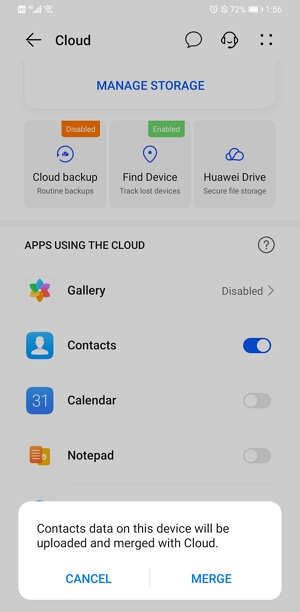
To transfer photos from a broken phone to a new one, you can follow similar steps. First, ensure your new phone is connected to a power source and Wi-Fi.
If you have made a cloud backup of the whole device, you can recover all data and settings to the new phone, which is great luck.
To transfer data from a broken phone to a new phone, you can use a cloud service or a physical cable to connect the two devices. If the broken phone is still functional, you can use the built-in data transfer feature, such as Google's "Transfer data" feature on Android devices, to transfer data to the new phone.
Step 1. Open the Settings app on the new phone.
Step 2. Sign in with the cloud account you use to back up the broken phone.
Step 3. Click "Cloud" > "Cloud backup" > "Restore data."
Step 4. You can see a list of backups you've made and select one to restore, which will be applied to your current state.
Step 5. Select the types of content you want to recover, then click "RESTORE."
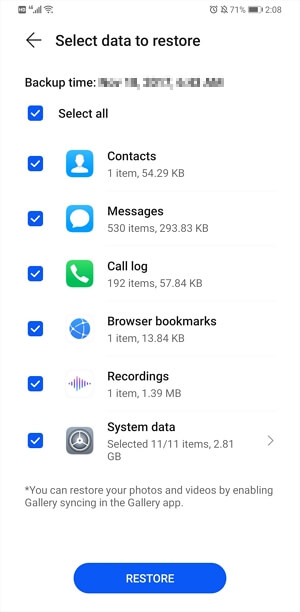
To restore data on your phone, the steps may differ depending on the device you're using. You can usually find a guide on the official website of your phone's manufacturer. For instance, if you have a Samsung phone, you can refer to their guide to learn how to restore data on a Samsung phone.
Transfer Data from a Broken Phone to a new Phone via SIM/SD Card
On an Android phone, you can save contacts to the SIM card, allowing you to transfer contacts from an old phone to a new one directly by inserting the SIM card into the new phone without needing a PC.
If you've expanded your Android memory using an SD card, you can transfer the files to the new phone by removing the SD card from the old phone and inserting it into the new one, allowing you to access and view the files.
Get Files Off a Broken Phone with Data Recovery Software
You can also transfer files from a broken phone to a computer first, and then transfer those files from the computer to the new phone using a USB cable.
To recover data from a broken phone, you can use a free Android data recovery tool like Qiling MobiSaver for Android. This tool allows you to scan your device for both existing and deleted files, including photos, videos, contacts, messages, and more. If you can connect your broken phone to a computer, this tool can help you get files off the broken phone to the computer, where you can then transfer them to a new phone.
To get files off a broken phone:
Step 1. Connect your Android phone to computer.
To recover data from a damaged Android phone, install and run Qiling MobiSaver for Android on your computer, then connect your phone to the computer with a USB cable.
To connect your device, click the "Start" button to let the software recognize and connect your device.
NOTE: You need to make sure your phone is rooted before using the software, as it can only access rooted Android devices.
Step 2. Scan Android phone to find all present and lost data.
After connecting your Android phone, the software scans the device to find all existing and lost data, allowing you to easily recover contacts, SMS, call logs, photos, and more by selecting the correct file types.
Step 3. Preview and transfer data from Android phone to PC.
Preview all files one by one and then you can select data you want to restore.
After selecting the data you want to recover, click the "Recover" button to transfer and restore it to your PC.
After recovering photos, contacts, and other data from the broken phone to a computer, you can transfer the data from the computer to the new phone.
Step 1. Connect the new Android phone with the PC via USB cable.
Step 2. To transfer all old Android data like contacts, SMS, call log, photos, videos, etc to a new phone, you can use the "Smart Switch" feature on Samsung phones or the "Google Drive" method on any Android device. The Smart Switch feature allows you to transfer data from an old Android phone to a new one by connecting both phones to the same Wi-Fi network and following the prompts.
The Bottom Line
If your phone is broken, you can still transfer data to a new phone using various methods. If the damage is too severe, however, you may need to send the device to a manual data recovery service center where specialists can help recover your data.
Related Articles
- Recover Deleted Contacts & Messages from SIM Card
- Recover Deleted Text Messages from Samsung Galaxy S5
- Fix Stuck on Android System Recovery 3e Screen Without Losing Data
- Recover Files from Android Phone Internal Storage
Products
Articles & Tutorials
- Data Recovery
- Data Backup
- File Recovery
- File Backup
- System Backup and Restore
- Disk and Partition Clone
- Technical articles
- Mobile articles
- Disk Master Help
- Windows Data Recovery Tutorials
- Windows Secure Delete Tutorials
- Windows Partition Management Tutorials
- Windows File Backup and Restore Tutorials
- Windows System Backup and Restore Tutorials
- Windows Disk Backup and Restore Tutorials
- Windows Clone Tutorials