How to Transfer Data from Android to iPhone in 5 Ways
Quick Navigation:
- Method 1. How to Transfer Data from Android to iPhone Using PC
- First, transfer data from the Android device to PC:
- Then, copy content from PC to iPhone:
- Method 2. How to Transfer Data from Android to iPhone with Move to iOS
- Method 3. How to Move Data from Android to iPhone via Cloud Service
- Method 4. How to Transfer Mail/Contacts/Calendars from Android to iPhone via Gmail
- Method 5. How to Transfer Files from Android to iPhone with Third-Party Software
- The Bottom Line
If you're looking to switch from an Android phone to an iPhone or simply share files between the two, there are feasible ways to do so. You can transfer data from Android to iPhone using various methods, or if you're just looking to share files, you can use cloud storage services like Google Drive or Dropbox, or even use physical cables and adapters to transfer files directly between the devices.
Method 1. How to Transfer Data from Android to iPhone Using PC
Support: Photos, videos, music, books, and more
If you want to transfer data from Android to iPhone without using Wi-Fi, you can use a PC to transfer the data.
Transferring data from an Android phone to an iPhone is a bit more involved than transferring it to a computer, but it can be done. After transferring data from your Android phone to your computer, you can then transfer that data from your computer to your iPhone, making it a two-step process. For example, if you want to transfer photos, you would first transfer them from your Android phone to your computer, and then transfer them from your computer to your iPhone.
First, transfer data from the Android device to PC:
Step 1. Connect your Android device to your computer with a USB cable and select the option to use USB for file transfer.
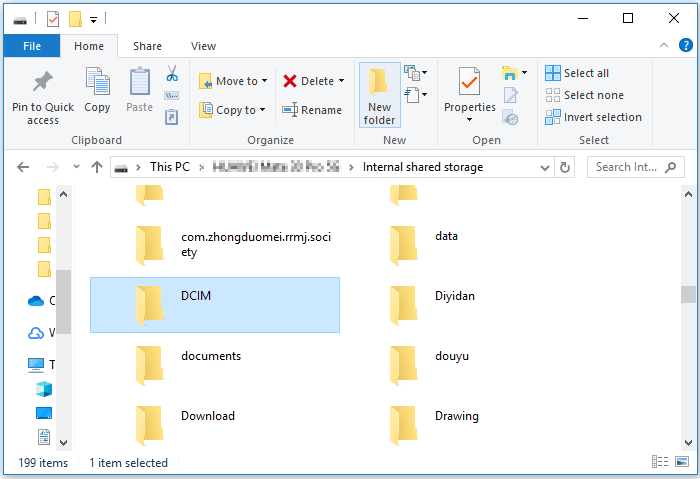
Step 2. To view all the folders on your Android device, go to "This PC" on your computer, select your device, and then navigate to "Internal shared storage".
Step 3. To transfer photos and videos from your Android phone to a computer, go to the "DCIM" folder on your phone, copy the desired media files, and then paste them onto the computer.
Then, copy content from PC to iPhone:
You can transfer photos from PC to iPhone using iTunes, but if you want to avoid data syncing, a safe iPhone transfer software like Qiling MobiMover is a better option.
Qiling MobiMover is an iOS content manager that enables users to transfer, manage, and organize their mobile content, such as photos, videos, and music, between their iOS device and computer.
- Transfer files from computer to iPhone/iPad or vice versa
- Transfer data from one iPhone/iPad to another
- Manage iDevice content from a computer
It also supports various file types such as photos, videos, music, PDFs, books, and more.
To transfer photos from PC to your iPhone:
Step 1. To transfer files from your PC to your new iPhone, connect the device to your PC via a USB cable and tap "Trust This Computer" on your iPhone if a pop-up appears. Then, launch Qiling MobiMover and navigate to the "PC to Phone" section on the main interface. From there, click "Select Files" to begin the transfer process.
Step 2. To transfer files, open Windows File Explorer, browse to the files you want to transfer, select them, and click "Open".
Step 3. You can preview the selected files on the right pane, and add new items to transfer by clicking "Add File" or dragging files directly to the area. Once ready, click "Transfer" to start transferring data from your computer to iPhone, and ensure not to disconnect your iPhone during the process. After completion, access the corresponding location on your iPhone and open the right application to verify the synced data.
If you don't have a computer available, you can still transfer data from Android to iPhone over Wi-Fi. Read on to learn how to transfer data from Android to iPhone wirelessly.
Method 2. How to Transfer Data from Android to iPhone with Move to iOS
The app supports a range of features, including contacts, message history, camera photos and videos, web bookmarks, mail accounts, and calendars.
Apple's Move to iOS app simplifies the transition from an Android device to an iPhone by allowing users to transfer data wirelessly, including content such as photos, contacts, messages, and more.
You can transfer Android content to a new iPhone by using the "Move Data from Android" feature during the iPhone setup process, but this requires erasing the iPhone, which may not be ideal. This method is best suited for situations where you need to transfer content to a new iPhone.
Before you start, you need to make sure:
- You have connected your device to a Wi-Fi network.
- You plug your devices into power.
- You have installed the Move to iOS app on your Android device from the Google Play Store.
- The content you are going to move will fit on your new iPhone.
To transfer data from Android to iPhone, simply follow the steps to learn how to use Move to iOS, a feature that makes it easy to transfer your data from an Android device to an iPhone.
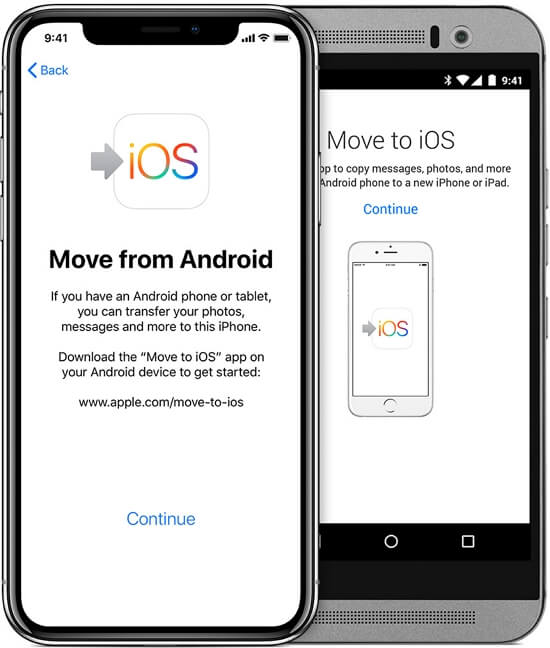
Step 1. When setting up an iPhone, select the "Move Data from Android" option on the Apps & Data screen.
Step 2. On your Android device, open the Move to iOS app and tap "Continue".
Step 3. To proceed, tap "Agree" after reviewing the terms and conditions, and then select "Next" to continue.
Step 4. To move from an Android device to an iPhone, tap "Continue" in the Move from Android screen on your iOS device and wait for a code to appear, which will be either a ten-digit or six-digit number.
Step 5. Enter the code on your Android phone and wait for the Transfer Data screen to appear.
Step 6. On the source device, select the types of content you want to transfer and tap "Next".
Step 7. To complete the setup process on your new iPhone, wait for the loading bar to finish. This bar is usually located on the screen and indicates the progress of the setup process.
Step 8. To complete the device setup, tap "Done" on your Android device and then tap "Continue" on the target device. This will finalize the setup process.
Method 3. How to Move Data from Android to iPhone via Cloud Service
Supports: Files supported by the service
Cloud storage services allow you to wirelessly transfer data from Android to iPhone or vice versa, as long as you have a network connection and use the same account, using services like Dropbox, Google Drive, Google Photos, and OneDrive.
The general steps are:
Step 1. Download and install the Android app and iOS app from the Google Play Store and App Store.
Step 2. Sign in to the apps with the same account.
Step 3. Upload the content you're going to transfer from the source device, namely your Android phone.
Step 4. To free up space on your iPhone, check the content from the app on your iOS device and download them to your iPhone storage if you need to.
Method 4. How to Transfer Mail/Contacts/Calendars from Android to iPhone via Gmail
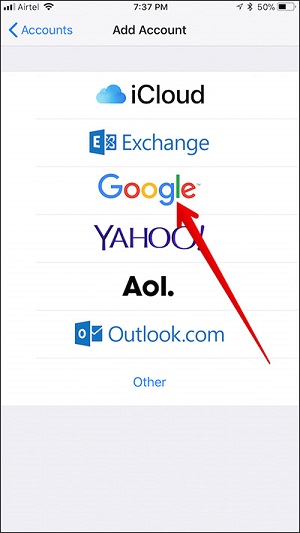
To transfer mail, contacts, and calendars from your Android device to your iPhone, connect your Android device's mail, contacts, and calendars to your Google account. Then, on your iPhone, go to "Settings" > "Passwords & Accounts", tap "Add Account", choose "Google", and enter your Gmail account information. Finally, turn on data syncing. This will sync your data from your Android device to your iPhone.
Method 5. How to Transfer Files from Android to iPhone with Third-Party Software
Thanks to software provided by some tech companies, it's practical to transfer data from Android to iPhone directly using a computer. By installing the data transfer tool on your computer, you can selectively copy content from Android to iOS or sync all files at once.
There are many tools available online that can help transfer data between Android and iPhone, so if you prefer to use one of these tools, you can search for it using a browser and apply the one you like best to transfer your data from Android to iPhone.
The Bottom Line
Transferring data from Android to iPhone is a breeze, and you can do it easily with the right approach. Whether you want to sync photos, copy contacts, or transfer other data, you can get it done within minutes by following the tips outlined above. Simply choose the method that best suits your needs and you'll be all set.
Related Articles
Products
Articles & Tutorials
- Data Recovery
- Data Backup
- File Recovery
- File Backup
- System Backup and Restore
- Disk and Partition Clone
- Technical articles
- Mobile articles
- Disk Master Help
- Windows Data Recovery Tutorials
- Windows Secure Delete Tutorials
- Windows Partition Management Tutorials
- Windows File Backup and Restore Tutorials
- Windows System Backup and Restore Tutorials
- Windows Disk Backup and Restore Tutorials
- Windows Clone Tutorials