How to Transfer Data from iPhone 4/5/6 to iPhone 8 in 4 Ways
The iPhone 4, iPhone 5, iPhone 6, and iPhone 8 are all affected by this issue.
Whether you're upgrading from an older iPhone to an iPhone 8 or simply want to share data between two iPhones, you can follow the tips below to make the process smooth and efficient.
- I want to transfer everything from iPhone 4/5/6 to iPhone 8
- I want to transfer some files from iPhone 4/5/6 to iPhone 8
Part 1. How to transfer data from iPhone 4/5/6 to iPhone 8 all at once
To transfer all data and settings from your old iPhone to a new one, using iTunes and iCloud is the best approach. Both are Apple solutions that allow you to share or sync data between devices, and a backup made through either method includes almost all data and settings on your iPhone. If you want to transfer everything from your old iPhone to the new one, using iTunes or iCloud is advisable.
To transfer data from one iPhone to another, back up the old iPhone using iTunes or iCloud, then restore the new iPhone from the backup, but note that this can only be done during the initial setup process, requiring the new iPhone to be erased and set up again if already configured.
To transfer data from your iPhone 4, iPhone 5, or iPhone 6 to the iPhone 8, you can either use iTunes with a computer or iCloud with a Wi-Fi connection, and choose the method that suits your needs best.
Method 1. How to transfer from iPhone 4/5/6 to iPhone 8 using iTunes
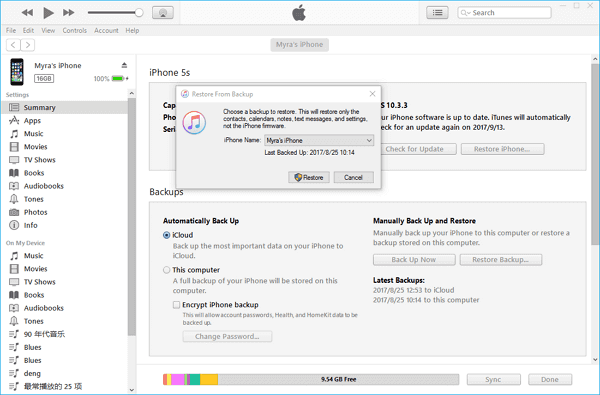
To transfer data from your old iPhone to a new iPhone using iTunes, ensure you have a working USB cable. First, connect your old iPhone to your computer and open iTunes.
To transfer data from one iPhone to another:
Step 1. To get started, download and install the latest version of iTunes on your computer. This will ensure you have the most up-to-date features and functionality.
Step 2. Connect your iPhone 4, iPhone 5, or iPhone 6 to your computer using a USB cable and launch iTunes.
Step 3. In the iTunes window, click the "Device" icon and go to "Summary".
Step 4. Click "Back Up Now" to initiate a manual backup of your old iPhone to iTunes, allowing you to preserve your data and settings.
Step 5. Wait until the backup is made.
Step 6. Set up your new iPhone 8 and select "Restore from iTunes Backup" in the Apps & Data screen.
Step 7. Connect your iPhone 8 to your computer using a USB cable. Tap "Next" on your iPhone.
Step 8. Choose the backup you made just now and click "Continue".
Step 9. Wait until the restore process completes.
Method 2. How to transfer data from iPhone 4/5/6 to iPhone 8 via iCloud
iCloud can assist you in transferring data from one iPhone to another in two ways. If you only want to transfer photos, videos, contacts, or notes, enabling the corresponding option in iCloud settings is sufficient. Alternatively, if you prefer to transfer everything, using iCloud backup is a better option.
Since iCloud is a cloud-based service, to sync data successfully, you'll need to ensure that you have a stable internet connection, a compatible device, and the necessary permissions to access and update the data. Additionally, you should be aware of any data storage and security policies that may apply, and take steps to protect sensitive information.
- Your devices are under stable Wi-Fi connections
- If you're using the same Apple ID account on multiple iOS devices, you can use the Continuity feature to share certain features and data between them. This allows you to start something on one device and pick it up where you left off on another, as long as all your devices are signed in with the same Apple ID and are connected to the same Wi-Fi network.
- There is enough space on your iPhone to save your iCloud backup.
To transfer everything from old iPhone to new iPhone:
Step 1. On older iPhones like the iPhone 4, iPhone 5, or iPhone 6, go to Settings, then select your name, followed by iCloud.
Step 2. Scroll down and choose "iCloud Backup" then toggle on "iCloud Backup".
Step 3. Click "Back Up Now" to make a backup of your iPhone content and wait for the backup to complete.
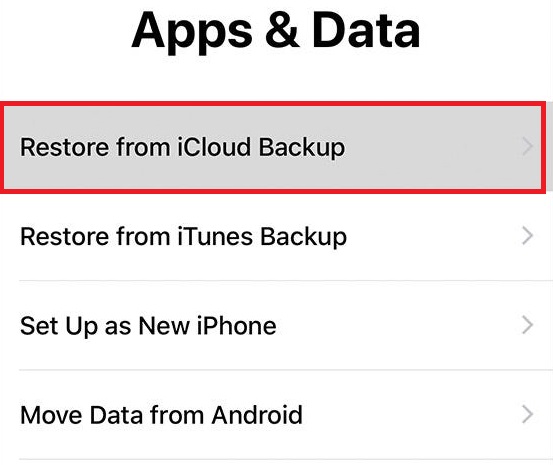
Step 4. Set up your new iPhone and choose "Restore from iCloud Backup" in the Apps & Data screen to restore WhatsApp from iCloud to the new iPhone.
Step 5. To transfer data from an old iPhone to a new one, start by opening the Settings app on the new iPhone. Tap on "General" and then select "Transfer or Reset iPhone.
Step 6. After restoring your device, wait for the process to finish before continuing to set up your device. Once the restore is complete, you can proceed with the setup process.
Part 2. How to transfer from iPhone 4/5/6 to iPhone 8 selectively
If you want to share data from an iPhone 4/5/6 to an iPhone 8 without erasing any device, the two ways below will meet your needs perfectly.
Method 1. How to transfer from iPhone 4/5/6 to iPhone 8 using iOS transfer software
You can transfer data from one iPhone to another using the Qiling MobiMover software, which supports transferring files such as photos, videos, music, contacts, books, and more, regardless of the account used on the iPhones.
Besides, it also supports data transfer between an iPhone/iPad/iPod Touch and a computer.
To transfer data from one iPhone to another without using iCloud or iTunes, you can use the "Quick Start" feature on your new iPhone. This feature allows you to transfer data from your old iPhone to your new one by simply pointing your new iPhone's camera at your old iPhone's screen.
Step 1. Connect your old iPhone and new iPhone X/8 to your computer with USB cables, and tap "Trust This Computer" on both devices. Run Qiling MobiMover, select the "Phone to Phone" mode, choose the direction from the old iPhone to the new iPhone X/8, and click "Next".
Step 2. MobiMover will automatically read and load all the files on your iPhone. Choose the desired type of files and click "Transfer" to start the transfer process.
Step 3. MobiMover will now transfer selected data from iPhone to iPhone X/8 directly and efficiently. During the process, keep your devices connected until it's finished. The transferred data will be sent to its corresponding application, such as photos to Photos, songs to Music, and movies to Videos, and so on.
Method 2. How to transfer from an old iPhone to the new one via AirDrop
You can transfer files from your old iPhone to your new iOS device using AirDrop, which allows you to share photos, videos, contacts, locations, and more between your iOS devices for free.
AirDrop uses Wi-Fi and Bluetooth to work. Thus, make sure your devices are within the Wi-Fi and Bluetooth range, then follow the steps below to transfer data from old iPhone to new iPhone with a few simple clicks.
To share data from iPhone to iPhone via AirDrop:
Step 1. Turn on AirDrop on both of your iPhones.
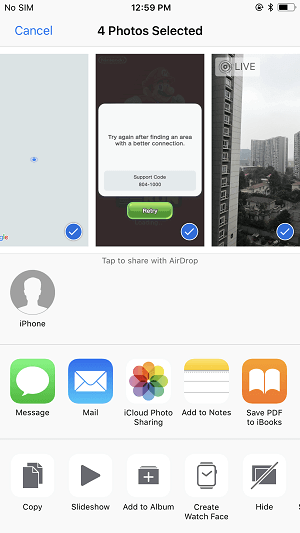
Step 2. To transfer an item from one iOS device to another, find the item you want to transfer on the source device, then tap on the "Share" button.
Step 3. Choose "AirDrop" and choose the name of the target iPhone.
Step 4. Once you've clicked "Accept" on your iPhone 8, the item will be delivered to you.
The Bottom Line
When switching to a new iPhone, it's essential to transfer data from your old iPhone, iPad, or iPod Touch to the new device, ensuring your data is ready for use.
The best way to copy content depends on the type of content you're working with. If you need to copy a specific text, a simple copy-paste method or a keyboard shortcut like Ctrl+C (Windows) or Command+C (Mac) might be the most efficient. For larger content, such as documents or spreadsheets, using a cloud-based service like Google Drive or Dropbox to share and access the file can be more convenient.
Related Articles
- How to Sync Music from iPhone to PC Without iTunes
- How to Fix Can't Add Music to iPhone
- How to Transfer Contacts from One Apple ID to Another
Products
Articles & Tutorials
- Data Recovery
- Data Backup
- File Recovery
- File Backup
- System Backup and Restore
- Disk and Partition Clone
- Technical articles
- Mobile articles
- Disk Master Help
- Windows Data Recovery Tutorials
- Windows Secure Delete Tutorials
- Windows Partition Management Tutorials
- Windows File Backup and Restore Tutorials
- Windows System Backup and Restore Tutorials
- Windows Disk Backup and Restore Tutorials
- Windows Clone Tutorials