How to Transfer Music from iPhone to iPad with/Without iTunes
Want to copy your iPhone music to your iPad or share songs between devices? You can easily transfer music from your iPhone 12/11/XR/XS/8(P)/7(P)/6(P) to your iPad/iPad mini/pro, whether you have iTunes or not.
In this post, we'll introduce 5 useful methods to transfer music from iPhone to iPad. All of these methods also apply to transfer music from iPad to iPhone.
- Part 1. How to Transfer Songs from iPhone to iPad With iTunes
- Part 2. 4 Ways to Transfer Music from iPhone to iPad Without iTunes
Part 1. How to Transfer Songs from iPhone to iPad With iTunes
Apple describes iTunes as a media player, media library, and mobile device management utility, allowing users to sync purchased songs from an iDevice to their iTunes library or vice versa, making it possible to transfer music from an iPhone to an iPad. Before proceeding, note that two things should be considered:
- iTunes only allows syncing purchased music.
- Make sure your computer runs the latest version of iTunes.
Step 1. Connect your iPhone to the computer via a USB cable.
Step 2. Launch the latest version of iTunes on your computer.
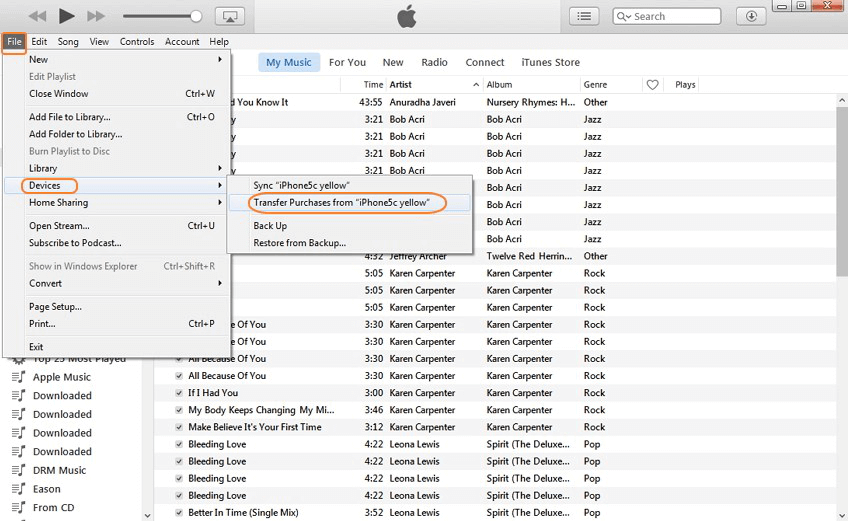
Step 3. Choose the "File" option at the top of your screen.
Step 4. To transfer purchases from your iPhone to your computer, select "Devices" from the drop-down list, and then choose "Transfer Purchases from [your iPhone name]."
Step 5. Connect the iPad to your computer and open iTunes.
Step 6. Choose the song you'd like to move to your iPad.
Step 7. Right-click and select "Add to Device."
Step 8. To move items to your iPad, click on your iPad name in the top left corner of the screen to select it, then click and drag the items you want to move to your iPad. Alternatively, you can select the items and choose "Move to" from the context menu, then select your iPad from the list of available destinations.
Part 2. 4 Ways to Transfer Music from iPhone to iPad Without iTunes
In this section, you'll get 4 methods to transfer music from iPhone to iPad.
Option 1. Using Qiling MobiMover
To transfer music from iPhone to iPad more efficiently, an easy-to-use data transfer tool is necessary. A reliable tool should be able to transfer music without deleting the original files, support multiple file types, and have a user-friendly interface. Some popular options include iMazing, PhoneTrans, and AnyTrans, which offer fast and secure transfer of music and other data.
The best tool for transferring data is one that has few limits on speed, data type, and functions. To find the best tool, we invited experts to test several options, and Qiling MobiMover emerged as the most cost-effective choice. They recommend it due to its impressive performance.
- Qiling MobiMover is a great alternative to iTunes, offering a smoother, faster, and more user-friendly experience.
- It can transfer all music, whether they're purchased or non-purchased.
- The software has a built-in video downloader that enables users to download videos from YouTube and other popular websites.
- It has an iOS unlocker that allows you to unlock an iPad/iPhone/iPod without a password.
- The app is compatible with iPhone/iPad/iPod and works perfectly with the latest iOS 13.
Step 1. Connect your iPhone and iPad to your computer, then launch Qiling MobiMover on your computer. To enable Qiling MobiMover to access your iPhone and iPad, tap "Trust" on both devices and click "Allow" on the MobiMover software. To transfer data from iPhone to iPad, click on the "Phone to Phone" option, select the transfer direction as "Transfer from iPhone to iPad", and then click "Next" to proceed.
Step 2. Expand "Audio" on Qiling MobiMover and select "Music" on your source iPhone or iPad. Qiling MobiMover will automatically load and select all the supported files on your iPhone or iPad.
Step 3. To transfer music from your iPad to your iPhone, click the "Transfer" button. This will initiate the process of moving music from your iPad to your iPhone. After the process is complete, open the Music app on the target device and you'll be able to play the transferred music.
MobiMover allows you to transfer music from iPad to iPhone, or vice versa, with the same process for transferring songs from iPhone to iPad.
Option 2. Using the iTunes Store
You can also transfer music from iPhone to iPad using the iTunes Store, as long as both devices are signed in with the same Apple ID. However, note that this method only allows you to transfer purchased items.
Step 1. Sign-in both devices with your Apple ID you use to purchase songs.
Step 2. To view your purchased items on your iPad, follow these steps: Open the iTunes Store on your iPad, then tap on the "More" tab, and finally select "Purchased" from the menu. This will show you a list of all the items you've purchased from the iTunes Store.
Step 3. Select "Music" and then tap "Not on This iPad's tab."
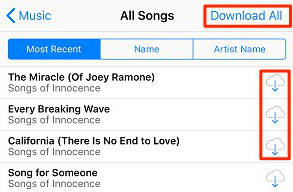
Step 4. Choose "All Songs" and tap the download icon next to each song to download your wanted songs, or you can also tap "Download All" to save all songs to your iPad.
Option 3. Using Email
If you only have a few songs to transfer, emailing them is a good option as it doesn't require a computer or iTunes. You can simply log into your email account on both devices and transfer the songs.
Step 1. Open the Mail app on your iPhone.
Step 2. To start composing an email, tap the "Compose" button.
Step 3. Enter the email address that you log on to your iPad.
Step 4. Click the "Add Attachment" button and tap the "Send" button.
Step 5. To download a song to your iPad, go to the App Store, search for the song, and tap the "Get" button. If you've already purchased the song, you won't be charged again.
Option 4. Using AirDrop
AirDrop allows wireless transfer of music between two iOS devices, including photos, but it's limited to one file at a time. For bulk transfers, consider using Qiling MobiMover.
Step 1. Turn on AirDrop, Wi-Fi connections Bluetooth on both iOS devices.
Step 2. To transfer a song from an iPhone to another device, open the Music App on the iPhone and select the song you want to transfer by tapping on it.
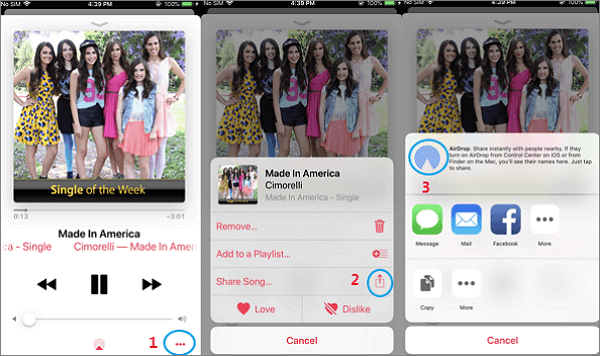
Step 3. To share music from your iPhone to your iPad using AirDrop, tap the "More" button in the bottom right corner, then tap on the "Share" icon, and select "AirDrop" to send music to your iPad.
Step 4. To receive the song, select "Accept" on the prompt window on your iPad. If you have multiple songs to transfer, repeat the process of selecting the song, accepting the prompt, and moving it to your iPad again.
The Bottom Line
There are various tools available for transferring data between an iPhone and iPad, and whichever method you choose, it should be possible to successfully transfer your desired music to the iPad. If you have any questions or need help with this process, feel free to ask.
Related Articles
- How to Transfer Contacts to New iPhone Without iCloud
- How to Transfer Videos from PC to iPhone in 4 Ways
- How To Convert HEIC To JPG on PC [Solved]
- How to Download Free Music on iPhone 6/6 Plus
Products
Articles & Tutorials
- Data Recovery
- Data Backup
- File Recovery
- File Backup
- System Backup and Restore
- Disk and Partition Clone
- Technical articles
- Mobile articles
- Disk Master Help
- Windows Data Recovery Tutorials
- Windows Secure Delete Tutorials
- Windows Partition Management Tutorials
- Windows File Backup and Restore Tutorials
- Windows System Backup and Restore Tutorials
- Windows Disk Backup and Restore Tutorials
- Windows Clone Tutorials