4 Tips | How to Transfer Music from iPhone to iPhone With/Without iTunes
Switching to a new iPhone or wanting to share music with someone often requires transferring music from one device to another. This is a common scenario for many users who enjoy listening to music daily on their iPhones, making it essential to transfer music from the old iPhone to the new one. Sharing music between iPhones also involves sending music from one device to another, making it a convenient feature to have.
Transferring songs from one iPhone to another can be done through various methods. While iTunes is a common choice, it may not be the most suitable option for sharing music. Instead, users can choose from multiple ways to transfer music from one iPhone to another, including using iTunes, but also considering other methods that may be more optimal for sharing music on the iPhone.
Method 1. How to Transfer Music from iPhone to iPhone Without iTunes
With Qiling MobiMover, a user-friendly iPhone transfer software, you can easily transfer music from one iPhone to another without using iTunes. Additionally, the software allows you to transfer music from your iPhone to a Mac or PC, or add music to your iPhone or iPad from a computer. It also supports the transfer of other types of content, such as photos, videos, contacts, and books.
To transfer music from iPhone to iPhone:
Step 1. Connect your old and new iPhone to a computer, then run Qiling MobiMover. Tap "Trust" on both phones and allow Qiling MobiMover to access your devices.
Step 2. To send a specific music file from the source iPhone, go to the "Audio" section and select "Music" to enable sending music files, allowing you to share specific songs rather than the entire music library.
Step 3. To transfer music from your old iPhone to the new one, click "Transfer" to start the process. Once it's complete, open the Music app on your new iPhone to view the transferred content.
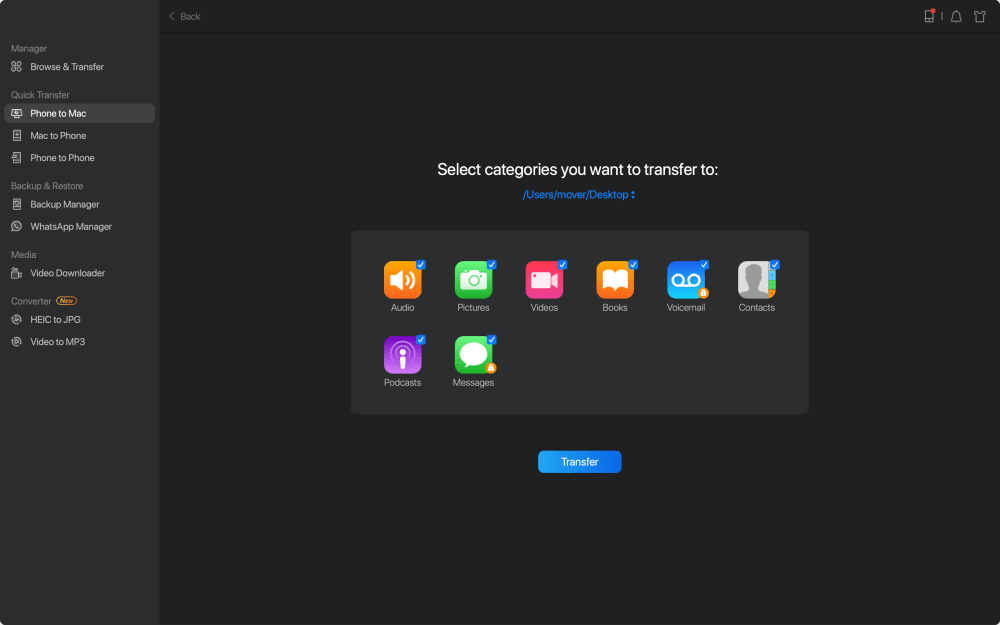
Qiling MobiMover allows transferring both purchased and downloaded songs from an iPhone, and doesn't require using the same Apple ID on devices, enabling music sharing between iPhones regardless of ownership.
The video and audio downloader feature in Qiling MobiMover allows you to download videos or audio from websites to your computer or iPhone/iPad for free.
Method 2. How to Transfer Songs from iPhone to iPhone via the iTunes Store
The iTunes Store method of transferring music from iPhone to iPhone is limited because it requires the same Apple ID to be signed in on both devices, and the songs to be transferred must have been purchased from the iTunes Store.
If you want to copy songs bought from the iTunes Store, you can easily transfer music from iPhone to iPhone using a tip that allows you to copy purchased songs directly from one iPhone to another. This method is the most convenient way to transfer music from one iPhone to another.
To share music from one iPhone to another via the iTunes Store, follow these steps: Open the Settings app on both iPhones. Tap on your Apple ID at the top of the screen, then tap on "Sign Out" on both devices.
Step 1. To transfer songs from one iPhone to another, go to the Settings app on the iPhone you want to transfer songs to and tap "Sign in to your [device]".
Step 2. Enter the Apple ID and password you used to purchase the songs on the source iPhone.
Step 3. Go to the iTunes Store and click "More" > "Purchased".
Step 4. Select "Music" and switch to the "Not on This iPhone" tab.
Step 5. To save all songs from a playlist to your iPhone, select the "All Songs" option and then tap the "Download All" button.
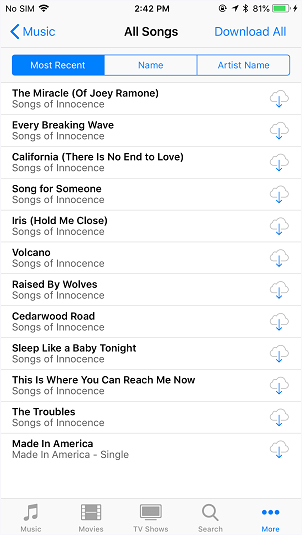
You can transfer music from one iPhone to another wirelessly using the same Apple ID on both devices, but not if they belong to different users.
Part 3. How to Share Music on iPhones with Home Sharing
Home Sharing doesn't really "transfer" music from one iOS device to another, it streams music from one iPhone to another, with the files still stored on the source iPhone. If you prefer to transfer songs to another iPhone, using Qiling MobiMover is a better option.
To import music from one iPhone to another using Home Sharing, both devices must be connected to the same Wi-Fi network and signed in with the same Apple ID.
To share music between two iPhones:
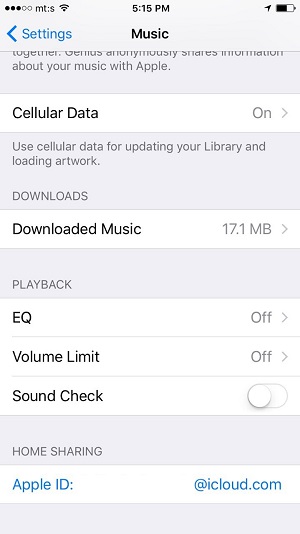
Step 1. Go to the iPhone's "Settings" app, then tap "Music".
Step 2. To enable home sharing, go to Settings, then scroll down to choose "Home Sharing" and sign in with your Apple ID.
Step 3. To sync music to an iPhone, start by connecting the iPhone to your computer using a USB cable. Then, open iTunes on your computer.
Step 4. On the target iPhone, go to the Music App, and if you don't use Apple Music, go to "More" > "Shared" to select the Library you want to enjoy. If you use Apple Music, choose "My Music" > "Songs/Albums" > "Home Sharing" to access shared content.
Part 4. How to Send Music from iPhone to iPhone via Apple Music
Apple Music subscribers can automatically sync their music library across all devices with the same Apple ID, eliminating the need for manual music transfer between iPhones.
To transfer music from iPhone to iPhone:
Step 1. Make sure you have subscribed to Apple Music on the source iPhone.
Step 2. To access Apple Music on your target iPhone, sign in to the device with the Apple ID you use to purchase the Apple Music subscription. This will allow you to access your purchased music, playlists, and other Apple Music features.
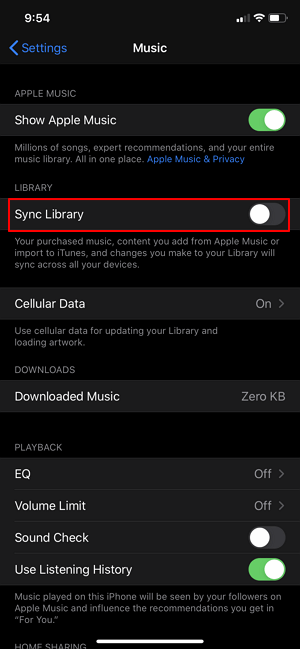
Step 3. To sync music libraries on two iPhones, turn on "iCloud Music Library" or "Sync Library" on both devices. Go to Settings on each iPhone, select Music, and toggle on the desired option.
Part 5. How to Transfer Music from iPhone to iPhone with iTunes
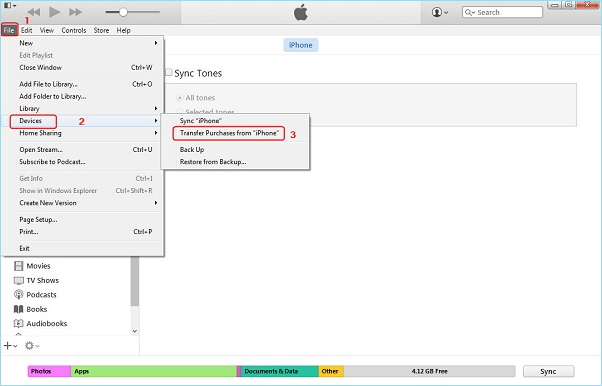
To transfer purchased music from one iPhone to another using iTunes, start by syncing the music from your source iPhone to your iTunes library. Once the music is synced, you can then transfer the synced music from iTunes to your target iPhone.
To transfer music from iPhone to iPhone via iTunes:
Step 1. Connect your source iPhone to your computer and launch iTunes.
Step 2. To transfer music from your iPhone to iTunes, go to iTunes, click on "File", then "Devices", and select "Transfer Purchases from [your iPhone name]". Once the transfer is complete, disconnect your iPhone.
Step 3. To connect your target iPhone to a computer and open iTunes, follow these steps: Connect the iPhone to the computer using a USB cable. Open iTunes on the computer.
Step 4. Select the music you'd like to transfer to your iPhone by clicking on the "Songs" tab and choosing the desired songs from the list.
Step 5. To add items to your iPhone, right-click and select "Add to Device", then click on your device name to send the items to your iPhone.
Part 6. Other Ways to Get Music on iPhone
You can add music on iPhone from another iPhone using the methods mentioned above, which include AirDrop, iCloud Music Library, Shared Library, iPhone-to-iPhone transfer, and using an iPhone app. These methods allow you to easily transfer music from one iPhone to another, enriching your iPhone music library.
Tip 1. How to Download Music to the iPhone Directly
To download music directly onto your iPhone or iPad without using other devices, you can purchase and download songs from Apple Music or the iTunes Store. For more information, see the article on how to download music to an iPhone.
Tip 2. How to Add Music to iPhone from Computer
You can transfer music from your computer to your iPhone, iPad, or iPod Touch, or download free music from music sites using an audio downloader. This allows you to put music from your computer onto your iDevice or access free music from SoundCloud and other music sites.
The Bottom Line
With the various methods available, getting music on an iPhone is a breeze. Whether you prefer to transfer music from one iPhone to another, download music directly to your iPhone, or transfer music from a computer to your iPhone, you have multiple options to choose from.
AirDrop won't send music files, it shares the link of the music, and Bluetooth won't share music between iPhones, making them unsuitable for sending songs between iDevices.
To copy music to your iPhone quickly, try one of the methods above.
Related Articles
- How to Fix iPhone/iPad Calendar Not Syncing
- How to Print Text Messages from iPhone for Free
- How to Download Music from Computer to iPhone 13/12/11
- Four Options: How to Recover Lost Data from Hard Disk for Free
Have been confused about how to recover lost data from hard disk? We'll give you four options to retrieve your last data back in this post.
Products
Articles & Tutorials
- Data Recovery
- Data Backup
- File Recovery
- File Backup
- System Backup and Restore
- Disk and Partition Clone
- Technical articles
- Mobile articles
- Disk Master Help
- Windows Data Recovery Tutorials
- Windows Secure Delete Tutorials
- Windows Partition Management Tutorials
- Windows File Backup and Restore Tutorials
- Windows System Backup and Restore Tutorials
- Windows Disk Backup and Restore Tutorials
- Windows Clone Tutorials